
Introduction
This manual provides essential instructions for setting up, operating, maintaining, and troubleshooting your Brother DCP-T236 Ink Tank Printer. Please read this manual thoroughly before using the printer to ensure correct operation and to prevent damage.
Safety Information
- Always place the printer on a flat, stable surface.
- Do not block ventilation openings.
- Use only the power cord supplied with the printer.
- Keep ink bottles out of reach of children.
- Avoid touching the print head.
Package Contents
Verify that all items are included in the box:
- Brother DCP-T236 Printer Unit
- Power Cable
- USB Cable
- Installation CD
- Original Ink Bottles: BTD100BK (Black), BTD100C (Cyan), BTD100M (Magenta), BTD100Y (Yellow)
Setup
1. Initial Ink Filling
Carefully fill the ink tanks with the corresponding colored ink bottles. Ensure each bottle is fully emptied into its designated tank.
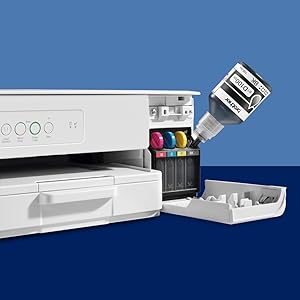
Image: Ink bottles being filled into the printer's ink tanks. Each color (Black, Cyan, Magenta, Yellow) has a dedicated tank.
The Black ink bottle (BTD100BK) yields approximately 7500 pages, while Cyan (BTD100C), Magenta (BTD100M), and Yellow (BTD100Y) each yield approximately 5000 pages.
2. Loading Paper
Open the paper tray and load up to 150 sheets of paper. Adjust the paper guides to fit the paper size. The printer supports various paper sizes including A4, Letter, Legal, and photo paper.
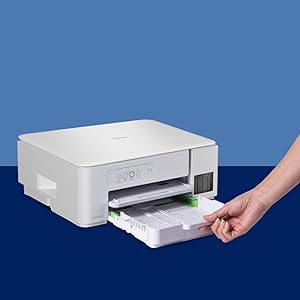
Image: A hand loading paper into the 150-sheet capacity paper tray of the Brother DCP-T236 printer.
3. Software Installation
Connect the printer to your computer using the provided USB cable. Insert the Installation CD into your computer's CD-ROM drive and follow the on-screen instructions to install the printer drivers and software. Drivers are compatible with Windows, Linux, and Chrome OS.
Operating the Printer
Printing Documents
To print, select the Brother DCP-T236 from your application's print dialog. You can achieve print speeds of up to 27 pages per minute (ppm) for monochrome documents and 11 ppm for color documents. The printer supports borderless printing for photos and other documents.
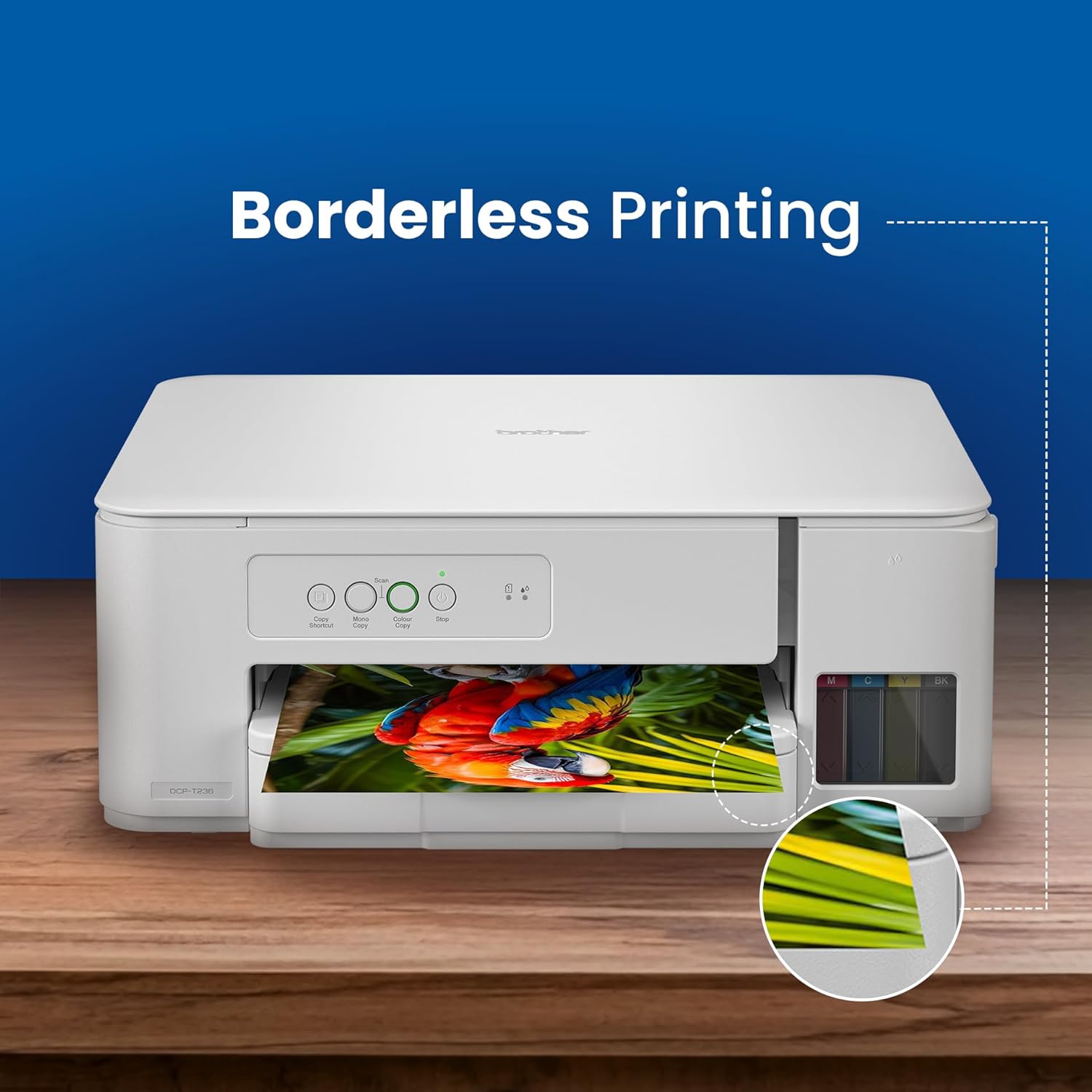
Image: The Brother DCP-T236 printer performing borderless printing, showing a printed image without white margins.
Scanning Documents
Place your document face down on the flatbed scanner glass. Use the installed Brother software on your computer to initiate a scan. The scanner offers an optical resolution of up to 1200 x 2400 dpi.
Copying Documents
Place the document on the scanner glass. Use the control panel buttons on the printer to select copy options (e.g., number of copies, color/mono). The printer features a copy shortcut button for quick access to common copy functions like 2-in-1 or ID copy.
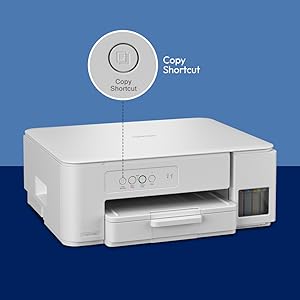
Image: Close-up of the Brother DCP-T236 printer's control panel, indicating the copy shortcut button for quick copying.
Maintenance
Ink Refill
Monitor ink levels regularly. When an ink tank is low, purchase genuine Brother BTD100 series ink bottles. Follow the initial ink filling procedure to refill the tanks. Ensure the correct color ink is added to its corresponding tank.
Cleaning
Periodically clean the exterior of the printer with a soft, lint-free cloth. For print quality issues, refer to the troubleshooting section or the printer's internal cleaning functions accessible via the software.
Troubleshooting
This section addresses common issues you might encounter with your Brother DCP-T236 printer.
- Printer Not Responding: Check power connections and USB cable connection. Ensure the printer is turned on.
- Poor Print Quality: Verify ink levels. Perform a print head cleaning and alignment through the printer software. Use genuine Brother ink.
- Paper Jams: Carefully remove any jammed paper from the paper tray or inside the printer. Refer to the printer's display for specific jam locations.
- Scanner Not Working: Ensure the printer is properly connected and drivers are installed. Restart both the printer and computer.
For more detailed troubleshooting, consult the full software manual or Brother's online support resources.
Specifications
| Feature | Detail |
|---|---|
| Model Name | DCP-T236 |
| Functions | Print, Scan, Copy |
| Connectivity | USB 2.0 |
| Printing Technology | Inkjet |
| Print Speed (Monochrome) | Up to 27 ppm |
| Print Speed (Color) | Up to 11 ppm |
| Print Resolution | Up to 1200 x 6000 dpi |
| Scanner Type | Flatbed |
| Scan Resolution (Optical) | Up to 1200 x 2400 dpi |
| Paper Input Capacity | 150 sheets |
| Supported Paper Sizes | A4, Letter, Legal, Photo, Envelopes, etc. |
| Ink Bottle Model | BTD100BK, BTD100C, BTD100M, BTD100Y |
| Dimensions (D x W x H) | 34.3D x 39W x 14.9H Centimeters |
| Weight | 5.9 Kilograms |
| Power Consumption | 13 Watts |
| Operating System Compatibility | Windows, Linux, Chrome OS |
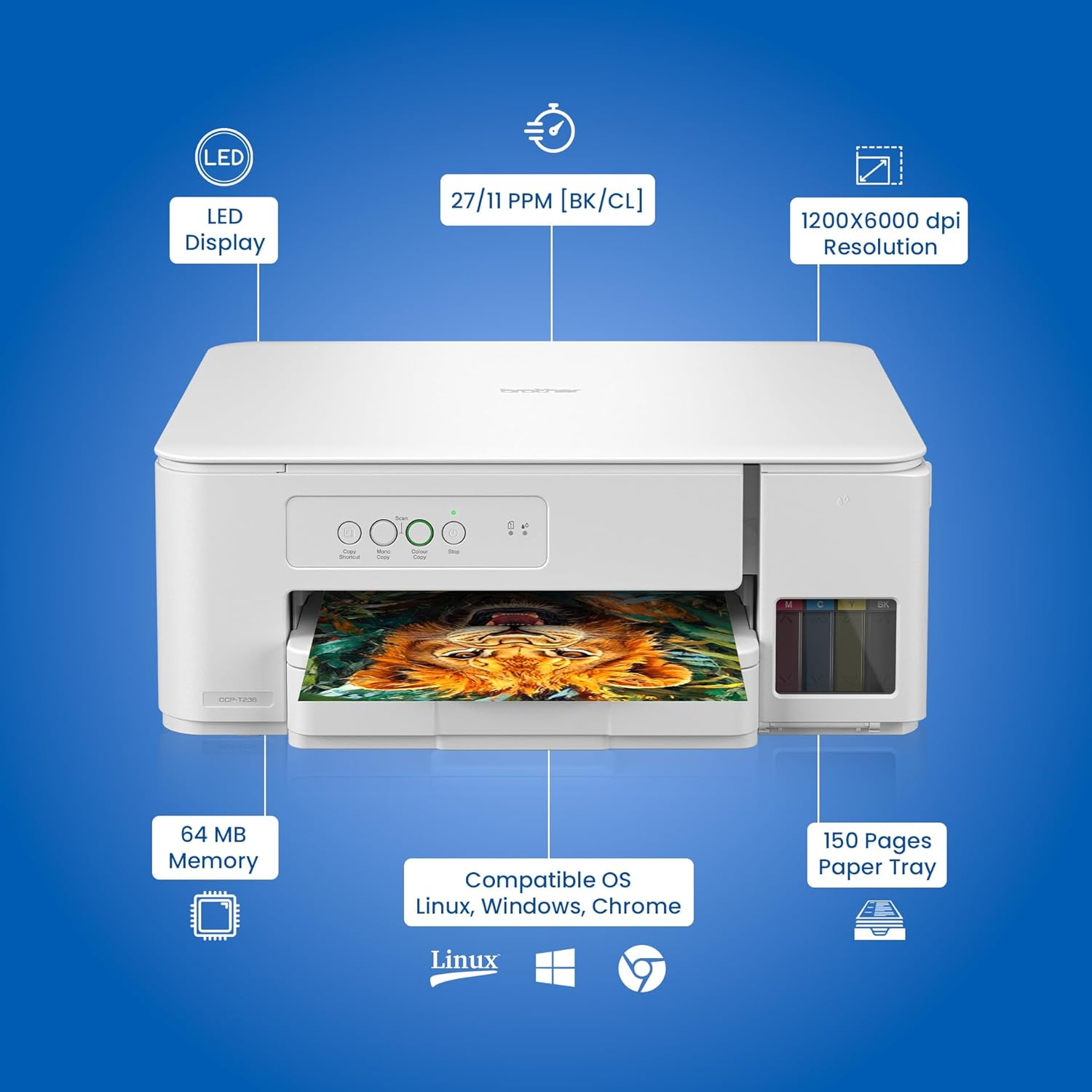
Image: Overview of the Brother DCP-T236 printer highlighting its technical specifications and features.

Image: The compact and lightweight design of the Brother DCP-T236 printer, showing its dimensions and weight.
Warranty Information
Your Brother DCP-T236 printer comes with a 1 Year Standard Manufacturer Warranty. Please retain your purchase receipt for warranty claims. For detailed terms and conditions, refer to the warranty card included in your package or visit the official Brother website.
Customer Support
For any product-related information, technical assistance, or service requests, please contact Brother customer support:
- Toll-Free Numbers:
- 1-800-222-422 (For MTNL and BSNL users)
- 1-800-209-8904 (For others and all mobiles)
- Operating Hours: Monday to Friday: 8:30 AM - 6:30 PM, Saturday: 9:00 AM - 6:00 PM
- Email Support: customercare@brother.in
- Official Website: www.brother.in
Image: Brother's customer support details for product inquiries and assistance.


