
1. Introduction
This user manual provides comprehensive instructions for the Crelander 10.1 Inch Android 15 Tablet, Model W30 PRO. It covers initial setup, operational guidelines, maintenance tips, and troubleshooting solutions to ensure optimal performance and longevity of your device. Please read this manual thoroughly before using your tablet.
2. Package Contents
Upon unboxing, please verify that all the following items are included in your package:
- Crelander 10.1 Inch Android 15 Tablet (W30 PRO)
- Protective Case
- Bluetooth Keyboard
- Wireless Mouse
- Stylus Pen
- Power Adapter
- USB Charging Cable
- USB-C to USB-A Adapter (OTG Cable)
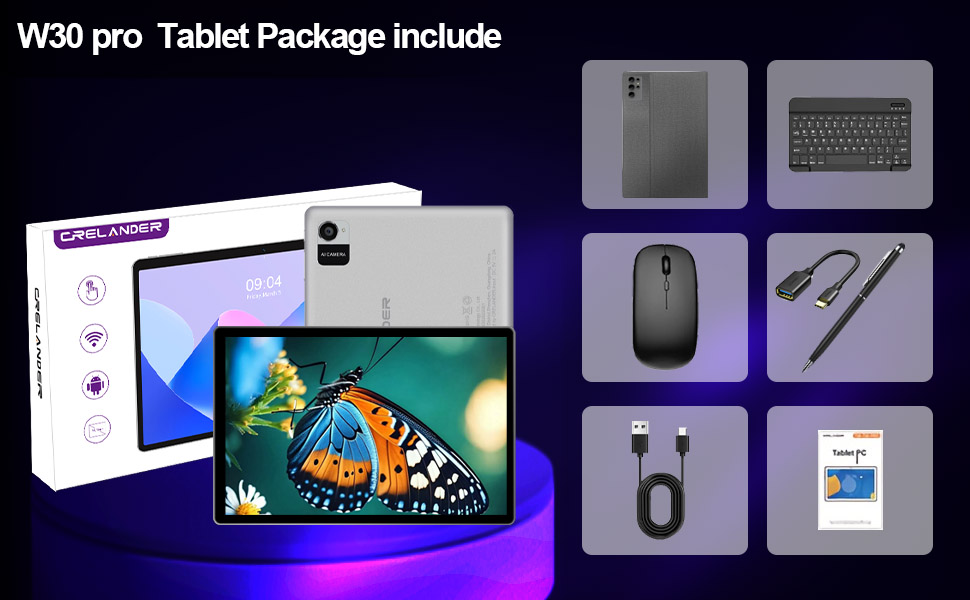
Figure 2.1: All items included in the Crelander W30 PRO Tablet package.
3. Product Overview
3.1 Crelander W30 PRO Tablet
The Crelander W30 PRO is a 10.1-inch Android 15 tablet designed for versatile use, from entertainment to productivity. It features a high-definition IPS touchscreen and a powerful octa-core processor.

Figure 3.1: Crelander W30 PRO Tablet and accessories.
- Display: 10.1-inch 1280x800 IPS HD touchscreen for vibrant colors and sharp visuals.
- Operating System: Latest Android 15 for a smooth user experience.
- Performance: Octa-core T310 processor with 12GB RAM (4GB physical + 8GB expandable virtual RAM) and 128GB internal storage.
- Connectivity: Supports Bluetooth and 2.4G+5G WiFi.
- Battery: 5000mAh battery for extended usage.
- Cameras: 13MP Rear Camera and 5MP Front Camera.
- Multimedia: Widevine L1 support for HD streaming.
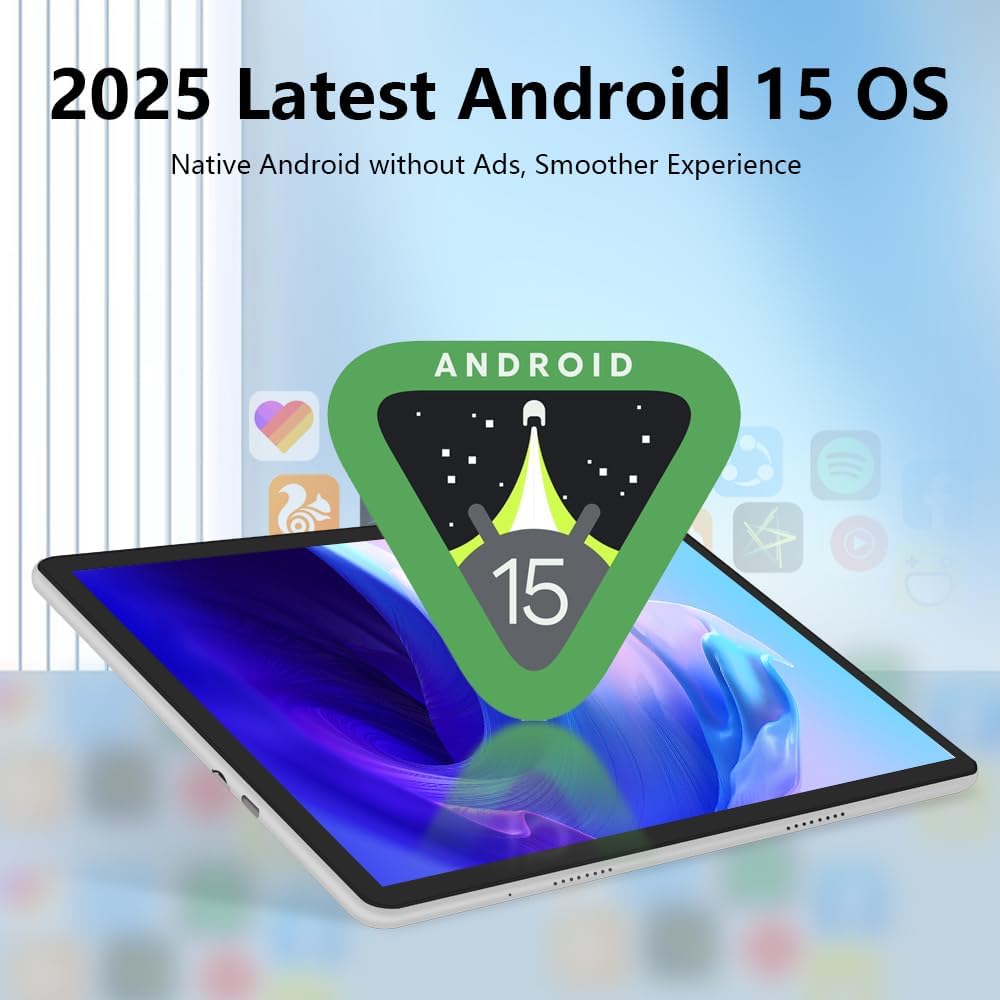
Figure 3.2: The tablet runs on the latest Android 15 operating system.

Figure 3.3: The 10.1-inch IPS HD touchscreen provides clear visuals.

Figure 3.4: The tablet is powered by a powerful Octa-Core T310 Processor.

Figure 3.5: The tablet offers 128GB of internal storage and up to 12GB of expandable memory.

Figure 3.6: The tablet is equipped with a 13MP rear camera and a 5MP front camera.
3.2 Protective Case
The included protective case safeguards your tablet from scratches and minor impacts. It also functions as a stand, allowing for comfortable viewing angles.
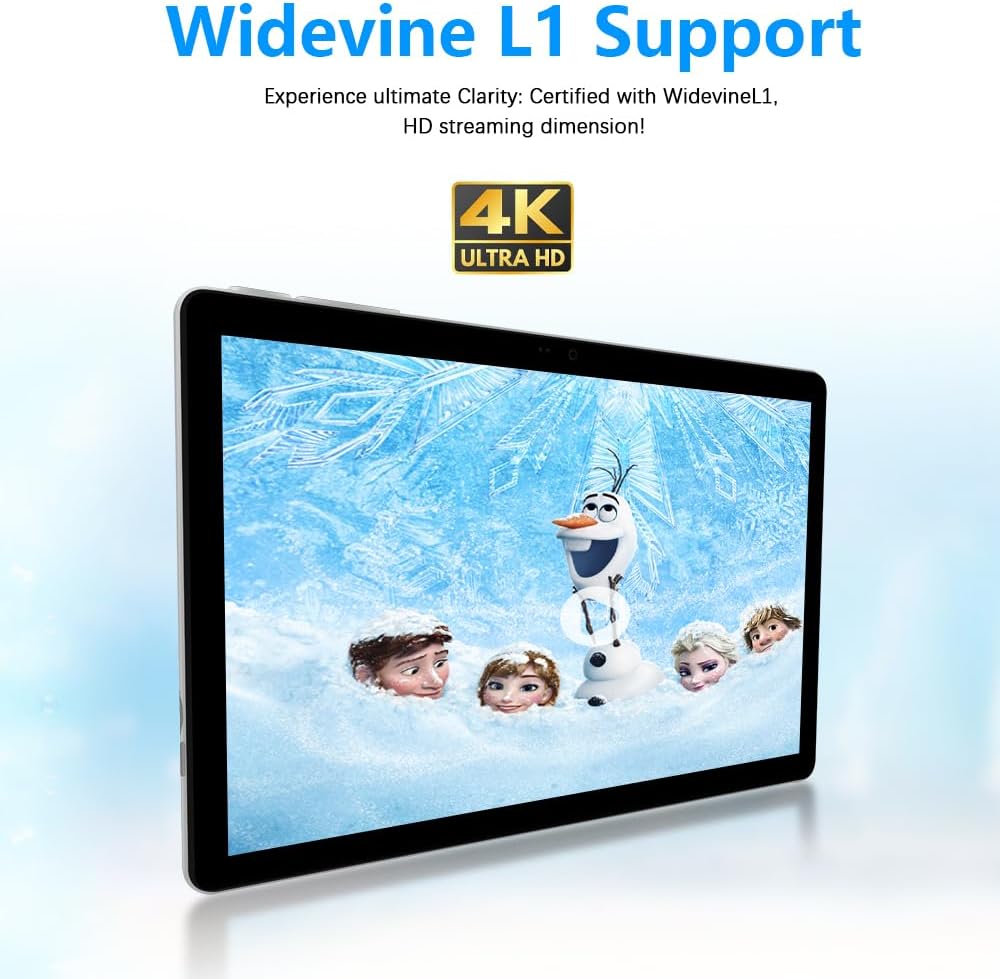
Figure 3.7: The tablet supports Widevine L1 for high-definition streaming.
3.3 Bluetooth Keyboard and Mouse
The wireless Bluetooth keyboard and mouse provide a desktop-like experience, enhancing productivity for typing and navigation.
3.4 Stylus Pen
The stylus pen offers precise input for drawing, note-taking, and navigating the touchscreen.
4. Setup
4.1 Initial Charge
Before first use, fully charge your tablet using the provided power adapter and USB charging cable. A full charge typically takes several hours.
- Connect the USB charging cable to the tablet's charging port.
- Plug the power adapter into a wall outlet.
- The charging indicator on the tablet will illuminate.
4.2 Power On/Off
- To Power On: Press and hold the Power button on the side of the tablet until the screen lights up.
- To Power Off: Press and hold the Power button, then select "Power off" from the options that appear on the screen.
- To Restart: Press and hold the Power button, then select "Restart" from the options.
4.3 Connecting Accessories
The tablet comes with a protective case, Bluetooth keyboard, and wireless mouse. Follow these steps to set them up:
- Attaching the Protective Case: Carefully insert the tablet into the protective case, ensuring all ports and buttons are accessible. The case can be folded to act as a stand.
- Pairing the Bluetooth Keyboard:
- Turn on the keyboard.
- On your tablet, go to Settings > Connected devices > Bluetooth.
- Enable Bluetooth and search for available devices.
- Select the keyboard from the list (it may appear as "Bluetooth Keyboard" or a similar name) and follow the on-screen pairing instructions.
- Pairing the Wireless Mouse:
- Ensure the mouse has batteries and is turned on.
- On your tablet, go to Settings > Connected devices > Bluetooth.
- Enable Bluetooth and search for available devices.
- Select the mouse from the list and follow the on-screen pairing instructions.
- Using the Stylus Pen: The stylus pen does not require pairing. Simply use it directly on the tablet screen for navigation or drawing.
Video 4.1: An overview of the Crelander W30 PRO Tablet and its accessories, demonstrating the unboxing and initial setup of the tablet with its case, keyboard, and mouse.
5. Operating Instructions
5.1 Basic Navigation
- Touch Gestures: Tap to select, swipe to scroll, pinch to zoom.
- Home Screen: Swipe left or right to access different home screens.
- Notification Panel: Swipe down from the top of the screen to access notifications and quick settings.
- App Drawer: Swipe up from the bottom of the screen to view all installed applications.
5.2 Wi-Fi Connectivity
To connect to a Wi-Fi network:
- Go to Settings > Network & internet > Internet.
- Toggle Wi-Fi to "On".
- Select your desired network from the list and enter the password if prompted.
5.3 Bluetooth Devices
To connect other Bluetooth devices (e.g., headphones, speakers):
- Ensure the Bluetooth device is in pairing mode.
- On your tablet, go to Settings > Connected devices > Pair new device.
- Select the device from the list and follow the on-screen instructions.
5.4 Camera Usage
To take photos or record videos:
- Open the Camera application.
- Tap the shutter button to take a photo or the record button to start/stop video recording.
- Switch between front and rear cameras using the camera switch icon.
5.5 Storage Management
To manage your tablet's storage:
- Go to Settings > Storage to view storage usage.
- You can clear cached data or uninstall apps to free up space.
- The tablet supports expandable memory; you may insert a microSD card (not included) for additional storage.
6. Maintenance
Proper maintenance ensures the longevity and optimal performance of your Crelander tablet.
- Cleaning: Use a soft, lint-free cloth to clean the screen and body. Avoid abrasive cleaners or solvents.
- Battery Care: Avoid extreme temperatures. Do not let the battery fully drain frequently. For long-term storage, charge the battery to about 50%.
- Software Updates: Regularly check for and install system updates to ensure your tablet has the latest features and security patches. Go to Settings > System > System update.
- Data Backup: Regularly back up important data to a cloud service or external storage device to prevent data loss.
7. Troubleshooting
If you encounter issues with your tablet, refer to the following common problems and solutions:
| Problem | Possible Cause / Solution |
|---|---|
| Tablet does not power on. | Battery may be depleted. Connect to charger and allow it to charge for at least 30 minutes before attempting to power on again. |
| Screen is unresponsive. | Restart the tablet by holding the Power button for 10-15 seconds until it reboots. Ensure the screen is clean and dry. |
| Cannot connect to Wi-Fi. | Ensure Wi-Fi is enabled in settings. Check if the router is working correctly. Try restarting both the tablet and the router. |
| Bluetooth accessories not pairing. | Ensure Bluetooth is enabled on the tablet and the accessory is in pairing mode. Move devices closer. Try unpairing and re-pairing. |
| Tablet is running slow. | Close unnecessary background applications. Clear cached data. Uninstall unused apps. Consider a factory reset if issues persist (backup data first). |
| Battery drains quickly. | Reduce screen brightness. Close background apps. Disable Wi-Fi/Bluetooth when not in use. Limit usage of power-intensive applications. |
8. Specifications
Detailed technical specifications for the Crelander W30 PRO Tablet:
| Feature | Detail |
|---|---|
| Brand | Crelander |
| Model Name | W30 PRO |
| Operating System | Android 15 |
| Screen Size | 10.1 Inches |
| Max Screen Resolution | 1280x800 Pixels (IPS HD Touchscreen) |
| Processor Brand | T310 (Octa-Core) |
| Flash Memory Size (RAM) | 12 GB (4GB physical + 8GB expandable virtual RAM) |
| Memory Storage Capacity (ROM) | 128 GB |
| Rear Camera | 13MP |
| Front Camera | 5MP |
| Battery Capacity | 5000mAh |
| Connectivity | Bluetooth, Wi-Fi (2.4G+5G) |
| Color | Gray |
| Item Weight | 2.86 pounds |
| Product Dimensions (LxWxH) | 10 x 0.3 x 7 inches |
9. Warranty and Support
Crelander provides dedicated after-sales support for any inquiries or issues you may encounter with your W30 PRO Tablet.
- For warranty information, please refer to the documentation included with your purchase or contact Crelander customer service.
- For technical support or assistance, please visit the official Crelander store on Amazon: Crelander Store.