
1. Product Overview
The Crelander W30PRO is a 10.1-inch Android 15 tablet designed for versatile use, featuring a high-definition IPS touchscreen, robust processing capabilities, and ample storage. This manual provides essential information for setting up, operating, maintaining, and troubleshooting your device.
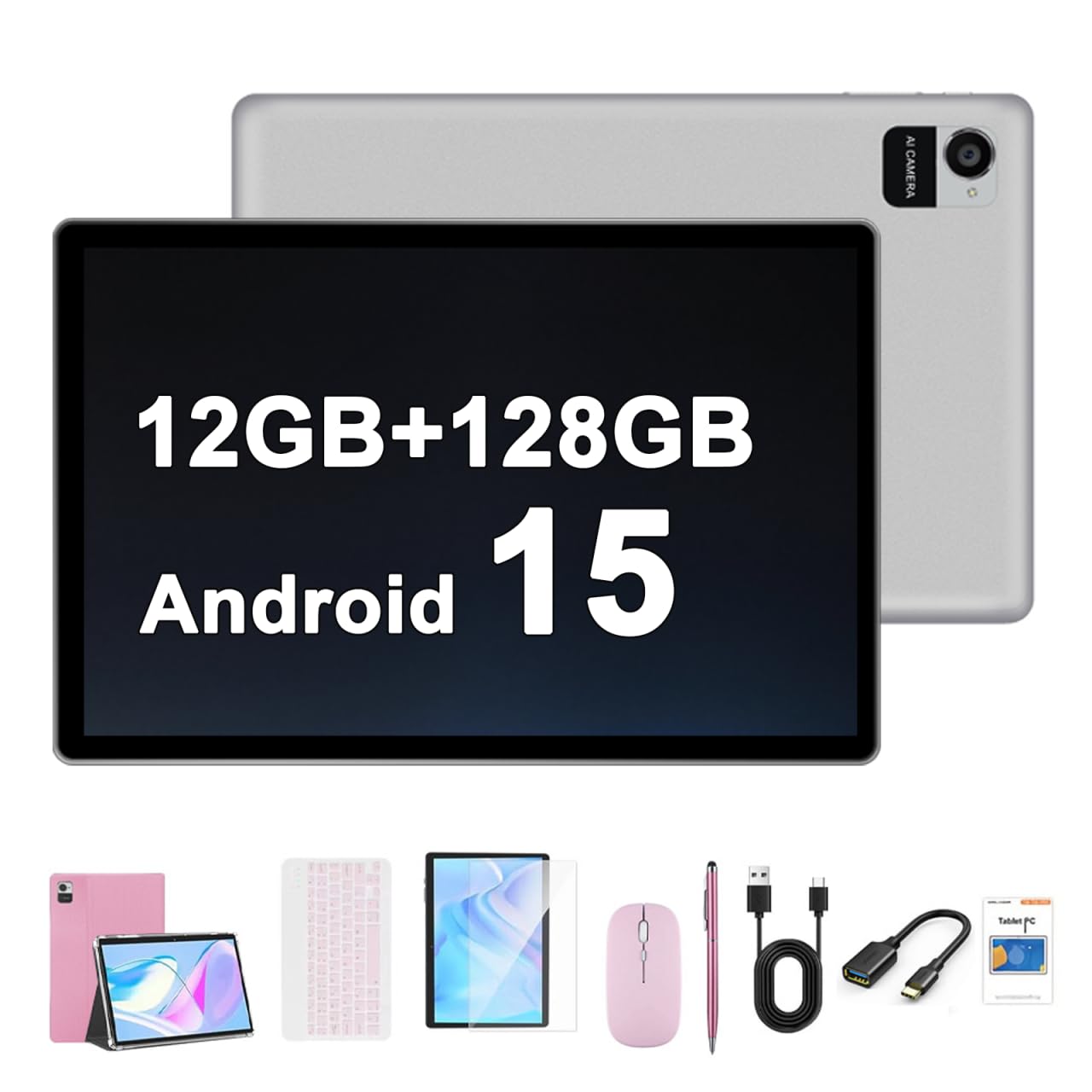
Image 1.1: Crelander 10.1 Inch Android 15 Tablet (Pink variant shown).
2. Package Contents
Verify that all items are present in the package:
- Crelander 10.1 Inch Android 15 Tablet
- Protective Case
- Keyboard
- Mouse
- Stylus
- USB Charging Cable (Power adapter not included)

Image 2.1: The tablet and its bundled accessories, including a protective case, keyboard, mouse, and stylus.
3. Setup
3.1 Initial Power On
- Press and hold the Power button located on the side of the tablet until the Crelander logo appears.
- Follow the on-screen prompts to select your language, connect to a Wi-Fi network, and set up your Google account.
3.2 Charging the Tablet
Connect the provided USB charging cable to the tablet's charging port and plug the other end into a compatible USB power adapter (not included). The battery indicator will show charging status.
3.3 Connecting Peripherals (Keyboard, Mouse, Stylus)
The tablet supports Bluetooth connectivity for the included keyboard, mouse, and stylus.
- Ensure the peripheral (keyboard or mouse) is powered on and in pairing mode. Refer to the peripheral's individual instructions for specific pairing steps.
- On your tablet, navigate to Settings > Connected devices > Bluetooth.
- Toggle Bluetooth On.
- Select the peripheral from the list of available devices to pair.
Video 3.1: Demonstration of the tablet's physical features and the pairing process for the keyboard and mouse.
4. Operating Instructions
4.1 Android 15 Operating System
The tablet runs on Android 15, offering a smooth and responsive user experience. Key features include enhanced privacy controls, personalized themes, and a triple-button navigation layout for simple and efficient operation.
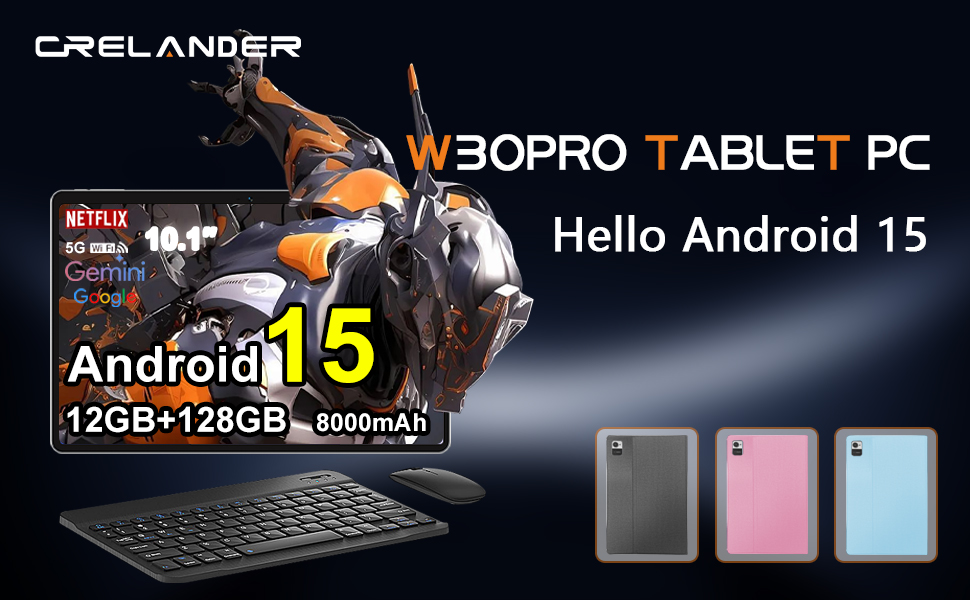
Image 4.1: The tablet displaying the Android 15 operating system interface.
4.2 Display and Visuals
The 10.1-inch IPS HD touchscreen features a 1280x800 resolution, providing clear and vibrant visuals for various applications, including streaming and web browsing.

Image 4.2: Close-up of the tablet's 10.1-inch IPS HD screen displaying a high-resolution image.
4.3 Storage and Performance
Equipped with 12GB RAM and 128GB ROM, the tablet offers efficient multitasking and ample space for applications and media. Storage can be expanded further if needed.

Image 4.3: Visual representation of the tablet's 12GB RAM and 128GB internal storage.
4.4 Camera Functionality
The tablet features a 13MP rear camera and a 5MP front camera, suitable for capturing photos and video calls.
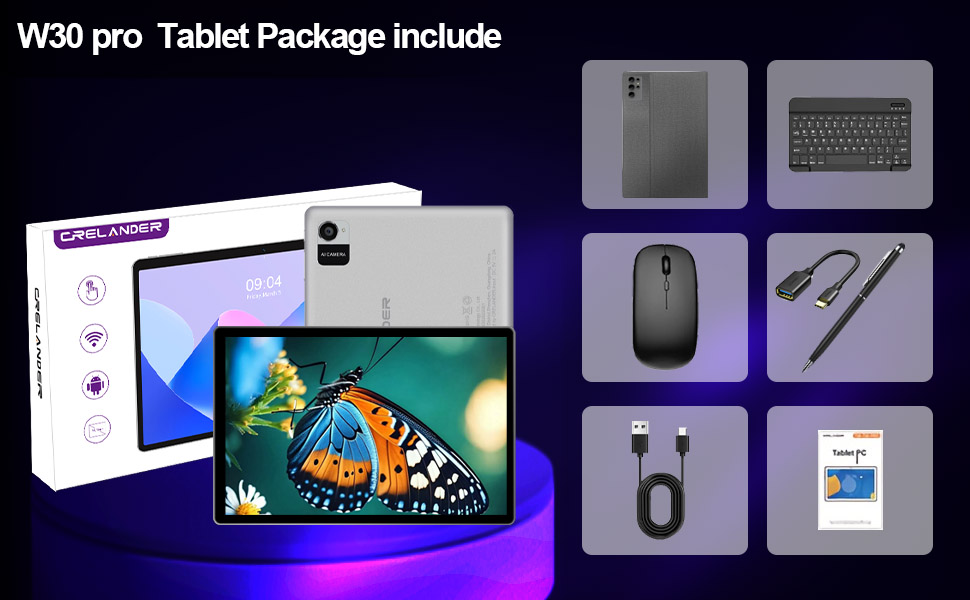
Image 4.4: Depiction of the tablet's rear and front camera specifications.
4.5 Multimedia and Connectivity
With Widevine L1 support, the tablet can stream high-definition content from various platforms. It also includes 5G Wi-Fi and Bluetooth for reliable wireless connections.
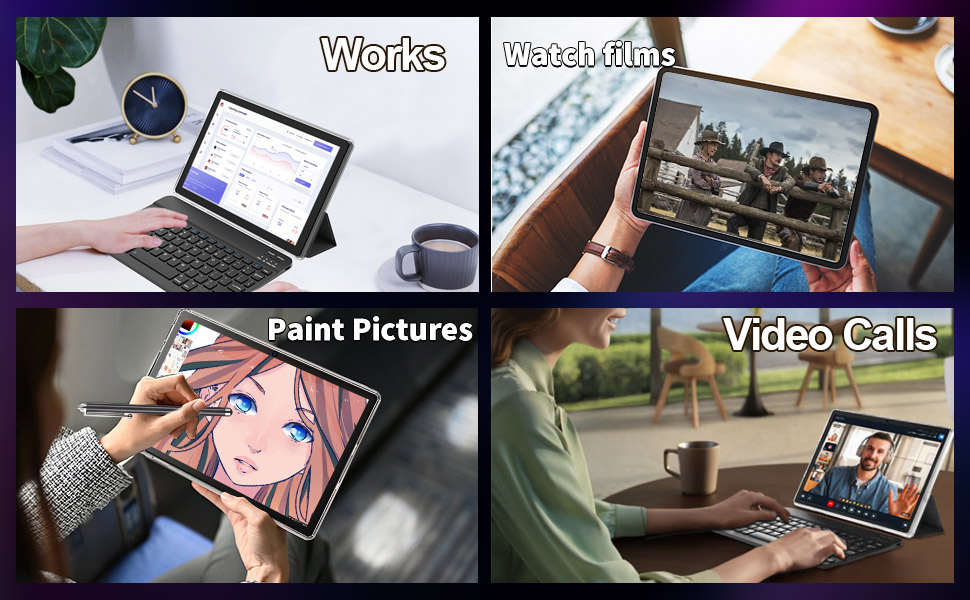
Image 4.5: The tablet screen showing a high-definition video, illustrating Widevine L1 support.
5. Maintenance
5.1 Cleaning Your Tablet
Use a soft, lint-free cloth to clean the screen and body of the tablet. Avoid using harsh chemicals or abrasive materials that could damage the surfaces.
5.2 Battery Care
The 8000mAh battery provides extended usage. To prolong battery life, avoid extreme temperatures and fully discharging the battery frequently. Charge the tablet using a compatible charger.
5.3 Software Updates
Regularly check for and install system updates to ensure optimal performance and security. Navigate to Settings > System > System update.
6. Troubleshooting
6.1 Device Not Powering On
- Ensure the battery is charged. Connect the tablet to a power source for at least 30 minutes.
- Press and hold the Power button for 10-15 seconds to perform a forced restart.
6.2 Wi-Fi Connectivity Issues
- Verify that Wi-Fi is enabled in Settings.
- Restart your Wi-Fi router and the tablet.
- Forget the network and reconnect.
6.3 Slow Performance
- Close unnecessary background applications.
- Clear cache for frequently used apps.
- Ensure sufficient storage space is available.
- Restart the tablet.
7. Specifications
| Feature | Specification |
|---|---|
| Brand | Crelander |
| Model Name | W30 PRO |
| Operating System | Android 15 |
| Screen Size | 10.1 Inches |
| Display Resolution | 1280x800 Pixels (IPS HD) |
| RAM Memory | 12 GB |
| Storage Capacity | 128 GB |
| Processor | T310 |
| Battery Capacity | 8000 mAh |
| Connectivity | 5G Wi-Fi, Bluetooth |
| Rear Camera | 13 MP |
| Front Camera | 5 MP |
| Human-Interface Input | Touchscreen |
| Item Dimensions (L x W x Thickness) | 10"L x 0.3"W x 7"Th |
8. Warranty and Support
8.1 Product Warranty
This Crelander tablet comes with a 3-month limited warranty. Please retain your proof of purchase for warranty claims.
8.2 Customer Support
For any inquiries or technical assistance, please contact Crelander customer support. Refer to the product packaging or the official Crelander website for contact details.