
Introduction
Welcome to the user manual for your new Crelander 10.1 Inch Android 15 Tablet, Model W30PRO. This guide provides essential information to help you set up, operate, maintain, and troubleshoot your device. Please read this manual thoroughly to ensure optimal performance and longevity of your tablet.
Package Contents
Upon opening your Crelander W30PRO tablet package, please verify that all items listed below are present:
- Crelander 10.1 Inch Android 15 Tablet
- Protective Case
- Wireless Keyboard
- Wireless Mouse
- Stylus Pen
- USB Charging Cable
- Power Adapter (may vary by region)
- User Manual (this document)
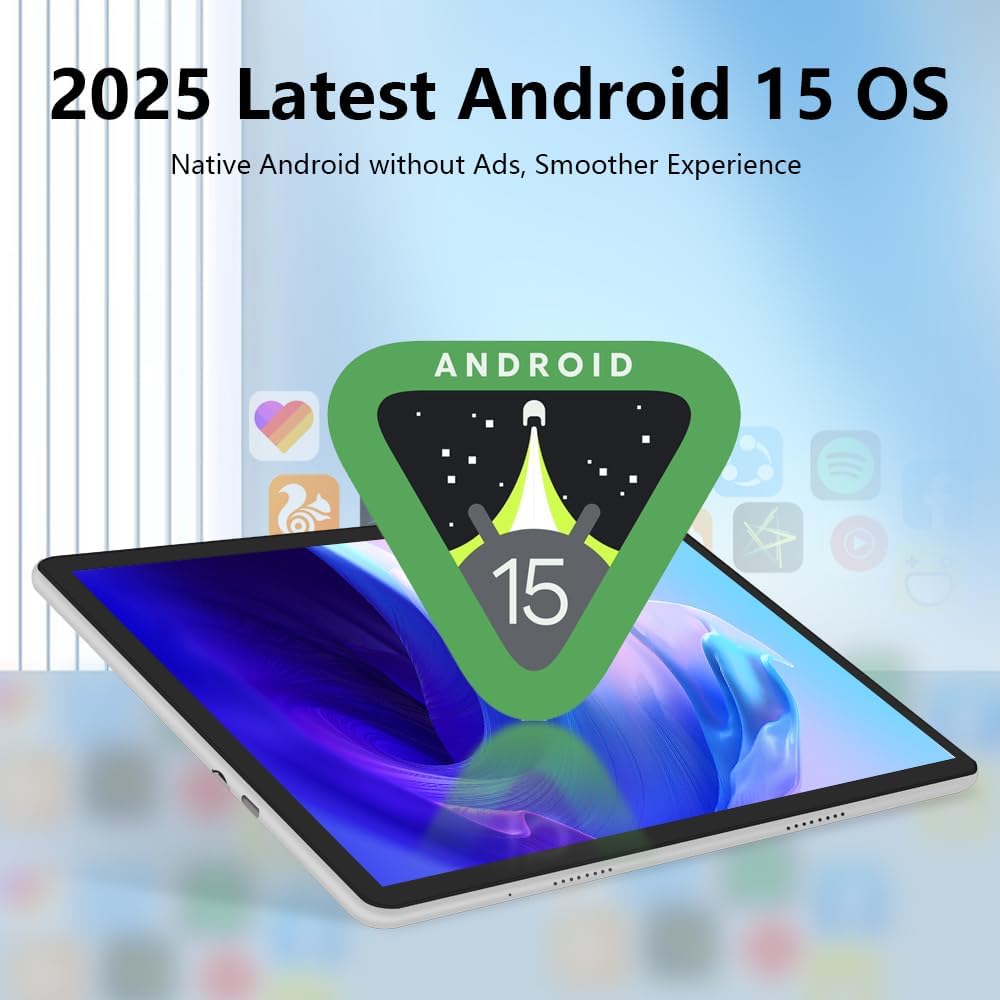
Image: Crelander W30PRO Tablet and included accessories.
Setup
1. Initial Charging
Before first use, fully charge your tablet.
- Connect the USB charging cable to the tablet's charging port.
- Connect the other end of the cable to the power adapter.
- Plug the power adapter into a wall outlet.
- The battery indicator on the screen will show charging status. Allow several hours for a full charge.
2. Powering On/Off
- To Power On: Press and hold the Power button (usually located on the side or top edge) until the Crelander logo appears on the screen.
- To Power Off: Press and hold the Power button until a power-off menu appears. Select "Power off" and confirm.
- To Restart: From the power-off menu, select "Restart".
3. Initial Setup Wizard
The first time you power on the tablet, you will be guided through an initial setup process.
- Select your preferred language.
- Connect to a Wi-Fi network. This is essential for downloading updates and setting up your Google account.
- Sign in with your Google account or create a new one. This allows access to the Google Play Store and other Google services.
- Follow the on-screen prompts to complete the setup, including setting up screen lock, date, and time.
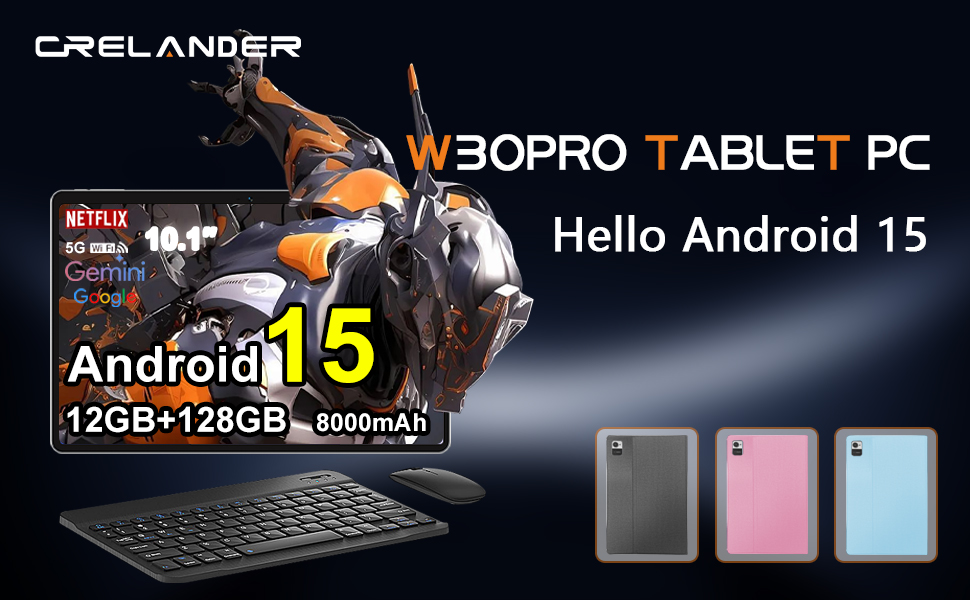
Image: Android 15 Operating System interface.
Operating the Tablet
1. Basic Navigation
- Touch: Tap an icon to open an app or select an item.
- Swipe: Drag your finger across the screen to scroll through pages or lists.
- Pinch-to-Zoom: Use two fingers to zoom in or out on images and web pages.
- Home Screen: Tap the Home button (usually a circle or square icon at the bottom of the screen) to return to the main screen.
- Back: Tap the Back button (usually a triangle icon) to go back to the previous screen.
- Recent Apps: Tap the Recent Apps button (usually a square or three lines icon) to view and switch between recently used applications.
2. Wi-Fi and Bluetooth Connectivity
- Wi-Fi: Go to Settings > Network & internet > Wi-Fi. Turn Wi-Fi on and select your desired network. Enter the password if prompted.
- Bluetooth: Go to Settings > Connected devices > Connection preferences > Bluetooth. Turn Bluetooth on and pair with compatible devices like headphones, speakers, or the included keyboard and mouse.
3. Using the Bundled Accessories
Your tablet comes with a protective case, wireless keyboard, wireless mouse, and stylus for enhanced productivity and interaction.
- Protective Case: Install the tablet into the case to protect it from scratches and minor impacts. The case often doubles as a stand.
- Wireless Keyboard & Mouse: These connect via Bluetooth. Ensure they are charged (if applicable) and in pairing mode, then connect them through the tablet's Bluetooth settings.
- Stylus Pen: Use the stylus for precise input, drawing, or navigating the screen. No pairing is typically required for basic capacitive styluses.
Video: Overview of the Crelander Android 15 Tablet and its accessories, demonstrating basic usage and features.
4. Camera Usage
The tablet features a 13MP rear camera and a 5MP front camera.
- Open the "Camera" app from your home screen or app drawer.
- Tap the shutter button to take a photo.
- Switch between front and rear cameras using the camera switch icon.
- Explore different modes like video recording or panorama if available.
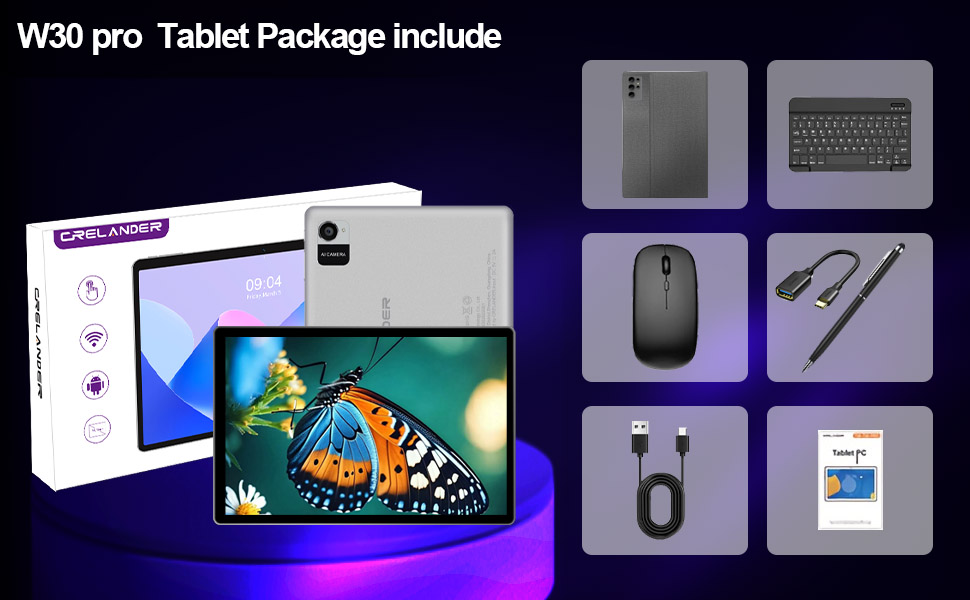
Image: Tablet camera features and capabilities.
Maintenance
1. Cleaning the Device
- Use a soft, lint-free cloth to clean the screen and body of the tablet.
- For stubborn smudges, slightly dampen the cloth with water or a screen cleaner specifically designed for electronics.
- Avoid using harsh chemicals, abrasive materials, or excessive moisture.
2. Battery Care
- Avoid extreme temperatures, as they can degrade battery life.
- Do not let the battery completely drain frequently.
- For long-term storage, charge the tablet to about 50% and power it off.
3. Software Updates
Regularly check for and install software updates to ensure your tablet has the latest features, security patches, and performance improvements.
- Go to Settings > System > System update.
- Follow the on-screen instructions to download and install any available updates. Ensure your tablet is sufficiently charged or connected to power during updates.
4. Storage Management
To maintain optimal performance, manage your tablet's storage.
- Go to Settings > Storage to see what is using space.
- Uninstall unused apps.
- Clear cache data for apps.
- Transfer large files (photos, videos) to cloud storage or an external device.
Troubleshooting
1. Tablet Not Turning On
- Ensure the tablet is fully charged. Connect it to the charger for at least 30 minutes.
- Try a forced restart: Press and hold the Power button for 10-15 seconds.
2. Wi-Fi Connectivity Issues
- Toggle Wi-Fi off and on in Settings.
- Restart your Wi-Fi router.
- Forget the network and reconnect: Go to Settings > Network & internet > Wi-Fi, tap the network, then "Forget". Reconnect.
3. Slow Performance
- Close unused apps running in the background.
- Clear app caches (Settings > Apps > [App Name] > Storage & cache > Clear cache).
- Free up storage space (see Storage Management section).
- Restart the tablet.
4. Accessories Not Connecting
- Ensure the accessory (keyboard, mouse) is charged and in pairing mode.
- Check Bluetooth settings on the tablet to ensure Bluetooth is enabled and the device is discoverable.
- Try unpairing and re-pairing the accessory.
5. Factory Reset (Last Resort)
If you encounter persistent issues, a factory reset can resolve many software-related problems. Warning: This will erase all data on your tablet. Back up important data before proceeding.
- Go to Settings > System > Reset options.
- Select "Erase all data (factory reset)".
- Confirm your decision and follow the prompts.
Specifications
Below are the key technical specifications for the Crelander 10.1 Inch Android 15 Tablet W30PRO:
| Feature | Specification |
|---|---|
| Brand | Crelander |
| Model Name | W30 PRO |
| Model Number | W30PRO |
| Operating System | Android 15 |
| Screen Size | 10.1 Inches |
| Display Resolution | 1280x800 Pixels (IPS HD) |
| RAM Memory | 12 GB |
| Storage Capacity | 128 GB |
| Processor Brand | T310 |
| Battery Capacity | 5000 mAh |
| Connectivity | 5G Wi-Fi, Bluetooth |
| Rear Camera | 13 MP |
| Front Camera | 5 MP |
| Included Accessories | Protective Case, Keyboard, Mouse, Stylus |

Image: High Definition IPS Display.
Warranty Information
The Crelander W30PRO tablet comes with a 3-month limited warranty. This warranty covers manufacturing defects under normal use. It does not cover damage caused by misuse, accidents, unauthorized modifications, or external causes. Please retain your proof of purchase for warranty claims.
For detailed warranty terms and conditions, please refer to the documentation included in your product packaging or contact Crelander customer support.
Customer Support
If you have any questions, concerns, or require technical assistance with your Crelander W30PRO tablet, please contact our customer support team.
- Online Support: Visit the official Crelander website or the seller's page on Amazon for FAQs and support resources.
- Email Support: Refer to your product packaging or warranty card for specific email contact information.
When contacting support, please have your tablet's model number (W30PRO) and purchase information readily available.

