
1. Introduction
The HUPEJOS V8 Ultra is a 5-channel dash camera system designed to provide comprehensive surveillance for your vehicle. It features a 360° view, AI Driver Monitoring System (DMS), and 24/7 parking monitoring capabilities when connected with the radar hardwire kit. This manual provides detailed instructions for the installation, operation, and maintenance of your dash cam.
What's in the Box
- Dash Cam Unit
- Rear Cabin Camera
- Hardwire Kit
- User Manual
2. Product Overview
The HUPEJOS V8 Ultra dash cam offers a multi-camera setup for extensive vehicle coverage. It integrates advanced features such as AI DMS for driver safety and various parking monitoring modes.
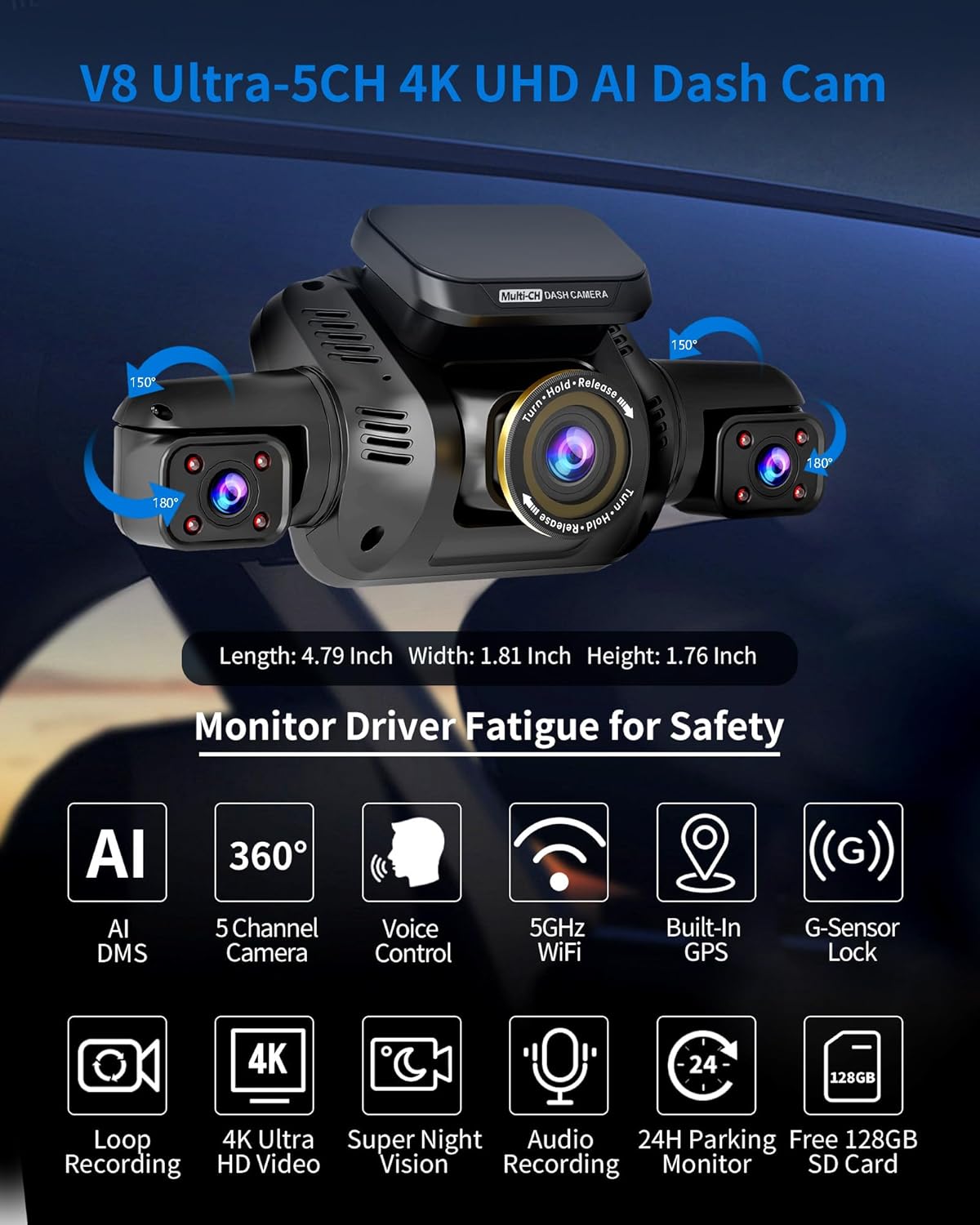
Image 2.1: HUPEJOS V8 Ultra Dash Cam main unit with dimensions and highlighted features including AI DMS, 5-channel camera, voice control, 5GHz Wi-Fi, built-in GPS, G-sensor lock, loop recording, 4K Ultra HD video, super night vision, audio recording, 24H parking monitor, and 128GB SD card support.
Key Features
- 5-Channel 360° View: Ultra-wide-angle 150° lenses for front, cab, rear cabin, and side views.
- AI Driver Monitoring System (DMS): Detects driver fatigue, distraction, yawning, absence, phone calls, and smoking.
- 24/7 Parking Monitoring: Continuous surveillance with time-delay recording and low power consumption.
- Built-In 5GHz Wi-Fi & GPS: Real-time video viewing via app and accurate location/speed tracking.
- G-Sensor: Automatic locking of important files during collisions.
- Loop Recording: Overwrites oldest videos when the SD card is full, except for locked files.

Image 2.2: The multi-usage rear cabin camera, demonstrating its ability to monitor occupants (baby, pets), luggage, and detect incidents like hit-and-runs or theft from side windows.
3. Setup and Installation
Proper installation is crucial for the optimal performance of your dash cam. Ensure the vehicle is turned off before beginning installation.
3.1 Main Dash Cam Unit Installation
- Choose a location on your windshield that does not obstruct the driver's view.
- Clean the windshield surface thoroughly before attaching the dash cam mount.
- Attach the dash cam to the mount and secure it to the windshield.
- Adjust the front camera lens to capture the road ahead.
3.2 Rear Cabin Camera Installation
- Connect the rear cabin camera to the main dash cam unit using the provided cable.
- Mount the rear cabin camera in a position that provides a clear view of the vehicle's interior, such as the rear seats or trunk area.
- Route the cable neatly to avoid interference with vehicle operation.
3.3 Hardwire Kit Connection (for 24/7 Parking Monitoring)
The included hardwire kit is necessary for enabling 24/7 parking monitoring features. Professional installation is recommended if you are unfamiliar with vehicle electrical systems.
- Connect the hardwire kit to your vehicle's fuse box according to the instructions provided with the kit.
- Ensure proper connection to both constant power and accessory power sources.
- Connect the hardwire kit's output cable to the main dash cam unit.
4. Operating Instructions
Familiarize yourself with the various functions and settings of your HUPEJOS V8 Ultra dash cam.
4.1 Power On/Off
- The dash cam will automatically power on and begin recording when the vehicle's ignition is turned on.
- It will power off automatically when the ignition is turned off, or switch to parking mode if the hardwire kit is installed.
4.2 Recording Modes
The V8 Ultra supports multiple recording configurations:

Image 4.1: Illustration of the 5-channel recording capabilities, showing resolution options for different camera configurations: 2K+1080Px4 (Left/Rear Cabin/Right/Rear), 3K+1080Px3 (Left/Right/Rear), and 4K+1080Px2 (Left/Right).
- 2K + 1080Px4: Front (2K), Left (1080P), Rear Cabin (1080P), Right (1080P), Rear (1080P).
- 3K + 1080Px3: Front (3K), Left (1080P), Right (1080P), Rear (1080P).
- 4K + 1080Px2: Front (4K), Left (1080P), Right (1080P).
4.3 AI Driver Monitoring System (DMS)
The DMS feature enhances driving safety by monitoring driver behavior. The system requires the camera to be facing the driver and the vehicle's hourly speed to reach a set value for activation.

Image 4.2: The AI Car Camera with Driver Monitoring System (DMS) in action, illustrating detection of eyes closing, yawning, distraction, driver absence, making phone calls, and smoking. It emphasizes that the camera must face the driver and the system activates at a set speed.
- Detection Functions: Eyes closing, yawning, distracted driving, driver absence, making phone calls, and smoking.
- Alerts: Provides alerts to the driver upon detection of unsafe behaviors.
4.4 24/7 Parking Monitoring
With the hardwire kit installed, the dash cam provides continuous parking surveillance.
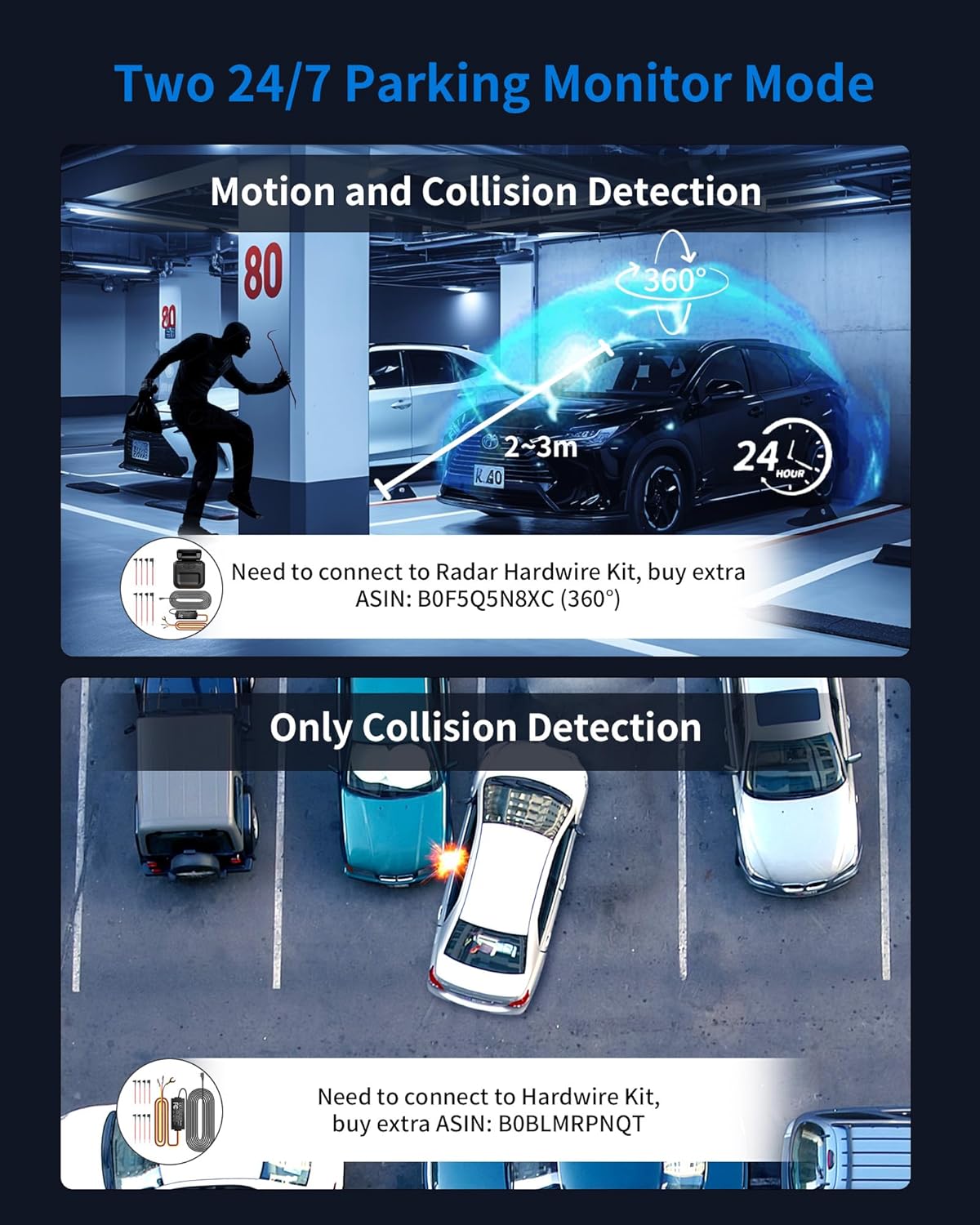
Image 4.3: Depicts two 24/7 parking monitor modes: Motion and Collision Detection (requiring a Radar Hardwire Kit, ASIN: B0F5Q5N8XC) and Collision Detection Only (requiring a standard Hardwire Kit, ASIN: B0BLMRPNQT).
- Motion and Collision Detection: Activated by motion within 2-3 meters and impacts. Requires connection to a Radar Hardwire Kit (ASIN: B0F5Q5N8XC).
- Collision Detection Only: Records upon detecting impacts. Requires connection to a standard Hardwire Kit (ASIN: B0BLMRPNQT).
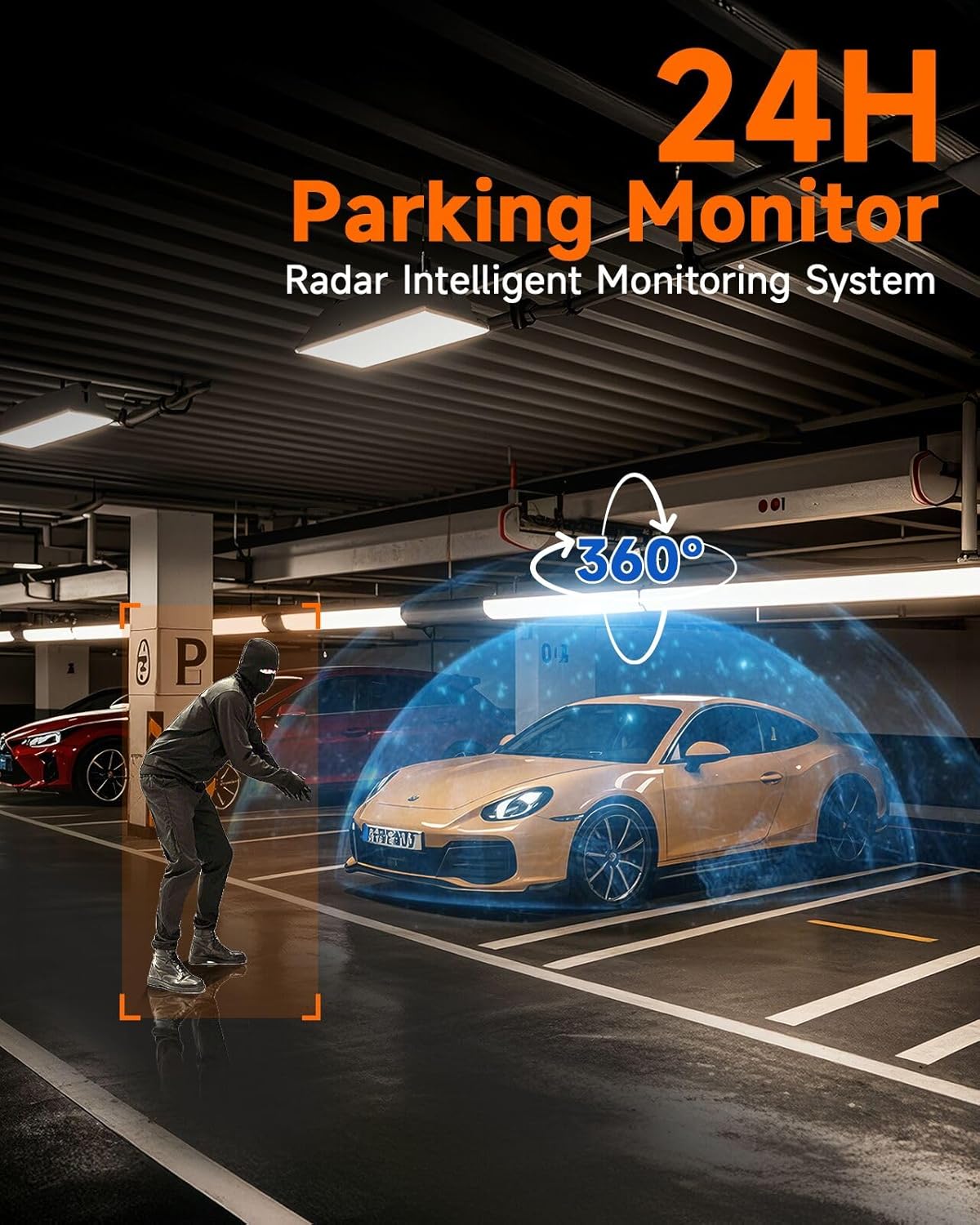
Image 4.4: The 24H Parking Monitor Radar Intelligent Monitoring System, showing a 360° radar detection zone around a parked car, capable of detecting approaching individuals.

Image 4.5: Explains Radar Microwave technology, highlighting its low power consumption (0.2W) and ability to activate the dash cam only when needed, saving SD card space.
4.5 Built-In Wi-Fi & GPS
- Wi-Fi: Connect your smartphone (iPhone or Android) to the dash cam via the dedicated app to view real-time videos, download recordings, and adjust settings.
- GPS: Records vehicle location, speed, and route. Data can be viewed on Google Maps using the GXPlayer software for Windows and Mac.
4.6 G-Sensor, Voice Control, and Loop Recording

Image 4.6: Details three key features: G-Sensor for automatic file locking during impacts, Voice Control for hands-free operation (e.g., "Turn on WiFi", "Take Photo", "Video Stop", "Video Start", "Turn On Screen", "Show Front Camera"), and Loop Recording, which overwrites the oldest videos every 3 minutes when the SD card is full, excluding locked files.
- G-Sensor: Automatically detects sudden shakes or collisions and locks the current video segment to prevent it from being overwritten.
- Voice Control: Operate the dash cam hands-free using voice commands such as "Turn on WiFi," "Take Photo," "Video Stop," "Video Start," "Turn On Screen," and "Show Front Camera."
- Loop Recording: Records video in continuous segments (e.g., 3-minute clips). When the memory card is full, the oldest unlocked files are automatically overwritten to make space for new recordings.
5. Maintenance
Regular maintenance ensures the longevity and optimal performance of your dash cam.
5.1 Cleaning the Device
- Use a soft, dry cloth to clean the dash cam unit and lenses.
- Do not use abrasive cleaners or solvents, as they may damage the device.
5.2 SD Card Management
- Format the SD card regularly (e.g., once a month) through the dash cam's settings to prevent data corruption and ensure smooth recording.
- Use a high-quality, high-speed (Class 10 or U3 recommended) microSD card from a reputable brand.
- Replace the SD card periodically, as continuous overwriting can reduce its lifespan.
6. Troubleshooting
If you encounter issues with your dash cam, refer to the following common solutions:
- Dash cam not powering on: Check the power connection. Ensure the cigarette lighter adapter or hardwire kit is properly installed and receiving power.
- Dash cam not recording: Ensure an SD card is inserted and formatted. Check if the SD card is full or corrupted.
- Poor video quality: Clean the camera lenses. Ensure the protective film has been removed. Adjust camera angles.
- Wi-Fi connection issues: Ensure Wi-Fi is enabled on the dash cam and your smartphone. Restart both devices.
- DMS not activating: Verify the camera is correctly positioned to face the driver. Ensure the vehicle speed meets the activation threshold.
- Parking monitor not working: Confirm the hardwire kit is correctly installed and connected to constant power. Check parking mode settings.
If the problem persists, contact HUPEJOS customer support for assistance.
7. Specifications
| Feature | Specification |
|---|---|
| Brand | HUPEJOS |
| Model Name | V8 Ultra |
| Vehicle Service Type | Car |
| Connectivity Technology | Wi-Fi |
| Special Features | 360 Degree, AI Dash Camera with DMS, 24/7 Parking Monitoring, Rear Cabin Monitoring |
| Video Capture Resolution | 2160p (4K) |
| Included Components | Dash Cam Unit, Hardwire Kit, Rear Cabin Camera, User Manual |
| Color | Black |
| Field Of View | 150 Degrees |
| Auto Part Position | Front, Rear |
| Compatible with Vehicle Type | Car |
| Batteries Included | No |
| Compatible Devices | Car, Truck, Motorcycle, Smartphone, PC |
| Frame Rate | 30 FPS |
| Real Angle of View | 150 Degrees |
| ASIN | B0FBLX5B3H |
8. Warranty and Support
For warranty information and technical support, please refer to the warranty card included in your product packaging or visit the official HUPEJOS website. If you have any questions or require assistance, please contact HUPEJOS customer service.