
1. Product Overview
This manual provides instructions for the setup, operation, and maintenance of your AILKIN 1200Mbps Dual-Band WiFi Repeater. This device is designed to extend your existing Wi-Fi network coverage, offering stable and fast internet access in areas with weak signals.

Image 1.1: Front view of the AILKIN WiFi Repeater, showing its four external antennas and LED indicators.
Key Features:
- Dual-Band Connectivity: Supports both 2.4GHz and 5GHz Wi-Fi bands for flexible and high-speed connections.
- High-Speed Performance: Up to 1200Mbps data transfer rate.
- Multiple Operating Modes: Functions as a Repeater or Access Point (AP).
- Ethernet Ports: Two Ethernet ports for wired device connections.
- Enhanced Coverage: Four external antennas provide improved signal penetration and extended range.
- Wide Compatibility: Compatible with Wi-Fi 4/5/6 standards and various routers/modems.
- Easy Setup: One-click WPS button setup or browser-based configuration.
- Security Protocols: Supports WEP/WPA/WPA2 for network security.
2. Package Contents
Please check the package for the following items:
- 1 x AILKIN 1200Mbps Dual-Band WiFi Repeater (Model Z04/BAI)
- 1 x Quick Installation Guide
3. Device Layout

Image 3.1: Detailed view of the repeater's components, highlighting the four high-gain antennas, WiFi signal LED indicators, anti-inadvertent reset button, and two Ethernet ports.
- Antennas: Four adjustable external antennas for optimal signal reception and transmission.
- LED Indicators: Display power status, Wi-Fi signal strength, and LAN activity.
- WPS/Reset Button: Used for quick setup (WPS) or factory reset.
- Ethernet Ports: Two ports for connecting wired devices or for AP mode configuration.
4. Setup Instructions
4.1. Optimal Placement
For best performance, place the repeater in a location between your router and the area where you need improved Wi-Fi coverage. Avoid obstructions like thick walls or large metal objects. Adjust the antennas for optimal signal reception.
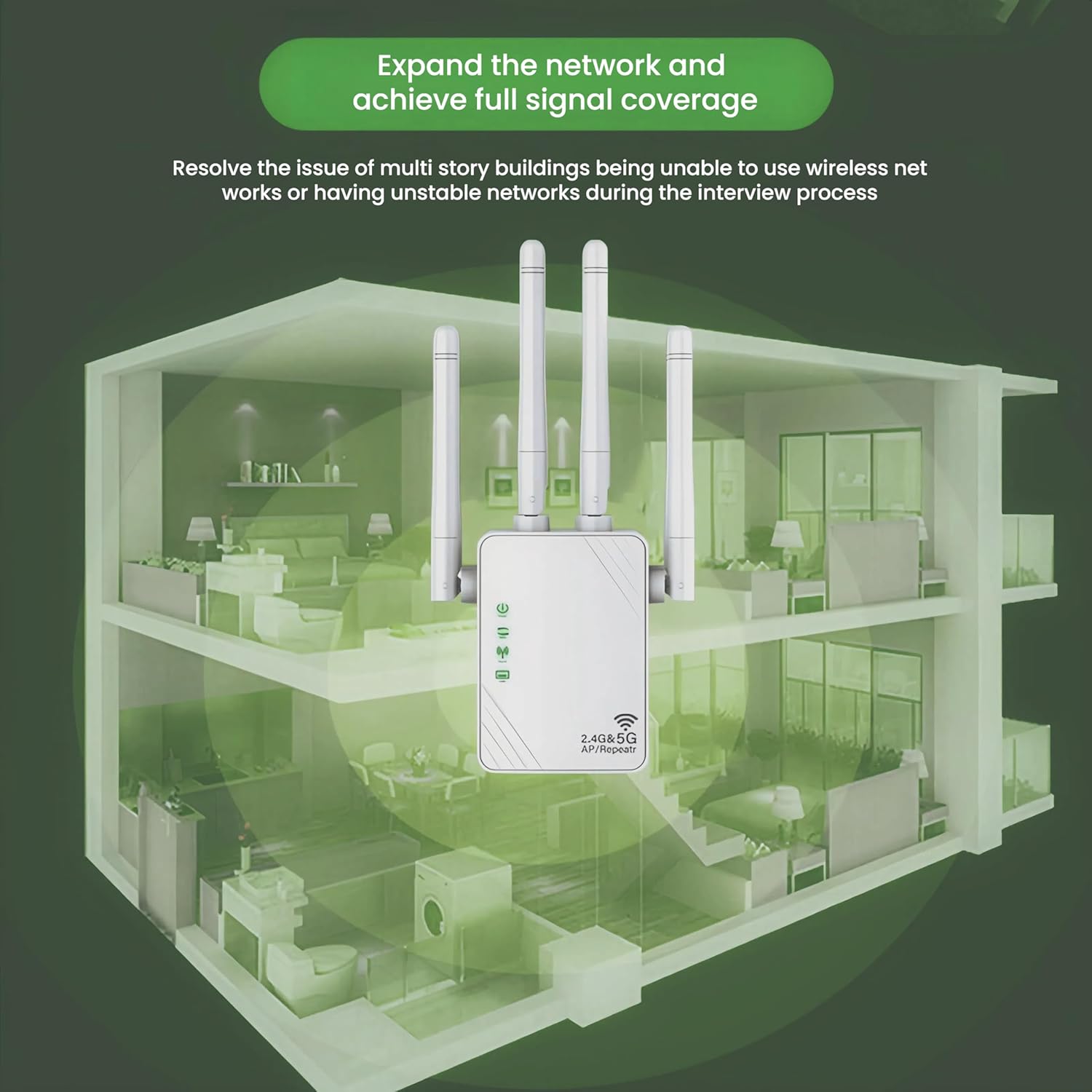
Image 4.1: Illustration of the repeater's ability to expand network coverage throughout a multi-story building.
4.2. WPS (Wi-Fi Protected Setup) Method
This is the quickest way to set up your repeater if your router supports WPS.
- Plug the AILKIN WiFi Repeater into a power outlet near your main router.
- Wait for the Power LED to turn solid.
- Press the WPS button on the AILKIN WiFi Repeater.
- Within two minutes, press the WPS button on your main router.
- The Signal LED on the repeater should turn solid, indicating a successful connection.

Image 4.2: Visual guide for the WPS setup process, demonstrating the sequence of button presses.
4.3. Browser-Based Setup Method
If your router does not have a WPS button or if you prefer manual configuration:
- Plug the AILKIN WiFi Repeater into a power outlet.
- On your computer or mobile device, connect to the Wi-Fi network broadcast by the repeater (e.g., 'AILKIN_Repeater' or similar). No password is required initially.
- Open a web browser and enter
192.168.11.1in the address bar. - Follow the on-screen instructions to select your desired operating mode (Repeater or AP) and connect to your existing Wi-Fi network by entering its password.
- Once configured, the repeater will restart. Reconnect your devices to the new extended Wi-Fi network (usually named with '_EXT' appended to your original network name).
5. Operating Modes
5.1. Repeater Mode
In Repeater Mode, the device extends the coverage of your existing wireless network. It receives the Wi-Fi signal from your main router and re-broadcasts it, effectively eliminating Wi-Fi dead zones.
5.2. Access Point (AP) Mode
In AP Mode, the device connects to your router via an Ethernet cable and creates a new wireless network. This is useful for converting a wired internet connection into a wireless one, or for creating a separate Wi-Fi network.
6. Maintenance
- Cleaning: Use a soft, dry cloth to clean the device. Do not use liquid cleaners or aerosols.
- Environment: Keep the device in a dry, well-ventilated area, away from direct sunlight, heat sources, and moisture.
- Firmware Updates: Check the manufacturer's website periodically for firmware updates to ensure optimal performance and security.
- Restarting: If the device experiences connectivity issues, unplug it from the power outlet, wait for 3-5 minutes, and then plug it back in. The repeater has a memory function and should automatically reconnect to your Wi-Fi network.
- Factory Reset: If issues persist, perform a factory reset by pressing and holding the WPS/Reset button for approximately 10 seconds until the LEDs flash. This will revert the device to its default settings, requiring re-configuration.
7. Troubleshooting
7.1. Repeater Not Working / Indicator Lights Off
- Ensure the repeater is securely plugged into a working power outlet.
- Try plugging the repeater into a different outlet.
- If the device has been running continuously for a long time, unplug it, wait 3-5 minutes, then plug it back in.
7.2. Poor Signal or Slow Speed
- Relocate the Repeater: Move the repeater closer to your main router. Ensure it is within the range of a strong signal from the router.
- Adjust Antennas: Orient the four external antennas for better signal reception.
- Minimize Obstructions: Reduce physical obstructions (e.g., thick walls, metal objects, large appliances) between the repeater and both the router and your devices.
- Check Router Signal: Ensure your main router is providing a strong and stable signal.
- Interference: Avoid placing the repeater near devices that emit strong electromagnetic interference (e.g., microwaves, cordless phones).

Image 7.1: Illustration comparing Wi-Fi signal coverage with and without the repeater, demonstrating improved signal in previously weak areas.
7.3. Cannot Access Configuration Page (192.168.11.1)
- Ensure your device is connected to the repeater's Wi-Fi network (e.g., 'AILKIN_Repeater') and not your main router's network.
- Try clearing your browser's cache and cookies, or use a different web browser.
- Temporarily disable any VPN or firewall software on your device.
- Perform a factory reset on the repeater and try the setup process again.
8. Specifications
| Brand | AILKIN |
| Model | Z04/BAI |
| Dimensions | 18.8 x 9.6 x 7.4 cm |
| Weight | 170 g |
| Data Transfer Speed | 1200 Megabits per second |
| Wireless Communication Standard | 2.4 GHz Radiofrequency, 5 GHz Radiofrequency (802.11n, 802.11ac, 802.11ax compatible) |
| Frequency Band Class | Dual Band |
| Special Features | 360-degree antenna rotation, 1-touch setup (WPS), LED Indicator, WiFi Mesh (compatibility) |
| Compatible Devices | Routers, smartphones, tablets, laptops, computers |
| Ethernet Ports | 2 |
9. Warranty and Support
For warranty information, technical support, or further assistance, please refer to the documentation included with your product or visit the official AILKIN website. Contact details for customer service are typically provided on the product packaging or within the quick installation guide.
