
BOYI BW61
BOYI BW61 60% Wired Gaming Keyboard User Manual
Model: BW61 | Brand: BOYI
Introduction
Product Overview
The BOYI BW61 is a compact 60% wired gaming keyboard designed for both gaming enthusiasts and office professionals. It features a minimalist layout with 61 keys, vibrant RGB backlighting, and durable PBT keycaps, providing a comfortable and responsive typing experience.

The BOYI BW61 is a compact 60% wired gaming keyboard featuring vibrant RGB backlighting and a minimalist design, ideal for both gaming and office environments.
Key Features
- 61 Key Compact and Customizable Mode Keyboard: Ergonomically designed to relieve wrist fatigue and provide a comfortable typing state.
- 16.8 Million Color RGB: Offers various RGB lighting modes for an immersive and colorful typing and gaming experience.
- Enduring Double Shot PBT Keycaps: Made with thick walls, resistant to wear, and feature a textured finish for a premium look and feel.
- Anti-Ghosting Keys and Ergonomic Design: Ensures all key presses are registered without conflict, with a scientific stair-up keycap design for maximum comfort.
- Type-C Wired Cable and US Layout Mini Design: Features a 61-key mini size with US layout, providing full key conflict-free operation via a Type-C USB interface.
- Customizable Mode Keyboard: Offers two different adjustable angles to meet long-time typing/gaming needs.
Setup Guide
Connecting Your Keyboard
To begin using your BOYI BW61 keyboard, connect the provided Type-C USB cable to the keyboard's port and the other end to an available USB port on your computer. The keyboard is plug-and-play and does not require additional drivers for basic functionality.
System Compatibility
The BOYI BW61 keyboard is compatible with both Windows and Mac operating systems. You can switch between the operating system modes using specific function key combinations:
- Windows Mode: Press FN + A
- Mac Mode: Press FN + S

The BOYI BW61 keyboard is designed for seamless integration with both Windows and Mac operating systems. Simply connect the keyboard using the provided Type-C cable to your computer's USB port. The keyboard will be automatically recognized, allowing you to switch between Windows and Mac modes using the designated function keys (FN+A for Windows, FN+S for Mac).
Operating Instructions
Basic Keyboard Functions
The BW61 keyboard operates as a standard 61-key US layout keyboard. Due to its compact 60% size, some functions typically found on a full-size keyboard are accessed via the Function (FN) key in combination with other keys. Refer to the keycap legends for specific FN key combinations for secondary functions.
RGB Lighting Control
The keyboard features extensive RGB backlighting customization. Use the following FN key combinations to control the lighting effects:
- FN + [{: Increase backlight brightness
- FN + ]}: Decrease backlight brightness
- FN + ;: Increase LED backlight hue
- FN + ': Decrease LED backlight hue
- FN + <: Accelerate dynamic effect speed of backlight
- FN + >: Slow down dynamic effect speed of backlight
- FN + \|: Toggle LED backlight mode
- FN + ": Switch preset lighting effects (breathing, wave, etc.)
- FN + /?: Cycle switching monochrome backlight
- FN + Backspace: Turn on/off the key area backlight
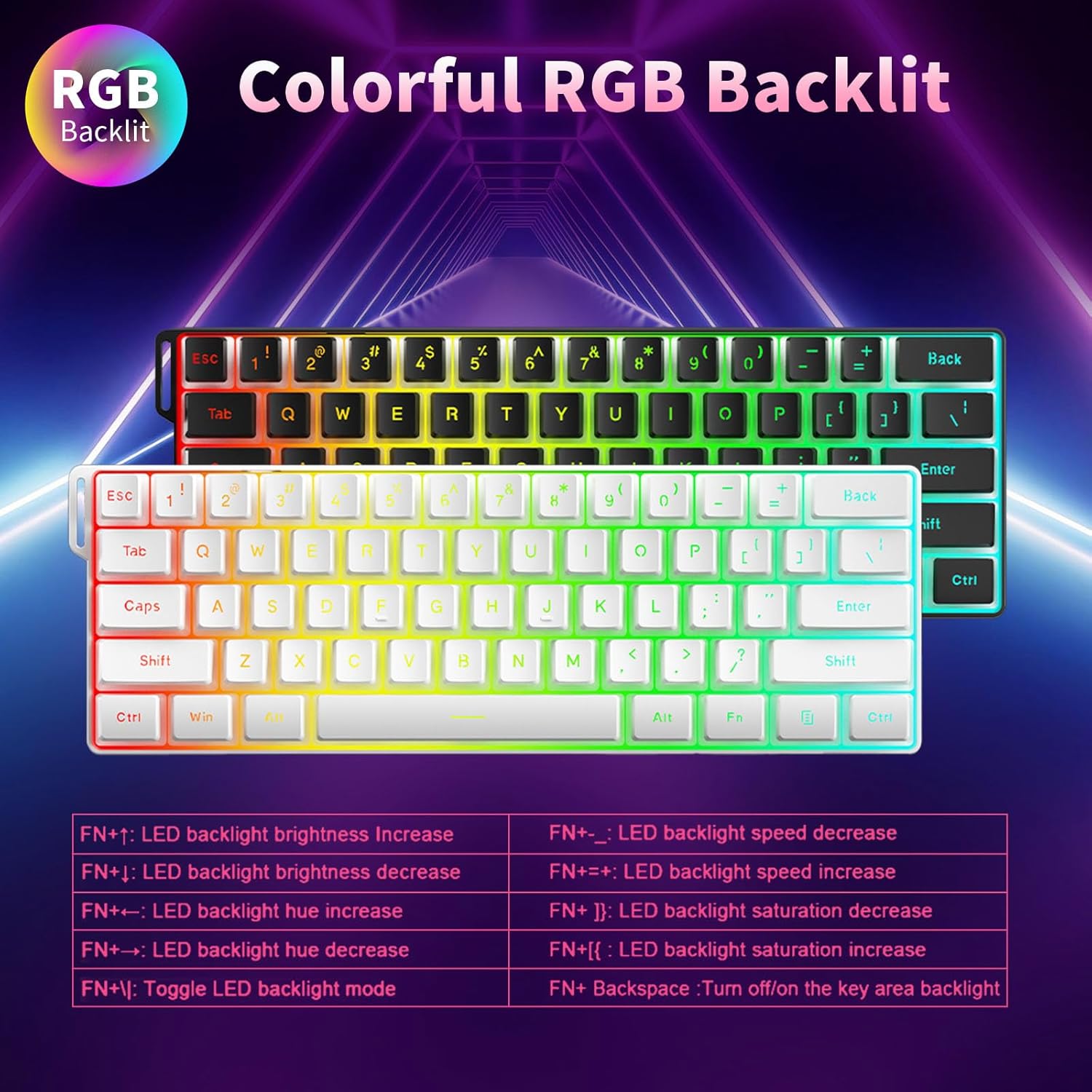
The BW61 keyboard features vibrant 16.8 million color RGB backlighting. You can customize the lighting effects using the following function key combinations: FN+[{ to increase brightness, FN+]} to decrease brightness, FN+; to increase hue, FN+' to decrease hue, FN+< to accelerate dynamic effect speed, FN+> to slow down dynamic effect speed, FN+\ to toggle LED backlight mode, FN+" to switch preset lighting effects, FN+/? to cycle monochrome backlight, and FN+Backspace to turn on/off the key area backlight.
Ergonomic Design and Anti-Ghosting
The keyboard's ergonomic design, featuring a natural 4° tilt and scientific stair-up keycap profile, is engineered to reduce wrist fatigue during extended use. Its anti-ghosting keys ensure that all keystrokes are registered accurately, even during rapid input, providing a smooth and responsive experience for both gaming and typing.

The keyboard's ergonomic design, featuring a natural 4° tilt and scientific stair-up keycap profile, is engineered to reduce wrist fatigue during extended use. Its anti-ghosting keys ensure that all keystrokes are registered accurately, even during rapid input, providing a smooth and responsive experience for both gaming and typing.
Maintenance and Care
Cleaning Your Keyboard
Regular cleaning helps maintain the performance and appearance of your keyboard. To clean the surface, gently wipe with a soft, lint-free cloth slightly dampened with water or a mild cleaning solution. Avoid excessive moisture.
Keycap Care
The BW61 keyboard features durable double-shot PBT pudding keycaps, known for their resistance to wear and shine. To clean, gently wipe the keycaps and keyboard surface with a soft, damp cloth. For deeper cleaning, keycaps can be carefully removed using a keycap puller and washed with mild soap and water, ensuring they are completely dry before reattaching.

The BW61 keyboard features durable double-shot PBT pudding keycaps, known for their resistance to wear and shine. To clean, gently wipe the keycaps and keyboard surface with a soft, damp cloth. For deeper cleaning, keycaps can be carefully removed using a keycap puller and washed with mild soap and water, ensuring they are completely dry before reattaching.
Troubleshooting
Keyboard Not Responding
- Ensure the Type-C cable is securely connected to both the keyboard and your computer's USB port.
- Try connecting the keyboard to a different USB port on your computer.
- Test the keyboard on another computer to determine if the issue is with the keyboard or the computer's setup.
- If the keyboard previously worked but now does not receive power or light up, ensure the cable is not damaged and try a different compatible Type-C cable.
RGB Lighting Issues
- Verify that the RGB lighting is not turned off (FN + Backspace).
- Cycle through different lighting modes (FN + \|) to see if the lights respond.
- Adjust brightness levels (FN + [{ / ]}) to ensure they are not set to minimum.
Keycap Issues
- If a keycap comes off, carefully align it with the switch stem and press down gently until it clicks into place.
- Ensure the keycap is oriented correctly before reattaching.
Product Specifications
| Feature | Detail |
|---|---|
| Model Number | BW61 |
| Connectivity Technology | USB-C Wired |
| Keyboard Description | 60% Gaming & Office Membrane Keyboard |
| Number of Keys | 61 |
| Keyboard Backlighting | RGB (16.8 Million Colors) |
| Keycap Material | Double Shot PBT |
| Compatible Devices | Gaming Console, PC, Laptop (Windows, Mac) |
| Item Weight | 1.76 pounds |
| Package Dimensions | 8.66 x 1.97 x 1.57 inches |
Warranty and Support
Product Warranty
BOYI products are manufactured to high-quality standards. For specific warranty details and duration, please refer to the product packaging or contact BOYI customer support. Keep your purchase receipt as proof of purchase for warranty claims.
Customer Support
If you encounter any issues or have questions regarding your BOYI BW61 keyboard that are not covered in this manual, please contact BOYI customer support through the retailer's platform or the official BOYI website for assistance. Provide your product model and a detailed description of the issue for faster resolution.
Related documentsBW61


Ask a question about this manual
Ask about setup, troubleshooting, compatibility, parts, safety, or missing instructions. Manuals+ will review the question and use this page’s manual context to help answer it.