
Introduction
Thank you for choosing the KLIM Turbofrost MAX RGB Laptop Cooling Pad. This device is engineered to provide optimal cooling performance for laptops ranging from 15.6 to 17.3 inches, featuring a powerful turbofan, adjustable RGB lighting, and a smart inlay system for enhanced airflow. Please read this manual carefully to ensure proper setup and operation.
Package Contents
Before proceeding, please verify that all items are present in your package:
- KLIM Turbofrost MAX Cooling Pad
- USB-A to USB-C Cable
- Power Adapter (Wall Plug)
- User Manual
- Adjustable Laptop Stoppers
- KLIM Stickers
Setup
1. Power Connection
The KLIM Turbofrost MAX offers dual power options:
- Wall Plug: Connect the provided power adapter to the 12V DC port on the cooling pad and then to a wall outlet for maximum power and stability.
- Laptop USB-C: Alternatively, connect the USB-C end of the provided cable to the cooling pad's USB-C input and the USB-A end to an available USB-A port on your laptop. This option provides power directly from your laptop.
2. Placing Your Laptop
Position your laptop centrally on the cooling pad. The smart inlay system features adaptive sealing foam designed to fit laptops up to 17.3 inches, concentrating airflow directly beneath your laptop for optimal cooling.

Image: The KLIM Turbofrost MAX is designed to accommodate laptops of various sizes, from 14 to 17.3 inches, ensuring a snug fit for efficient cooling.
3. Adjusting Height and Angle
The cooling pad features adjustable angles to improve ergonomics and viewing comfort. Adjust the stand to your preferred height and angle.
4. Installing Laptop Stoppers
Attach the provided laptop stoppers to the front edge of the cooling pad to prevent your laptop from sliding, especially when using higher inclination angles. Ensure they are securely in place.
Operating Instructions
1. Power On/Off
Press the power button located on the front panel to turn the cooling pad on or off. The LCD screen will illuminate, displaying the current fan speed.
2. Adjusting Fan Speed
Use the '+' and '-' buttons on the front panel to increase or decrease the fan speed. The LCD screen will show the current RPM (Revolutions Per Minute). The powerful turbofan can reach up to 3000 RPM for maximum cooling.
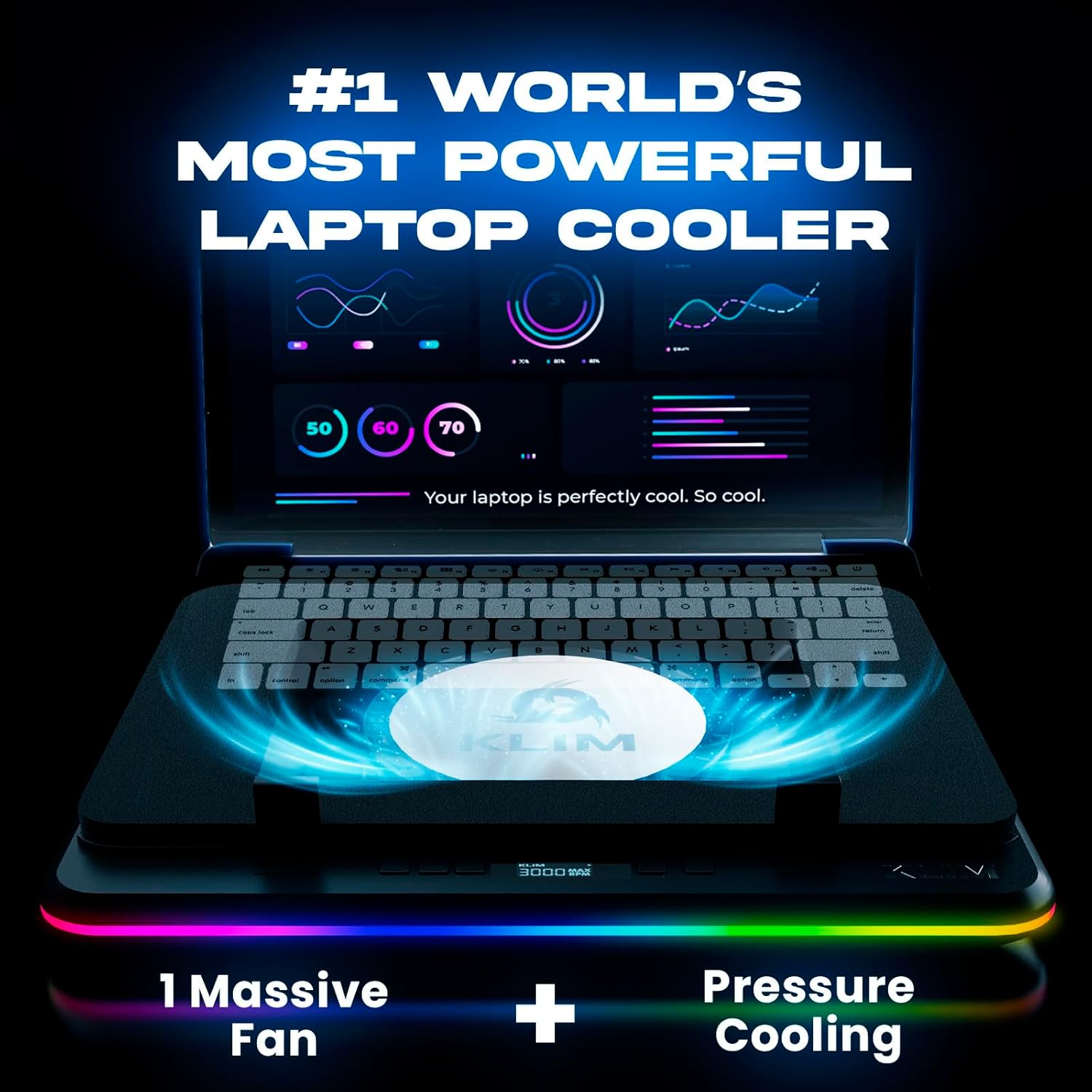
Image: The KLIM Turbofrost MAX cooling pad features an LCD screen to display the current fan speed, allowing for precise control over cooling performance.
3. RGB Lighting Control
The KLIM Turbofrost MAX features 360° RGB lighting with 64 customizable effects. Your light settings and fan speeds are automatically saved.
- RGB Color Button: Press this button to cycle through different static RGB colors.
- RGB Mode Button: Press this button to switch between various dynamic lighting modes.
- Reset RGB: Press and hold the RGB Mode button for 2 seconds to restore the default to the first color lighting mode.

Image: The cooling pad showcases its 360° RGB lighting with multiple dynamic effects, enhancing the aesthetic of your setup.
4. USB Hub
The cooling pad includes 3 USB-A ports for connecting peripherals such as a mouse, keyboard, or external storage. These ports are powered by the cooling pad's connection.

Image: Close-up view of the integrated hub on the KLIM Turbofrost MAX, featuring 3 USB-A ports and a 12V DC power input for versatile connectivity.
Maintenance
1. Cleaning the Cooling Pad
Regular cleaning helps maintain optimal performance. Use a soft, dry cloth to wipe down the exterior of the cooling pad. For the fan area, use compressed air to remove dust buildup. Ensure the device is powered off and unplugged before cleaning.
2. Smart Inlay System Care
The adaptive sealing foam can be gently wiped with a damp cloth if necessary. Avoid using harsh chemicals or abrasive materials that could damage the foam.
Troubleshooting
- Fan Not Spinning:
- Ensure the cooling pad is properly connected to a power source (wall outlet or laptop USB-C).
- Check if the power button is pressed and the LCD screen is on.
- Verify that the power cable is securely plugged into both the cooling pad and the power source.
- RGB Lights Not Working:
- Ensure the cooling pad is powered on.
- Press the RGB Color or RGB Mode buttons to cycle through options.
- Try resetting the RGB by holding the RGB Mode button for 2 seconds.
- Laptop Not Cooling Effectively:
- Increase the fan speed using the '+' button.
- Ensure the laptop is centered on the cooling pad for optimal airflow through the smart inlay system.
- Check for any obstructions blocking the fan intake or exhaust vents on the cooling pad or your laptop.
- Clean any dust buildup on the cooling pad's fan and your laptop's vents.
- Unusual Noise:
- Reduce the fan speed. Higher RPMs naturally produce more noise.
- Ensure the cooling pad is on a stable, flat surface.
- Check for any foreign objects that might be interfering with the fan.
Specifications
| Feature | Specification |
|---|---|
| Product Dimensions | 16.14 x 12.36 x 2.68 inches |
| Item Weight | 4.97 pounds |
| Model Number | KLIM Turbofrost |
| Brand | KLIM |
| Material | Plastic |
| Cooling Method | Air (Turbofan) |
| Compatible Laptop Sizes | 15.6 - 17.3 inches |
| RGB Lighting | 360° with 64 customizable effects |
| USB Ports | 3x USB-A, 1x USB-C (input) |
| Power Input | 12V DC (Wall Plug) or USB-C (Laptop) |
Warranty and Support
The KLIM Turbofrost MAX comes with a 5-year assurance, reflecting our commitment to quality and durability. For any questions, issues, or support needs, please do not hesitate to contact our dedicated support team.
Contact Information:
- Email: support@klimtechnologies.com
- Website: www.klimtechs.com/contact-us
Our team of specialists aims to answer within 24 hours and is available 24/7 to assist you.