
1. Introduction
This manual provides essential information for the setup, operation, and maintenance of your LILYGO T-Deck Plus development board. The T-Deck Plus is a versatile device integrating an ESP32-S3 microcontroller, LoRa communication, GPS, a 2.8-inch display, and a QWERTY keyboard, designed for various development and communication projects.
2. Product Overview
The LILYGO T-Deck Plus is a compact, all-in-one development platform. It features a powerful ESP32-S3 chip, a LoRa transceiver for long-range communication, an integrated GPS module for location services, a 2.8-inch IPS display for user interface, and a physical QWERTY keyboard for input. The device is housed in an ABS shell, making it suitable for portable applications.

Figure 2.1: Front view of the LILYGO T-Deck Plus, showing the 2.8-inch display and QWERTY keyboard.
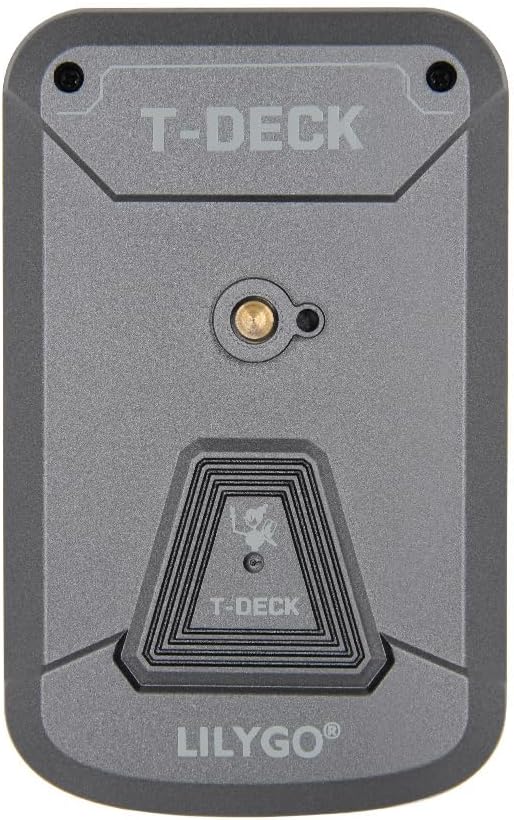
Figure 2.2: Back view of the LILYGO T-Deck Plus, featuring the T-DECK branding and a 1/4-inch tripod mount.

Figure 2.3: Side view of the LILYGO T-Deck Plus, highlighting the USB-C port and other external interfaces.

Figure 2.4: Detailed diagram illustrating the internal components and pinout of the LILYGO T-Deck Plus, including MCU, wireless connectivity, display, and LoRa transceiver specifications.
3. Setup
The LILYGO T-Deck Plus is a development board that requires firmware to function. The device typically comes with LILYGO firmware pre-installed. For custom applications or updates, you may need to flash new firmware.
3.1 Initial Power-On
- Ensure the device is charged. Connect the LILYGO T-Deck Plus to a power source using a USB-C cable.
- Press the power button (if available) or the reset button to initiate startup. The display should illuminate, indicating the device is active.
3.2 Firmware Flashing
For detailed instructions on flashing firmware, including Meshtastic or other custom firmware, please refer to the official LILYGO GitHub repository and Wiki:
- GitHub Repository: github.com/Xinyuan-LilyGO/T-Deck
- LILYGO Wiki: wiki.lilygo.cc/
These resources provide comprehensive guides, tools, and firmware files necessary for development.
4. Operating Instructions
Operating the LILYGO T-Deck Plus involves interacting with its display, keyboard, and utilizing its wireless communication capabilities.
4.1 Basic Interaction
- Display: The 2.8-inch IPS display shows information based on the loaded firmware. Navigation typically involves the trackball or keyboard inputs.
- Keyboard: Use the integrated QWERTY keyboard for text input and menu navigation. Specific key functions may vary depending on the firmware.
- Trackball: The trackball provides directional input for menu navigation and selection.
4.2 LoRa Communication
The integrated SX1262 LoRa transceiver enables long-range, low-power wireless communication. The specific usage and configuration of LoRa will depend on the firmware installed (e.g., Meshtastic, LILYGO firmware). Refer to the firmware's documentation for details on channel configuration, messaging, and network setup.
4.3 GPS Functionality
The Ulbox GPS module provides location data. Firmware applications can utilize this data for mapping, tracking, or other location-based services. Ensure the device has a clear view of the sky for optimal GPS signal reception.
5. Maintenance
Proper care and maintenance will ensure the longevity and optimal performance of your LILYGO T-Deck Plus.
- Charging: Charge the device using a standard USB-C cable and a compatible power adapter.
- Battery Meter: Note that the device does not have a built-in battery meter, so the battery percentage display may not be accurate. This is a known characteristic and not a product defect. Future firmware versions may optimize the battery percentage program settings.
- Cleaning: Use a soft, dry cloth to clean the device. Avoid using harsh chemicals or abrasive materials.
- Storage: Store the device in a cool, dry place away from direct sunlight and extreme temperatures.
6. Troubleshooting
This section addresses common issues you might encounter with your LILYGO T-Deck Plus.
| Issue | Possible Cause | Solution |
|---|---|---|
| Device does not power on. | Low battery, faulty cable/charger, or firmware issue. | Charge the device for at least 30 minutes. Try a different USB-C cable and charger. If still unresponsive, attempt to re-flash firmware (see Section 3.2). |
| Battery percentage display is inaccurate. | Device lacks a dedicated battery meter. | This is a known characteristic. Rely on charging indicators or observe device behavior for battery status. Firmware updates may improve estimation. |
| LoRa communication not working. | Incorrect firmware configuration, antenna issue, or radio failure. | Verify LoRa settings in your firmware. Ensure the antenna is properly connected. If issues persist, consult the LILYGO GitHub/Wiki for advanced diagnostics. |
| Bluetooth connectivity issues (e.g., with Meshtastic UI). | Firmware behavior, mode conflict. | Some firmware versions may disable the UI while Bluetooth is active. You might need to restart the device and boot into a specific mode (e.g., by holding a specific button/icon during boot) to enable Bluetooth for advanced settings. Refer to your specific firmware documentation. |
| Device is unresponsive or frozen. | Software crash or temporary glitch. | Press and hold the reset button (located on the left side) for a few seconds to force a restart. |
7. Specifications
Key technical specifications for the LILYGO T-Deck Plus development board:

Figure 7.1: Pinmap and detailed board functions of the LILYGO T-Deck Plus, showing connections for GPS, LoRa, LCD, microphone, speaker, and keyboard.
| Feature | Detail |
|---|---|
| MCU | ESP32-S3FN16R8 Dual-core LX7 microprocessor |
| Wireless Connectivity | 2.4 GHz Wi-Fi & Bluetooth 5 (LE) |
| Flash Memory | 16MB PSRAM: 8MB |
| LoRa Transceiver | SX1262 (915Mhz variant), Transmit power: +22dBm |
| Display | 2.8 inch ST7789 SPI Interface IPS LCD, Resolution: 320 x 240, Full viewing angle |
| Onboard Functions | GPS, TF Card slot, Microphone, Speaker |
| Keyboard Layout | QWERTY |
| Power Source | USB Powered (USB-C) |
| Dimensions (L x W x H) | 115mm x 72mm x 20mm (approx. 4.53 x 2.83 x 0.79 inches) |
| Item Weight | 7 ounces |
| Material | Plastic (ABS Shell) |
8. Support
For further assistance, technical documentation, or to report issues, please utilize the following resources:
- Official LILYGO GitHub: github.com/Xinyuan-LilyGO/T-Deck (for code, issues, and community support)
- Official LILYGO Wiki: wiki.lilygo.cc/ (for detailed documentation and guides)
- Product Service: If you have any questions or suggestions about the product, please feel free to contact LILYGO directly. Contact information is typically available on the official LILYGO website or through your purchase platform.
LILYGO is committed to providing support and will answer your questions as soon as possible.