
Introduction
Thank you for choosing the MekedeTech DUDUAUTO DUDU7 2K Android Touch Screen Car Radio Stereo Head Unit. This manual provides detailed instructions for the installation, operation, and maintenance of your new car multimedia system. Designed specifically for Toyota Harrier and Venza models from 2022 to 2024, this unit offers advanced features including a 12.3-inch touch screen, Android 13 operating system, wireless CarPlay, Android Auto, 4G LTE, and high-quality audio processing.
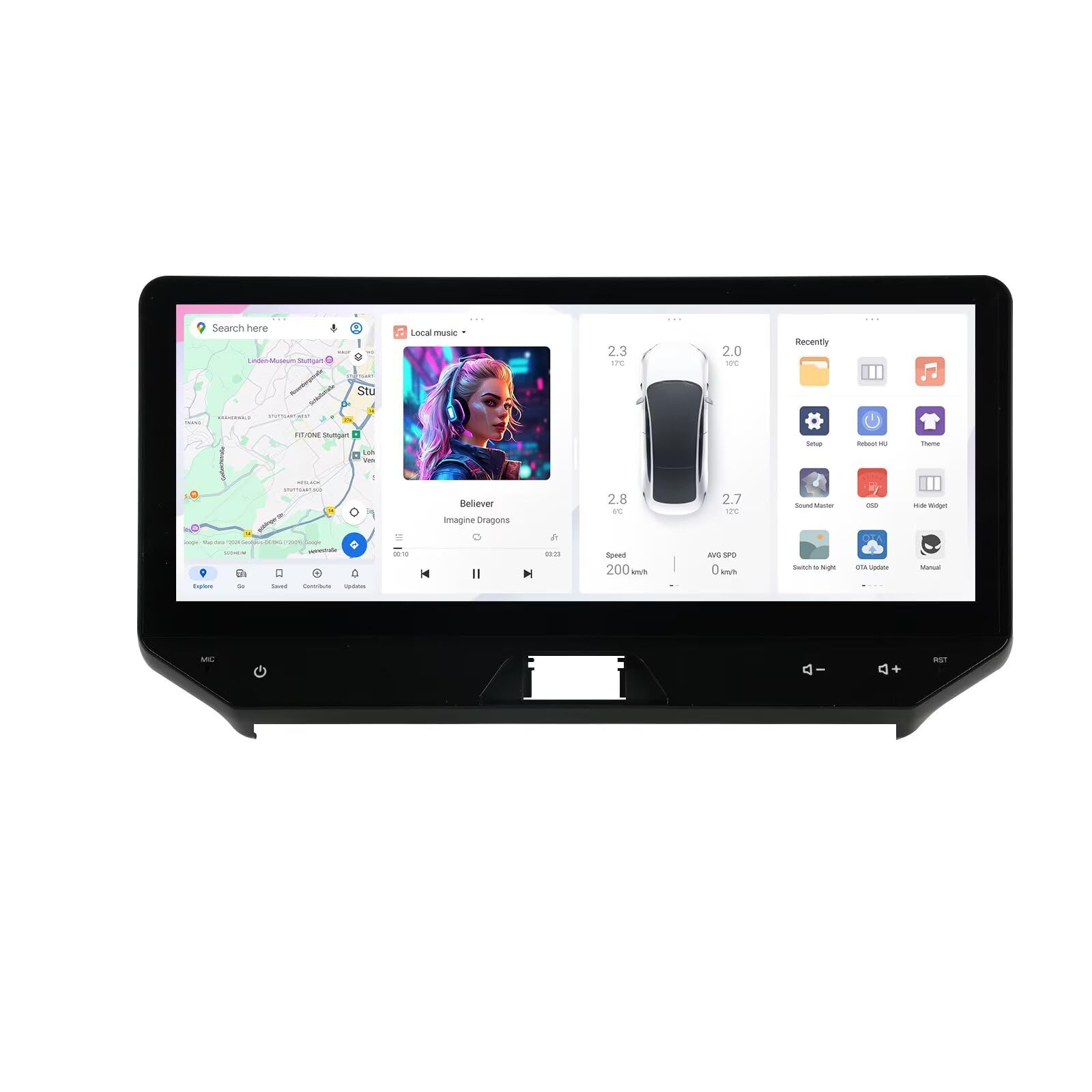
Figure 1: MekedeTech DUDUAUTO DUDU7 Car Radio Head Unit.
Setup and Installation
Proper installation is crucial for the optimal performance of your DUDUAUTO DUDU7 head unit. It is highly recommended that installation be performed by a qualified professional to ensure correct wiring and integration with your vehicle's systems. Incorrect installation can lead to damage to the unit or the vehicle.
1. Package Contents
Before beginning installation, verify that all components are present in the package:

Figure 2: Included components: Head unit, Power Cable, RCA Cable, Reversing camera cable, USB Plugs (x3), Fakra 4G Antenna, Fakra GPS Antenna, and Microphone.
- Head Unit (12.3-inch display)
- Power Cable
- RCA Cable
- Reversing Camera Cable
- USB Plugs (3x)
- Fakra 4G Antenna
- Fakra GPS Antenna
- Microphone
2. Pre-Installation Comparison
Observe the visual transformation of your vehicle's dashboard after installing the DUDUAUTO DUDU7 head unit.

Figure 3: Comparison of the vehicle's dashboard before and after the DUDUAUTO DUDU7 head unit installation.
3. Wiring and Connections
Refer to the diagram below for the rear panel connections of the DUDU7 head unit. Ensure all cables are securely connected to their respective ports.

Figure 4: Rear panel connections including Protocol Serial (Can-bus), 4Pin USB, 6Pin USB, Reverse video cable, RCA Cable (with 4G Card Slot), 360° panoramic device, Radio Antenna, WIFI, GPS Antenna, 4G Antenna, MIC, Type-C, Coaxial Optical Audio Out, Modified Amplifier, and Power Cable.
- Power Cable (G): Connect to the vehicle's power harness.
- Radio Antenna (8): Connect the vehicle's radio antenna.
- WIFI (7): Internal Wi-Fi antenna.
- GPS Antenna (6): Connect the provided Fakra GPS Antenna.
- 4G Antenna (4): Connect the provided Fakra 4G Antenna.
- MIC (0): Connect the external microphone for improved call clarity.
- Type-C (8): USB 3.2 GEN1 port.
- Coaxial Optical Audio Out: For advanced audio system integration.
- Protocol Serial Use with Can-bus (C): For vehicle data communication.
- 4Pin USB (E): USB 2.0 port.
- 6Pin USB (D): USB 2.0 port.
- Reverse video cable (F): For connecting a reversing camera.
- RCA Cable (A): Includes 4G Card Slot for SIM card insertion.
- 360° panoramic device (B): For connecting a 360-degree camera system (if applicable).
Ensure all connections are firm and correctly seated to prevent intermittent issues.
Operating Instructions
The DUDUAUTO DUDU7 operates on Android 13, offering a user-friendly interface and extensive features.
1. User Interface (DUDU OS)
The system features DUDU OS 3.5, designed for intuitive operation. It offers both simple and enthusiast modes to cater to different user preferences.

Figure 5: DUDU OS 3.5 interface showcasing various applications and layouts.
DUDU OS 3.0 also offers customizable dynamic wallpapers and different display modes (daytime, light, dark, night) for enhanced visual comfort.

Figure 6: DUDU OS 3.0 interface demonstrating dynamic wallpapers and various display modes.
2. Wireless CarPlay & Android Auto
The DUDU7 supports both wireless CarPlay for iPhones and Android Auto for Android devices. This allows seamless integration of your smartphone for navigation, music, calls, and messaging.
- Ensure your phone's Bluetooth and Wi-Fi are enabled.
- On the head unit, open the CarPlay or Android Auto application.
- Follow the on-screen prompts to pair your device. For wireless connection, the system will typically guide you through Bluetooth pairing first, then establish a Wi-Fi connection for data transfer.
3. Bluetooth 5.0 Connectivity
Equipped with a Qualcomm 3031 Bluetooth chip, the DUDU7 provides stable and high-quality audio streaming (supports aptX HD protocol) and hands-free calling. Bluetooth 5.0 ensures low power consumption and faster transmission speeds.
- To pair a new device, go to Settings > Bluetooth on the head unit.
- Enable Bluetooth on your mobile device and search for available devices.
- Select "DUDU7" or a similar name from the list on your phone and confirm the pairing code.
4. 4G LTE & Wi-Fi Support
The unit supports 4G LTE connectivity via a SIM card (inserted into the 4G Card Slot on the RCA cable) and Wi-Fi (802.11a/b/g/n/ac, including 5G Wi-Fi). This allows for internet access, online navigation, streaming, and app downloads.
- For 4G LTE: Insert a compatible SIM card into the designated slot. The system should automatically detect the network.
- For Wi-Fi: Go to Settings > Network & Internet > Wi-Fi. Select your desired network and enter the password if required.
5. Audio Features
The DUDU7 incorporates advanced audio components for a superior sound experience:
- Power Amplifier: TDA7808 Digital AB type amplifier for clear and powerful sound.
- DSP: AKM7739 Velvet Audio Technology provides advanced digital sound processing, supporting "VELVET SOUND" + DTS5.1 panoramic sound for a rich, immersive audio experience.
- Audio Output: Optical + Coaxial, RCA 5.1 Channel Outputs for flexible connection to external amplifiers and speakers.
- Digital Noise Cancellation Microphone: Enhances call clarity by reducing ambient noise, even at high speeds.

Figure 7: Internal components highlighting the TDA7808 amplifier and AKM7739 DSP Velvet Audio Technology for enhanced sound quality.
Maintenance
To ensure the longevity and optimal performance of your DUDUAUTO DUDU7 head unit, follow these maintenance guidelines:
- Screen Cleaning: Use a soft, lint-free cloth slightly dampened with water or a screen-cleaning solution. Avoid harsh chemicals or abrasive materials that can damage the touch screen.
- Software Updates: Periodically check for system software updates. These updates can improve performance, add new features, and fix bugs. Connect to Wi-Fi or 4G to download updates.
- Ventilation: Ensure the cooling fan area (visible on the rear panel) is not obstructed to allow for proper heat dissipation.
- Environmental Conditions: Avoid exposing the unit to extreme temperatures, direct sunlight for prolonged periods, or excessive moisture.
Troubleshooting
This section addresses common issues you might encounter with your DUDUAUTO DUDU7 head unit.
- No Power / Unit Does Not Turn On:
- Check all power cable connections to ensure they are secure.
- Verify the vehicle's fuse related to the car stereo.
- Ensure the vehicle's ignition is on.
- No Sound:
- Check the volume level on the head unit and ensure it is not muted.
- Verify speaker connections.
- Ensure the correct audio source is selected.
- If using external amplifiers, check their power and connections.
- Touch Screen Unresponsive:
- Restart the head unit by turning off the vehicle's ignition and restarting.
- Ensure the screen is clean and free of debris.
- GPS Signal Issues:
- Ensure the GPS antenna is correctly installed and has a clear view of the sky (not obstructed by metal or other objects).
- Check the GPS antenna connection to the head unit.
- Bluetooth Connectivity Problems:
- Ensure Bluetooth is enabled on both the head unit and your mobile device.
- Delete previous pairings on both devices and attempt to re-pair.
- Move your mobile device closer to the head unit.
- CarPlay/Android Auto Not Connecting:
- Ensure your phone's operating system is up to date.
- Check that CarPlay/Android Auto is enabled in your phone's settings.
- For wireless connection, ensure both Bluetooth and Wi-Fi are active on your phone.
- Try restarting both the head unit and your phone.
- USB Issues (as noted in customer feedback):
- Ensure USB devices are formatted correctly and compatible with the head unit.
- Try different USB ports if available.
- If experiencing integration issues with specific USB functions (e.g., Android Auto via USB), ensure all software is updated. If issues persist, contact customer support.
If you encounter issues not listed here or if the suggested solutions do not resolve the problem, please contact MekedeTech customer support for further assistance.
Specifications
The following table details the technical specifications of the MekedeTech DUDUAUTO DUDU7 head unit (Model DUDU7-6-64).

Figure 8: Comparison table of DUDU series models, highlighting DUDU7 specifications.
| Feature | Specification |
|---|---|
| Model Name | DUDU7 (MKD-DUDU7-6-64) |
| Compatibility | Toyota Harrier Venza 2022, 2023, 2024 |
| Operating System | Android 13 |
| CPU | 8 Core UIS7870 Customized version A76 2.7Ghz 6nm processor |
| Memory Type | UFS 3.1 Read data 1700M+ |
| RAM | 6GB |
| ROM (Storage) | 64GB |
| Display Size | 12.3 inch |
| Display Resolution | 2000x1200 |
| Display Type | OLED, Capacitive Touch Screen |
| GPS | Dual Band 6 mode L1 L5 B1 B2a E1 E5a |
| Microphone | Digital Noise Cancellation Microphone |
| USB Ports | USB 3.2 GEN1*1 (Type-C), USB 2.0*3 |
| Power Amplifier | TDA7808 Digital AB type |
| DSP | AKM7739 Velvet Audio Technology |
| Bluetooth Chip | Qualcomm 3031 (Supports aptX HD protocol, BT5.0) |
| Audio Output | Optical + Coaxial, RCA 5.1 Channel Outputs |
| WiFi Type | 802.11a/b/g/n/ac (Support 5G WIFI) |
| Radio IC | TDA7708 |
| Work Voltage | 9V~16V |
| CarPlay/Android Auto | Support Wired and Wireless CarPlay and Android Auto |
| 360 Panorama | Includes 360 panoramic chip (default) |
| Voice Command | Buttons, Keyboard, Microphone, Touchscreen |
The UIS 7870 processor provides significant performance improvements, including faster read/write speeds compared to previous generations.

Figure 9: Illustration of the UIS 7870 processor and a comparison demonstrating 7x faster read speeds with UFS 3.1 storage.
Warranty Information
The MekedeTech DUDUAUTO DUDU7 head unit comes with a 1-Year Warranty from the date of purchase. This warranty covers manufacturing defects and malfunctions under normal use. It does not cover damage caused by improper installation, misuse, accidents, unauthorized repairs, or modifications.
Please retain your proof of purchase for warranty claims. For detailed warranty terms and conditions, refer to the documentation provided with your product or contact MekedeTech customer support.
Customer Support
If you require assistance with installation, operation, troubleshooting, or warranty claims, please contact MekedeTech customer support. Have your product model number (DUDU7-6-64) and proof of purchase ready when contacting support.
For the most up-to-date contact information, please visit the official MekedeTech store page or the website provided with your product documentation.
MekedeTech Store: Visit MekedeTech Store on Amazon