
NEARITY US-V410-A11
NEARITY V410+A11 Conference Room Camera System Instruction Manual
Model: US-V410-A11
1. Introduction
The NEARITY V410+A11 is an all-in-one video and audio conferencing system designed for small to medium conference rooms. It combines a 2K PTZ webcam (V410) with 10X hybrid zoom and a USB conference speakerphone (A11) featuring AI-powered noise reduction for clear communication. This system offers a professional solution for various applications including video conferences, online courses, and live streaming.

Image: Overview of the NEARITY V410+A11 Conference Room Camera System, showing the V410 camera and A11 speakerphone.
2. What's in the Box
- 1x PTZ Camera V410 Set
- 1x A11 USB Speakerphone Set
Video: An unboxing and setup guide for the NEARITY V410+A11 system, demonstrating the contents of the package and initial connections.
3. Setup
3.1 Connecting the V410 Camera
- Connect the V410 camera to your PC using the provided USB cable.
- Connect the power adapter to the V410 camera and plug it into a power outlet.
- Upon power-up, the camera's indicator light will activate, and the camera will perform an automatic rotation for self-calibration.
3.2 Connecting the A11 Speakerphone
- Connect the A11 speakerphone to your PC using its USB cable.
3.3 Software Configuration
- Launch your preferred video conferencing software (e.g., Zoom, Microsoft Teams, Google Meet).
- In the software's audio/video settings, select "Nearity Cam V410" as your camera and "Nearity A11" as your microphone and speaker.

Image: Diagram illustrating the simple USB plug-and-play setup for the V410 camera and A11 speakerphone with a PC and various conferencing platforms.
4. Operating Instructions
4.1 V410 PTZ Camera Features
- 2K CMOS Sensor: Delivers clear, undistorted images.
- 10X Hybrid Zoom: Combines 4x optical zoom and 2.5x digital zoom for detailed views.
- Autofocus: Ensures subjects remain sharp and in focus.
- Pan & Tilt: Offers 350-degree pan and 60-degree tilt for comprehensive room coverage.
- 4 Preset Positions: Save and recall specific pan, tilt, and zoom settings using the IR remote control.
- NDI/LAN Support: For professional live streaming and versatile connectivity.

Image: Detailed view of the V410 PTZ webcam highlighting its 2K QHD, Sony Sensor, Optical Zoom, USB PNP, 350° Pan Range, 120° Ultra-Wide FOV, 2 noise reduction microphones, NDI and RTSP Protocol Support, and multiple interfaces.
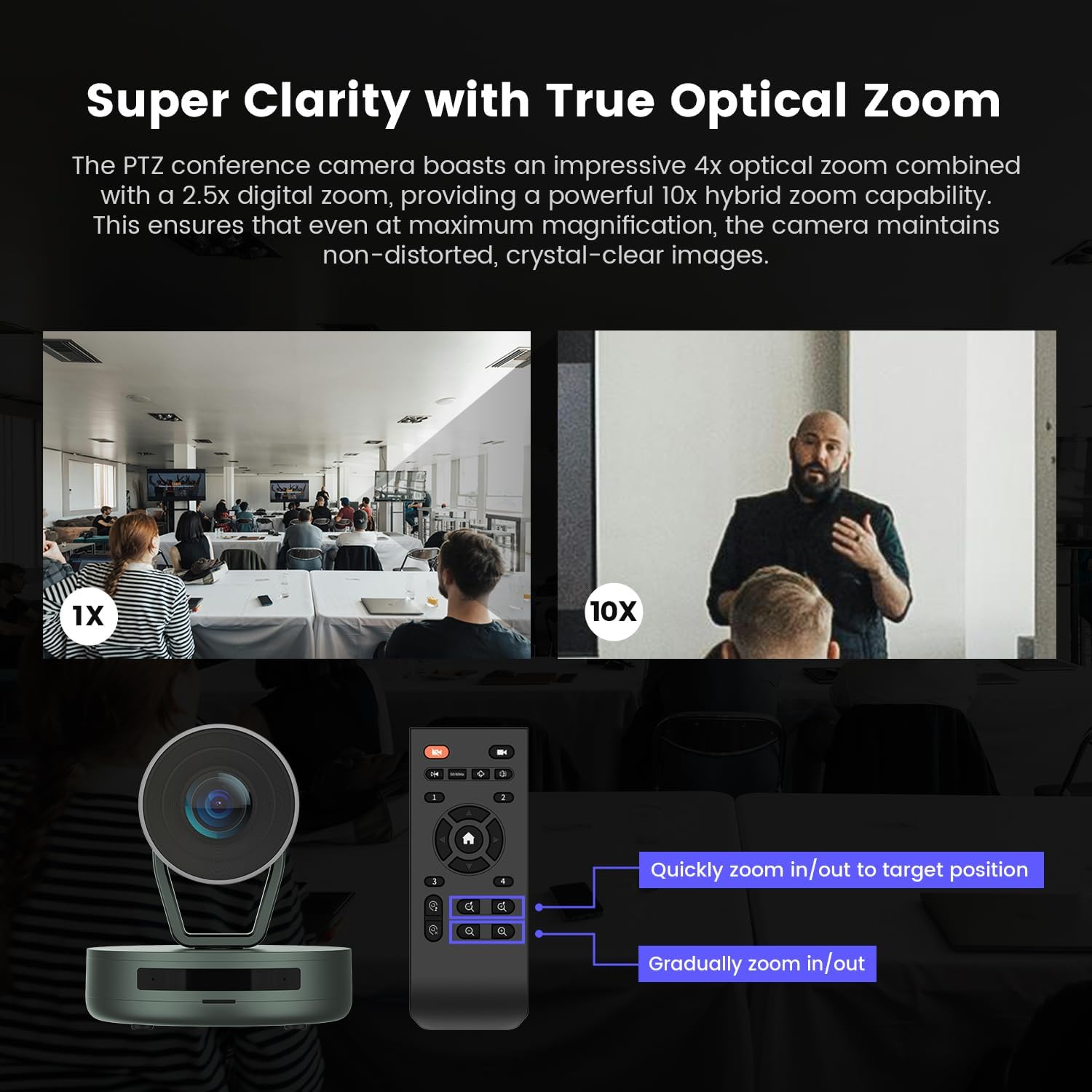
Image: Demonstration of the V410 camera's 10X hybrid zoom capability, showing a wide shot (1X) and a zoomed-in shot (10X) of a conference room, along with the remote control for quick and gradual zoom adjustments.
4.2 A11 Speakerphone Features
- 4 Omnidirectional Microphones: Captures voices within a 13ft (4m) range at a 360-degree angle.
- AI Noise Reduction: Advanced technology for echo and reverberation cancellation, ensuring clear voice transmission in various environments.
- Hi-Fi Speaker: Provides high-quality audio output.

Image: Visual representation of the A11 speakerphone's 4-MEMS-Microphone-Array, Hi-Fi Speaker, and AI Noise Reduction capabilities.

Image: Diagram illustrating the 13 feet / 4 meters omnidirectional voice pickup range of the A11 speakerphone in a conference room setting.
4.3 Remote Control Functions
The included IR remote control allows for easy adjustment of camera settings and movement:
- Power On/Off: Controls the camera's power state.
- Mirror Function: Flips the image horizontally or vertically.
- Anti-Flickering: Adjusts between 50Hz and 60Hz to reduce screen flickering.
- PTZ Set/Test & Position Calibration: For advanced camera adjustments.
- Preset Buttons (1-4): Save and recall up to four predefined camera positions (pan, tilt, zoom).
- Home Key: Resets the camera to its center position and can switch to panorama mode.
- Pan/Tilt Controls: Directional buttons for adjusting camera angle.
- Zoom In/Out: Buttons for quick and gradual zooming.

Image: The V410 camera and its remote control, illustrating the functionality of the 4 preset position buttons for quick scene changes.
5. Maintenance
5.1 Cleaning
To maintain optimal performance, regularly clean the camera lens and speakerphone surfaces with a soft, dry cloth. Avoid using abrasive cleaners or solvents.
5.2 Firmware Updates and Settings
Download the NearSync software from the NEARITY official website to update firmware and customize image settings such as brightness, contrast, and saturation. This software provides advanced control over your device.

Image: Screenshot of the NearSync software interface, showing options for video settings like brightness, sharpness, and white balance, and device settings.
6. Troubleshooting
- No Video/Audio: Ensure all USB and power cables are securely connected. Verify that the V410 camera and A11 speakerphone are selected as the input/output devices in your conferencing software settings.
- Camera Not Detected: Check USB connections. If using a Windows PC, navigate to Settings > Bluetooth & devices > Cameras to ensure "Nearity Cam V410" is listed and enabled. If not, try restarting your computer or reinstalling the NearSync software.
- Flickering Video: Use the anti-flickering button on the remote control to switch between 50Hz and 60Hz settings.
- Audio Quality Issues: Ensure the A11 speakerphone is placed centrally in the room. Utilize the AI noise reduction features to minimize background noise.
- Remote Control Not Responding: Check the batteries in the remote control. Ensure there are no obstructions between the remote and the camera's IR receiver.
7. Specifications
| Feature | Detail |
|---|---|
| Brand | NEARITY |
| Model Number | US-V410-A11 |
| Product Dimensions | 15.3 x 15.3 x 16.6 inches |
| Video Capture Resolution | 2K |
| Optical Zoom | 4x |
| Digital Zoom | 2.5x |
| Pan Range | 350 degrees |
| Tilt Range | 60 degrees |
| Microphone Pickup Range (A11) | 13ft (4m) |
| Special Features | Noise Reduction, Autofocus, 4 Preset Positions |
| Connectivity Technology | Ethernet, USB |
| Supported OS | Windows, macOS, Linux, ChromeOS |
8. Mounting Options
The NEARITY V410 camera offers flexible mounting options to suit your conference room or event space. It features a standard 1/4'' thread base, allowing it to be:
- Placed on a table.
- Mounted to a tripod.
- Secured to a wall.
Note: Mounting accessories are not included in the package.

Image: Visual guide demonstrating the various mounting possibilities for the V410 camera, including placement on a desk, tripod, or wall, highlighting the 1/4" screw hole at the base.
9. Compatibility
The NEARITY V410+A11 system is designed for universal compatibility, seamlessly integrating with most major operating systems and video conferencing/streaming applications. It supports:
- Operating Systems: Windows, macOS, Linux, ChromeOS.
- Conferencing/Streaming Apps: Zoom, Microsoft Teams, Google Meet, WebEx, Skype, OBS, YouTube, and more.

Image: A graphic illustrating the broad compatibility of the NEARITY V410+A11 system with operating systems like Chromebook, Windows, Mac, and Linux, and platforms such as Google Meet, Zoom, Microsoft Teams, Webex, XSplit, Slack, Twitch, BlueJeans, Skype, Facebook Live, and OBS Studio.
10. Warranty and Support
NEARITY provides worry-free lifetime customer service for this video conferencing system. For technical assistance, warranty claims, or further inquiries, please visit the official NEARITY website or contact their customer support directly.
Ask a question about this manual
Ask about setup, troubleshooting, compatibility, parts, safety, or missing instructions. Manuals+ will review the question and use this page’s manual context to help answer it.