1. Introduction
This manual provides essential information for the proper setup, operation, and maintenance of your Miyoo A30 Handheld Game Console. Please read this manual thoroughly before using the device to ensure a safe and enjoyable experience.
2. Package Contents
Verify that all items listed below are included in your package:
- Game console (1 unit)
- USB charging cable (1 unit)
- Instruction manual (1 unit)
- Headphone adapter cable (1 unit)
- Storage bag (1 unit)

Figure 1: Miyoo A30 console with included USB charging cable, headphone adapter, and storage bag.
3. Product Overview
The Miyoo A30 is a compact handheld game console designed for portable retro gaming. It features a 2.8-inch IPS display and supports a wide range of emulators.
3.1. Device Layout and Controls

Figure 2: Detailed view of the Miyoo A30's buttons, joystick, screen, and ports.
- D-Pad (Arrow keys): Used for directional input in games and menu navigation.
- Joystick: Provides analog directional control for compatible games.
- Action Buttons (A, B, X, Y): Primary input buttons for gameplay.
- SELECT/START Buttons: Used for in-game functions and menu selections.
- Shoulder Buttons (L, L2, R, R2): Located on the top edge for additional game controls.
- Power Button: Located on the top edge to turn the device on/off.
- Volume Control: Located on the side for adjusting audio output.
- USB Charging Port: USB-C port on the bottom for charging the device.
- Headphone Jack: 3.5mm audio output on the bottom for headphones.
- TF-Card Slot: Located on the bottom for inserting a MicroSD card.
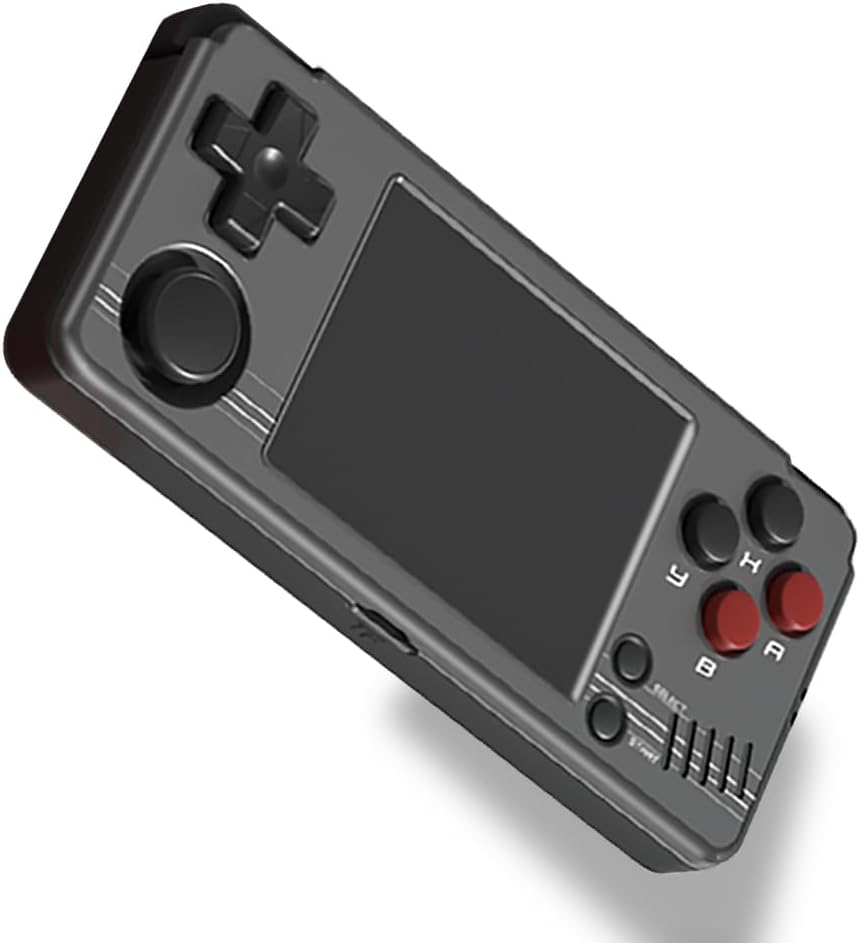
Figure 3: Front view of the Miyoo A30 Handheld Game Console.
4. Setup
4.1. Charging the Device
Before initial use, fully charge the Miyoo A30. Connect the provided USB charging cable to the USB-C port on the bottom of the device and to a compatible 5V/1.5A USB power adapter (not included). The device features a 2600mAh Li-Po battery, providing approximately 7 hours of gameplay on a full charge.
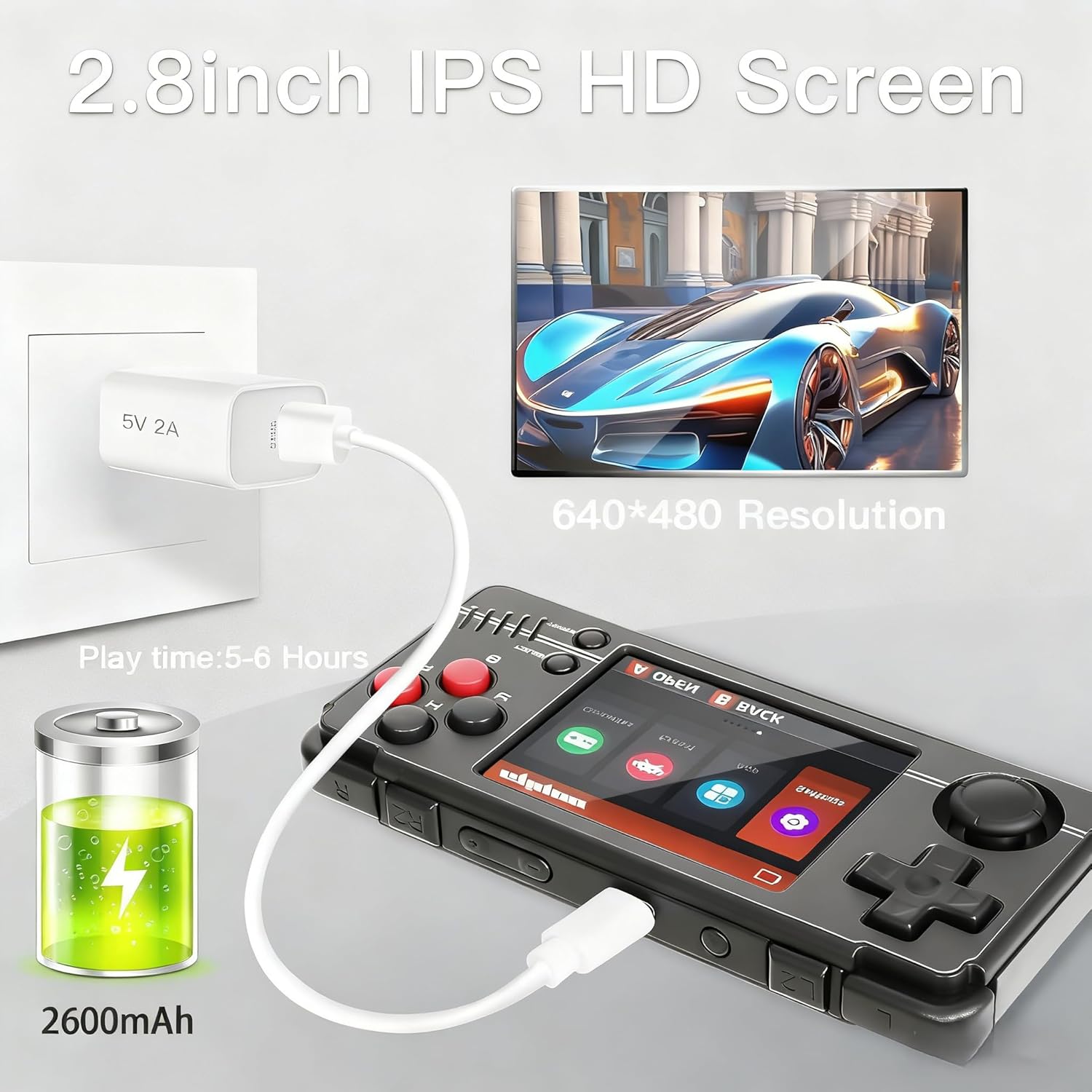
Figure 4: Illustration of the Miyoo A30 connected to a charger, highlighting battery capacity and screen resolution.
4.2. Inserting the TF Card
The Miyoo A30 supports TF/MicroSD cards up to 512GB. A 64GB TF card is typically included. Insert the TF card into the designated slot on the bottom of the device until it clicks into place. Ensure the device is powered off before inserting or removing the TF card.
4.3. Powering On/Off
To power on the device, press and hold the Power button located on the top edge until the screen illuminates. To power off, press and hold the Power button again until the shutdown options appear, then select to power off.
5. Operating Instructions
5.1. Menu Navigation
Use the D-Pad or joystick to navigate through the main menu and game lists. The 'A' button typically confirms selections, and the 'B' button returns to the previous screen.
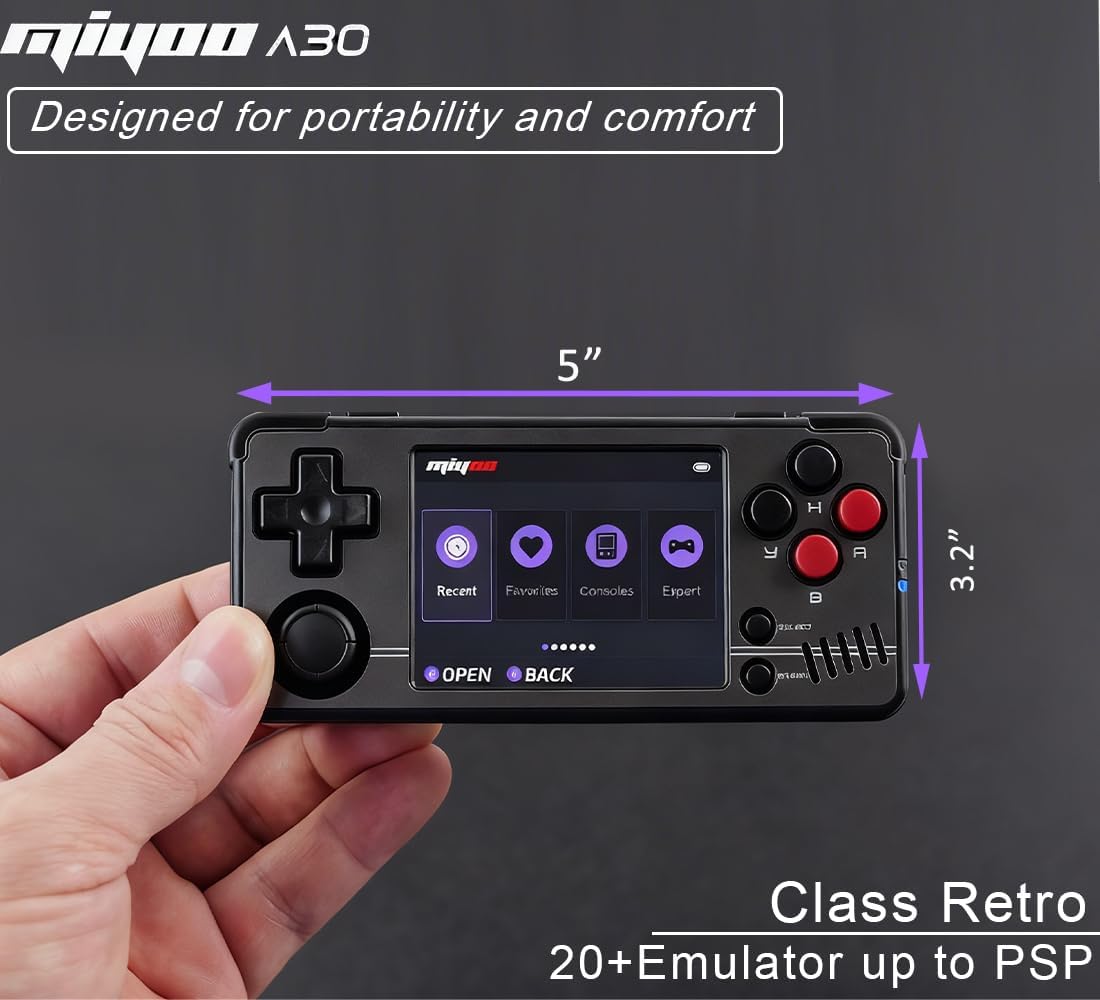
Figure 5: The Miyoo A30 displaying its main menu with options like Recent, Favorites, Consoles, and Expert. Device dimensions are also shown.
5.2. Game Selection and Emulation
The Miyoo A30 supports over 26 emulators, allowing you to play a wide variety of classic games. Games are typically organized by console type within the 'Game' or 'Consoles' section of the menu. Select an emulator, then browse and select your desired game.
5.3. Saving and Loading Game Progress
The console's emulators support instant saving with 10 save slots. During gameplay, access the in-game menu (usually by pressing a combination of buttons like SELECT + START or a dedicated menu button) to save or load your game progress. This allows you to resume gameplay exactly where you left off.
5.4. Game Management
The device offers game management settings for easy organization. You can view recently played games, mark favorites, and access game covers for quick identification within the menu interface.
5.5. Wireless Connectivity (Wi-Fi)
The Miyoo A30 includes built-in Wi-Fi support. Access the settings menu to connect to a Wi-Fi network. This feature enables online community access, updates, and potential additional content.

Figure 6: Depiction of the Miyoo A30's wireless (Wi-Fi) capability, suggesting online multiplayer or connectivity.
5.6. External Display Output (HDMI)
The device supports HDMI output, allowing you to connect it to a television or monitor for a larger display. Use a compatible HDMI cable (not included) to connect the console to your display device. This feature is ideal for a home gaming experience.
5.7. External Controller Support
The Miyoo A30 supports 2.4G wireless and wired controllers, as well as Bluetooth controllers. Refer to the device's settings for pairing and configuration instructions for external controllers.
5.8. Multimedia Functions
Beyond gaming, the console offers multimedia capabilities including a music player, video player, and e-book reader. These functions can be accessed through the main menu.
6. Specifications
| Feature | Description |
|---|---|
| Model | Miyoo A30 |
| Screen Size | 2.8 Inches IPS Display |
| Resolution | 640x480 |
| Processor | A33 |
| Battery | 2600mAh Lithium Polymer |
| Battery Life | Approximately 7 hours |
| Memory Storage | 64GB (TF Card included) |
| Connectivity | Wi-Fi, USB-C, 3.5mm Audio Jack, HDMI Output |
| Dimensions | 5 x 2.2 x 0.6 inches |
| Weight | 10.2 ounces (0.29 Kilograms) |
| Material | Plastic |

Figure 7: Overview of Miyoo A30 technical specifications and available color options.
7. Maintenance
7.1. Cleaning
Use a soft, dry cloth to clean the console's exterior. Avoid using liquid cleaners or abrasive materials, as these may damage the device.
7.2. Battery Care
To prolong battery life, avoid fully discharging the battery frequently. Charge the device regularly, even if not in use for extended periods. Do not expose the device to extreme temperatures.
7.3. Software Updates
Periodically check for software updates via the Wi-Fi connection to ensure optimal performance and access to new features. Follow the on-screen instructions for any available updates.
8. Troubleshooting
- Device not powering on: Ensure the battery is charged. Connect the device to a power source and attempt to power on again.
- Games not loading: Verify that the TF card is properly inserted and that the game files are in the correct format for the selected emulator.
- Screen issues: If the screen is unresponsive or displays incorrectly, try restarting the device. If the issue persists, ensure the device has not been subjected to physical damage.
- Connectivity problems: For Wi-Fi or external controller issues, check the device's settings to ensure proper configuration and signal strength.
9. Official Product Videos
No official seller videos specifically for the Miyoo A30 were found in the provided product information. Please refer to the written instructions and diagrams for guidance.
10. Warranty and Support
For warranty information or technical support, please refer to the contact details provided in your product packaging or visit the official Miyoo website. Keep your proof of purchase for warranty claims.


