1. Product Overview
The Vanzon WN02 Smart App Control White Noise Machine is designed to create a calming environment for improved sleep and relaxation. It features a wide selection of soothing sounds, customizable RGB night light modes, and convenient control via a dedicated mobile application or on-device buttons. This device also functions as a Bluetooth speaker.

Image 1.1: The Vanzon WN02 White Noise Machine with its accompanying smartphone application interface.
2. Key Features
- 54 High-Quality Soothing Sounds: Includes 8 white noises, 19 nature sounds, 7 baby sounds, 14 animal sounds, and 6 life sounds.
- Smart App Control: Adjust volume, lighting, sound types, and set timers remotely via Bluetooth connection to your smartphone.
- 15 RGB Night Light Modes: Offers a variety of colors and adjustable brightness levels, suitable for children's sleep or night feedings.
- Auto-Off Timer: Set the device to automatically turn off after 30, 60, or 90 minutes using physical buttons, or customize a 0-8 hour timer via the app.
- Bluetooth Speaker Functionality: Connect your phone or tablet to play personal music through the device.
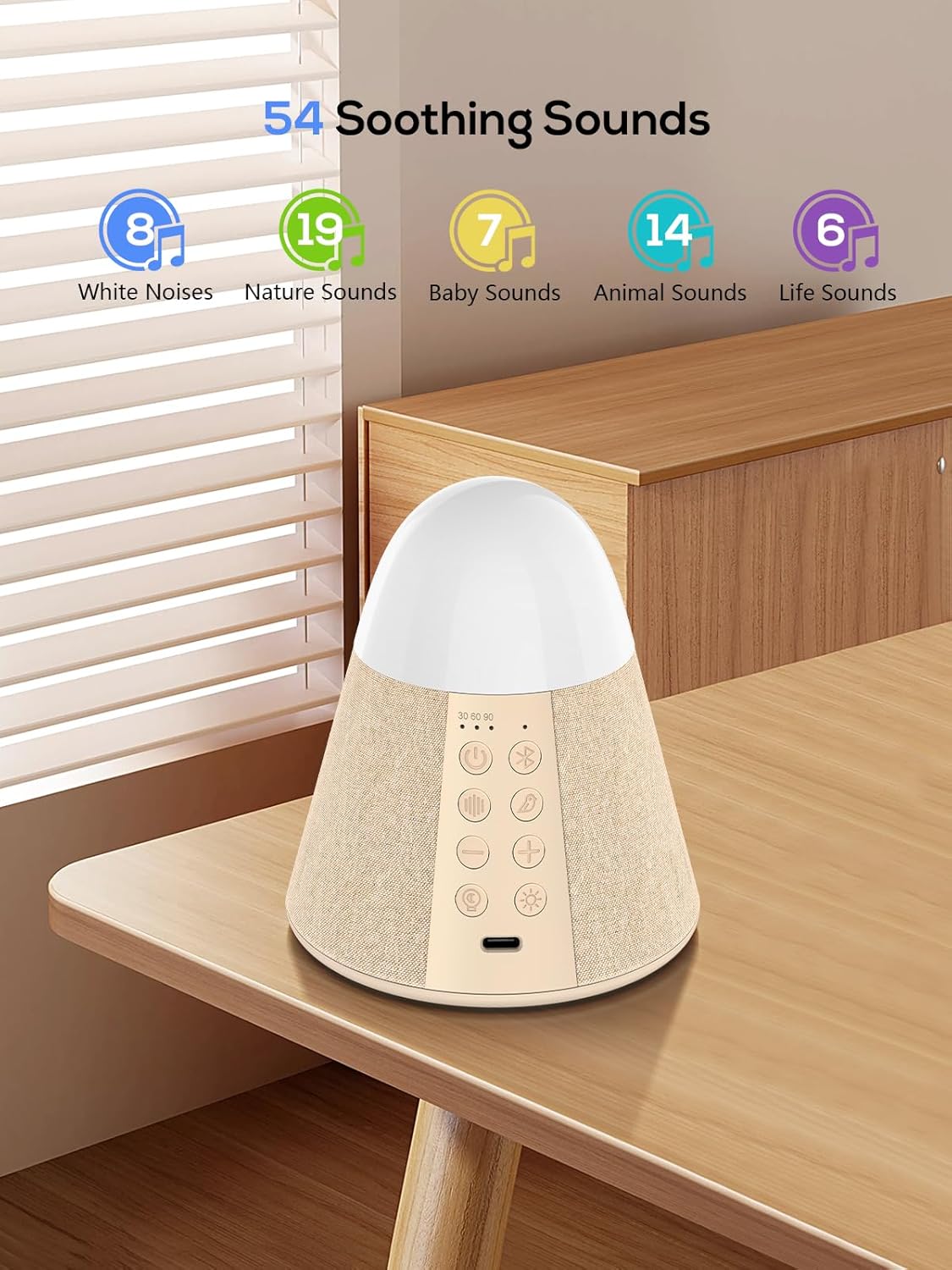
Image 2.1: Visual representation of the 54 available soothing sounds categorized by type.

Image 2.2: Illustration of the 15 RGB night light color options available on the device.
3. Setup Guide
3.1 Package Contents
Before starting, ensure all items are present in the package:
- Vanzon WN02 White Noise Machine
- Power Cable (USB-C)
- Power Adapter
- User Manual
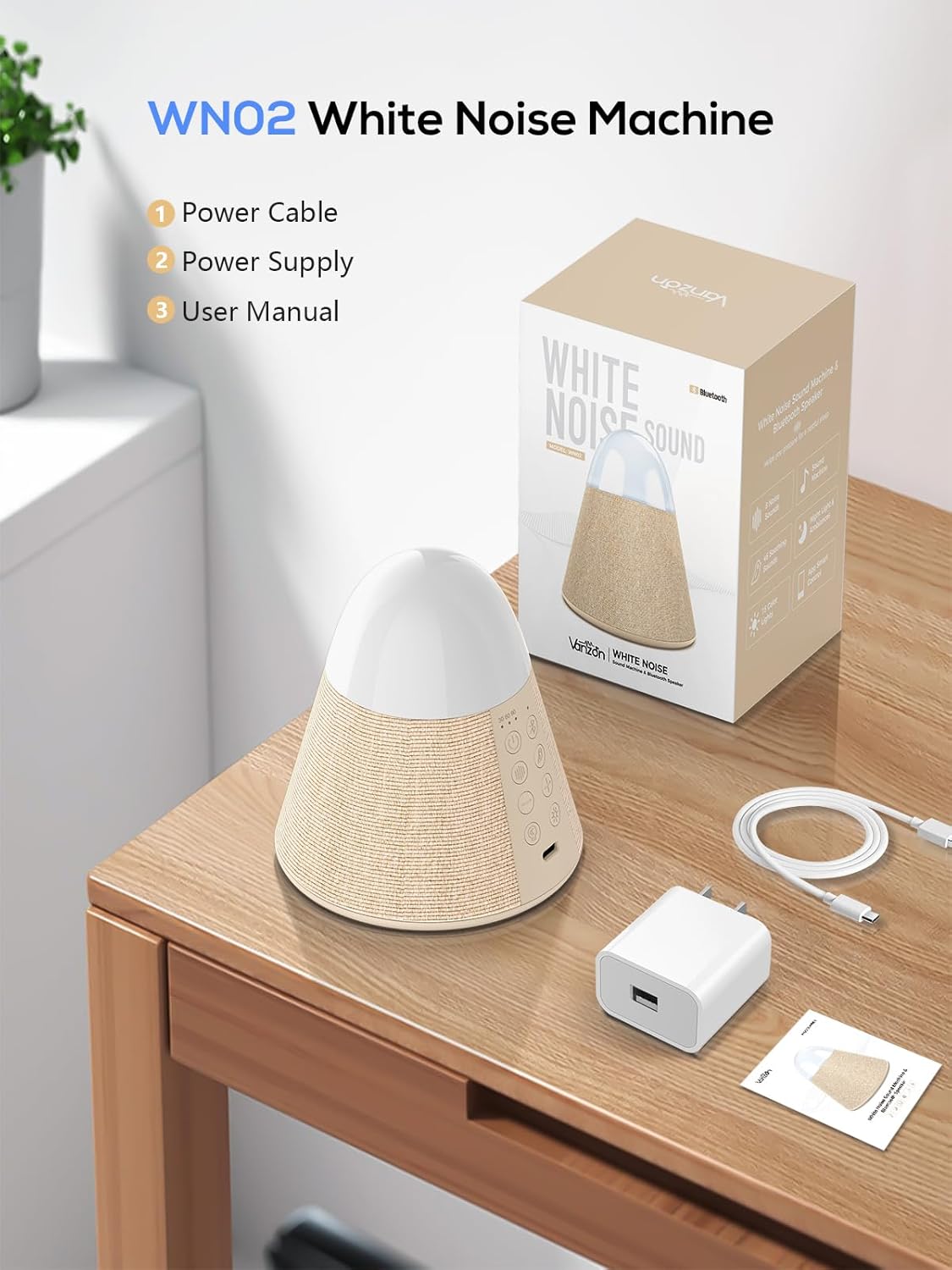
Image 3.1: The Vanzon WN02 package contents, including the device, power cable, power supply, and user manual.
3.2 Power Connection
- Connect the USB-C end of the power cable to the port on the back/bottom of the Vanzon WN02 device.
- Plug the USB-A end of the power cable into the provided power adapter.
- Insert the power adapter into a standard wall outlet.
3.3 App Installation (Optional, but Recommended)
For full functionality and remote control, download the companion app:
- Scan the QR code in the user manual or search for "Sound Machine" in your device's app store (App Store for iOS, Google Play Store for Android).
- Install the application on your smartphone or tablet.
- Ensure Bluetooth is enabled on your mobile device.
- Open the app and follow the on-screen instructions to pair with the "Sound Machine" device.

Image 3.2: The Vanzon WN02 device being controlled via its smartphone application.
4. Operating Instructions
4.1 Device Buttons
The Vanzon WN02 features several physical buttons for direct control:
- Power Button (U): Press to turn the device on or off.
- Bluetooth Button (B): Press to activate Bluetooth pairing mode.
- Sound Type Button (♪): Cycle through different sound categories (White Noise, Nature, Baby, Animal, Life).
- Volume Up/Down Buttons (+ / -): Adjust the sound volume.
- Light Mode Button (💡): Cycle through different RGB light colors/modes.
- Light Brightness Button (☀): Adjust the brightness of the night light.
- Timer Buttons (30/60/90): Set the auto-off timer to 30, 60, or 90 minutes.

Image 4.1: Detailed view of the control panel buttons on the Vanzon WN02 device.
4.2 App Control
The mobile app provides comprehensive control over the device:
- Volume Adjustment: Stepless control for precise volume levels.
- Sound Selection: Browse and select from all 54 soothing sounds.
- Lighting Control: Choose from 15 RGB colors and adjust brightness with stepless control.
- Timer Settings: Set a custom auto-off timer from 0 to 8 hours.
4.3 Bluetooth Speaker Functionality
To use the device as a Bluetooth speaker:
- Ensure the Vanzon WN02 is powered on.
- Press the Bluetooth button on the device or activate Bluetooth pairing via the app.
- On your smartphone or tablet, go to Bluetooth settings and select "Sound Machine" from the list of available devices.
- Once connected, you can play audio from your device through the Vanzon WN02.

Image 4.2: The Vanzon WN02 functioning as a Bluetooth speaker for personal music playback.
5. Maintenance
To ensure the longevity and optimal performance of your Vanzon WN02 White Noise Machine, follow these simple maintenance guidelines:
- Cleaning: Wipe the device with a soft, dry cloth. Do not use liquid cleaners or abrasive materials, as they may damage the surface or internal components.
- Storage: When not in use for extended periods, store the device in a cool, dry place away from direct sunlight and extreme temperatures.
- Avoid Water: This device is not waterproof. Keep it away from water and other liquids to prevent electrical shock or damage.
- Power Cable: Handle the power cable gently. Do not bend, twist, or pull it excessively.
6. Troubleshooting
If you encounter issues with your Vanzon WN02, refer to the following common problems and solutions:
| Problem | Possible Cause | Solution |
|---|---|---|
| Device does not turn on. | No power connection or faulty power source. | Ensure the power cable is securely connected to the device and a working power outlet. Try a different outlet. |
| Cannot connect to the app. | Bluetooth is off or device is not in pairing mode. | Enable Bluetooth on your phone. Press the Bluetooth button on the device to enter pairing mode. Restart the app and try again. |
| No sound or low volume. | Volume is too low or muted. Incorrect sound selected. | Increase volume using the device buttons or app. Ensure a sound is selected and not paused. |
| Night light not working. | Light is off or brightness is set to minimum. | Press the Light Mode button or adjust brightness via the app. |
| Bluetooth speaker not connecting. | Device not in Bluetooth pairing mode or already connected to another device. | Ensure the device is in Bluetooth pairing mode. Disconnect from other devices if necessary. Forget and re-pair the device on your phone. |
7. Product Specifications
- Model Name: WN02
- Brand: Vanzon
- Dimensions: 5.67 x 4.41 x 4.25 inches
- Item Weight: 6.3 ounces (0.18 Kilograms)
- Material: Acrylonitrile Butadiene Styrene (ABS), Plastic
- Power Source: Corded Electric (Batteries not required)
- Sound Options: 54 (8 White Noises, 19 Nature Sounds, 7 Baby Sounds, 14 Animal Sounds, 6 Life Sounds)
- Light Options: 15 RGB Night Light Modes
- Timer Options: 30/60/90 minutes (device), 0-8 hours (app)
- Connectivity: Bluetooth
8. Important Safety Information
For safe use of this product, please follow these guidelines:
- This product is intended for supervised use.
- If the product contains small parts, keep it out of reach of children under 3 years old.
- Always use the correct type of power adapter as indicated in the product manual.
- Do not disassemble or attempt to repair the device yourself. Contact customer support for assistance.
- Keep the device away from heat sources, direct sunlight, and moisture.
9. Warranty and Customer Support
Vanzon products are manufactured to high-quality standards. For specific warranty details, please refer to the documentation included with your purchase or visit the official Vanzon website. If you experience any issues or have questions regarding your Vanzon WN02 White Noise Machine, please contact Vanzon customer support for assistance.
You can often find support contact information on the manufacturer's website or through your purchase platform.


