1. Introduction
This manual provides detailed instructions for the installation, operation, and maintenance of your NPET S20 RGB Backlit Gaming Keyboard and Mouse Combo. Please read this manual thoroughly before using the product to ensure proper function and longevity. Keep this manual for future reference.

Image 1.1: The NPET S20 RGB Backlit Gaming Keyboard and Mouse Combo. This image displays the full-sized keyboard with RGB backlighting and the ergonomic gaming mouse.
2. Safety Information
- Do not expose the device to extreme temperatures or humidity.
- Avoid dropping or subjecting the device to strong impacts.
- Keep the device away from liquids. While the keyboard is spill-resistant, excessive liquid exposure can cause damage.
- Do not attempt to disassemble or repair the device yourself. Refer all servicing to qualified personnel.
- Use only with compatible USB ports.
3. Package Contents
Verify that all items are present in the package:
- NPET S20 RGB Backlit Gaming Keyboard
- NPET Gaming Mouse
- User Manual (this document)
4. Setup
Follow these steps to connect your NPET S20 keyboard and mouse to your computer:
- Locate an available USB-A port on your computer.
- Plug the USB connector of the NPET S20 keyboard into the USB-A port.
- Plug the USB connector of the NPET gaming mouse into another available USB-A port.
- Your operating system should automatically detect and install the necessary drivers. No additional software installation is typically required.
- Once drivers are installed, the keyboard and mouse are ready for use.

Image 4.1: Side view of the keyboard illustrating the adjustable feet. These feet can be extended to change the typing angle for improved ergonomics.
5. Operating Instructions
5.1 Keyboard Functions
The NPET S20 keyboard features a full-sized layout with dedicated multimedia controls and customizable RGB backlighting.
5.1.1 Backlighting Control
- FN + Scroll Lock: Cycle through 4 dynamic lighting modes (including 7-color breathing).
- FN + Pause Break: Cycle through 3 static lighting modes.
- FN + Page Up/Page Down: Adjust brightness levels.
- FN + +/-: Adjust lighting speed (for dynamic modes).
- FN + Home: Turn backlighting On/Off.

Image 5.1: The keyboard displaying its 10-zone RGB illumination, showcasing various color schemes and effects.
5.1.2 Multimedia Keys
Access multimedia functions using the FN key in combination with the F-keys:
- FN + F1: Media Player
- FN + F2: Volume Down
- FN + F3: Volume Up
- FN + F4: Mute
- FN + F5: Stop
- FN + F6: Previous Track
- FN + F7: Play/Pause
- FN + F8: Next Track
- FN + F9: Email
- FN + F10: Web Browser
- FN + F11: My Computer
- FN + F12: Calculator

Image 5.2: Close-up of the keyboard highlighting the full-size dedicated multimedia controls and the anti-ghosting feature, indicated by the key layout.
5.1.3 Anti-Ghosting
The keyboard supports 26-key rollover, preventing ghosting during intense gameplay by ensuring that multiple simultaneous key presses are registered accurately.
5.1.4 Mechanical Feel and Quiet Design
The keyboard is designed to provide tactile mechanical-key feedback with ultra-quiet switches, suitable for both gaming and office environments.

Image 5.3: A close-up view of the keyboard keys, emphasizing the quiet and mechanical feeling gaming switches.
5.2 Mouse Functions
The NPET gaming mouse is designed for precision and comfort.
5.2.1 DPI Adjustment
The mouse features adjustable DPI (Dots Per Inch) settings from 1200 to 7200. Use the dedicated DPI button on the mouse to cycle through the available sensitivity levels.
5.2.2 LED Modes
The mouse offers 4 LED lighting modes. These modes typically cycle automatically or can be adjusted via a dedicated button if present (refer to mouse-specific instructions if available on the device itself).
5.2.3 Ergonomics
The mouse features an ergonomic claw-grip shape designed to reduce fatigue during extended use.
6. Maintenance
6.1 Cleaning
- Disconnect the keyboard and mouse from your computer before cleaning.
- Use a soft, damp cloth to wipe down the surfaces of the keyboard and mouse.
- For the keyboard, you can use a can of compressed air to remove dust and debris from between the keys.
- The keyboard features removable keycaps and includes a keycap puller for easier cleaning under the keys. Gently use the keycap puller to remove keycaps for thorough cleaning.
- Avoid using harsh chemicals or abrasive cleaners.
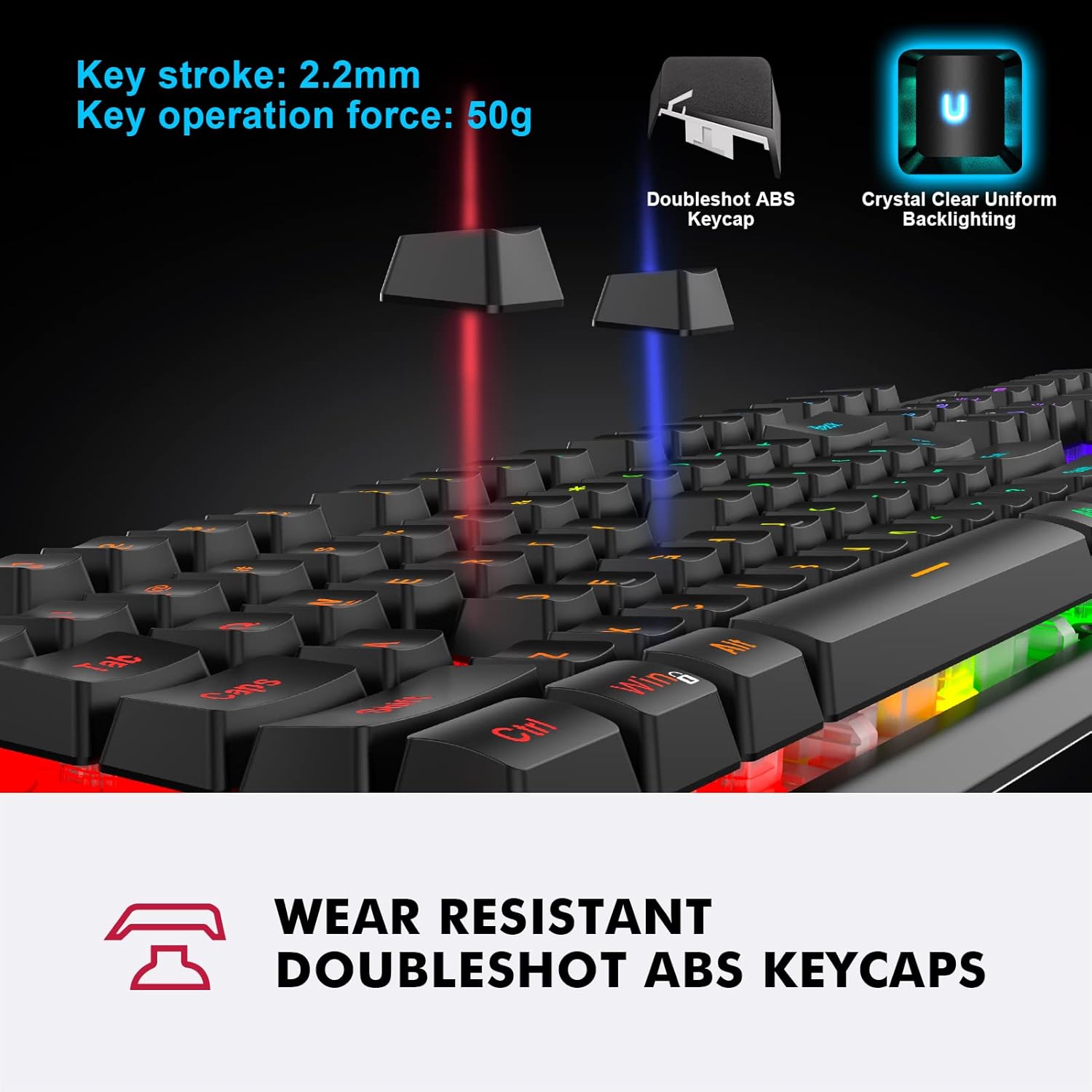
Image 6.1: Detail of the keyboard keycaps, illustrating their wear-resistant doubleshot ABS construction for durability and clear backlighting.
6.2 Spill Resistance
The keyboard features a triple-protection design for spill resistance (IP32 dust and water resistant). In case of a spill, immediately disconnect the keyboard, wipe off the liquid, and allow it to dry completely before reconnecting.

Image 6.2: The keyboard surface with water droplets, visually representing its IP32 dust and water-resistant design.
7. Troubleshooting
| Problem | Possible Cause | Solution |
|---|---|---|
| Keyboard/Mouse not responding | Loose USB connection, faulty USB port, driver issue. | Ensure USB cables are securely plugged in. Try a different USB port. Restart your computer. |
| Backlighting not working | Backlighting turned off, brightness set to minimum. | Press FN + Home to toggle backlighting. Adjust brightness with FN + Page Up. |
| Mouse cursor erratic or not moving | Dirty sensor, incompatible surface, DPI setting too low. | Clean the mouse sensor. Use a mouse pad or a non-reflective surface. Adjust DPI settings. |
| Keys not registering correctly (ghosting) | Too many keys pressed simultaneously (unlikely with 26-key rollover), software conflict. | Ensure no background applications are interfering. Test on another computer if possible. |
8. Specifications
| Feature | Detail |
|---|---|
| Model | S20 |
| Connectivity Technology | USB-A (Wired) |
| Keyboard Type | Gaming, Mechanical Feel |
| Keyboard Backlighting | 7-Color RGB, 4 Dynamic Modes, 3 Static Modes |
| Keyboard Anti-Ghosting | 26-Key Rollover |
| Mouse DPI | 1200-7200 (Adjustable) |
| Mouse LED | 4 Modes |
| Material | Metal, ABS Plastic |
| Special Features | Backlit, Ergonomic, Spill-Resistant (IP32) |
| Compatible Devices | Laptop, Gaming Console, PC |
| Power Source | USB Power |
| Keyboard Dimensions | Approximately 17.2 x 5.2 x 1.3 inches |
| Item Weight | Approximately 2 pounds |

Image 8.1: Top-down view of the keyboard, indicating its approximate dimensions and cable length.

Image 8.2: Side view of the keyboard, highlighting its durable metal base and ABS topplate construction.
9. Warranty & Support
NPET products are designed for reliability and performance. For specific warranty details and support inquiries, please refer to the warranty card included with your product or visit the official NPET website. Keep your purchase receipt as proof of purchase for warranty claims.
For technical assistance or customer service, please contact NPET support through their official channels.


