
1. Introduction
This manual provides detailed instructions for the installation, operation, and maintenance of your ARCCTV C3 4-Cam Kit Solar Security Camera System. Please read this manual thoroughly before using the product to ensure proper setup and functionality. Keep this manual for future reference.
2. Product Overview
2.1 Package Contents
- 4 x ARCCTV C3 Solar Security Cameras
- 1 x Base Station
- 1 x 64GB Memory Card (pre-installed in base station)
- 4 x Mounting Kits (screws, wall anchors)
- 1 x Power Adapter for Base Station
- 1 x Ethernet Cable
- 1 x User Manual
2.2 Key Features
- 4MP HD Resolution: Provides clear 2560x1440p video footage.
- Integrated Solar Panels: Each camera features a high-efficiency solar panel for continuous power.
- Wireless Connectivity: Cameras connect wirelessly to the base station.
- Color Night Vision: Enhanced visibility in low-light conditions.
- PIR Motion Detection: Detects human movement and sends instant alerts.
- Local Storage: 64GB memory card in the base station for recording without monthly fees.
- IP65 Weatherproof: Designed for outdoor use, resistant to rain and dust.
- Two-Way Audio: Allows for communication through the camera.
- Remote Access: Monitor and manage via the mobile application.
- Wi-Fi 6 Support: Offers low latency, fast network transmission, and high stability.

Image: The ARCCTV C3 4-Cam Kit Solar Security Camera System, showing four white bullet-style cameras with integrated solar panels and a cylindrical white base station.

Image: A side-by-side comparison demonstrating the clarity of 4MP resolution from ARCCTV cameras versus 2K resolution from other cameras, showing a house exterior.
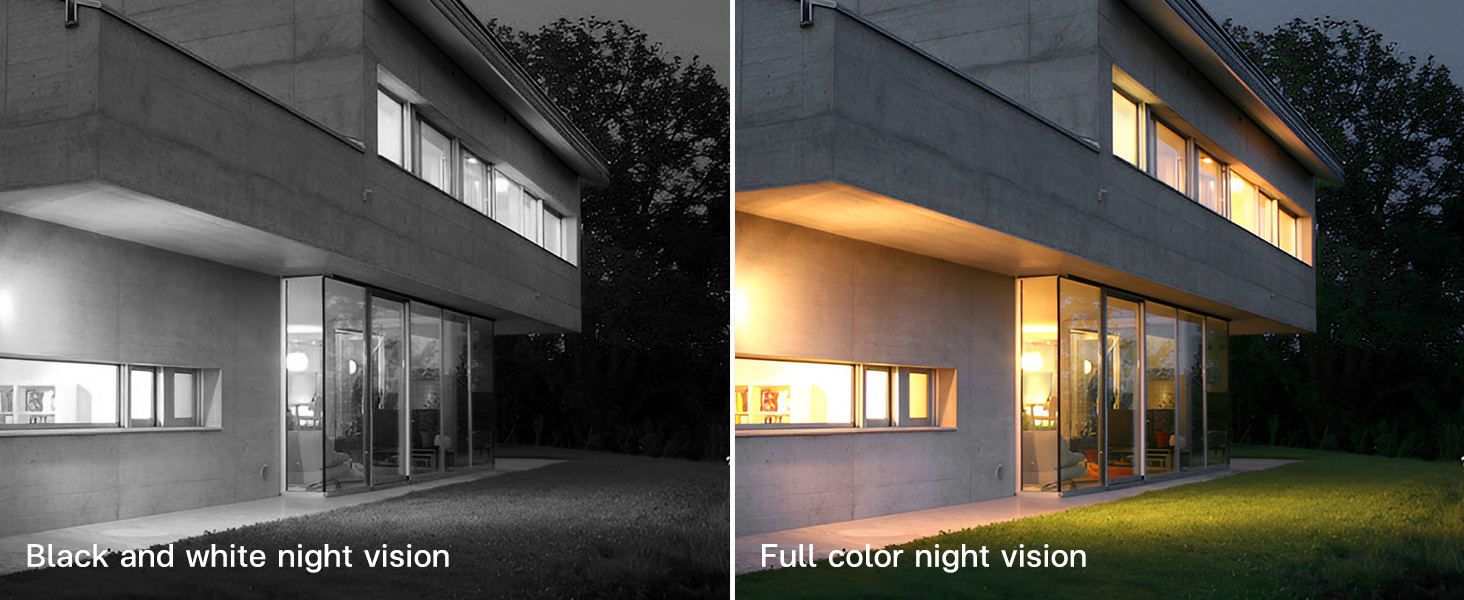
Image: A comparison showing a house at night, with one side displaying black and white night vision and the other side displaying full-color night vision.
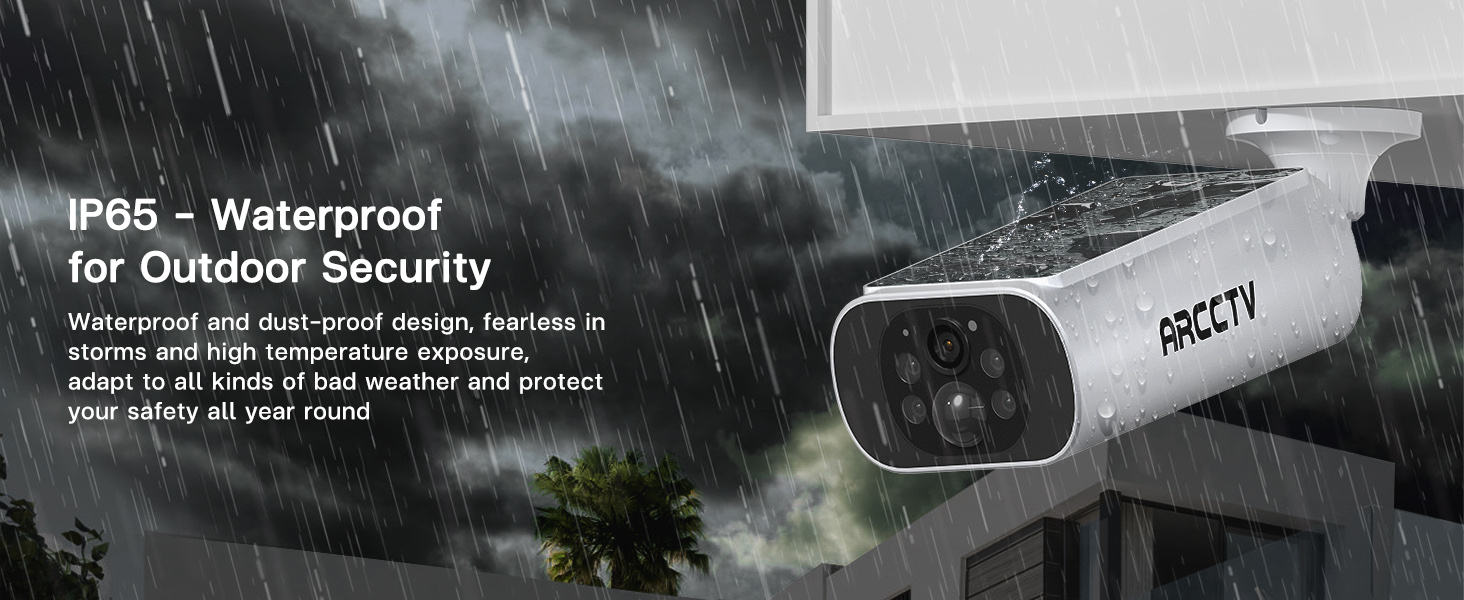
Image: An ARCCTV camera mounted outdoors, with water splashing on it, illustrating its IP65 waterproof design for outdoor security.

Image: A graphic highlighting the benefits of WiFi 6 for the camera system, including low latency, fast network transmission, and high stability.
3. Setup
3.1 Before You Begin
- Ensure all components listed in Section 2.1 are present.
- Charge cameras fully before initial installation for optimal performance, especially if solar exposure is limited initially.
- Ensure your Wi-Fi network is stable and within range of the base station.
3.2 App Installation
- Download the ARCCTV mobile application from your device's app store (iOS or Android).
- Register for a new account or log in if you already have one.
3.3 Base Station and Camera Installation
- Position the Base Station: Place the base station indoors, centrally located to cover all camera areas, and connect it to power and your router via the provided Ethernet cable.
- Select Camera Locations: Choose outdoor locations for each camera that provide a clear view of the desired monitoring area and receive ample direct sunlight for solar charging. Avoid obstructions that might block sunlight or the camera's field of view.
- Mount the Cameras: Use the included mounting kits to securely attach each camera to a wall or suitable surface. Drill pilot holes, insert wall anchors if necessary, and fasten the camera bracket with screws. Adjust the camera angle for optimal coverage.

Image: A person installing an ARCCTV solar security camera on an exterior wall, demonstrating the simple DIY installation process.
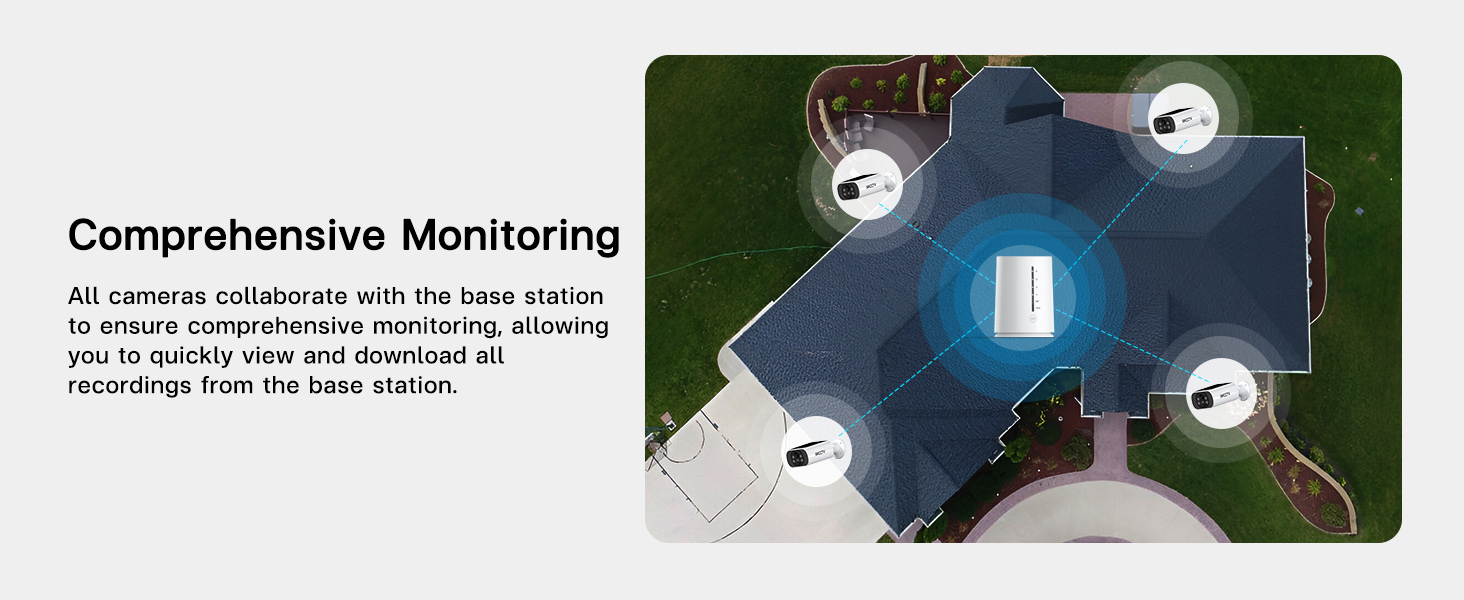
Image: An aerial view of a house showing four security cameras strategically positioned around the perimeter, illustrating comprehensive monitoring coverage.
3.4 System Pairing
- Open the ARCCTV app and follow the on-screen instructions to add your base station.
- Once the base station is added, the app will guide you through pairing each camera to the base station. Ensure cameras are powered on and within range during this process.
- Verify that all cameras are successfully connected and displaying live feeds in the app.

Image: A diagram illustrating the base station's function as a Wi-Fi repeater, extending and strengthening the signal to the cameras for reliable connectivity.
4. Operating Instructions
4.1 Live View and Playback
- Open the ARCCTV app to view live feeds from all connected cameras.
- Select a specific camera to view its full-screen live feed.
- Access recorded footage by navigating to the playback section within the app. You can filter by date and time to review events.

Image: A hand holding a smartphone displaying a grid of four live video feeds from the security cameras, allowing simultaneous monitoring.
4.2 Motion Detection and Alerts
- The cameras utilize PIR (Passive Infrared) detection to identify human movement.
- Upon detection, the system will send instant notifications to your mobile device.
- Customizable Alarm Area: Within the app settings, you can define specific areas for motion detection to reduce false alerts.
- Custom Alarm Time: Set specific timeframes for motion detection to be active, conserving battery life and reducing unnecessary notifications.
- Base Station Sync Alarm: The base station can emit an audible alarm when motion is detected by a camera. This feature can be enabled or disabled in the app.

Image: A security camera illuminating a figure in the dark, with a smartphone displaying an 'Abnormal movement detected' notification from the ARCCTV app.

Image: A security camera highlighting a person in its field of view, demonstrating intelligent PIR detection and immediate alarm notification to a phone.
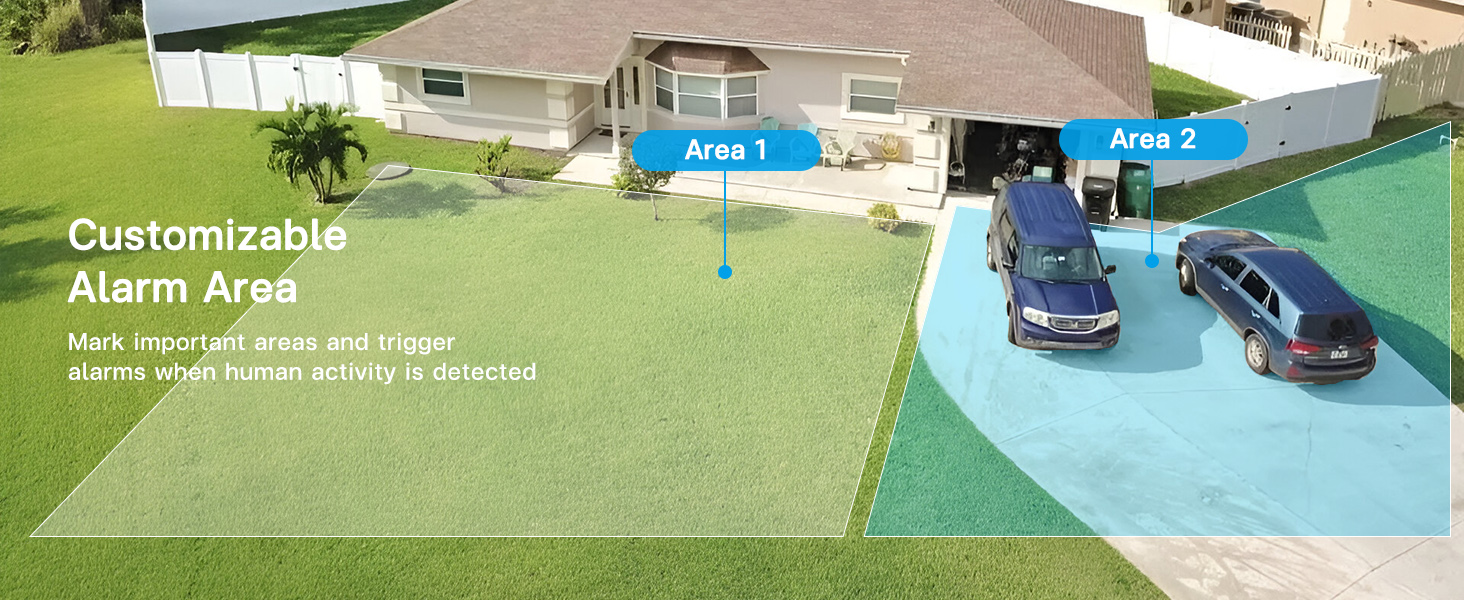
Image: An aerial view of a house and yard with two distinct areas highlighted, indicating customizable alarm zones for motion detection.

Image: A base station on a table emitting sound waves, signifying its synchronized alarm function when a camera detects motion.

Image: A graphic showing a security camera and an app interface with a toggle for custom alarm times (e.g., 08:00 am - 18:00 pm), allowing users to set specific periods for motion alerts.
4.3 Two-Way Audio
- Use the microphone and speaker functions within the app to communicate with individuals near the camera.
- This feature is useful for interacting with visitors or deterring unwanted activity.
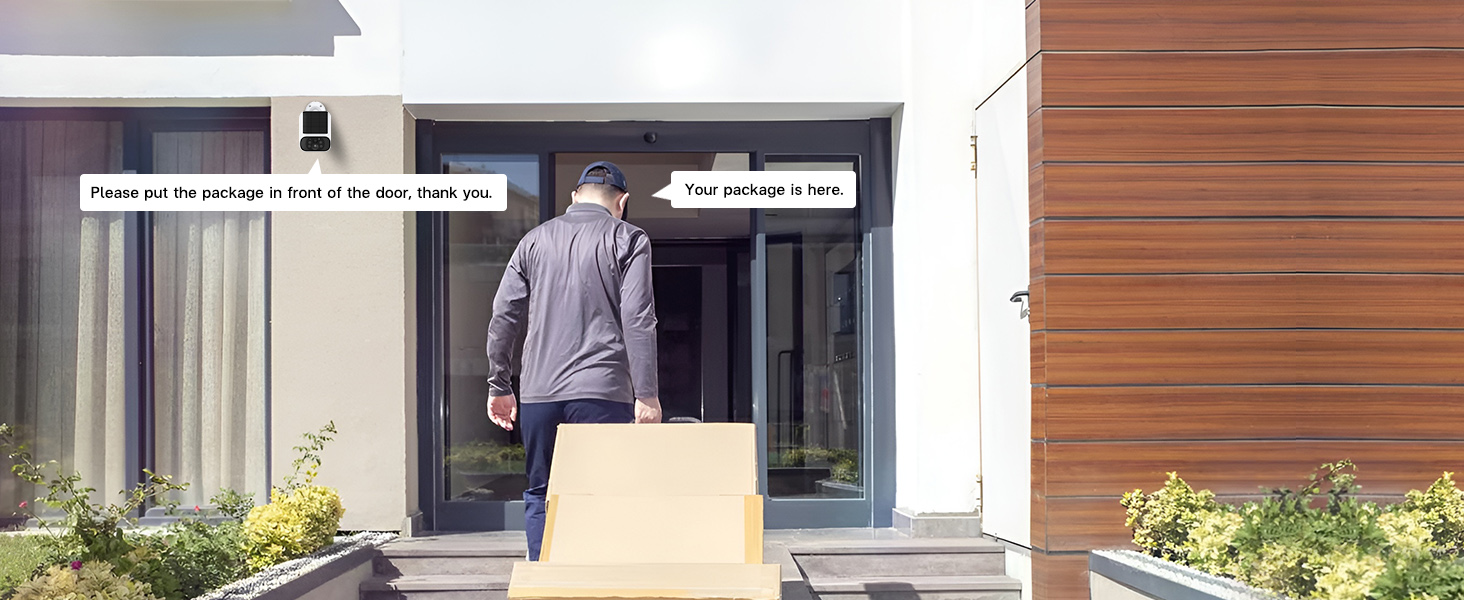
Image: A delivery person at a front door with packages, and speech bubbles indicating two-way audio communication from the security camera, such as "Please put the package in front of the door, thank you."
4.4 Storage Management
- The base station includes a pre-installed 64GB memory card for local video storage.
- This system does not require monthly cloud storage fees.
- You can view and download recordings directly from the base station via the app.
- The system supports up to 512GB flash memory for expanded storage.
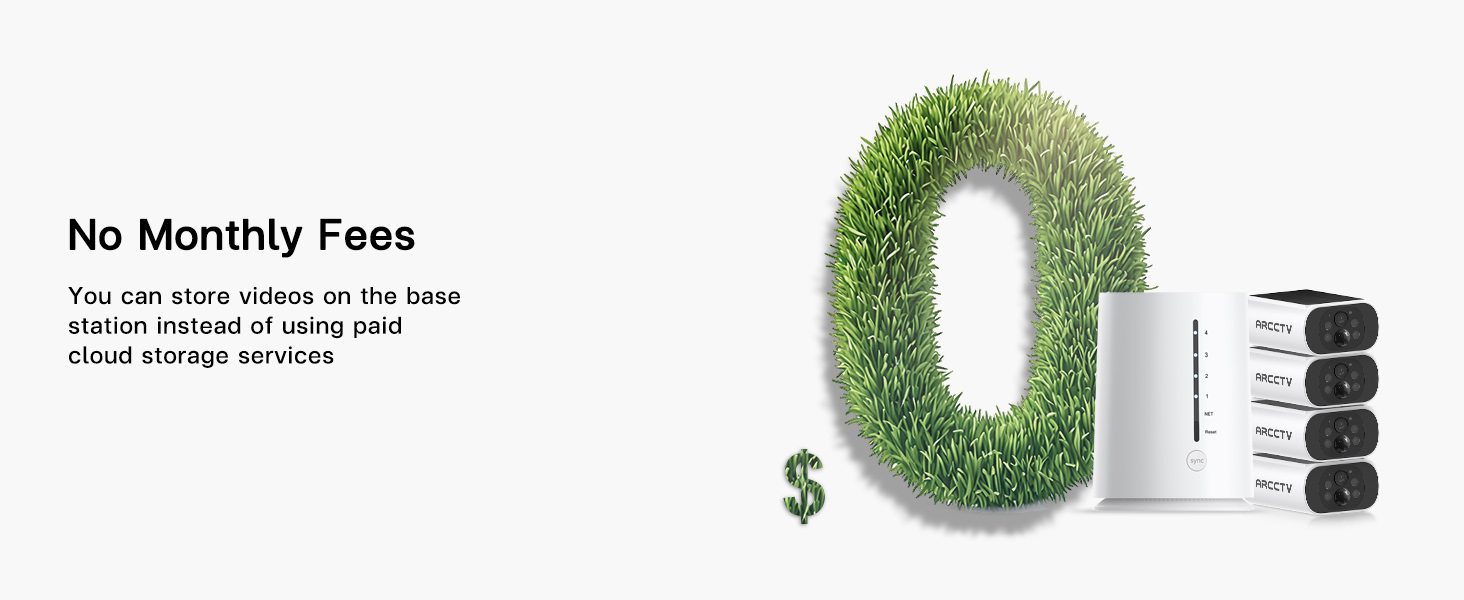
Image: A large '0' made of grass, symbolizing no monthly fees, next to the base station and cameras.
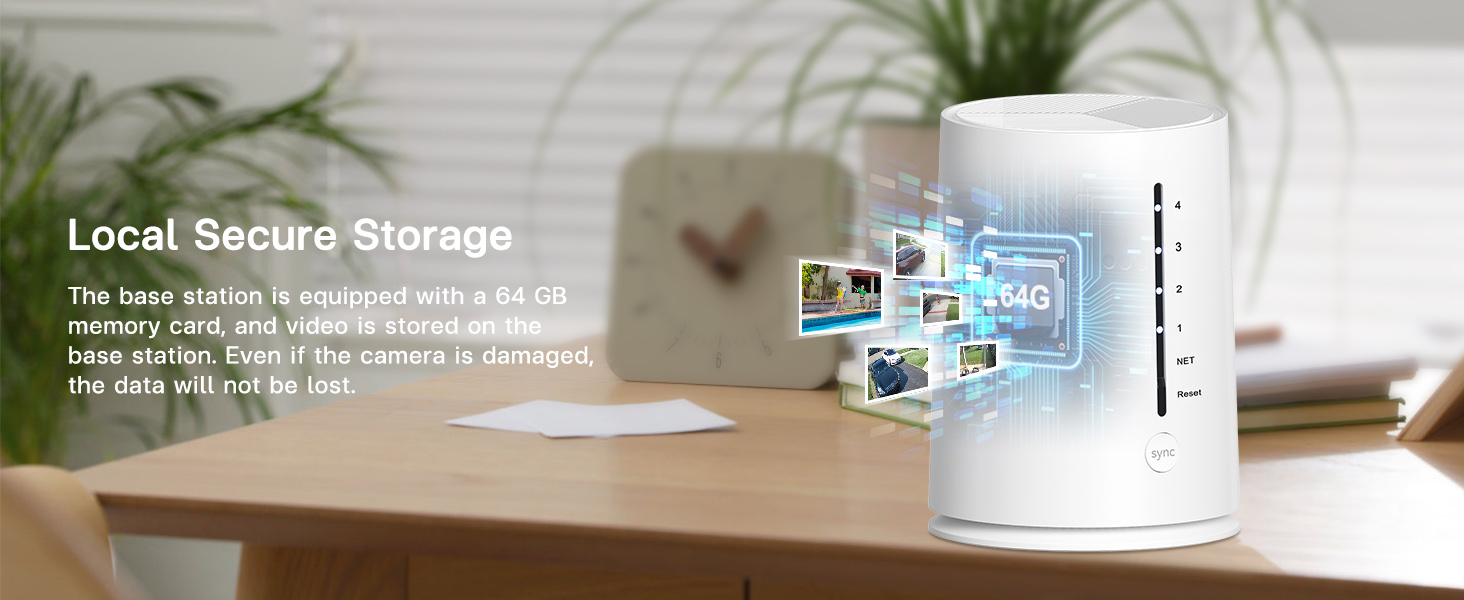
Image: The base station on a desk, with a graphic overlay indicating a 64GB memory card for local secure storage, emphasizing that data is not lost even if a camera is damaged.
4.5 Sharing Access
- The ARCCTV app supports multi-user sharing, allowing family members or trusted individuals to view the monitoring screen.
- Access sharing settings within the app to invite and manage users.

Image: A world map with pinpoints showing different people viewing security camera feeds on their smartphones, illustrating the multi-user sharing feature.
4.6 Smart Home Integration
- The system is compatible with Amazon Alexa.
- You can use voice commands to view camera feeds on compatible smart displays.

Image: An Amazon Echo Show smart display showing a security camera feed, with a speech bubble indicating the voice command "Alexa, show me the backyard."
5. Maintenance
5.1 Solar Panel Care
- Regularly inspect the solar panels on each camera for dirt, dust, or debris.
- Gently clean the solar panel surface with a soft, damp cloth to ensure optimal sunlight absorption and charging efficiency.
- Ensure no obstructions (e.g., tree branches, leaves) are blocking direct sunlight to the panels.

Image: A graphic showing an integrated solar panel on a camera, with arrows indicating sunlight being converted into energy for continuous power.
5.2 Memory Card Management
- The 64GB memory card in the base station will automatically overwrite the oldest footage when full.
- If you need to save specific recordings, download them to your mobile device via the app.
- To manually clear space or replace the memory card, refer to the base station's physical access instructions (typically located on the bottom or side panel).
6. Troubleshooting
| Issue | Possible Cause | Solution |
|---|---|---|
| Camera not powering on/charging | Insufficient sunlight; dirty solar panel; low battery. | Relocate camera to an area with more direct sunlight. Clean solar panel. Fully charge camera via USB if prolonged low light. |
| No live feed/camera offline | Weak Wi-Fi signal; camera too far from base station; camera battery depleted. | Ensure base station is centrally located. Check camera battery level. Restart camera and base station. |
| Motion alerts not received | Motion detection disabled; app notifications off; incorrect detection zone settings. | Enable motion detection in app. Check phone notification settings. Adjust detection zones and sensitivity. |
| Poor image quality | Dirty lens; poor lighting; network bandwidth issues. | Clean camera lens. Ensure adequate lighting for color night vision. Check network speed. |
| Base station offline | Power disconnected; Ethernet cable loose; router issue. | Check power connection. Ensure Ethernet cable is secure. Restart router and base station. |
7. Specifications
| Feature | Detail |
|---|---|
| Model Name | C3 |
| Video Capture Resolution | 1440p (4MP) |
| Indoor/Outdoor Usage | Indoor, Outdoor |
| Power Source | Battery Powered & Solar Powered |
| Connectivity Protocol | Wi-Fi |
| Wireless Communication Technology | Wi-Fi |
| Controller Type | Amazon Alexa, Android (App) |
| Mounting Type | Wall Mount (Screw In) |
| Viewing Angle | 360 Degrees (System Coverage) |
| Night Vision Range | 33 Feet |
| Water Resistance Level | Waterproof (IP65) |
| Flash Memory Installed Size | 64 GB |
| Flash Memory Supported Size Maximum | 512 GB |
| Low Light Technology | Color Night Vision |
| Audio Visual Recording Capabilities | Video & Audio (2-Way Audio) |
| Product Dimensions | 16.2 x 7.8 x 4.3 inches |
| Item Weight | 4.99 pounds |
| Batteries | 1 A batteries required (included) |
8. Warranty and Support
For warranty information and technical support, please refer to the official ARCCTV website or contact their customer service directly. The manufacturer is Shenzhen Anran Security Technology Co.,Ltd.
Please retain your proof of purchase for any warranty claims.


