
Introduction
Thank you for choosing the ZealSound K66DG Series Dual Wireless Podcast Microphone. This professional microphone kit is designed to deliver studio-quality audio for creators, perfect for podcasting, streaming, vocal recording, gaming, and online meetings. Featuring advanced 2.4GHz wireless technology, noise reduction, and versatile connectivity, this manual will guide you through its setup, operation, and maintenance to ensure optimal performance.
What's in the Box
Your ZealSound K66DG Series kit includes the following components:
- 2 x K66 Series 2.4 GHz Wireless Microphones with Solid Metal Anti-vibration Stands and Foam Covers
- 1 x USB Dongle Receiver
- 2 x 70.87" USB-A to USB-C Charging/Audio Cables
- 2 x USB-C Adapters (for MacBook, iPhone 15/16, tablets, PCs)
- 2 x Lightning to USB Adapters (for iPhone and iPad)
- 1 x User Manual

Setup Instructions
1. Initial Charging
Before first use, fully charge both microphones using the provided USB-A to USB-C cables. The microphones offer up to 16 hours of runtime on a full charge (3-hour recharge time). You can continue recording while charging.
2. Connecting the Microphones
The K66DG Series offers flexible connection options:
Dual Wireless Mode (for Co-Hosting)
- Insert the USB Dongle Receiver into your device (PC, iPhone, iPad, Android, PS4/PS5). Use the appropriate USB-C or Lightning adapter if necessary.
- Power on both 2.4GHz Wireless Microphones. They will automatically pair with the receiver.
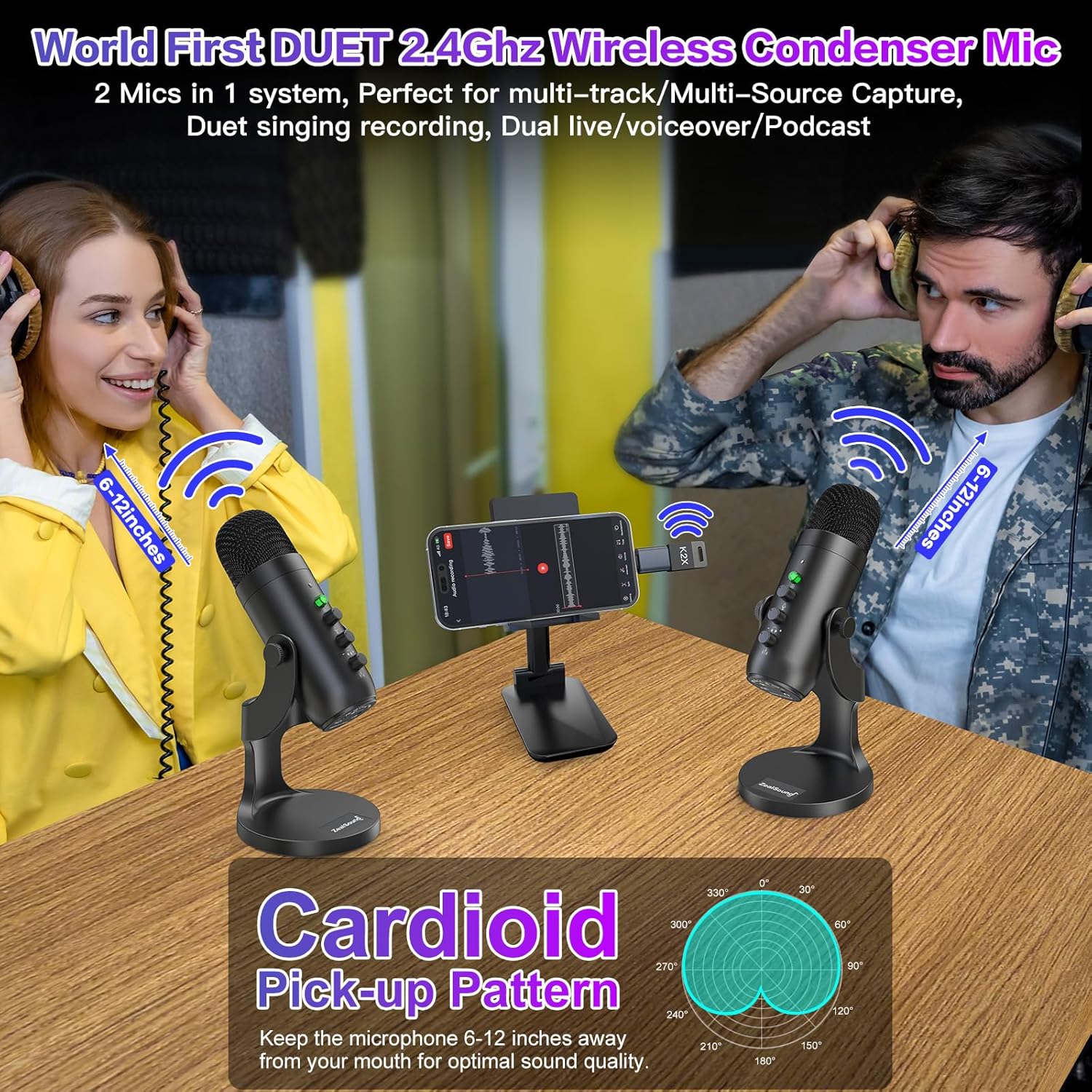
- Both microphones will deliver clear, synchronized audio to your single connected device.

Single Microphone Mode (Wireless)
- Insert the USB Dongle Receiver into your device.
- Power on one 2.4GHz Wireless Microphone. It will automatically pair with the receiver.
Single Microphone Mode (Wired)
- Connect one microphone directly to your device using the provided USB-A to USB-C cable. This mode is only supported for single-mic use.

Operating Instructions
1. Microphone Controls
Each microphone features intuitive onboard controls:
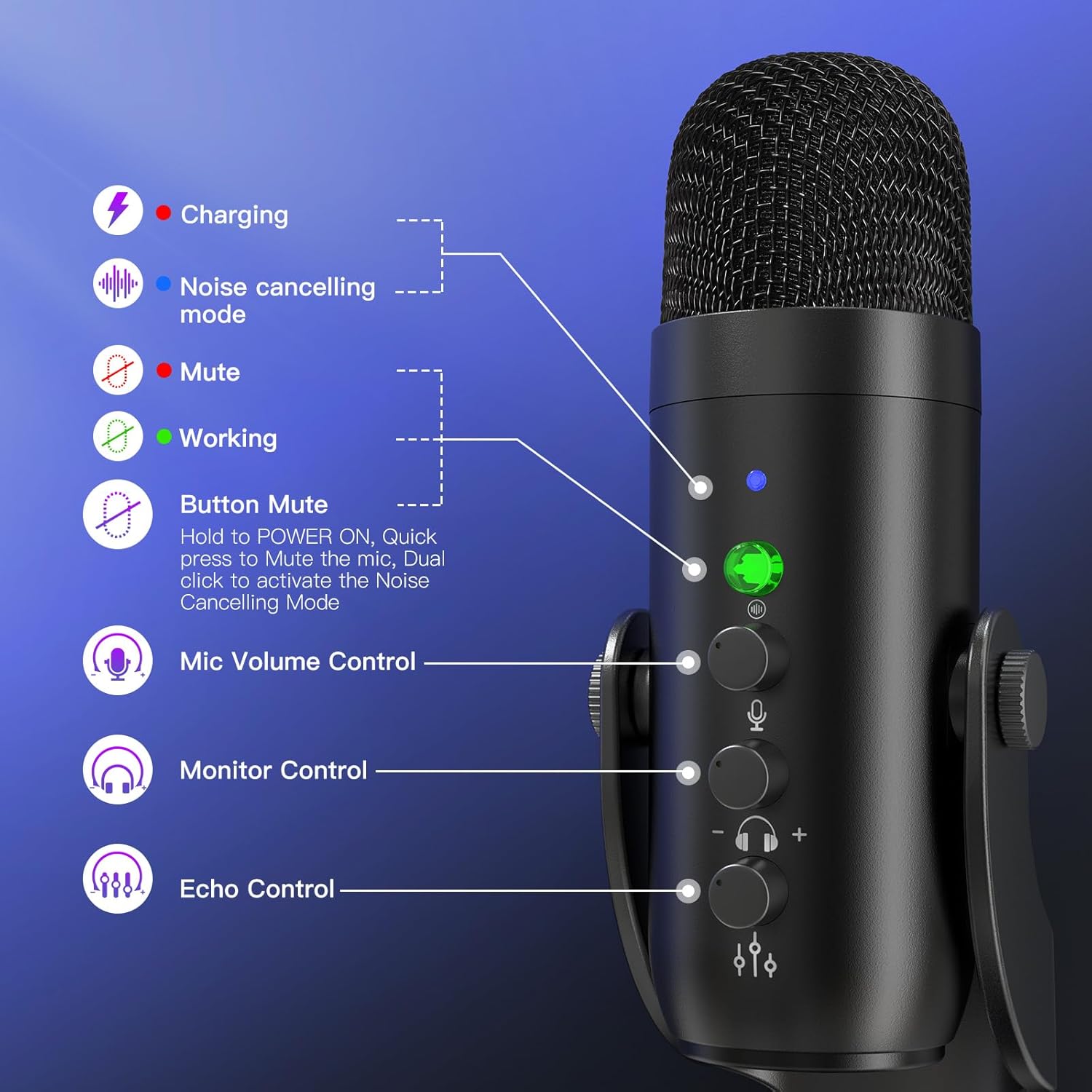
- MUTE/ANC Button: Double-press to toggle advanced noise cancellation (ANC) on or off. A blue LED indicates ANC is active. Single press to mute/unmute (red LED for mute).
- Mic Gain Knob: Adjusts microphone sensitivity. Turn clockwise to lower sensitivity, counterclockwise for more vocal detail.
- Echo Knob: Fine-tunes echo for rich, spacious effects, ideal for singing or enhancing voiceovers.
- Monitor Volume: Controls the volume of the 3.5mm headphone jack for zero-latency playback.
2. Noise Cancellation
The built-in DSP noise-canceling chipset provides clean, professional sound. Double-press the MUTE/ANC button to activate or deactivate noise cancellation. The mic defaults to original mode for natural sound. Activate noise reduction to block background distractions in noisy environments.

3. Microphone Placement
For best results, speak directly into the top of the microphone. Its top-address design and cardioid pickup pattern isolate your voice and minimize background noise. Keep the microphone 6-12 inches away from your mouth for optimal sound quality.
4. Bluetooth Music Input
Pair a second device via Bluetooth to play background music or sound effects during your streams or recordings. This feature adds real-time background music without affecting your voice recording, which is captured separately via the 2.4GHz wireless connection.
5. Official Product Video
Video: An overview of the Brvomussy Podcast Equipment Bundle, demonstrating its features and use cases. While not the exact ZealSound K66DG, it provides a general idea of a dual microphone podcast setup.
Maintenance
- Cleaning: Use a soft, dry cloth to clean the microphone and stand. Avoid liquid cleaners or abrasive materials.
- Storage: Store the microphone in a cool, dry place away from direct sunlight and extreme temperatures. Use the foam covers to protect the microphone heads when not in use.
- Battery Care: To prolong battery life, avoid fully discharging the microphones frequently. Charge them regularly, even if not in constant use.
Troubleshooting
- No Sound Output:
- Ensure microphones are powered on and paired with the receiver (green LED).
- Check all cable connections (USB dongle, wired connection, headphone jack).
- Verify device input settings (e.g., computer sound settings, recording software).
- Adjust mic gain and monitor volume knobs.
- Background Noise:
- Activate Noise Cancellation (blue LED).
- Ensure microphone is positioned 6-12 inches from your mouth and pointed directly at you.
- Reduce ambient noise in your recording environment.
- Mute Indicator Not Working:
- Ensure the microphone is powered on. If the issue persists, try restarting the microphone.
- Connectivity Issues:
- For wireless connection, ensure the USB Dongle Receiver is securely plugged in and within range.
- For wired connection, ensure the USB cable is fully inserted into both the microphone and the device.
- If using adapters, ensure they are correctly connected and compatible with your device.
Specifications
| Feature | Specification |
|---|---|
| Brand | ZealSound |
| Model Name | K66DG Series |
| Connectivity Technology | 2.4 GHz Wireless Connectivity, USB/Type C/iPhone Jack |
| Microphone Form Factor | External Microphone |
| Polar Pattern | Unidirectional (Cardioid) |
| Audio Sensitivity | 125 Decibels |
| Impedance | 2.2 Kiloohms |
| Signal-to-Noise Ratio | 85 dB |
| Frequency Response | 46 KHz |
| Number of Channels | 2 |
| Power Source | Cordless Electric (Lithium Ion Battery) |
| Item Weight | 1.56 pounds |
| Product Dimensions (L x W x H) | 1.58 x 1.58 x 6.1 inches |
| Compatible Devices | iPhone & Smartphones & Tablets, Computer & Laptop & MacBook, PS4&5, Type-C Devices |
| Special Features | 2.4 GHz Wireless Connectivity, Active Noise Cancellation, Echo Control, Mute Function, Real-Time Monitor, Volume Control |
Warranty and Support
ZealSound products are built on quality and backed by responsive support for a worry-free experience. For specific warranty details or technical assistance, please refer to the contact information provided in your product packaging or visit the official ZealSound website.