
1. Introduction
This manual provides comprehensive instructions for the installation, operation, and maintenance of your Hikity Android 15 Car Stereo. Designed specifically for Fiat Panda models from 2013 to 2020, this unit offers advanced features including wireless CarPlay, Android Auto, GPS navigation, Bluetooth 5.0, and a 7-inch IPS touchscreen. Please read this manual thoroughly before installation and use to ensure proper functionality and safety.
2. Product Overview
2.1 Key Features
- Android 15 Operating System: Latest generation system for enhanced performance.
- 7-inch IPS Touchscreen: Responsive display with 1024*600 resolution.
- Wireless CarPlay & Android Auto: Seamless integration with your smartphone for navigation, music, and calls.
- Bluetooth 5.0: Stable connection for hands-free calling and audio streaming.
- GPS Navigation: Supports online maps via Wi-Fi/hotspot and includes pre-installed offline maps (Herewego).
- AI DSP: 8 sound effects and 32 equalization settings for an optimized audio experience.
- Mirror Link: Synchronize your mobile phone screen to the car stereo display.
- Rear Camera Input: Supports AHD high-resolution rear cameras for safe parking.
- Steering Wheel Control (SWC): Compatible with original steering wheel buttons for convenient operation.
- Wi-Fi Connectivity: Access online content and download applications.
2.2 Package Contents
The package includes the following items:
- 1 x Hikity Android Car Stereo
- 1 x Power Cable
- 1 x RCA Cable
- 2 x USB Cables
- 1 x Rear Camera Input Cable
- 1 x Original Car Camera Cable
- 1 x User Manual (this document)
- 1 x GPS Antenna
- 1 x Radio Antenna
- 1 x Antenna Adapter
- 1 x CANBUS Decoder

Figure 2.2: Product Size and Package List
3. Installation
Before beginning installation, ensure the vehicle's ignition is off and the battery is disconnected to prevent electrical damage. Professional installation is recommended.
3.1 Compatibility Check
This car stereo is designed for Fiat Panda models manufactured between 2013 and 2020. Please verify your vehicle's dashboard configuration matches the compatible design shown below.
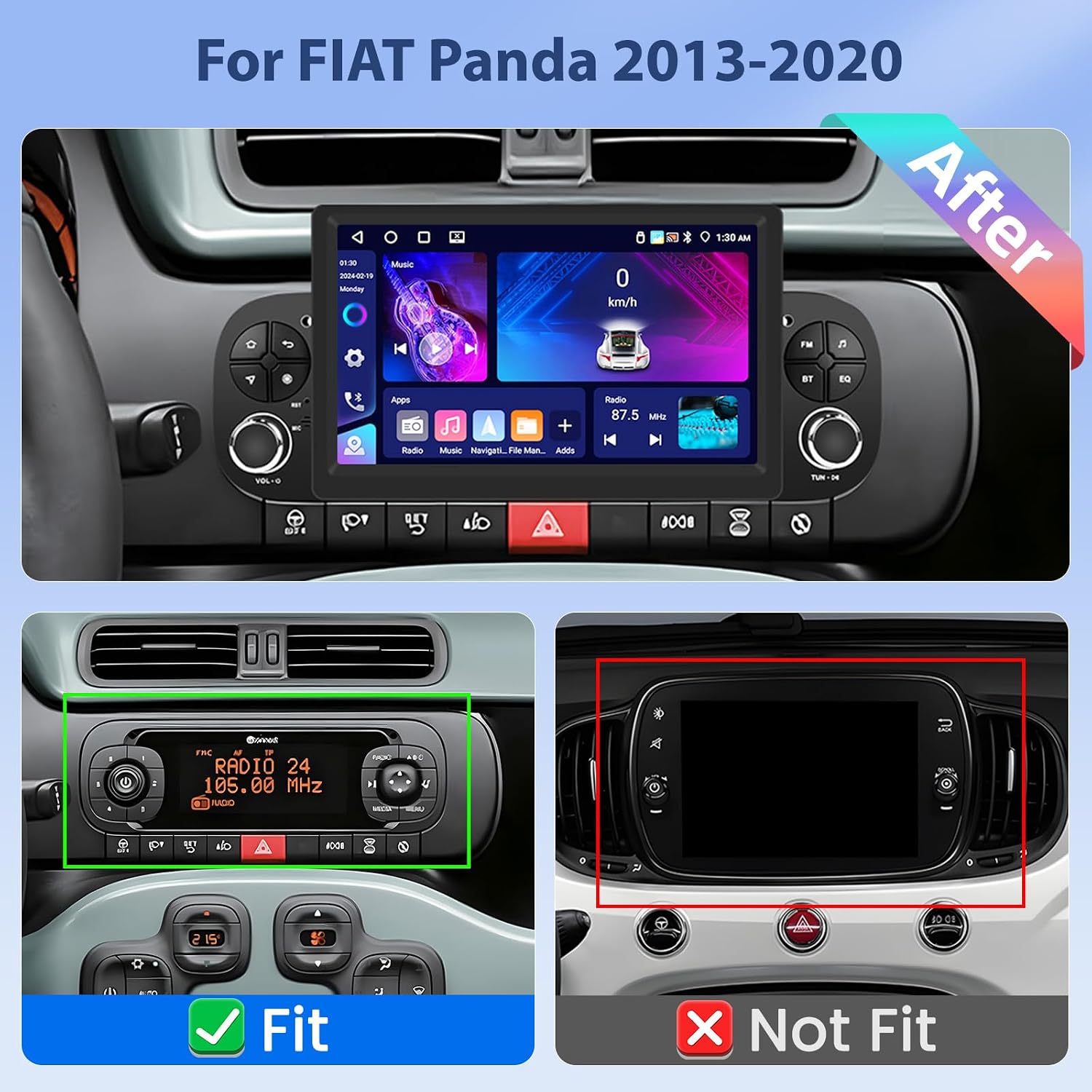
Figure 3.1: Vehicle Compatibility for Fiat Panda 2013-2020
3.2 Wiring Diagram
Refer to the following diagram for correct wiring connections. Ensure all connections are secure before powering on the unit.

Figure 3.2: Wiring and Harness Definition Diagram
- Power Cable: Connect to vehicle's power supply (constant 12V, accessory 12V, ground).
- RCA Cable: For audio output to external amplifiers or video input/output.
- 8Pin CANBUS Plug: Connects to the vehicle's CANBUS system for steering wheel controls and other vehicle data.
- USB Cables: For connecting USB devices (e.g., flash drives, smartphones).
- Camera Input: Connect the rear camera video signal.
- Radio Antenna: Connect the vehicle's radio antenna.
- GPS Antenna: Mount the GPS antenna in a location with a clear view of the sky.
Rear Camera Wiring: Connect the red wire of the camera power cable to the reversing lamp's positive terminal and the black wire to ground (GND). Connect the camera's video output to the "Camera Input" on the stereo.

Figure 3.3: Reverse Camera Input Wiring
4. Operating Instructions
4.1 Initial Setup
Upon first power-on, the system may guide you through initial settings such as language, time zone, and Wi-Fi connection. Follow the on-screen prompts.
4.2 Wireless CarPlay & Android Auto
Connect your smartphone wirelessly via Bluetooth to enable CarPlay (for iPhone) or Android Auto (for Android phones). This allows access to navigation, music, messages, and voice assistants directly from the stereo's display.
- Ensure Bluetooth is enabled on your smartphone and the car stereo.
- Pair your phone with the car stereo via Bluetooth.
- Once paired, select the CarPlay or Android Auto icon on the stereo's main menu.
- Follow any on-screen prompts on your phone to grant permissions.

Figure 4.2: Wireless CarPlay and Android Auto Interface
4.3 GPS Navigation & Wi-Fi
The unit supports both online and offline navigation. Connect to a Wi-Fi network or your phone's hotspot to use online maps and download additional applications. The pre-installed "Herewego" app provides offline maps after downloading regional data.
- To connect to Wi-Fi: Go to Settings > Network & Internet > Wi-Fi, then select your network and enter the password.
- To use GPS: Open the Navigation app. For offline maps, ensure necessary map data is downloaded.

Figure 4.3: GPS Navigation and Wi-Fi Connectivity
4.4 Bluetooth Connectivity
Bluetooth 5.0 enables hands-free calling and wireless music streaming from your paired smartphone.
- Hands-free Calling: Make and receive calls directly from the stereo. Your phone's contact list can be synchronized.
- Bluetooth Music: Stream audio from your phone to the car stereo speakers.

Figure 4.4: Bluetooth Hands-free Calling and Music
4.5 Mirror Link
Mirror Link allows you to display your smartphone's screen directly onto the car stereo. This is useful for apps not supported by CarPlay or Android Auto.
- Connect your phone to the stereo via USB or Wi-Fi hotspot.
- Open the "Mirror Link" application on the stereo.
- Follow the on-screen instructions to establish the connection.

Figure 4.5: Mirror Link Functionality
4.6 FM/RDS Radio
Access your favorite radio stations with the built-in FM tuner. RDS (Radio Data System) provides additional information like station name and song titles where available.
- Tune to stations manually or use the auto-scan feature.
- Save preferred stations as presets for quick access.
4.7 Steering Wheel Control (SWC)
The unit supports learning your vehicle's original steering wheel controls. This allows you to operate the stereo without taking your hands off the wheel.
- Go to Settings > Steering Wheel Control.
- Follow the on-screen instructions to assign functions to your steering wheel buttons. Typically, you press a function on the screen, then press the corresponding button on your steering wheel.

Figure 4.7: Steering Wheel Control Learning Interface
4.8 Backup Camera Input
When a compatible rear camera is connected and the vehicle is put into reverse gear, the stereo automatically displays the camera feed, aiding in safe parking and maneuvering.

Figure 4.8: Backup Camera Display
4.9 Split Screen Functionality
The split-screen feature allows you to run two applications simultaneously on the display, for example, navigation on one side and music on the other.
- Open the first application.
- Press and hold the recent apps button (usually a square icon) or swipe from the bottom/side (depending on Android version) to activate split-screen mode.
- Select the second application to display on the other half of the screen.

Figure 4.9: Split Screen Mode
4.10 AI DSP Sound Settings
Utilize the integrated AI DSP (Digital Sound Processor) to customize your audio experience. It offers 8 mainstream sound effects and 32 equalization settings for optimal sound quality.
- Access the "Sound" or "DSP" settings from the main menu.
- Choose from preset sound effects or manually adjust the equalizer bands to your preference.
5. Maintenance
5.1 Cleaning the Screen
Use a soft, lint-free cloth slightly dampened with water or a screen cleaner specifically designed for electronic displays. Avoid harsh chemicals or abrasive materials.
5.2 Software Updates
Periodically check for software updates to ensure optimal performance and access to new features. Updates can usually be found in the system settings or on the manufacturer's website.
- Connect the unit to a stable Wi-Fi network.
- Navigate to Settings > About device > System updates.
- Follow the on-screen instructions to download and install any available updates.
6. Troubleshooting
If you encounter issues with your Hikity car stereo, refer to the following common problems and solutions:
| Problem | Possible Cause | Solution |
|---|---|---|
| Unit does not power on. | Incorrect wiring, blown fuse, vehicle battery issue. | Check power cable connections (constant 12V, accessory 12V, ground). Inspect vehicle fuses. Ensure battery is charged. |
| No sound. | Volume too low, mute activated, incorrect audio output settings, speaker wiring issues. | Increase volume. Check if mute is active. Verify audio output settings. Inspect speaker wiring. |
| Bluetooth not connecting. | Bluetooth off on phone/stereo, phone not in pairing mode, interference. | Ensure Bluetooth is on for both devices. Put phone in pairing mode. Delete previous pairings and try again. Move closer to the unit. |
| GPS signal weak or inaccurate. | GPS antenna obstructed or improperly placed, outdated map data. | Ensure GPS antenna has a clear view of the sky. Update map data if using offline maps. |
| Steering Wheel Controls not working. | Incorrect CANBUS connection, SWC learning not performed or incorrect. | Verify CANBUS connection. Re-perform the SWC learning procedure (Section 4.7). |
| Unit freezes or restarts unexpectedly. | Software glitch, overheating, power supply instability. | Perform a soft reset (refer to device settings for reset option). Ensure proper ventilation. Check power connections for stability. If persistent, contact support. |
7. Technical Specifications
| Feature | Specification |
|---|---|
| Brand | Hikity |
| Model Number | Hikity-A4177H1MI2EU26 |
| Operating System | Android 15 |
| RAM | 4 GB |
| Storage | 64 GB |
| Display Size | 7 Inches |
| Display Type | IPS Touch Screen |
| Resolution | 1024*600 |
| Connectivity | Bluetooth 5.0, Wi-Fi |
| Special Features | Android Auto, Apple CarPlay, Built-in Bluetooth, GPS Navigation, FM Tuner, AI DSP |
| Compatible Devices | Smartphones |
| Audio Output Mode | Stereo, 4 channels |
| Output Power | 45 Watts (RMS), 180 Watts (Peak) |
| Video Encoding | MKV/RMVB/AVI/MP4/MDV etc. |
| Supported Formats | AVI, WAV, WMA |
| Control Method | Touch |
| Product Dimensions (WxDxH) | 24.7 cm x 11.8 cm x 10.5 cm (9.7 in x 4.6 in x 4.1 in) |
| Item Weight | 1.54 Kilograms |
| Country of Origin | China |
8. Warranty and Support
8.1 Product Warranty
This Hikity car stereo comes with a 12-month warranty from the date of purchase, covering manufacturing defects. Please retain your proof of purchase for warranty claims.
8.2 Customer Support
For technical assistance, troubleshooting, or warranty inquiries, please contact Hikity Electronic customer support. We offer lifetime online assistance with responses typically within 24 hours.
Contact Information:
- Seller Name: Hikity Electronic
- Email: hickitys@163.com
- Amazon Seller Page: Visit Hikity Electronic on Amazon

Figure 8.2: Customer Support Contact Information