
1. Introduction
Thank you for choosing the DROK USB Volume Knob. This device provides convenient external volume control for your computer speakers or other audio output. It features a durable design, plug-and-play compatibility, and multiple volume adjustment modes. Please read this manual carefully to ensure proper setup and operation.
2. Package Contents
- DROK USB Volume Knob
- 1.5m USB Type-C to USB Type-A Cable
3. Setup
The DROK USB Volume Knob is designed for plug-and-play functionality, requiring no additional drivers for most operating systems.
- Connect the Cable: Use the provided 1.5m USB Type-C to USB Type-A cable. Insert the Type-C end into the port on the back of the DROK USB Volume Knob.
- Connect to Computer: Insert the USB Type-A end of the cable into an available USB port on your computer.
- System Recognition: Your computer (Windows 10/8/7 or Mac) will automatically recognize the device. No driver installation is typically required.
- Ready for Use: Once recognized, the device is ready to control your system's volume.

Figure 3.1: Connecting the DROK USB Volume Knob to a computer. The image shows the USB Type-C cable connecting the knob to a computer's USB port, highlighting its driver-free, plug-and-play compatibility with Windows and Mac operating systems.
4. Operating Instructions
The DROK USB Volume Knob offers intuitive control over your audio with a rotary knob and a mute button.
4.1 Volume Adjustment
Rotate the main knob clockwise to increase volume and counter-clockwise to decrease volume.
4.2 Mute Function
Press the top of the main knob once to instantly mute your audio. Press it again to resume playback.
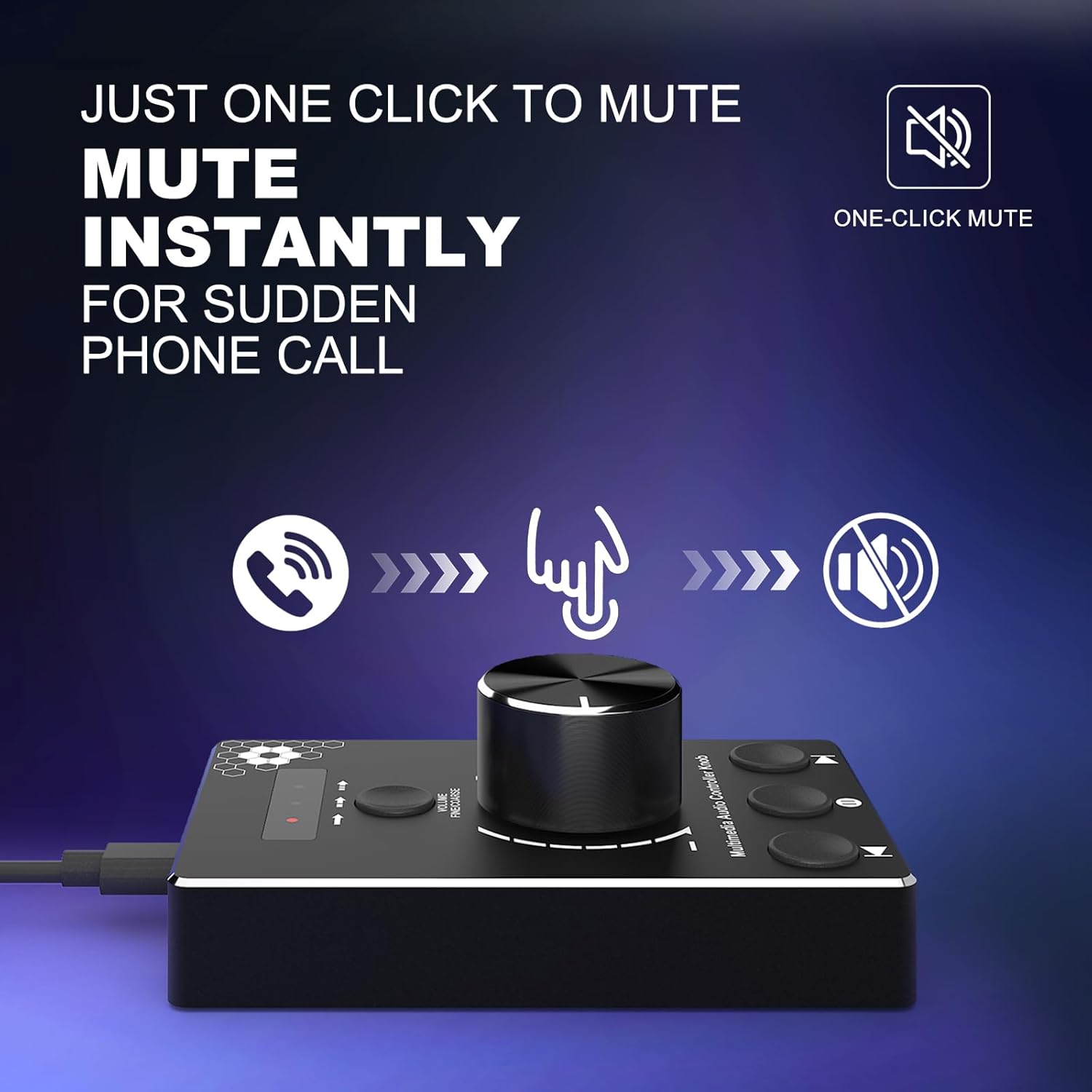
Figure 4.1: One-click mute function. A hand is shown pressing down on the volume knob, indicating the instant mute capability, useful for sudden interruptions like phone calls.
4.3 Volume Control Modes
The device features three distinct volume control modes for precise or rapid adjustments. Use the 'VOLUME FINE/COARSE' button to cycle through these modes.
- Mode 1 (Rapid-Change): Adjusts volume by 2 steps per click. Ideal for quick volume shifts.
- Mode 2 (Fine-Tune): Adjusts volume by 4 steps per click. Offers more granular control.
- Mode 3 (Fine-Tune): Adjusts volume by 10 steps per click. Provides the most precise audio adjustments.

Figure 4.2: Multi-step volume adjustment modes. This diagram illustrates the three modes for volume control: adjusting by 2 steps (coarse), 4 steps (fine), or 10 steps (very fine), allowing users to select the desired level of precision.
4.4 Media Control Buttons
The device includes additional buttons for media playback control:
- Previous Track: Press the left button to go to the previous track.
- Play/Pause: Press the middle button to play or pause media.
- Next Track: Press the right button to go to the next track.
5. Maintenance
To ensure the longevity and optimal performance of your DROK USB Volume Knob, follow these simple maintenance guidelines:
- Cleaning: Use a soft, dry cloth to wipe the surface of the device. Avoid using liquid cleaners or abrasive materials, as they may damage the finish or internal components.
- Storage: When not in use, store the device in a cool, dry place away from direct sunlight and extreme temperatures.
- Handling: Avoid dropping the device or subjecting it to strong impacts, which could damage its internal circuitry or metal housing.
6. Troubleshooting
If you encounter issues with your DROK USB Volume Knob, please refer to the following common solutions:
- Device Not Recognized:
- Ensure the USB cable is securely connected to both the volume knob and your computer.
- Try connecting the device to a different USB port on your computer.
- Restart your computer and reconnect the device.
- Verify that your operating system (Windows 7/8/10 or Mac) is compatible.
- No Volume Control:
- Check your computer's sound settings to ensure the correct audio output device is selected.
- Confirm that the device is not muted (press the knob to toggle mute).
- Ensure the volume knob is rotating freely and not obstructed.
- Intermittent Functionality:
- Try using a different USB cable if available, to rule out cable issues.
- Avoid connecting the device through unpowered USB hubs; connect directly to the computer if possible.
7. Specifications

Figure 7.1: Product dimensions and cable length. The image displays the DROK USB Volume Knob with its length (9.7cm/3.82in), width (6.0cm/2.36in), and height (1.6cm/0.63in) clearly marked, along with the 1.5m (4.9ft) USB cable.
| Brand | DROK |
| Model Number | 200787 |
| Connectivity Technology | USB |
| Compatible Devices | Computer, Speaker |
| Operating System Compatibility | Windows 7/8/10, Mac |
| Special Feature | No Programming Required, One-Click Mute, 3 Volume Modes |
| Material | Premium Metal Housing |
| Cable Length | 1.5 meters (4.9 feet) |
| Item Weight | 1.6 ounces |
8. Warranty Information
This DROK USB Volume Knob is covered by a 2-Year Manufacturer Warranty from the date of purchase. This warranty covers defects in materials and workmanship under normal use. It does not cover damage caused by misuse, accident, unauthorized modification, or external causes.
9. Support
For technical support, warranty claims, or any questions regarding your DROK USB Volume Knob, please contact DROK customer service through the retailer's platform where the product was purchased or visit the official DROK website for contact information.