
ORICO C20-512GB
ORICO C20 Portable SSD User Manual
Model: C20-512GB
1. Introduction
Welcome to the user manual for your new ORICO C20 Portable SSD. This guide provides comprehensive instructions on how to set up, operate, maintain, and troubleshoot your device. Please read this manual carefully to ensure optimal performance and longevity of your portable solid-state drive.
2. Product Overview
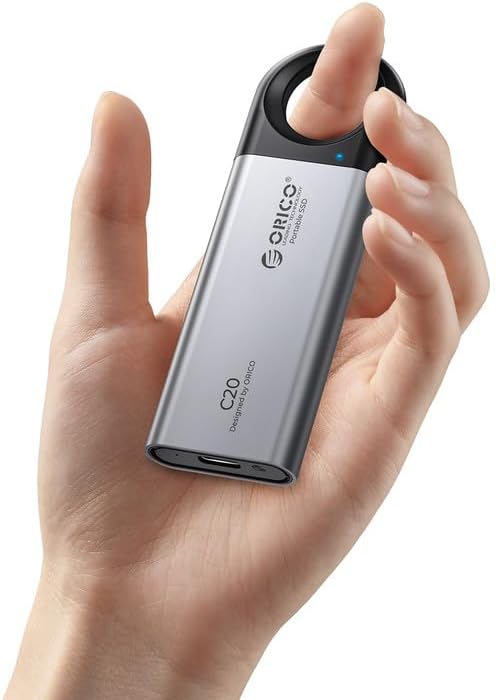
The ORICO C20 Portable SSD is a high-performance external storage device designed for rapid data transfer and reliable storage. Its compact and durable design makes it ideal for users on the go.
2.1 Key Features
- Blazing 20Gbps SuperSpeed: Experience ultra-fast file transfers up to 2000MB/s+ with USB 3.2 Gen 2x2 technology.
- Durable & Protective Aluminum Shell: Crafted with a premium aluminum alloy casing for exceptional shock resistance and effective heat dissipation.
- Universal Connectivity Included: Comes equipped with a versatile USB-C to USB-C and USB-C to USB-A (2-in-1) cable for broad compatibility.
- Secure & Portable Finger Ring Design: Features a convenient built-in metal finger ring/keychain for secure handling and easy attachment.
- Wide Compatibility: Works seamlessly with Windows, macOS, Linux, Android (USB OTG), PS5, Xbox, and more.
2.2 Package Contents
- ORICO C20 Portable SSD (512GB capacity)
- USB-C to USB-C / USB-C to USB-A (2-in-1) Cable
- User Manual (this document)

3. Setup
The ORICO C20 Portable SSD is designed for plug-and-play functionality. Follow these steps to connect and begin using your device.
3.1 Connecting to Your Device
- Identify the appropriate port on your computer, smartphone, or gaming console (USB-C or USB-A).
- Select the correct end of the 2-in-1 cable:
- For USB-C ports (e.g., modern laptops, smartphones, tablets): Use the USB-C to USB-C connection.
- For USB-A ports (e.g., older PCs, gaming consoles, TVs): Use the USB-C to USB-A connection.
- Connect the USB-C end of the cable to the ORICO C20 Portable SSD.
- Connect the other end of the cable to your host device's USB port.
- The SSD will be automatically detected by most operating systems (Windows, macOS, Linux, Android).
3.2 Initial Use and Formatting
The ORICO C20 Portable SSD comes pre-formatted and ready for use with most common operating systems. If you encounter issues or wish to reformat the drive for a specific file system (e.g., NTFS for Windows, APFS for macOS, exFAT for cross-platform compatibility), follow your operating system's disk management instructions.
Note: Formatting the drive will erase all data on it. Back up any important files before proceeding with formatting.


4. Operating
Once connected, your ORICO C20 Portable SSD functions like any other external storage device. You can drag and drop files, copy, paste, and manage data as needed.
4.1 Data Transfer
- Copying Files: Select the files or folders you wish to transfer from your device, then drag them to the ORICO C20 drive icon or folder, or use the copy/paste function.
- Moving Files: Similar to copying, but the original files will be removed from their source location.
- Speed: For optimal transfer speeds (up to 2000MB/s), ensure your host device supports USB 3.2 Gen 2x2 (20Gbps) and that you are using the provided 2-in-1 cable. Performance may vary based on file size, system configuration, and other factors.
4.2 Safe Ejection
To prevent data corruption and ensure the longevity of your SSD, always safely eject the device before disconnecting it from your computer or other host device.
- Windows: Click the "Safely Remove Hardware and Eject Media" icon in the system tray, then select the ORICO C20 drive. Wait for the "Safe to Remove Hardware" message before disconnecting.
- macOS: Drag the ORICO C20 drive icon from your desktop to the Trash, or right-click (Ctrl-click) the drive icon and select "Eject [Drive Name]".
- Linux/Android: Use the "Unmount" or "Eject" option available in your file manager or system settings.
5. Maintenance
Proper care and maintenance will help extend the life of your ORICO C20 Portable SSD.
5.1 Physical Care
- Handling: While the aluminum shell provides durability, avoid dropping the SSD or subjecting it to severe impacts.
- Cleaning: Use a soft, dry, lint-free cloth to clean the exterior of the SSD. Do not use liquid cleaners or aerosols.
- Temperature: Store and operate the SSD within recommended temperature ranges (typically 0°C to 70°C for operation, -40°C to 85°C for storage). Avoid extreme heat or cold.
- Heat Dissipation: The aluminum alloy casing is designed for effective heat dissipation. Ensure the device has adequate airflow when in prolonged use, especially during large file transfers.
5.2 Data Management
- Regular Backups: While SSDs are reliable, it is always recommended to back up critical data to multiple locations.
- Avoid Overfilling: Try to keep some free space on the SSD (e.g., 10-15%) for optimal performance and longevity.


6. Troubleshooting
If you encounter issues with your ORICO C20 Portable SSD, refer to the following common problems and solutions.
| Problem | Possible Cause | Solution |
|---|---|---|
| SSD not detected by computer. |
|
|
| Slow data transfer speeds. |
|
|
| Drive disconnects randomly. |
|
|
If the problem persists after trying these solutions, please refer to the Warranty and Support section for further assistance.
7. Specifications
Detailed technical specifications for the ORICO C20 Portable SSD (512GB model).
| Feature | Detail |
|---|---|
| Brand | ORICO |
| Model Number | C20-512GB |
| Digital Storage Capacity | 512 GB |
| Hard Drive Type | Solid State Drive (SSD) |
| Interface | USB 3.2 Gen 2x2 (20Gbps) |
| Data Transfer Rate | Up to 20 Gigabits Per Second (2000MB/s) |
| Connectivity Technology | USB |
| Compatible Devices | Laptop, Gaming Console (PS5, Xbox), Desktop, Smartphone (USB OTG) |
| Material | Aluminum Alloy Shell |
| Item Weight | 3.17 ounces (approx. 90 grams) |
| Package Dimensions | 7.09 x 3.94 x 0.79 inches |
| Country of Origin | China |
| First Available Date | May 30, 2025 |
8. Warranty and Support
ORICO is committed to providing high-quality products and reliable customer service.
8.1 Warranty Information
Your ORICO C20 Portable SSD is backed by ORICO's reliable quality assurance. For specific warranty terms and conditions, please refer to the warranty card included with your product or visit the official ORICO website. Keep your proof of purchase for warranty claims.
8.2 Customer Support
If you have any questions, require technical assistance, or experience issues not covered in this manual, please contact ORICO customer support. Contact information can typically be found on the ORICO official website or on the product packaging.
When contacting support, please be prepared to provide your product model number (C20-512GB) and a detailed description of the issue.
Related documentsC20-512GB


Ask a question about this manual
Ask about setup, troubleshooting, compatibility, parts, safety, or missing instructions. Manuals+ will review the question and use this page’s manual context to help answer it.