
1. Introduction
This manual provides essential information for the safe and efficient operation of your Metz 50MQF7500Z QLED 4K Smart Google TV. Please read it thoroughly before using the television and retain it for future reference.
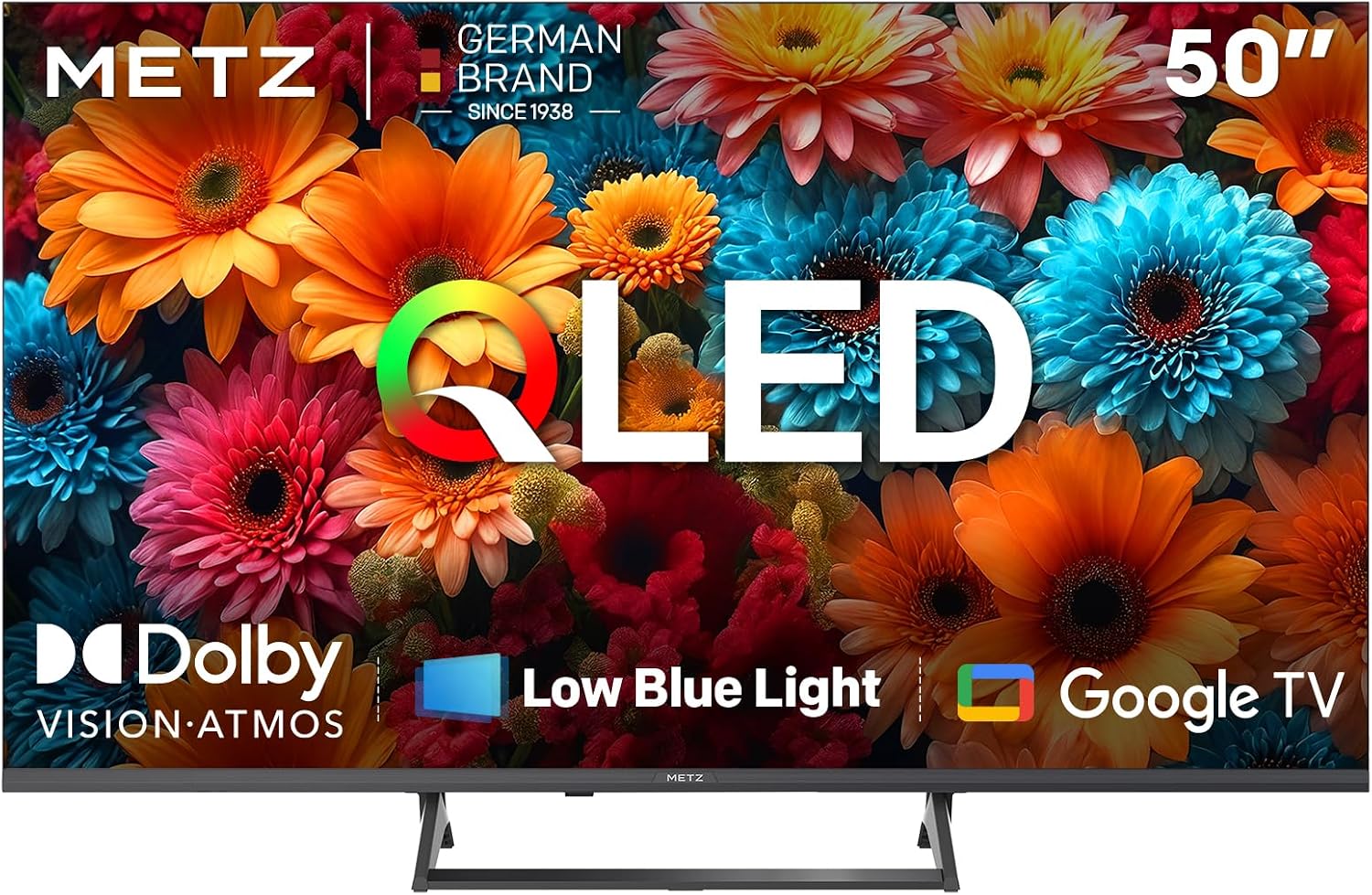
Image 1.1: Front view of the Metz 50MQF7500Z QLED 4K Smart Google TV.
2. Safety Information
Always observe the following safety precautions to prevent electric shock, fire, or damage to the television.
- Power Source: Connect the TV only to an AC power outlet of the specified voltage.
- Ventilation: Ensure adequate ventilation around the TV. Do not block ventilation openings.
- Water and Moisture: Do not expose the TV to rain or moisture. Do not place objects filled with liquids on the TV.
- Cleaning: Unplug the TV before cleaning. Use a soft, dry cloth.
- Servicing: Do not attempt to service the TV yourself. Refer all servicing to qualified personnel.
3. What's in the Box
Verify that all components are present in the packaging:
- Metz 50MQF7500Z QLED 4K Smart Google TV
- Power Cable
- Stand (2 pieces)
- User Manual (this document)
- Remote Control (with 2x batteries)

Image 3.1: Diagram showing TV dimensions and a list of included accessories.
4. Setup
4.1 Physical Setup
Attaching the Stand:
- Carefully place the TV face down on a soft, flat surface to prevent screen damage.
- Align the stand pieces with the corresponding slots on the bottom of the TV.
- Secure the stand using the provided screws. Ensure they are tightened firmly.
Wall Mounting (Optional):
If wall mounting, refer to the instructions provided with your wall mount bracket. Ensure the bracket is compatible with the VESA mounting pattern of your TV.
4.2 Initial Power On & Configuration
After connecting the power cable, press the power button on the remote control or the TV. Follow the on-screen prompts to complete the initial setup, including language selection, country, and time zone.
4.3 Connecting Devices
Your TV features multiple input ports for various devices:
- HDMI (x3): For connecting Blu-ray players, game consoles, and other HDMI-enabled devices.
- USB (x2): For connecting USB storage devices to play media or for software updates.
- DVB-T2/C/S2 (x1): For connecting terrestrial, cable, or satellite antenna.
- CI SLOT (x1): For Conditional Access Modules (CAM) for encrypted channels.
- DIGITAL AUDIO OUT (x1): For connecting to external audio systems.
- LAN (x1): For wired internet connection.
- AV (x1): For older analog devices.
- HEADPHONE (x1): For connecting headphones.
4.4 Network Connection
To access Smart TV features, connect your TV to the internet:
- Wi-Fi: Navigate to Settings > Network & Internet, select your Wi-Fi network, and enter the password.
- Ethernet: Connect an Ethernet cable from your router to the LAN port on the TV.
5. Operating the TV
5.1 Remote Control Overview
The Bluetooth remote control allows for intuitive navigation. It includes dedicated buttons for popular streaming services and a microphone for voice commands.

Image 5.1: The remote control features a 'Find My Remote' function, which activates an audible signal from the remote if misplaced.
5.2 Google TV Interface
Your Metz TV runs on Google TV, offering a personalized home screen with content recommendations from your subscriptions. Access apps, movies, and shows easily.

Image 5.2: The Google TV interface provides access to a wide range of content and applications.
5.3 Picture Settings
The 5th generation QLED technology delivers vibrant colors and enhanced brightness. Adjust picture modes (Standard, Vivid, Movie, Game) in the settings menu.
- HDR10+, Dolby Vision & HLG: The TV supports these HDR formats for improved contrast, deeper blacks, and brighter highlights.
- Sapphire Crystal Optics: Utilizes sapphire crystal materials for enhanced brightness and visual clarity.
- SAI Engine: An AI-powered engine that optimizes image quality by analyzing and refining each frame in real-time, enhancing skin tone detection and motion clarity.

Image 5.3: The QLED+ display technology offers vivid and prolonged color performance.

Image 5.4: Full-range HDR support, including Dolby Vision, HDR10+, HDR10, and HLG, provides realistic visuals.
5.4 Sound Settings
Experience immersive audio with advanced sound technologies:
- Dolby Atmos: Delivers multi-dimensional sound that moves around you, enhancing depth and clarity.
- dbx-TV: Improves dialogue clarity and provides rich, balanced bass.
- Bluetooth Audio: Connect Bluetooth headphones or speakers for a personalized audio experience.

Image 5.5: Dolby Atmos creates an enveloping sound experience.

Image 5.6: Bluetooth Audio allows for quick immersion with dynamic text and background options.
5.5 Smart Features
Leverage the full potential of Google TV:
- Voice Control: Use the built-in Google Assistant by saying "Hey Google" to control your TV, search for content, and manage smart home devices.
- Apps: Download and install a wide variety of applications from the Google Play Store.
- Daily Family 2.0: Includes features like Daily Security for privacy protection and Daily Channel for free direct programming.
5.6 Gaming Features
Optimized for a smooth gaming experience:
- VRR (Variable Refresh Rate): Reduces screen tearing and input lag for fluid gameplay.
- MEMC (Motion Estimation, Motion Compensation): Enhances motion clarity and reduces visual fatigue by minimizing judder and image delay.
- 120Hz Turbo Motion: Provides a high refresh rate for clear and fluid visuals, eliminating ghosting and blurring.

Image 5.7: The Game Hub provides a fluid and responsive gaming experience with HDMI 2.1, VRR, and ALLM support.

Image 5.8: 120Hz Turbo Motion ensures a clear and fluid visual experience by eliminating ghosting and blurring.
5.7 Eye Care Features
Designed for comfortable viewing:
- Low Blue Light: Reduces harmful blue light emissions to decrease eye strain during prolonged viewing.
- Flicker-Free: Ensures a stable image without flickering, contributing to a more relaxed viewing experience.
- Visual Aid: Provides personalized visual support for color vision deficiencies (Protanopia, Deuteranopia, Tritanopia).

Image 5.9: The TV incorporates Low Blue Light and Flicker-Free technologies for reduced eye strain.

Image 5.10: Eye Care 5.0 includes Visual Aid to support users with color vision deficiencies.
6. Maintenance
6.1 Cleaning
To clean the TV screen and cabinet:
- Unplug the power cord before cleaning.
- Use a soft, dry, lint-free cloth to gently wipe the screen and cabinet.
- For stubborn marks, lightly dampen the cloth with water or a mild, non-abrasive screen cleaner.
- Never spray cleaner directly onto the screen.
6.2 Software Updates
Your TV may receive software updates to improve performance and add new features. Ensure your TV is connected to the internet. Updates can typically be found and installed via Settings > System > About > System update.
7. Troubleshooting
If you encounter issues with your TV, refer to the following common solutions:
| Problem | Possible Solution |
|---|---|
| No power | Check if the power cable is securely connected and the power outlet is working. |
| No picture, but sound is present | Ensure the correct input source is selected. Check cable connections to external devices. |
| No sound, but picture is present | Check volume levels and mute settings. Verify audio cable connections. |
| Remote control not working | Replace batteries. Ensure no obstructions between the remote and TV. Re-pair Bluetooth remote if necessary. |
| Cannot connect to Wi-Fi | Check Wi-Fi password. Restart your router. Ensure the TV is within range of the Wi-Fi signal. |
If the problem persists after trying these solutions, please contact customer support.
8. Specifications
| Feature | Detail |
|---|---|
| Model | 50MQF7500Z |
| Screen Size | 50 Inches / 127 cm |
| Display Technology | QLED, LED |
| Resolution | 4K (3840 x 2160) |
| Refresh Rate | 60 Hz (with 120Hz Turbo Motion) |
| Operating System | Google TV |
| HDR Support | HDR10+, Dolby Vision, HLG |
| Audio Technology | Dolby Atmos, dbx-TV |
| Connectivity | Bluetooth, Ethernet, HDMI (x3), RF, USB (x2) |
| Special Features | Built-in Speaker, Blue Light Filter, Game Mode, Wide Color Enhancer, Wide Viewing Angle, MEMC, VRR, EyeCare |
| Dimensions (with stand) | 111 x 27.4 x 72.3 cm |
| Weight (with stand) | 7.8 kg |
| Energy Efficiency Class | F |

Image 8.1: The energy efficiency label for the Metz 50MQF7500Z. For more details, visit EPREL Database.
9. Warranty and Support
Warranty Information:
Your Metz TV is covered by a manufacturer's warranty. For specific details regarding warranty terms and conditions, please refer to the warranty card included with your product or visit the official Metz website. Keep your proof of purchase for warranty claims.
Customer Support:
If you require technical assistance or have questions not covered in this manual, please contact Metz customer support. Contact information can typically be found on the official Metz website or in the warranty documentation.


