
Arylic LP10
Arylic LP10 Wireless Music Streamer User Manual
Model: LP10 | Brand: Arylic
1. Introduction
The Arylic LP10 is a high-performance wireless audio receiver designed to upgrade traditional audio systems with modern streaming capabilities. It supports a wide array of wireless streaming technologies, including WiFi, Bluetooth, AirPlay 2, Spotify Connect, and Tidal Connect, enabling direct playback of your favorite subscription content.
As a Hi-Res audio streamer, the LP10 delivers studio-quality sound through its optical output to audio amplifiers, speakers, and other devices, supporting up to 192kHz/24bit high-resolution audio processing. For Google Cast, sample rates up to 96KHz/24bit are supported.
The LP10 offers multiple audio interfaces, including line inputs and USB inputs for connecting CD players and USB flash drives. It also provides both analog line out and optical output for versatile connectivity to amplifiers and soundbars. This device seamlessly integrates with smart home platforms like Apple Home and Google Home, allowing for customized audio experiences and whole-house stereo sound.
Control of the LP10 is intuitive, with options including the free Go Control APP for iOS and Android, a simple IR remote control, and convenient touch buttons on the device itself. The app facilitates device naming, audio source switching, playback control, and direct WiFi connectivity.

Figure 1: Front view of the Arylic LP10 Wireless Music Streamer.
2. Setup Guide
2.1 Package Contents
Before beginning, ensure all items are present in the package:
- Arylic LP10 Wireless Music Streamer
- Power Adapter (USB-C)
- IR Remote Control (requires 2 AAA batteries, not included)
- 1/8" to RCA cable (for line out or in)
2.2 Physical Connections
Connect the LP10 to your audio system using the appropriate cables:
- Power Connection: Connect the provided USB-C power adapter to the DC port on the LP10 and plug it into a power outlet.
- Audio Output:
- For digital audio, connect an optical cable from the LP10's OPTICAL OUT port to your amplifier or soundbar's optical input.
- For analog audio, connect an RCA cable (or the provided 1/8" to RCA cable) from the LP10's LINE OUT port to your amplifier's analog input.
- Audio Input (Optional):
- To connect external audio sources like a CD player, use an appropriate cable from your source's output to the LP10's LINE IN port.
- To play music from a USB flash drive, insert it into the USB port.
- Network Connection (Optional): For a stable wired network connection, connect an Ethernet cable from your router to the LP10's LAN port.
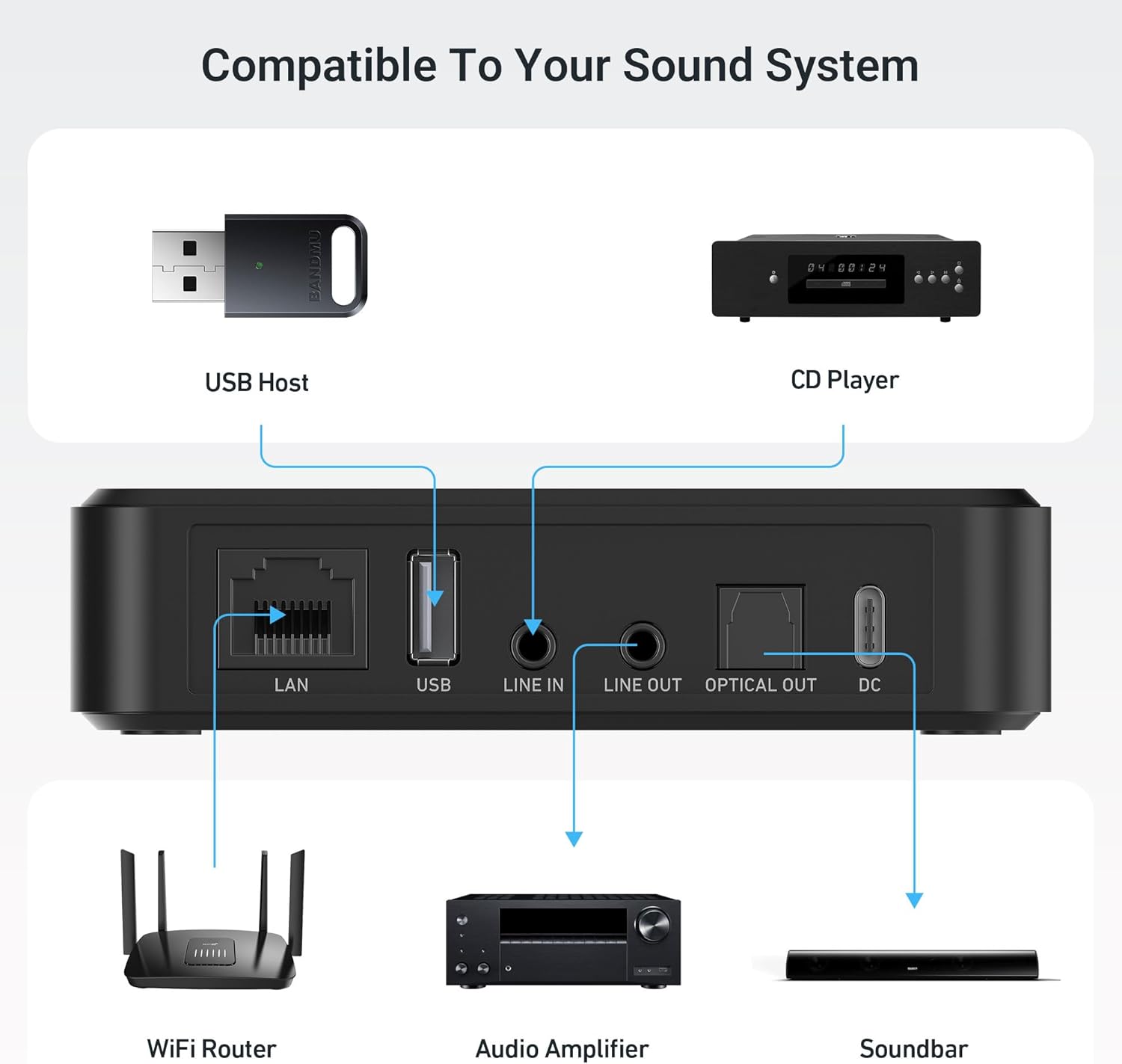
Figure 2: Rear panel of the LP10 showing LAN, USB, Line In, Line Out, Optical Out, and DC ports.

Figure 3: The LP10 integrated into a home audio setup with an amplifier and speakers.
2.3 Network Setup (Wi-Fi)
For wireless streaming, connect the LP10 to your Wi-Fi network using the Go Control APP:
- Download the "Go Control" app from the App Store (iOS) or Google Play Store (Android).
- Ensure your mobile device is connected to the 2.4GHz or 5GHz Wi-Fi network you wish the LP10 to join.
- Open the Go Control app and follow the on-screen instructions to add a new device. The app will guide you through connecting the LP10 to your Wi-Fi network.
- Once connected, the LP10's OLED display will show network status.
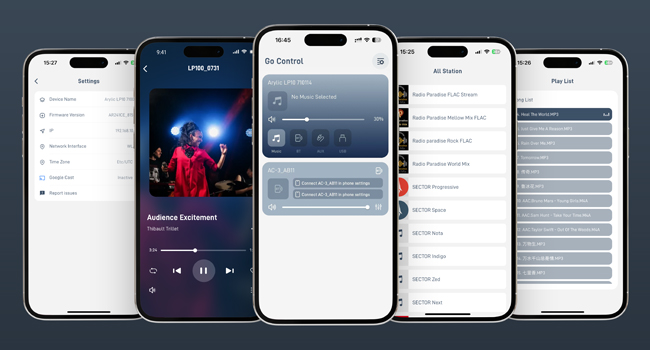
Figure 4: The Go Control app provides comprehensive control over the LP10, including network setup and audio settings.
3. Operating Instructions
3.1 Control Methods
The Arylic LP10 can be controlled using three primary methods:
- Go Control APP: The most comprehensive control method, allowing for device personalization, audio source switching, playback control, and advanced settings.
- IR Remote Control: Provides basic functions such as power, volume adjustment, and track skipping. Ensure line of sight to the LP10's IR receiver.
- Touch Buttons: Located on the top panel of the LP10 for quick access to power, volume, and playback controls.

Figure 5: Overview of the control options for the LP10, including the Go Control app, physical touch buttons, and the included remote control.

Figure 6: Detailed view of the remote control and the touch-sensitive buttons on the LP10's top surface.
3.2 Wireless Streaming Options
The LP10 supports various wireless streaming protocols:
- AirPlay 2: Stream audio directly from your Apple devices (iPhone, iPad, Mac) to the LP10. Supports multi-room audio with other AirPlay 2 compatible devices.
- Google Cast: Cast audio from Google Cast-enabled apps and devices. Supports high-resolution audio up to 96KHz/24bit.
- Spotify Connect: Control music playback directly from the Spotify app, using the LP10 as the output device.
- Tidal Connect: Control music playback directly from the Tidal app, using the LP10 as the output device.
- Bluetooth: Connect any Bluetooth-enabled device to the LP10 for direct audio streaming.
- UPnP/DLNA: Stream music from local network storage (NAS) or other UPnP/DLNA servers.
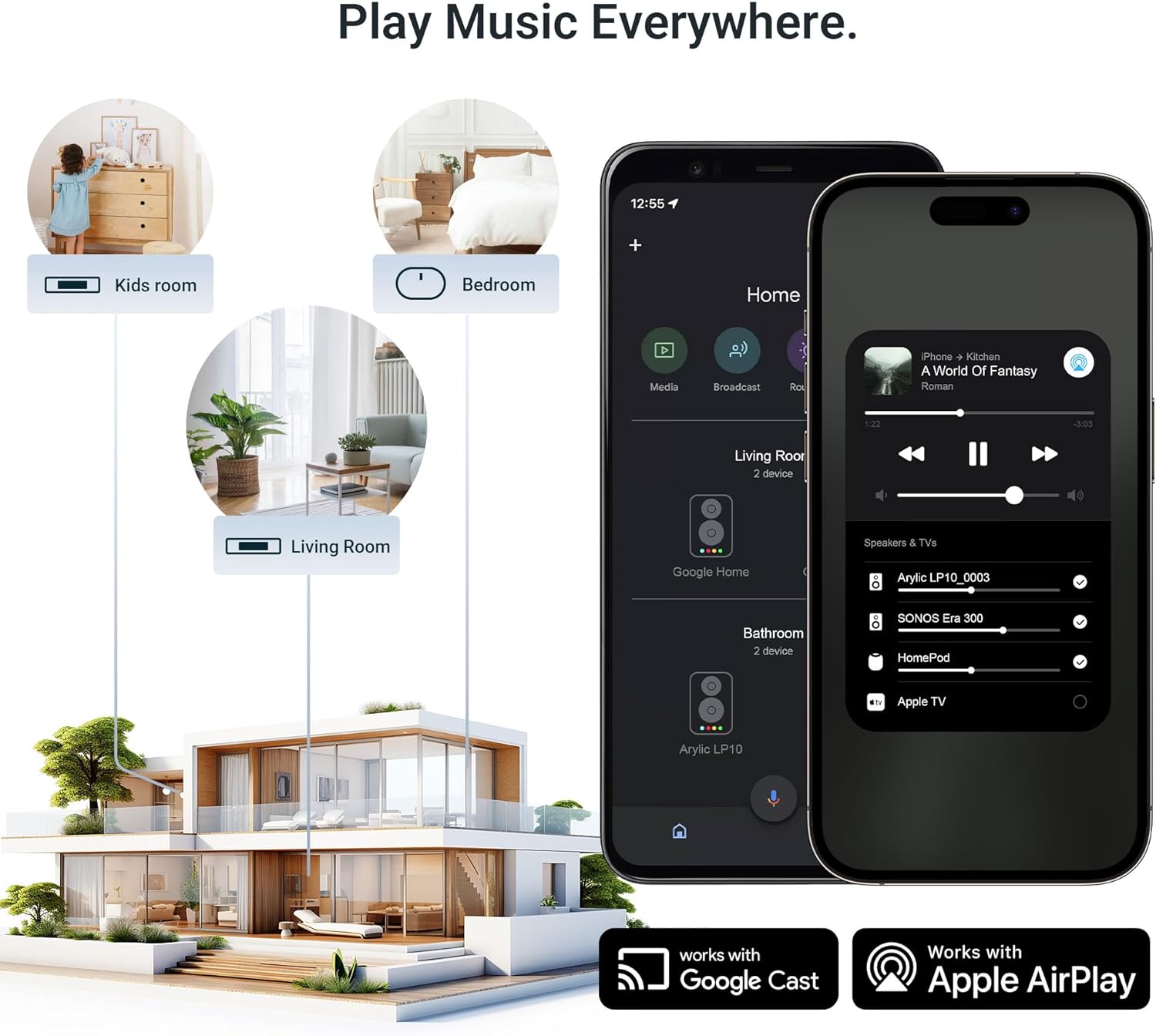
Figure 7: The LP10 facilitates multi-room audio setups, allowing music to be played across different rooms using Google Cast and Apple AirPlay.

Figure 8: The LP10 can be part of a whole-house audio system, controlled via Apple Home, allowing synchronized playback across multiple devices.

Figure 9: Voice control capabilities through Google Home allow users to manage music playback on the LP10 with simple commands.

Figure 10: The LP10 supports direct streaming from popular services like Spotify and Tidal via their respective Connect features.

Figure 11: Bluetooth connectivity allows for flexible audio playback from various smart devices.
3.3 Voice Control Integration
The LP10 can be integrated with Apple Home and Google Home for voice control. This allows you to use voice commands (e.g., "Hey Siri," "Hey Google") to control music playback, switch songs, or manage your audio experience within your smart home ecosystem.
Video 1: Demonstrates the Arylic LP10's integration with Google Cast and Apple AirPlay for seamless audio streaming and voice control within a smart home environment.
4. Maintenance
Proper maintenance ensures the longevity and optimal performance of your Arylic LP10:
- Cleaning: Use a soft, dry cloth to clean the exterior of the device. Avoid using liquid cleaners, aerosols, or abrasive solvents.
- Placement: Place the LP10 on a stable, flat surface away from direct sunlight, heat sources, and excessive moisture. Ensure adequate ventilation around the device.
- Power: Disconnect the power adapter during lightning storms or when unused for long periods.
- Software Updates: Periodically check the Go Control app for firmware updates to ensure your device has the latest features and performance improvements.
5. Troubleshooting
This section addresses common issues you might encounter with your Arylic LP10.
5.1 No Power / Device Not Turning On
- Ensure the USB-C power adapter is securely connected to the LP10's DC port and a working power outlet.
- Verify the power outlet is functional by plugging in another device.
- Try a different USB-C cable and power adapter if available.
5.2 Cannot Connect to Wi-Fi / App Connectivity Issues
- Make sure your mobile device is connected to the same Wi-Fi network (2.4GHz or 5GHz) that you intend for the LP10 to use.
- Restart the LP10 by unplugging and re-plugging the power adapter.
- Restart your Wi-Fi router.
- Ensure the Go Control app is updated to the latest version.
- If the issue persists, try resetting the LP10 to factory settings (refer to the app's settings or device manual for specific instructions).
5.3 No Sound Output
- Check all audio cable connections (Optical, Line Out) between the LP10 and your amplifier/speakers. Ensure they are securely plugged in.
- Verify that the correct input source is selected on your amplifier or sound system.
- Adjust the volume on both the LP10 (via app or touch buttons) and your connected audio system.
- Ensure the LP10 is playing audio and not paused or muted in the Go Control app or streaming service.
- If using optical output, confirm your amplifier supports the audio format being sent (e.g., PCM).
5.4 Bluetooth Pairing Issues
- Ensure the LP10 is in Bluetooth pairing mode (indicated on the OLED display).
- Make sure Bluetooth is enabled on your source device (smartphone, tablet).
- Move your source device closer to the LP10.
- Forget the LP10 from your source device's Bluetooth settings and attempt to pair again.
6. Specifications
| Feature | Detail |
|---|---|
| Product Dimensions | 2.36 x 6.69 x 7.87 inches |
| Item Weight | 13.1 ounces |
| Model Number | LP10 |
| Brand | Arylic |
| Connectivity Technology | Bluetooth, USB, Wi-Fi |
| Connector Type | Optical, USB Type-C |
| Special Feature | Built-In Bluetooth, Built-In Wi-Fi, Music Streaming |
| Supported Internet Services | AirPlay 2, Spotify Connect, Tidal Connect |
| Controller Type | App Control |
| Color | black |
| Compatible Devices | Amplifier, Smartphone |
7. Warranty and Support
For warranty information and technical support, please refer to the official Arylic website or contact their customer service directly. Details regarding product registration and extended warranty options may also be available through these channels.
The manufacturer of this product is Rakoit Technology (Shenzhen) Co., Ltd.
For additional assistance, you may also contact the seller, ARYLIC, through the Amazon platform where the product was purchased.
Related documentsLP10


Ask a question about this manual
Ask about setup, troubleshooting, compatibility, parts, safety, or missing instructions. Manuals+ will review the question and use this page’s manual context to help answer it.