
1. Important Safety Instructions
Please read all safety instructions carefully before using your television. Keep this manual for future reference.
- Power Supply: Ensure the TV is connected to a power outlet with the correct voltage.
- Ventilation: Do not block ventilation openings. Allow adequate space around the TV for proper airflow.
- Water and Moisture: Do not expose the TV to rain or moisture. Do not place objects filled with liquids on the TV.
- Cleaning: Unplug the TV before cleaning. Use a soft, dry cloth. Avoid liquid cleaners.
- Placement: Place the TV on a stable, level surface. Avoid direct sunlight or heat sources.
- Children: Supervise children to prevent them from climbing on the TV or stand.
2. Product Overview
The Metz 55MQF7500Z is a 55-inch QLED 4K Smart TV designed for an immersive viewing experience. It features advanced display and audio technologies, integrated smart functionalities, and user-centric enhancements.
Key Features:
- QLED+ Gen 5 Technology: Enhanced brightness, durability, and vivid colors with a sapphire crystal layer.
- Full Range HDR Support: Includes Dolby Vision, HDR10+, HDR10, and HLG for superior contrast and detail.
- 120Hz Turbo Motion & MEMC: Reduces blur and input lag for smooth motion, ideal for fast-paced content and gaming.
- Dolby Atmos & dbx-tv: Provides immersive, clear, and deep surround sound.
- AI TV (S AI Engine): Optimizes image quality in real-time with AI Skin Detection and AI Motion Clarity.
- Google TV: Access to a wide range of streaming services and applications.
- Eye Care & Visual Assistance: Features like low blue light, flicker-free display, and color correction for visual impairments.
What's in the Box:
- Metz 55MQF7500Z QLED 4K Smart TV
- Remote Control
- Power Cable
- 2 x Support Bases
- Screws for Bases
- User Manual
Physical Dimensions and Ports:
Refer to the diagram below for TV dimensions and available ports.

Image: TV dimensions (122.6 cm width, 78.3 cm height with base, 26.4 cm depth with base) and port layout including HDMI, USB, DVB, CI Slot, Digital Audio Out, LAN, AV, and Headphone.
- Dimensions with Base (W x D x H): 122.6 x 25.0 x 79.1 cm
- Dimensions without Base (W x D x H): 122.6 x 8.1 x 72.1 cm
- Weight with Base / without Base: 9.8 kg / 9.6 kg
- Connectivity: 3x HDMI, 2x USB, DVB-S/S2, CI SLOT, Digital Audio Out, LAN, AV, Headphone, Bluetooth, Wi-Fi.
3. Setup
3.1 Unpacking
Carefully remove the TV and all accessories from the packaging. Retain the packaging for potential future transport or service needs.
3.2 Attaching the Stand
Place the TV screen-down on a soft, flat surface. Align the support bases with the designated slots on the TV's bottom edge. Secure them using the provided screws. Ensure the stand is firmly attached before placing the TV upright.
3.3 Connecting External Devices
Connect your external devices (e.g., set-top box, game console, Blu-ray player) to the appropriate ports on the TV. Use HDMI cables for high-definition video and audio. For internet access, connect an Ethernet cable to the LAN port or use Wi-Fi.
3.4 Initial Power-On and Settings
Plug the power cable into the TV and then into a wall outlet. Press the power button on the remote control or the TV. Follow the on-screen instructions to complete the initial setup, including language selection, network connection, and channel scanning.
4. Operating Instructions
4.1 Basic TV Functions
- Power On/Off: Press the power button on the remote.
- Volume Control: Use the Volume Up/Down buttons on the remote.
- Channel Selection: Use the Channel Up/Down buttons or the numeric keypad.
- Input Source: Press the 'Source' button to select between HDMI, AV, DVB, etc.
4.2 Smart TV Features (Google TV)
Your Metz TV runs on Google TV, providing access to a vast library of content and apps.

Image: The Google TV interface displaying various streaming applications and content recommendations.
- Navigation: Use the directional pad and 'OK' button on the remote to navigate the Google TV interface.
- App Access: Select desired apps from the home screen or app library.
- Voice Assistant: Use the built-in voice assistant for search, control, and information.
- Chromecast: Easily cast content from your compatible mobile devices to the TV.
4.3 Picture and Audio Settings
Optimize your viewing and listening experience through various settings.

Image: A visual representation of Dolby Atmos sound enveloping a viewer, highlighting the immersive audio experience.
- HDR Modes: The TV supports Dolby Vision, HDR10+, HDR10, and HLG. These modes automatically adjust picture settings for optimal brightness, contrast, and color when compatible content is detected.
- 120Hz Turbo Motion & MEMC: These technologies reduce motion blur and judder in fast-moving scenes. Access these settings in the picture menu to adjust or disable them based on content.
- Dolby Atmos & dbx-tv: These audio enhancements provide a rich, multi-dimensional sound experience. Adjust audio profiles and settings in the sound menu.
- AI TV (S AI Engine): The S AI Engine automatically optimizes image quality. Features like AI Skin Detection and AI Motion Clarity work in the background to enhance visuals.
4.4 Gaming Features (Game Hub)
The TV's Game Hub provides features for an enhanced gaming experience.
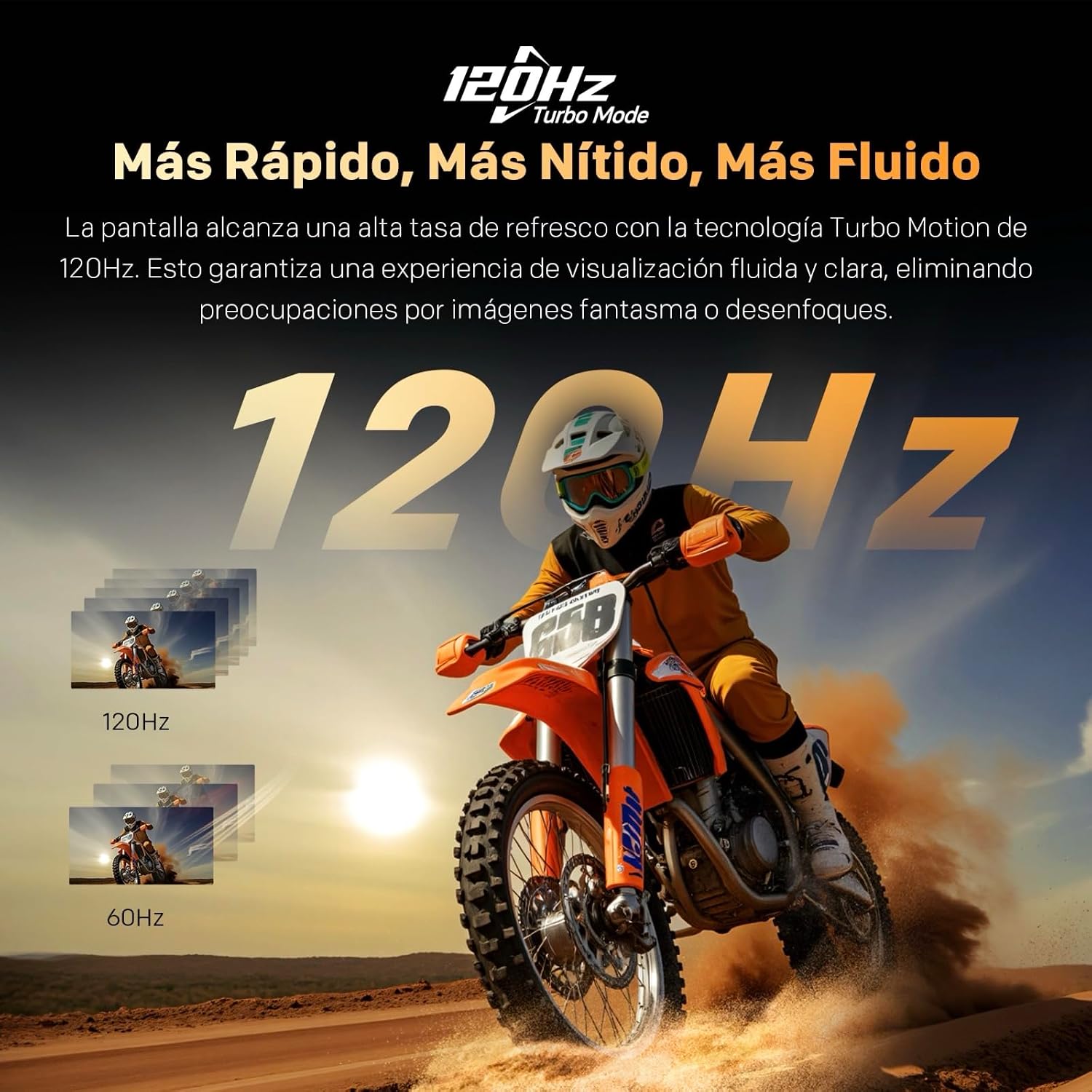
Image: A motorcyclist in motion, illustrating the clarity and fluidity provided by 120Hz Turbo Motion technology.
- 120Hz Refresh Rate: Provides smoother gameplay and reduced input lag.
- MEMC: Motion Estimation, Motion Compensation further enhances motion clarity.
- VRR (Variable Refresh Rate): Synchronizes the TV's refresh rate with the game console's frame rate to eliminate screen tearing.
- ALLM (Auto Low Latency Mode): Automatically switches the TV to a low-latency mode when a game console is detected, reducing input lag.
4.5 Eye Care and Visual Assistance
The TV includes features to reduce eye strain and assist users with visual impairments.
- Low Blue Light: Reduces the intensity of blue light emissions for comfortable viewing.
- Flicker-Free Display: Optimizes dimming to prevent invisible flickering that can cause eye fatigue.
- Visual Assistance: Provides customizable visual aids for individuals with color vision deficiency, restoring true colors.
5. Maintenance
5.1 Cleaning the TV
- Screen: Gently wipe the screen with a soft, lint-free cloth. For stubborn marks, slightly dampen the cloth with water or a specialized screen cleaner (ensure it's TV-safe). Never spray liquid directly onto the screen.
- Body: Wipe the TV frame and stand with a soft, dry cloth.
- Remote Control: Clean the remote with a soft, dry cloth. Avoid moisture.
5.2 Software Updates
Periodically check for software updates to ensure your TV has the latest features and performance improvements. You can usually find this option in the TV's settings menu under 'System' or 'About'.
5.3 General Care
- Avoid placing heavy objects on the TV.
- Do not expose the TV to extreme temperatures or humidity.
- Unplug the TV during lightning storms or when unused for extended periods.
6. Troubleshooting
If you encounter issues with your TV, refer to the following common problems and solutions:
| Problem | Possible Solution |
|---|---|
| No power | Check if the power cable is securely connected to the TV and the wall outlet. Ensure the outlet is functioning. |
| No picture, but sound is present | Verify the correct input source is selected. Check cable connections to external devices. |
| No sound, but picture is present | Check the volume level and mute status. Ensure audio cables are correctly connected. Check TV audio output settings. |
| Remote control not working | Replace the remote control batteries. Ensure there are no obstructions between the remote and the TV. |
| Network connection issues | Restart your router and modem. Check Wi-Fi password. For wired connections, ensure the Ethernet cable is properly connected. |
| Picture is distorted or blurry | Check the signal source quality. Adjust picture settings (e.g., sharpness, resolution). |
If the problem persists after trying these solutions, please contact customer support.
7. Specifications
Detailed technical specifications for the Metz 55MQF7500Z QLED 4K Smart TV.
| Parameter | Value |
|---|---|
| Screen Size | 55 Inches |
| Display Technology | QLED |
| Resolution | 4K (3840 x 2160 pixels) |
| Refresh Rate | 60 Hz (with 120Hz Turbo Motion mode) |
| Aspect Ratio | 16:9 |
| Special Features | Chromecast, Eye Care, Flicker Free, MEMC, S AI Engine |
| Connectivity Technology | Bluetooth, USB, Wi-Fi |
| Product Dimensions (with base) | 122.6 x 26.4 x 78.3 cm |
| Weight | 9.9 kg |
| Manufacturer | Metz |
| Country of Origin | Poland |
| Energy Efficiency Class (SDR) | F |
| Energy Efficiency Class (HDR) | G |
| Power Consumption (SDR) | 102 W |
| Power Consumption (HDR) | 150 W |
Energy Label and Product Information Sheet:

Image: The EU Energy Label for the Metz 55MQF7500Z, showing an F rating for SDR and G for HDR.

Image: The official product information sheet detailing various technical parameters and compliance information.
For more detailed information, please visit the official EPREL database: https://eprel.ec.europa.eu/qr/2242511
8. Warranty and Support
8.1 Product Warranty
This Metz TV comes with a standard 2-year warranty from the date of purchase, covering manufacturing defects and malfunctions under normal use. Please retain your proof of purchase for warranty claims.
8.2 Spare Parts and Technical Support
Spare parts for this model are guaranteed to be available for 7 years from the date of product placement on the market. Technical assistance is also available for 7 years.
8.3 Customer Support
For technical assistance, warranty claims, or any other inquiries, please contact Metz customer support through their official website or the contact information provided with your product documentation.