
Introduction
Thank you for purchasing the AXNEN Q19 Cell Phone Stabilizer. This device is designed to enhance your mobile photography and videography experience by providing stability, AI tracking, and versatile shooting modes. Please read this manual carefully before using the product to ensure proper operation and to maximize its features.
Product Overview
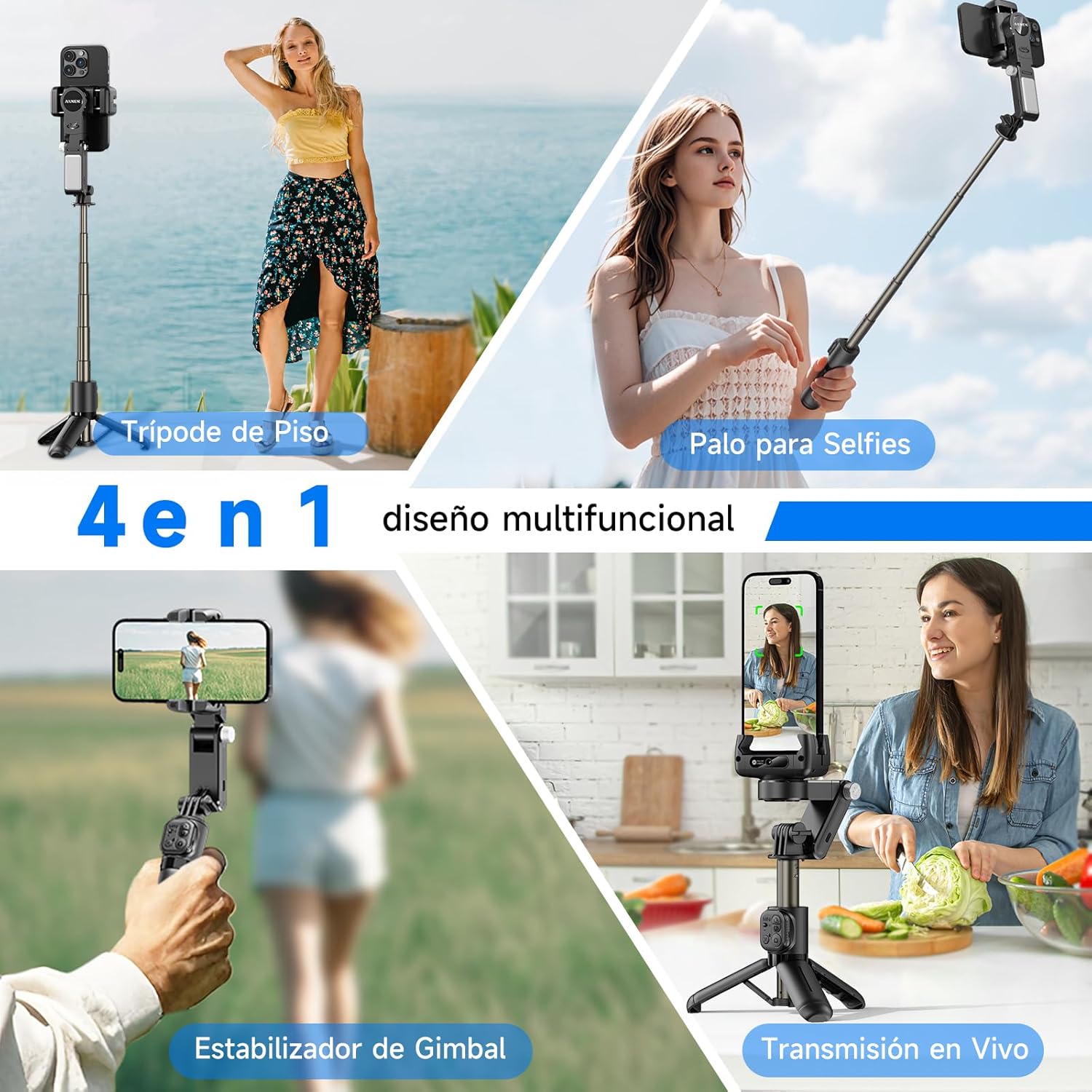
The AXNEN Q19 is a 4-in-1 multifunctional device that combines a universal stabilizer, extendable pole, table tripod, and 260-degree tracking mode. It features 2-axis stabilization, intelligent AI tracking, and a detachable wireless remote control.
Key Features:
- 2-Axis Stabilization for smooth footage.
- Intelligent AI Tracking with gesture control.
- 360° Rotation for flexible shooting angles.
- Integrated Selfie Stick and Tripod functionality.
- Detachable Bluetooth Remote Control.
- Built-in Fill Light with 3 color temperatures and 9 brightness levels.
- App connectivity for advanced features like facial filters, dynamic zoom, and time-lapse.
Setup
1. Unboxing and Charging
- Carefully remove all components from the packaging.
- Before first use, fully charge the stabilizer using the provided USB cable. The charging indicator will show the charging status.
2. Mounting Your Phone
- Extend the phone clamp and securely place your smartphone in the holder. Ensure the phone is centered to achieve optimal balance.
- The device supports both horizontal and vertical phone orientations.
3. Bluetooth Pairing
- Power on the stabilizer by pressing and holding the power button.
- Activate Bluetooth on your smartphone.
- Search for available devices and select "AXNEN Q19" (or similar name) to pair. The indicator light on the stabilizer will confirm successful pairing.
4. App Installation
- Download the "Gimbal Show" app from the App Store (for iPhone) or Google Play Store (for Android).
- Install the app and grant necessary permissions for full functionality.

Operating Instructions
1. Power On/Off
- Power On: Press and hold the power button for 3 seconds.
- Power Off: Press and hold the power button for 3 seconds.
2. Stabilizer Modes
The Q19 offers various stabilization and shooting modes:
- 2-Axis Stabilization: Provides smooth, stable footage by counteracting unwanted movements.
- SpinShot Mode: Double-click or long-press the designated button for a dynamic spinning effect.
- POV Mode: Captures a first-person perspective.
- Horizontal and Vertical Shooting: Easily switch between landscape and portrait orientations.

3. AI Tracking Mode
The built-in AI recognition camera allows for intelligent face and body tracking.
- Desktop Tracking: Place the stabilizer on a flat surface.
- Portable Tracking: Hold the stabilizer while moving.
- Start Tracking: Make an "OK" gesture with your hand.
- Stop Tracking: Make a "Plam" (open palm) gesture with your hand.

4. Remote Control
The detachable wireless remote control connects via Bluetooth and allows you to control the stabilizer from a distance.
- Pair the remote control with your phone via Bluetooth (refer to Bluetooth Pairing in Setup).
- Use the buttons on the remote to trigger photos, start/stop video recording, and control other functions as specified in the app.

5. Fill Light Operation
The integrated fill light provides adjustable illumination for various lighting conditions.
- Press the fill light button to cycle through 3 color temperatures: Warm (3000K), Natural (4500K), and Cold (6000K).
- Long-press the button to adjust between 9 brightness levels for each color temperature.

6. Daily Use Scenarios
The Q19 is adaptable for various daily shooting needs:
- Low Angle Shot: Capture unique perspectives from a low vantage point.
- 360° Rotational Shot: Create panoramic or dynamic rotating videos.
- Daily Vlog: Record your daily activities with stable footage.
- Sports Shot: Capture action shots with reduced blur.

Maintenance
1. Cleaning
- Wipe the device with a soft, dry cloth.
- Do not use harsh chemicals or abrasive materials.
2. Storage
- Store the stabilizer in a cool, dry place away from direct sunlight and extreme temperatures.
- Ensure the device is powered off before storage.
3. Battery Care
- Charge the battery regularly, even if not in use, to maintain battery health.
- Avoid fully discharging the battery frequently.
Troubleshooting
Common Issues and Solutions:
- Device not powering on: Ensure the battery is charged. Connect to a power source and try again.
- Bluetooth connection issues: Ensure Bluetooth is enabled on your phone and the stabilizer. Try unpairing and re-pairing the device. Restart both the phone and the stabilizer.
- Unstable footage: Ensure your phone is properly balanced in the clamp. Check for any obstructions to the gimbal's movement.
- AI Tracking not working: Ensure sufficient lighting and clear visibility of the subject. Make sure the correct gestures are used.
- App not responding: Close and restart the "Gimbal Show" app. Check for app updates in your phone's app store.
- Remote control not working: Check the remote control's battery. Ensure it is properly paired via Bluetooth.
If you encounter persistent issues, please refer to the manufacturer's website for further support or contact customer service.
Specifications
| Feature | Detail |
|---|---|
| Brand | AXNEN |
| Model Number | Q19 |
| Item Weight | 260 g |
| Package Dimensions | 18.8 x 8 x 7.4 cm |
| Folded Size | 18 cm (L) x 5 cm (W) x <5 cm (H) |
| Compatible Devices | Cellphone (Android and iPhone) |
| Included Components | C22/Q19 (Stabilizer unit) |
| Color | Black |
Warranty and Support
Specific warranty information for the AXNEN Q19 Cell Phone Stabilizer is not provided in this manual. Please refer to the product packaging, the official AXNEN website, or your retailer for detailed warranty terms and conditions.
For technical support, troubleshooting assistance beyond this manual, or inquiries about replacement parts, please contact AXNEN customer service through their official channels.