
1. Introduction
This manual provides detailed instructions for the setup, operation, and maintenance of your Wisoqu 5G CPE Router, model Wisoqu9ziefcwan1-13. This device is designed to provide high-speed internet connectivity using 5G cellular networks and Wi-Fi 6 technology, suitable for smart homes, offices, and various indoor environments.

Image 1.1: The Wisoqu 5G CPE WiFi6 Dual Band Router, highlighting its capabilities.
The Wisoqu 5G CPE Router supports dual-band Wi-Fi 6 (802.11ax) for transfer speeds over 4.67Gbps, utilizing OFDMA and 4x4 MU-MIMO technologies for efficient multi-device connections. It is compatible with 5G NR and LTE-A Cat20 networks, including SA and NSA standards, and is backward compatible with 4G LTE and 3rd generation networks.
2. Package Contents
- Wisoqu 5G CPE Router (Model Wisoqu9ziefcwan1-13)
- Power Adapter (US Plug)
- User Manual (this document)
Please ensure all components are present before proceeding with the setup.
3. Setup Instructions
3.1. SIM Card Insertion
The router is equipped with a SIM card slot for plug-and-play functionality. Follow these steps to insert your SIM card:
- Locate the SIM card slot on the router. Refer to Image 3.1 for its position.
- Ensure the router is powered off before inserting the SIM card.
- Carefully insert your Small SIM card (not included) into the designated slot until it clicks into place. Ensure the correct orientation as indicated on the device.
3.2. Power Connection
Connect the provided power adapter to the router's power input port and then plug the adapter into a standard electrical outlet. The router will automatically power on.
3.3. Initial Network Connection
Once powered on, the router will automatically detect the 5G/4G network via the inserted SIM card. You can connect to the router via Wi-Fi or Ethernet:
- Wi-Fi: Look for the Wi-Fi network name (SSID) and password printed on a label on the bottom or back of the router. Connect your devices (smartphone, laptop, tablet) to this Wi-Fi network.
- Ethernet: Connect an Ethernet cable from the router's LAN port to your computer or other network device.
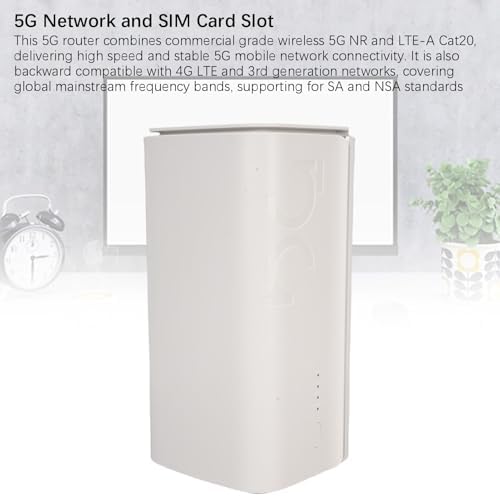
Image 3.1: Rear view of the Wisoqu 5G CPE Router, showing the SIM card slot and LAN port.
4. Operating Instructions
4.1. Dual Band Wi-Fi 6 Connectivity
The router operates on both 2.4GHz and 5GHz Wi-Fi bands, supporting the Wi-Fi 6 (802.11ax) standard. This allows for faster speeds and more efficient connections for multiple devices. Devices will automatically connect to the optimal band based on their capabilities and signal strength.
4.2. 5G Network Sharing
The Wisoqu 5G CPE Router enables sharing of its 5G network connection with up to 50 users simultaneously. This is ideal for families, small offices, or co-working spaces, supporting various activities like streaming, gaming, and video conferencing.

Image 4.1: The Wisoqu 5G CPE Router is capable of connecting up to 50 devices simultaneously.
4.3. Automatic Network Management
The router features a platform that monitors and automatically repairs network issues in real-time. This eliminates the need for manual restarts or network reconfigurations, simplifying your internet experience.
5. Maintenance
5.1. Heat Dissipation
The router is designed with efficient heat dissipation through air convection, ensuring stable performance even during prolonged high-speed use. To maintain optimal performance, ensure the router is placed in a well-ventilated area, free from obstructions that could block airflow.

Image 5.1: The Wisoqu 5G CPE Router's design incorporates features for efficient heat dissipation.
5.2. Cleaning
Periodically clean the exterior of the router with a soft, dry cloth. Avoid using liquid cleaners or abrasive materials, as these can damage the device.
5.3. Firmware Updates
Check the manufacturer's website periodically for firmware updates. Keeping your router's firmware up-to-date ensures optimal performance, security, and access to new features.
6. Troubleshooting
If you encounter issues with your Wisoqu 5G CPE Router, refer to the following common troubleshooting steps:
- No Internet Connection:
- Ensure the SIM card is correctly inserted and active with a data plan.
- Verify the router is powered on and its indicator lights are functioning correctly.
- Check if there is 5G/4G network coverage in your area.
- Try restarting the router by unplugging it from the power source for 10 seconds and then plugging it back in.
- Slow Wi-Fi Speed:
- Ensure your devices are connected to the 5GHz band if supported, as it generally offers faster speeds.
- Reduce the distance between your devices and the router, and minimize physical obstructions.
- Check for potential interference from other electronic devices.
- Limit the number of connected devices if experiencing significant slowdowns.
- Frequent Disconnections:
- Ensure the router is placed in a central location for optimal signal coverage.
- Check for any physical damage to the router or cables.
- Update the router's firmware if an update is available.

Image 6.1: Front view of the Wisoqu 5G CPE Router, showing indicator lights.
7. Specifications

Image 7.1: Detailed product specifications for the Wisoqu 5G CPE Router.
| Feature | Description |
|---|---|
| Item Type | 5G CPE Router |
| Product Material | ABS |
| Model Name | Wisoqu9ziefcwan1 |
| 5G NR Bands | FDD: N1/N3/N28, TDD: N41/N78, CA: B1+B3 B1+B3 B1+B3 B39+B41 B39+B39 B40+B40 B41+B41 |
| 4G Bands | 4G FDD: B1/B3/B5/B8, 4G TDD: B34/38/39/40/41 |
| 3rd Generation Bands | B1 |
| WiFi Band | WiFi6 2.4GHz, 5.8GHz |
| Wireless Comm Standard | 802.11ax |
| SIM Card Slot | Small SIM (not included) |
| LAN Port | 1 x 1000Mbps LAN |
| WiFi Connection | Up to 50 devices simultaneously |
| Encryption Method | WPA2 |
| Package Dimensions | 11.81 x 5.51 x 5.12 inches |
| Item Weight | 2.17 pounds |
| Manufacturer | Wisoqu |
| Operating System | ZyNOS |
8. Warranty and Support
For warranty information and technical support, please refer to the documentation provided with your purchase or contact Wisoqu customer service directly. Keep your purchase receipt as proof of purchase for warranty claims.