
1. Introduction
The Inseego MiFi Jetpack 8800L is a premium mobile hotspot designed to provide high-speed internet access on the go. Featuring a full-color 2.4-inch touch screen display, this device offers an intuitive user experience with enhanced features and on-screen help. It supports LTE Category 18 with 5x carrier aggregation for ultimate download speeds and real simultaneous dual-band Wi-Fi, allowing up to 15 Wi-Fi clients to connect simultaneously on 2.4GHz or 5GHz bands. This improves link quality, speed, and reduces network congestion. The MiFi 8800L is GSM Unlocked, making it versatile for various networks, and includes robust security features like hacker prevention, encryption, enterprise-grade protection, and VPN pass-through.
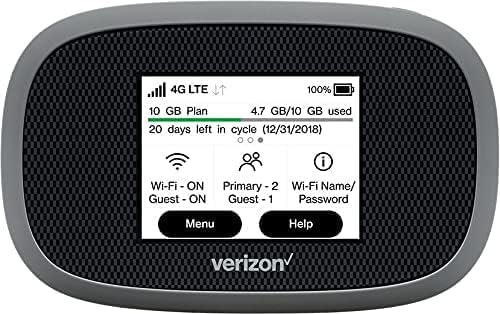
Figure 1: Front view of the Inseego MiFi Jetpack 8800L, showcasing its vibrant touchscreen display.
2. What's in the Box
Upon unboxing your Inseego MiFi Jetpack 8800L, please ensure all the following components are present:
- Inseego MiFi Jetpack 8800L Device
- Rechargeable Lithium Ion Battery
- USB-C Cable
- USB Wall Adapter
3. Product Overview
Familiarize yourself with the key components and indicators of your MiFi Jetpack 8800L.

Figure 2: Labeled diagram of the MiFi 8800L's touchscreen display, indicating key information areas.
- Signal Indicator: Displays the strength of the cellular signal.
- Network Type: Shows the current network technology (e.g., 4G LTE).
- Activity Indicator: Shows data transmission activity.
- Battery Indicator: Displays the current battery level.
- Data Usage: Provides an overview of your data consumption.
- Connected Devices: Indicates the number of devices currently connected to the hotspot.
- Touchscreen Display: Interactive interface for managing settings and viewing information.
- Power Button: Located on the side of the device, used to power on/off and wake the screen.
- USB-C Port: For charging the device and connecting to a computer.
4. Setup
4.1. Battery Installation
- Locate the battery compartment cover on the back of the MiFi 8800L.
- Gently remove the cover.
- Insert the included Lithium Ion battery into the compartment, aligning the gold contacts.
- Replace the battery compartment cover, ensuring it clicks securely into place.
4.2. SIM Card Installation
The MiFi 8800L requires a Nano-SIM card for cellular connectivity. If your device did not come with a pre-installed SIM, follow these steps:
- With the battery cover removed (as per step 4.1), locate the SIM card slot.
- Carefully insert your Nano-SIM card into the slot with the gold contacts facing down and the notched corner aligned correctly. Push until it clicks into place.
- Replace the battery and the battery compartment cover.
4.3. Initial Power On and Charging
- Press and hold the Power button on the side of the device until the screen illuminates.
- Connect the MiFi 8800L to the USB wall adapter using the provided USB-C cable. Plug the adapter into a power outlet. The device will begin charging.
- Allow the device to fully charge before its first use for optimal battery performance. QuickCharge technology allows for a full charge in approximately 3 hours.
5. Operating the MiFi Jetpack 8800L
5.1. Connecting Devices via Wi-Fi
- Ensure your MiFi 8800L is powered on.
- On your Wi-Fi enabled device (smartphone, tablet, laptop), open the Wi-Fi settings.
- Search for available Wi-Fi networks. The MiFi 8800L's default Wi-Fi name (SSID) and password can be found on the device's screen by navigating to the 'Wi-Fi Name/Password' option, or on a label inside the battery compartment.
- Select your MiFi's network name from the list and enter the password when prompted.
- Your device should now be connected to the internet via the MiFi 8800L.
5.2. Managing Settings via Touchscreen
The 2.4-inch touchscreen allows for easy management of your hotspot:
- Main Screen: Displays signal strength, network type, data usage, battery level, and connected devices.
- Menu Button: Tap 'Menu' to access various settings and information, including Wi-Fi settings, connected devices list, data usage details, and device information.
- Help Button: Tap 'Help' for on-screen assistance and FAQs.
- Guest Wi-Fi: From the main screen, you can quickly enable or disable the Guest Wi-Fi network. This provides a separate network for guests without giving them access to your primary network's password or connected devices.
5.3. Universal Charging (Power Bank Feature)
The MiFi 8800L can also act as a power bank to charge other devices. Connect your smartphone or tablet to the MiFi 8800L using a compatible USB cable plugged into the MiFi's USB-C port. The MiFi will begin charging your device.
6. Maintenance
6.1. Battery Care
- Avoid exposing the battery to extreme temperatures (hot or cold).
- For long-term storage, charge the battery to about 50% and store the device in a cool, dry place.
- If the battery life significantly degrades, consider replacing it with an official Inseego replacement battery.
6.2. Cleaning
- Use a soft, lint-free cloth to clean the device's screen and body.
- Do not use harsh chemicals, abrasive cleaners, or aerosol sprays.
- Keep the USB-C port free of dust and debris.
6.3. Software Updates
Periodically check for software updates through the device's administrative portal (accessible via a web browser when connected to the MiFi's Wi-Fi network). Updates can improve performance, add features, and enhance security.
7. Troubleshooting
If you encounter issues with your MiFi Jetpack 8800L, refer to the following common problems and solutions:
| Problem | Possible Solution |
|---|---|
| No internet connection |
|
| Slow internet speed |
|
| Device not powering on |
|
| Cannot connect to Wi-Fi |
|
8. Specifications
Detailed technical specifications for the Inseego MiFi Jetpack 8800L:
| Feature | Detail |
|---|---|
| Model Name | Inseego Jetpack 8800L |
| Connectivity Technology | 4G LTE (CAT 18 with 5x Carrier Aggregation) |
| Wireless Communication Standard | 802.11a, 802.11ac, 802.11b, 802.11g, 802.11n |
| Frequency Band Class | Dual-Band (2.4GHz & 5GHz simultaneous) |
| Display | 2.4-inch Full-Color Touchscreen |
| Battery | 1 Lithium Ion battery (included) |
| Charging | USB-C with QuickCharge technology |
| Universal Charging | Supports charging external devices |
| Maximum Wi-Fi Clients | Up to 15 |
| Security Features | Hacker prevention, encryption, enterprise-grade protection, VPN pass-through, Wi-Fi security protocols, password protection, Guest Wi-Fi network |
| Dimensions (L x W x H) | 5.04 x 3.58 x 2.48 inches |
| Item Weight | 10.5 ounces |
9. Warranty and Support
The Inseego MiFi Jetpack 8800L comes with a manufacturer's warranty. Please refer to the warranty card included with your product or visit the official Inseego website for detailed warranty terms and conditions.
For technical support, troubleshooting assistance beyond this manual, or to inquire about replacement parts, please contact Inseego customer support through their official channels. Keep your product's model number (8800L) and serial number ready when contacting support.
Manufacturer: Inseego


