
1. Product Overview
The LAMTTO Portable Car Screen offers a seamless and intelligent driving experience by integrating wireless Apple CarPlay and Android Auto into your vehicle. This 7-inch touchscreen display provides easy access to navigation, music, calls, and voice assistance without the need for complicated wiring. Its plug-and-play design ensures quick installation and portability between vehicles.
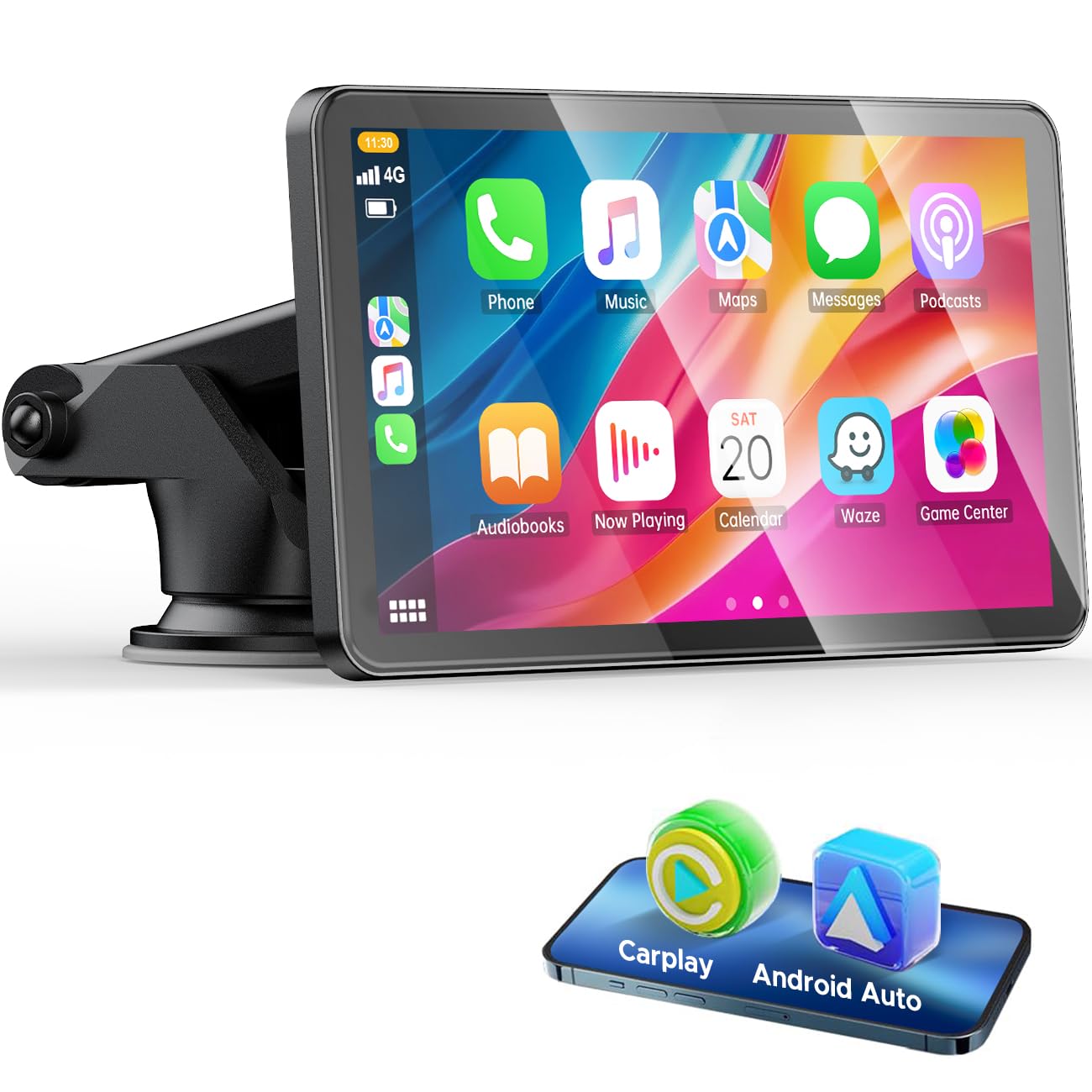
Image: The LAMTTO 7-inch portable car screen displaying its main interface with various application icons for navigation, music, and communication.
2. Setup and Installation
2.1 Package Contents
Verify that all items are included in the package:
- 7-inch Carplay Screen
- Suction Cup Mount
- Installation Tool
- Type-C Car Charger
- Suction Base
- AUX Cable (1.5 meters)
- Instruction Manual

Image: A visual representation of all components included in the LAMTTO portable car screen package.
2.2 Device Installation
The LAMTTO portable car screen is designed for quick and easy installation without complex wiring. It can be mounted on your dashboard or windshield using the provided suction cup mount.
- Choose a suitable location on your dashboard or windshield that does not obstruct your view or interfere with driving.
- Attach the suction cup mount to the back of the car screen.
- Clean the chosen surface thoroughly.
- Press the suction cup firmly onto the surface and engage the locking mechanism to secure it.
- Adjust the screen angle for optimal visibility.
- Connect the Type-C car charger to the device and plug it into your vehicle's cigarette lighter socket.

Image: Visual guide demonstrating different mounting options and the adjustable arm of the suction cup mount for stable installation.
2.3 Wireless CarPlay Connection (for iPhone)
Connect your iPhone wirelessly to the LAMTTO screen for Apple CarPlay functionality.
- Ensure your iPhone's Wi-Fi and Bluetooth are enabled.
- On the LAMTTO screen, select the Apple CarPlay icon.
- On your iPhone, go to Bluetooth settings and search for the device name (e.g., "T86xxxx").
- Pair your iPhone with the device. Confirm the pairing code if prompted.
- Once connected via Bluetooth, the system will automatically establish a Wi-Fi connection for CarPlay.
Video: Demonstrates the process of connecting your smartphone wirelessly to the car screen for CarPlay functionality.
Video: A short guide on the Apple CarPlay connection method.

Image: Step-by-step instructions for connecting an iPhone using Apple AirPlay for screen mirroring.
2.4 Wireless Android Auto Connection (for Android Phones)
Connect your Android phone wirelessly to the LAMTTO screen for Android Auto functionality.
- Ensure your Android phone's Wi-Fi and Bluetooth are enabled.
- On the LAMTTO screen, select the Android Auto icon.
- On your Android phone, go to Bluetooth settings and search for the device name.
- Pair your Android phone with the device. Confirm the pairing code if prompted.
- Once connected via Bluetooth, the system will automatically establish a Wi-Fi connection for Android Auto.

Image: Step-by-step instructions for connecting an Android phone using SuperLink for screen mirroring.
2.5 Rear Camera Connection (Optional)
If you have a compatible rear camera, you can connect it to the LAMTTO screen for a reverse view.
- Connect the rear camera's video output cable to the AV input port on the LAMTTO screen.
- Connect the camera's power cable to your vehicle's reverse light power source (positive terminal). This ensures the camera activates automatically when reversing.
- Refer to the specific wiring diagram provided with your rear camera for detailed connections.
Video: Guide on how to use the rear camera with the car screen, demonstrating its functionality.
Video: Instructions on how to connect the reverse camera to the car screen.
3. Operation
3.1 Basic Functions
- Power On/Off: The device powers on automatically when the car starts and powers off when the car is turned off.
- Volume Control: Adjust the volume using the on-screen controls or your connected smartphone.
- Brightness Adjustment: Manually adjust the screen brightness through the device settings to ensure clear visibility in various lighting conditions.
3.2 Audio Output Modes
The LAMTTO screen offers multiple ways to output audio to your car's sound system:
- Bluetooth: Connect your phone via Bluetooth for the most stable and highest quality audio transmission.
- AUX: Use the provided 1.5-meter AUX cable to connect the screen to your car's AUX input for direct audio transfer.
- FM Transmitter: Select an unused FM frequency on the LAMTTO screen and tune your car's radio to the same frequency. This allows audio to play through your car's speakers. Ensure the FM frequency is clear to avoid interference.
- Built-in Speaker: The device has a built-in speaker, suitable for voice prompts and basic audio, but Bluetooth or AUX is recommended for music.

Image: Illustration of the three primary audio connection methods: FM transmission, Bluetooth, and AUX, highlighting their respective setups.
3.3 Voice Assistance and Navigation
Utilize voice commands for hands-free operation and integrated navigation.
- Voice Control: Activate Siri or Google Assistant through the screen to make calls, send messages, play music, and get directions using voice commands.
- Navigation: Access your preferred map applications (e.g., Apple Maps, Google Maps, Waze) directly on the 7-inch display. Receive real-time traffic updates and lane guidance for a smoother journey.

Image: The car screen showing navigation and various app icons, emphasizing hands-free operation through voice assistance.
3.4 Mirror Link Functionality
The Mirror Link feature allows you to project your smartphone's screen directly onto the LAMTTO display.
- For iOS (AirPlay): iPhones use AirPlay for screen mirroring. Follow the on-screen prompts or your iPhone's AirPlay settings to connect.
- For Android (SuperLink): Android phones use SuperLink. You may need to download the Eevelink app by scanning the QR code provided on the screen or in the manual.
- This feature is ideal for viewing videos or other content not natively supported by CarPlay/Android Auto.

Image: The Mirror Link feature in action, showing a movie playing on both the car screen and a connected smartphone.
4. Maintenance
Proper maintenance ensures the longevity and optimal performance of your LAMTTO portable car screen.
- Cleaning: Use a soft, dry, lint-free cloth to clean the screen. For stubborn smudges, slightly dampen the cloth with water or a screen-safe cleaner. Avoid harsh chemicals, abrasive materials, or excessive moisture.
- Storage: If storing the device for an extended period, disconnect it from power and store it in a cool, dry place away from direct sunlight and extreme temperatures.
- Cable Care: Handle all cables gently. Avoid bending or crimping them sharply, which can damage internal wires.
- Software Updates: Periodically check the manufacturer's website or device settings for any available software updates to ensure optimal performance and compatibility.
5. Troubleshooting
If you encounter issues with your LAMTTO portable car screen, refer to the following common solutions:
| Problem | Possible Cause | Solution |
|---|---|---|
| Device does not power on. | No power supply or faulty connection. | Ensure the car charger is securely plugged into both the device and the car's cigarette lighter socket. Check if the car's power outlet is functional. |
| Wireless CarPlay/Android Auto not connecting. | Bluetooth/Wi-Fi issues, incorrect pairing, or phone incompatibility. |
|
| Poor audio quality via FM transmitter. | Interference from other radio stations. | Find a clear, unused FM frequency on the LAMTTO screen and tune your car's radio to the exact same frequency. Avoid frequencies used by strong local stations. |
| Screen mirroring (Mirror Link) not working. | Incorrect app for Android, Wi-Fi connection issues. |
|
| Rear camera not displaying. | Incorrect wiring or camera not powered. |
|
If the problem persists after trying these solutions, please contact customer support.
6. Product Specifications
| Feature | Detail |
|---|---|
| Brand | LAMTTO |
| Model Number | Autoradio Carplay |
| Screen Size | 7 Inches |
| Screen Type | LED LCD |
| Screen Resolution | 800 x 480 |
| Connectivity Technology | AUX, FM Radio, Bluetooth, Wi-Fi |
| Compatible Devices | Mobile Phones (iOS and Android) |
| Media Type | Digital |
| Color | Black |
| Package Dimensions | 23 x 14.2 x 10.7 cm |
| Item Weight | 740 g |
| Power Compatibility | 12-24V (Suitable for most car models) |
6.1 Incompatible Car Models
The following car brands may have compatibility issues:
- Toyota
- Ford
- Honda
- Volkswagen
- Volvo
- Seat
- Renault
- BMW
- Citroën
- Opel
- Suzuki
- Triumph
- Yamaha
- Tesla
Note: This list is based on reported incompatibilities and may not be exhaustive.
6.2 Incompatible Phone Models
The following phone models may have compatibility issues:
- iPhone 6, iPhone 13 mini, iPhone 16
- Samsung Galaxy S23, Samsung Galaxy S24, Samsung S24 Ultra, Samsung S23 Ultra
- Motorola G Stylus 5G 2024
- Huawei P30 Pro, Huawei P40 Pro Plus
- Xiaomi, Xiaomi Redmi Note 9 Pro
- Note: Not compatible with iOS 26 temporarily.
7. Warranty Information
This product comes with a 1-year warranty from the date of purchase. The warranty covers manufacturing defects and malfunctions under normal use. It does not cover damage caused by misuse, accidents, unauthorized modifications, or improper installation.
Please retain your proof of purchase for warranty claims.
8. Customer Support
For technical assistance, troubleshooting, or warranty inquiries, please contact LAMTTO customer support through the retailer where you purchased the product or visit the official LAMTTO website for contact information.
When contacting support, please have your product model number (Autoradio Carplay) and proof of purchase ready.