1. Setup
1.1 Unboxing
Carefully unpack all components from the box. Ensure all items listed in the packing list are present.
1.2 M.2 NVMe SSD Installation
The Hagibis Mac mini M4 Hub includes an M.2 NVMe SSD enclosure to expand your storage capacity. Follow these steps to install an M.2 NVMe SSD:
- Remove the enclosure cover from the bottom of the hub.
- Insert your M.2 NVMe SSD (compatible with 2230/2242/2260/2280 sizes) into the slot at a 30-degree angle.
- Gently press down the SSD and secure it with the provided screw.
- Apply the included thermal silicone pad directly onto the SSD for optimal heat dissipation.
- Re-install the enclosure cover and secure it with the screws.


1.3 Connecting to Mac mini
Place your Mac mini M4 or M4 Pro directly on top of the Hagibis Hub. Connect the included USB-C to USB-C cable from the 'HOST' port on the rear of the hub to a Thunderbolt/USB-C port on your Mac mini. Ensure the 5V/3A power supply is connected to the hub for stable operation.

2. Operating Instructions
2.1 Port Functionality
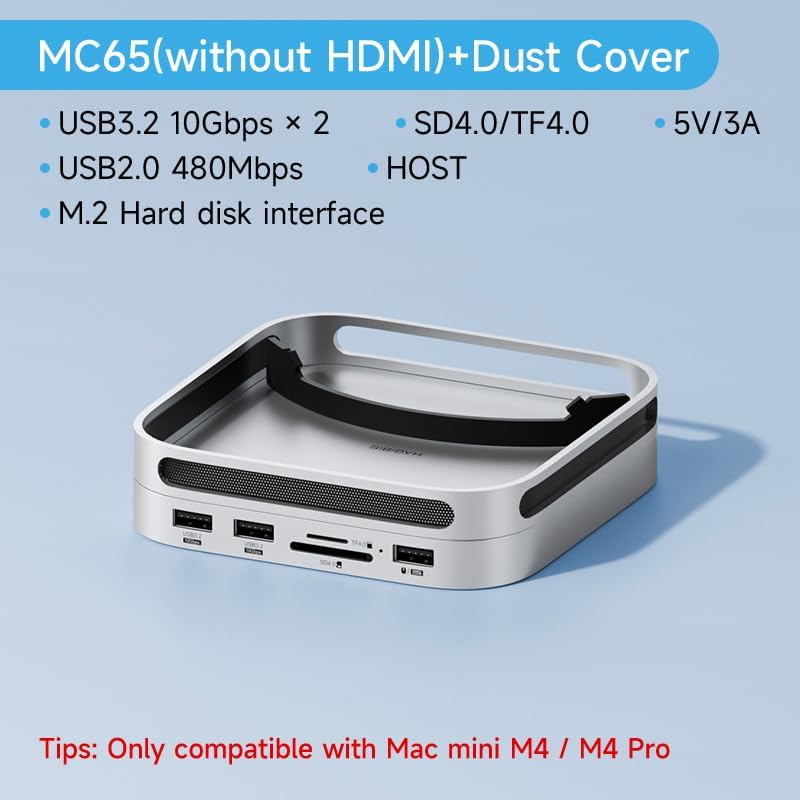
The Hagibis Hub provides a variety of ports for enhanced connectivity:
- Front Interface:
- 2 x USB 3.2 Gen2 (10Gbps) ports for high-speed data transfer.
- 1 x USB 2.0 (480Mbps) port, ideal for connecting wireless keyboards or mice to avoid signal interference.
- SD 4.0 and Micro SD 4.0 card slots, supporting UHS-II and up to 312Mbps transmission for fast file reading.
- Rear Interface:
- 1 x 5V/3A power supply port for stable power delivery.
- 1 x HOST (USB-C) port to connect to your Mac mini.


2.2 Data Transfer Speeds
The USB 3.2 Gen2 ports support 10Gbps read/write speeds, enabling fast transfer of large files. The M.2 NVMe SSD enclosure also supports speeds up to 10Gbps, allowing for quick memory expansion.


2.3 Heat Dissipation and Dust Protection
The hub features a large alloy fins design and an aluminum alloy body for efficient heat dissipation, ensuring the SSD operates at low temperatures without fan noise. The rear vent is equipped with a dust-proof filter net, and the air inlet has a 0.8mm aperture dust filter to prevent dust accumulation inside the Mac mini.


3. Maintenance
To ensure optimal performance and longevity of your Hagibis Mac mini M4 Hub, follow these maintenance guidelines:
- Cleaning: Use a soft, dry cloth to wipe the exterior of the hub. Avoid using liquid cleaners or abrasive materials.
- Dust Filter: Regularly check and clean the dust-proof filter net on the rear vent to maintain proper airflow and prevent dust buildup.
- Cable Management: Ensure all cables are neatly organized and not under excessive tension to prevent damage to ports or cables.
- Storage: When not in use for extended periods, store the hub in a cool, dry place away from direct sunlight and extreme temperatures.
4. Troubleshooting
If you encounter issues with your Hagibis Mac mini M4 Hub, refer to the following common problems and solutions:
- Hub is Glitchy or Performs Poorly:
- Ensure all connections, especially the USB-C HOST cable to the Mac mini and the 5V/3A power supply, are secure.
- Try restarting your Mac mini and the hub.
- Test the hub with different cables or ports on your Mac mini to rule out faulty components.
- SSD Not Recognized or Slow Data Transfer:
- Verify that the M.2 NVMe SSD is correctly installed and secured within the enclosure.
- Check Disk Utility on your Mac to ensure the SSD is formatted correctly (APFS for Mac only, exFAT for cross-platform compatibility).
- Ensure the thermal pad is correctly applied to the SSD to prevent overheating, which can lead to performance throttling.
- Confirm that the USB-C HOST cable supports 10Gbps data transfer.
- Mac mini Slides Off or is Not Secure:
- The hub is designed for the Mac mini to rest on top. Ensure it is placed centrally on the silicone pads for stability.
- Avoid bumping the setup to prevent accidental dislodgement.
- Difficulty Accessing Mac mini Power Button:
- The hub's design elevates the Mac mini, making the power button on the Mac mini itself less accessible. The hub does not include a pass-through power button for the Mac mini.
- WiFi Issues:
- While rare, some users report potential WiFi interference. Ensure the hub is not placed directly on top of or too close to other wireless devices.
- If issues persist, try repositioning the Mac mini and hub, or consider using a wired Ethernet connection if available.
5. Specifications
| Feature | Detail |
|---|---|
| Brand | Hagibis |
| Model Number | MC65 |
| Product Dimensions | 5 x 5 x 0.6 inches (127mm x 127mm x 15mm) |
| Item Weight | 1.07 pounds (17.1 Ounces) |
| Color | Silver |
| Material | Aluminum Alloy + ABS |
| Compatible Devices | Mac mini M4, Mac mini M4 Pro |
| Total USB Ports | 3 (2 x USB 3.2 Gen2 10Gbps, 1 x USB 2.0 480Mbps) |
| Number of Ports | 6 (2x USB3.2, 1x USB2.0, SD4.0, Micro SD4.0, 5V/3A Power) |
| M.2 NVMe SSD Enclosure | Compatible with 2230/2242/2260/2280 M.2 NVMe SSD, supports up to 8TB SSD with speeds up to 10Gbps. (SSD not included) |
| Card Reader | SD4.0 / Micro SD4.0 (UHS-II, up to 312Mbps) |
| Power Supply | 5V/3A |
| Heat Dissipation | Large Alloy Fins Design, Thermal Silicone Pad |
| Dust Protection | Rear vent with dust-proof filter net, 0.8mm aperture dust filter at air inlet |

6. Warranty & Support
For warranty information and customer support, please refer to the contact details provided in your product packaging or visit the official Hagibis website. Keep your purchase receipt for warranty claims.
Hagibis Customer Service:
- Email: support@hagibis.com
- Website: www.hagibis.com


