1. Introduction
This manual provides essential information for setting up, operating, and maintaining your HP 17.3-inch Laptop PC. Designed for performance and user comfort, this laptop is suitable for business, academic, and home environments. It features an Intel Core i3 processor, 32GB DDR4 RAM, a 1TB PCIe NVMe M.2 SSD, and runs on Windows 11 Pro.
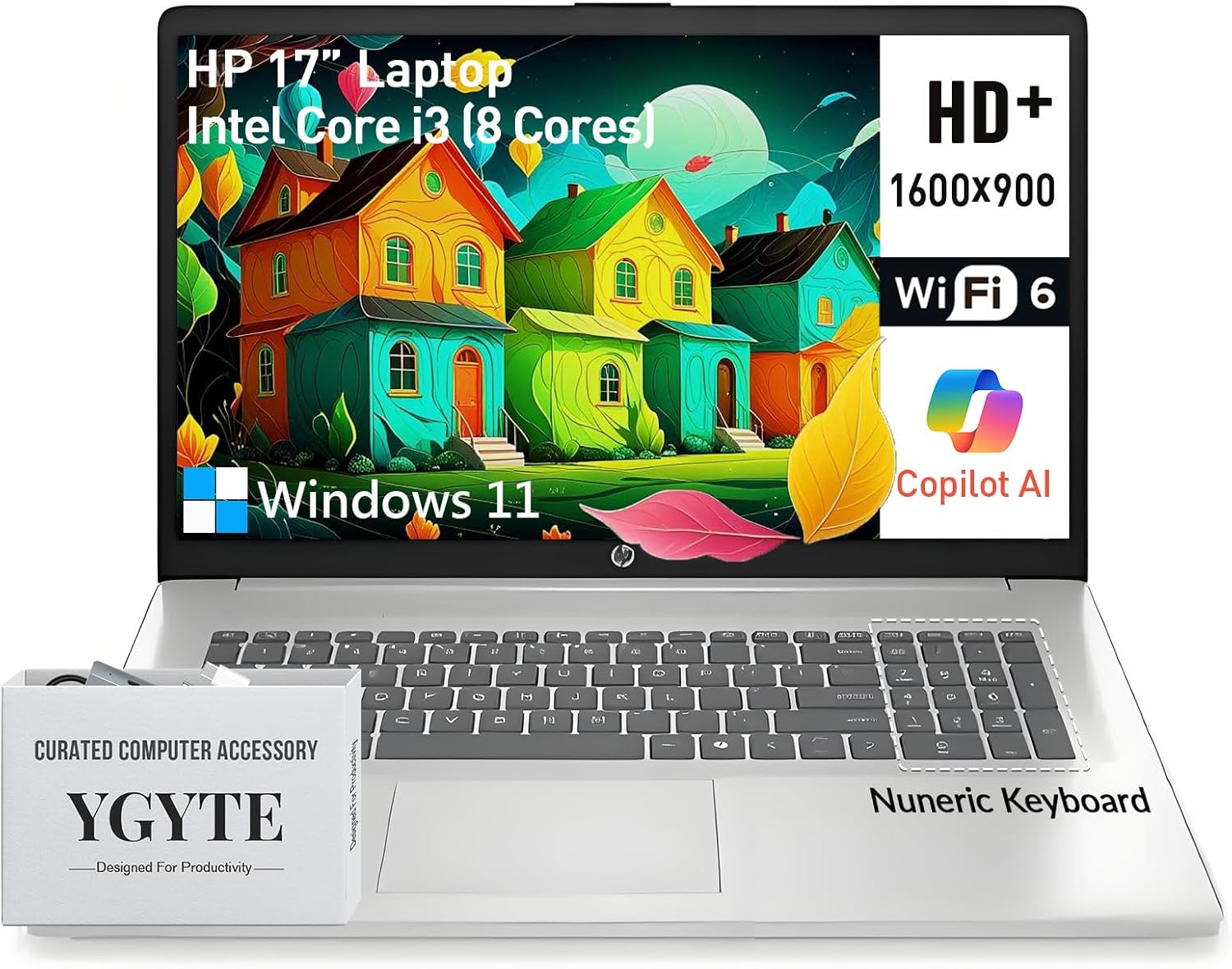
Image: The HP 17.3-inch Laptop PC, showcasing its large screen and keyboard layout.
2. Initial Setup
Follow these steps to set up your new HP 17.3-inch Laptop PC:
- Unpack the Laptop: Carefully remove the laptop and all accessories from the packaging. Ensure all components are present.
- Connect Power: Plug the AC adapter into the laptop's power port and then into a wall outlet. Allow the battery to charge sufficiently before first use.
- Power On: Open the laptop lid and press the power button, usually located on the top right of the keyboard.
- Windows 11 Pro Setup: Follow the on-screen instructions to complete the initial Windows 11 Pro setup, including language selection, network connection, and user account creation.
3. Key Components and Features
Your HP 17.3-inch Laptop PC is equipped with the following:
- Display: 17.3-inch HD+ (1600 x 900) anti-glare display with narrow bezels and 250 nits brightness for clear visuals.
- Processor: Intel Core i3 (8-Cores) processor, with speeds up to 3.8GHz, providing efficient multitasking capabilities.
- Memory: 32GB DDR4 RAM for smooth operation across multiple applications.
- Storage: 1TB PCIe NVMe M.2 Solid State Drive (SSD) for fast boot times and ample storage capacity.
- Graphics: Integrated Intel UHD Graphics for clear visuals and multimedia playback.
- Operating System: Windows 11 Pro 64-bit, offering advanced features for productivity and security.
- Keyboard: Full-size keyboard with a 10-key numeric keypad and an ergonomic lift-hinge design for comfortable typing. Includes a Copilot key for quick access to AI features.
- Webcam: HP True Vision 720p HD camera with AI-noise removal, a privacy shutter, and dual array digital microphones for clear video calls.
- Audio: B&O-tuned stereo speakers for an enhanced audio experience.
- Connectivity: Wi-Fi 6 and Bluetooth 5.3 for high-speed wireless connections.
- Ports: 1x USB-C (5Gbps signaling rate, data transfer only), 2x USB-A, 1x HDMI 1.4b.
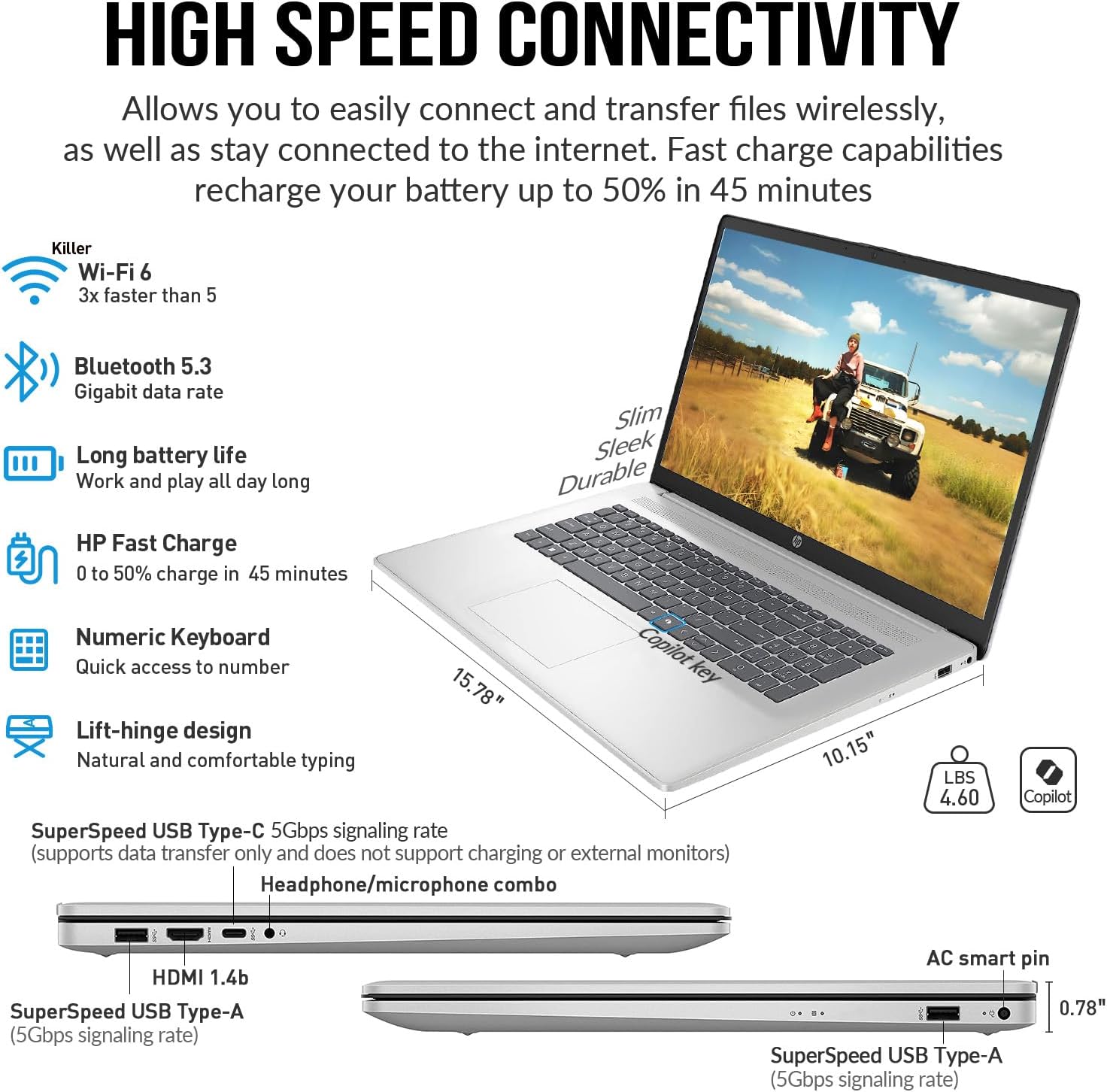
Image: Side view of the HP 17.3-inch Laptop PC, highlighting its SuperSpeed USB-C, USB-A, HDMI, and headphone/microphone combo ports.
4. Operating Instructions
4.1 Power Management
- Power On: Press the power button.
- Sleep Mode: Close the lid or select 'Sleep' from the Start menu.
- Shut Down: Select 'Shut down' from the Start menu.
- Restart: Select 'Restart' from the Start menu.
4.2 Keyboard and Touchpad
The full-size keyboard includes a numeric keypad for data entry. The touchpad supports multi-touch gestures for navigation. Refer to Windows 11 Pro settings for customizing touchpad gestures.
4.3 Using the Copilot Key
Your laptop features a dedicated Copilot key. Press this key to instantly access the AI-powered assistant in Windows 11 Pro for various tasks, summaries, and creative assistance.
4.4 Multimedia Usage
Utilize the HP True Vision 720p HD camera for video conferencing. The integrated privacy shutter can be manually slid to cover the camera lens when not in use, ensuring your privacy. B&O-tuned speakers provide clear audio for entertainment and communication.

Image: The HP 17.3-inch Laptop PC displaying a video call, emphasizing the HP True Vision 720p HD camera with privacy shutter and dual array microphones.
4.5 Video Demonstration
Watch this video for a brief overview of the HP 17 business laptop's features and performance.
Video: A short demonstration of the HP 17 business laptop, highlighting its screen and overall functionality.
5. Care and Maintenance
- Cleaning: Use a soft, lint-free cloth to clean the screen and exterior. Avoid harsh chemicals.
- Battery Care: To prolong battery life, avoid extreme temperatures and fully discharging the battery frequently. The laptop supports HP Fast Charge.
- Software Updates: Regularly update Windows 11 Pro and device drivers to ensure optimal performance and security.
- Storage Management: Periodically clear unnecessary files to maintain optimal SSD performance.
6. Troubleshooting
If you encounter issues, try the following common solutions:
- No Power: Ensure the AC adapter is securely connected to both the laptop and a working power outlet.
- Screen Issues: If the screen is blank, try adjusting the brightness or connecting an external monitor to check if the display is faulty.
- Slow Performance: Close unnecessary applications, check for background processes, and ensure sufficient free storage space.
- Connectivity Problems: For Wi-Fi or Bluetooth issues, try restarting the laptop and your router/Bluetooth device. Check device manager for driver status.
- Audio Problems: Verify volume settings, check speaker connections, and update audio drivers.
7. Technical Specifications
| Feature | Specification |
|---|---|
| Standing screen display size | 17.3 Inches |
| Screen Resolution | 1600 x 900 pixels (HD+) |
| Processor | Intel Core i3 (up to 3.8 GHz, 8 cores) |
| RAM | 32 GB DDR4 |
| Hard Drive | 1 TB SSD (PCIe NVMe M.2) |
| Graphics Coprocessor | Intel UHD Graphics |
| Wireless Type | 802.11ax (Wi-Fi 6), Bluetooth 5.3 |
| Operating System | Windows 11 Pro |
| Item Weight | 4.6 pounds |
| Product Dimensions | 15.78 x 10.15 x 0.78 inches |
| Color | Silver |
| Special Feature | Copilot key, Numeric Keypad |
8. Warranty and Support
For warranty information, technical support, or service inquiries, please refer to the documentation included with your product or visit the official HP support website. Keep your purchase receipt and product serial number handy for faster service.