Introduction
This manual provides essential information for setting up, operating, and maintaining your Veidoo Kids Tablet T40. Please read it thoroughly to ensure proper use and to maximize your child's learning and entertainment experience.

Image: The Veidoo Kids Tablet T40, featuring a 10.1-inch screen, housed within its durable blue silicone protective case. The case includes a built-in kickstand for hands-free viewing.
Video: A general overview of the URAO Kids Tablet, highlighting its features and design, similar to the Veidoo T40 model.
What's in the Box
- Tablet PC with Protective Silicone Case
- 5V/2A Charger
- OTG cable
- Data Cable
- User Manual & Warranty Card
Video: An unboxing video demonstrating the contents of the Veidoo Kids Tablet package, including the tablet, protective case, charger, cables, and documentation.
Setup
1. Initial Charge
Before first use, fully charge the tablet using the provided 5V/2A charger and data cable. The battery indicator will show charging status.
2. Installing the Protective Case
The tablet comes with a durable silicone protective case. Carefully insert the tablet into the case, ensuring all ports and buttons align correctly. The case is designed to protect against scratches and drops and includes a built-in stand.

Image: A detailed view of the flexible and durable silicone protective case, emphasizing its robust design for child-friendly use.
3. Power On/Off
To power on, press and hold the Power Button located on the side of the tablet until the screen illuminates. To power off, press and hold the Power Button, then select "Power Off" from the on-screen options.
4. Wi-Fi Connection
- Go to Settings > Network & Internet > Wi-Fi.
- Toggle Wi-Fi On.
- Select your desired Wi-Fi network from the list.
- Enter the password if prompted and tap Connect.
5. Account Setup
Follow the on-screen prompts to set up a Google account. This is necessary for accessing the Google Play Store and other services. Parental controls can be configured during or after this step.
Operating Instructions
Navigation
The tablet runs on Android 14. Navigate using touch gestures: tap to select, swipe to scroll, pinch to zoom. The navigation bar at the bottom of the screen provides Back, Home, and Recent Apps functions.
Parental Controls
The Veidoo Kids Tablet T40 includes pre-installed iWawa APP and Kids Space, offering age-appropriate content and robust parental control features. These allow you to:
- Manage screen time limits.
- Control access to specific apps and content.
- Monitor usage remotely.
- Activate anti-blue light mode for eye protection.
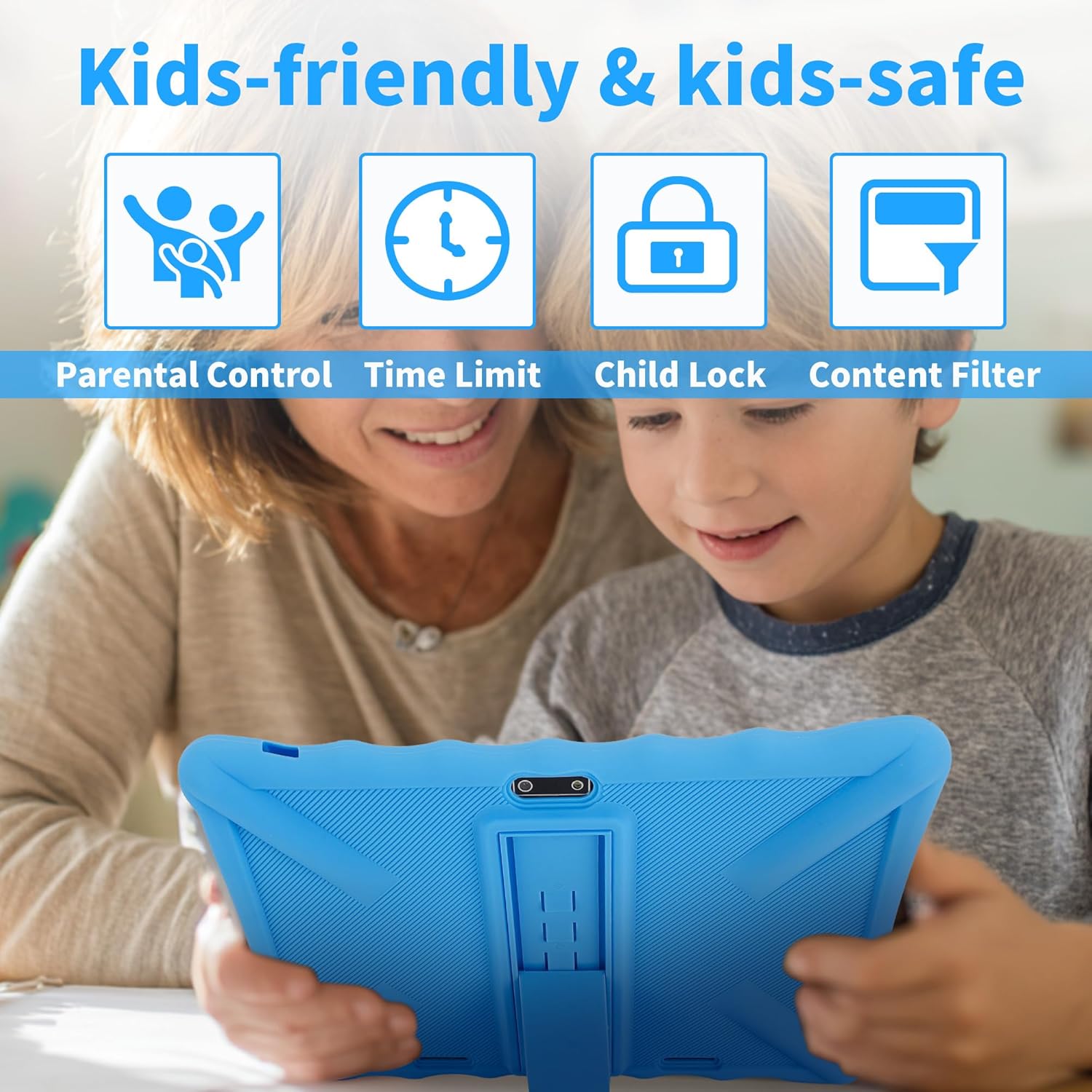
Image: The tablet screen shows icons for parental control, time limits, child lock, and content filtering, illustrating its kid-friendly and safe features.
App Management
Download additional educational apps and games from the Google Play Store. The 7GB RAM (3GB physical + 4GB virtual) and 64GB ROM (expandable up to 512GB via microSD card) ensure smooth performance and ample storage for various applications.
Media Playback
The 10.1-inch IPS display with 1280x800 pixel resolution provides clear visuals for videos and games. The tablet supports various media formats for entertainment and learning.

Image: The tablet's 10.1-inch IPS display is shown with a colorful, high-resolution image, highlighting its excellent visual experience.
Maintenance
Cleaning
To clean the screen, use a soft, lint-free cloth. For the protective case, it can be removed and wiped down with a damp cloth and mild soap if necessary. Ensure the tablet is powered off and disconnected from any power source before cleaning.
Battery Care
To prolong battery life, avoid fully discharging the tablet frequently. Charge it regularly using the provided charger. Avoid exposing the tablet to extreme temperatures.
Software Updates
Periodically check for system updates in Settings > System > System update to ensure optimal performance and security.
Troubleshooting
Tablet Not Turning On
- Ensure the tablet is fully charged. Connect it to the charger for at least 30 minutes.
- Press and hold the Power Button for 10-15 seconds to perform a hard reset.
Wi-Fi Connection Issues
- Restart your Wi-Fi router.
- Forget the network in tablet settings and reconnect.
- Ensure the tablet is within range of the Wi-Fi signal.
Slow Performance
- Close unused applications running in the background.
- Clear cache for frequently used apps in Settings > Apps > [App Name] > Storage & cache.
- Consider uninstalling rarely used apps to free up storage.
Screen Unresponsive
- Perform a soft reset by pressing the Power Button briefly.
- If unresponsive, use the Reset pinhole (refer to Function Details diagram) with a thin object to restart the device.
Specifications
| Feature | Detail |
|---|---|
| Brand | Veidoo |
| Model Name | Veidoo T40 |
| Screen Size | 10.1 Inches IPS Eye-Care Screen |
| Max Screen Resolution | 1280x800 Pixels |
| Operating System | Android 14 |
| Processor | Octa-Core, up to 2 GHz (Allwinner) |
| RAM | 7GB (3GB physical + 4GB virtual) |
| Internal Storage (ROM) | 64GB |
| Expandable Storage | Up to 512GB via microSD card |
| Wireless Connectivity | WiFi 6 (802.11ax, 2.4G/5G), Bluetooth 5.0 |
| Battery | 5000mAh (Average 5 hours usage) |
| Cameras | Dual Camera (Front & Rear) |
| Dimensions (LxWxH) | 9.25 x 0.3 x 6.5 inches |
| Weight | 1.98 pounds |
| Color | Blue (Protective Case) |

Image: A diagram illustrating the various ports and buttons on the Veidoo Kids Tablet, including the headphone jack, power button, volume controls, reset pinhole, front and rear cameras, Micro USB/charging port, and speakers.
Warranty and Support
Your Veidoo Kids Tablet T40 comes with a warranty. Please refer to the included Warranty Card for details on coverage and how to register your product for extended warranty options.
For further assistance, please contact Veidoo customer support through the channels provided in your warranty documentation or visit the official Veidoo website.


