1. Introduction
Thank you for choosing the Queather POV Pro 4K Wearable Thumb Camera. This compact and versatile camera is designed to capture your experiences in stunning 4K resolution, offering a hands-free recording solution for various activities. This manual provides essential information for the proper setup, operation, and maintenance of your device.
2. Package Contents
Carefully unpack your Queather POV Pro 4K camera and verify that all items are present. The standard package includes:

Figure 2.1: The Queather POV Pro 4K camera and its complete set of accessories.
- Queather POV Pro 4K Thumb Camera (x1)
- Camera Frame (x1)
- Thumb Screw (x1)
- Bike H Mount (x1)
- Waterproof Case (x1)
- USB Cable (x1)
- Helmet Mount A (x2)
- M Mount (x1)
- Turn 90° Mount (x1)
- Helmet Mount B (x1)
- Magnetic Pendant (x1)
- User Manual (x1)
- F Mount (x1)
- Back Clip (x1)
- 64GB MicroSD Card (x1)
3. Setup
3.1 Charging the Camera
The camera is equipped with an 800mAh rechargeable lithium-ion battery. Before first use, fully charge the camera.
- Connect the provided USB cable to the camera's charging port.
- Connect the other end of the USB cable to a standard USB power adapter (not included) or a computer's USB port.
- The charging indicator light will illuminate. Once fully charged, the light will change or turn off (refer to the camera's LED indicator guide for specific behavior).
A full charge provides approximately 150 minutes of continuous recording at 1080p or 90 minutes at 4K resolution.
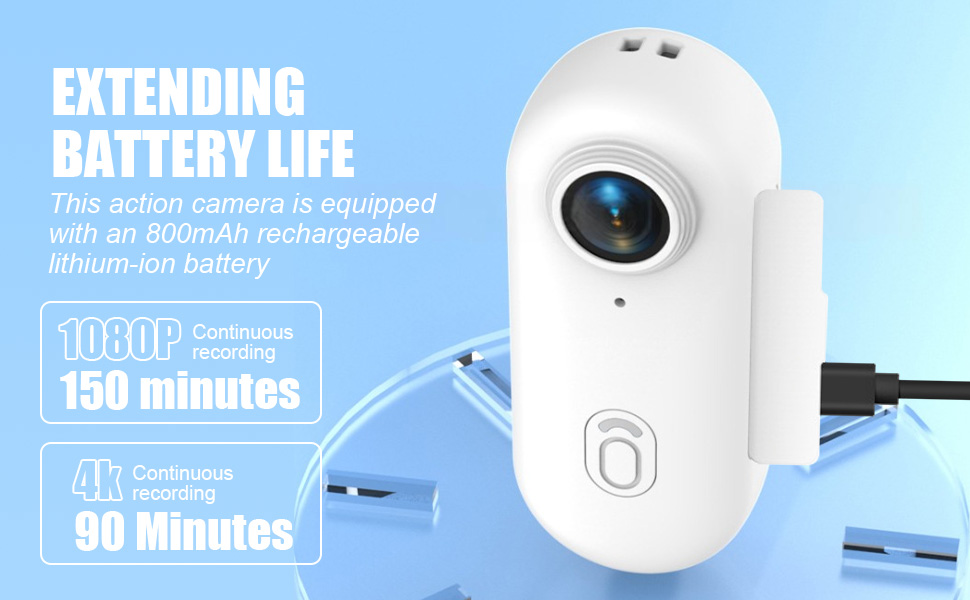
Figure 3.1: Charging the Queather POV Pro 4K camera and its battery performance.
3.2 Inserting the MicroSD Card
A 64GB MicroSD card is included. Ensure it is inserted correctly before use.
- Locate the MicroSD card slot on the side of the camera.
- Gently insert the MicroSD card with the gold contacts facing down until it clicks into place.
- To remove, gently push the card in again until it springs out.
3.3 Mounting Options
The camera comes with various accessories for flexible mounting in different scenarios.
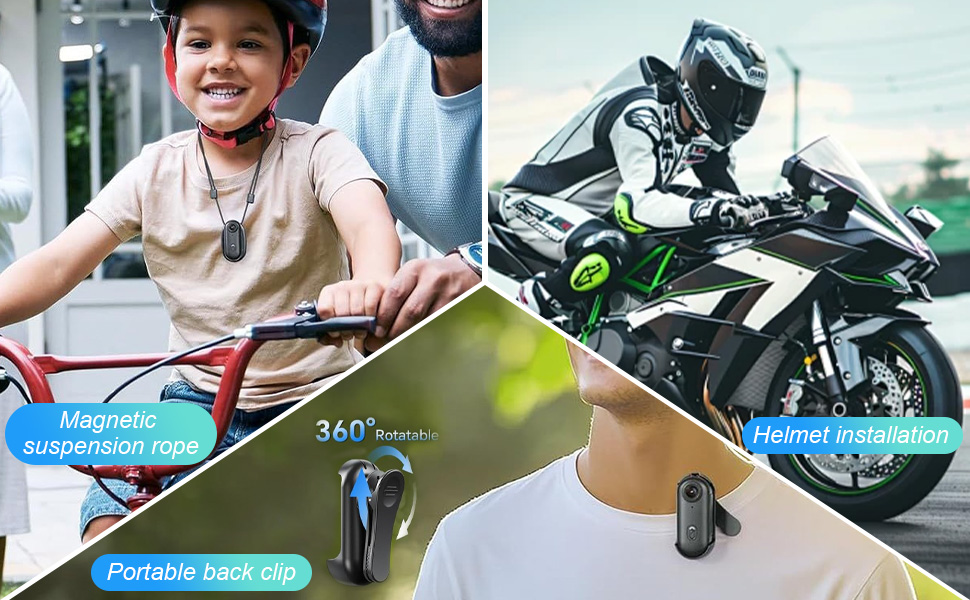
Figure 3.2: Diverse mounting solutions for the Queather POV Pro 4K camera.
- Magnetic Pendant: Wear the camera around your neck for a stable, hands-free perspective.
- Back Clip: Attach the camera to clothing, straps, or other surfaces for a secure hold. The clip offers 360° rotation.
- Helmet Mounts (A & B): Securely attach the camera to various helmet types for cycling, motorcycling, or other sports.
- Bike H Mount: Mount the camera to bicycle handlebars or other cylindrical structures.
- Waterproof Case: For underwater activities, place the camera inside the waterproof case. This case allows the camera to dive up to 30 meters.
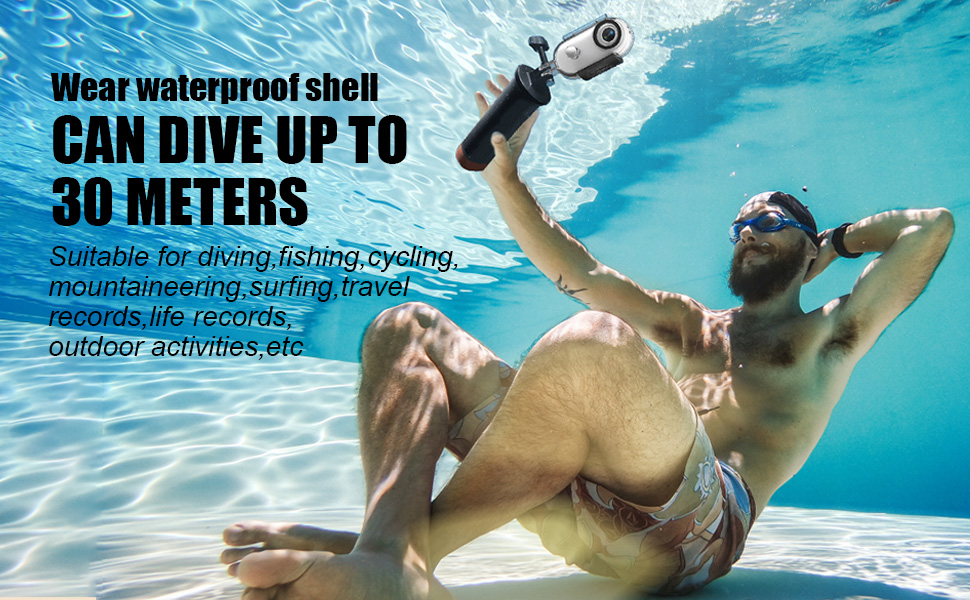
Figure 3.3: The Queather POV Pro 4K camera in its waterproof case, suitable for diving up to 30 meters.
4. Operating Instructions
4.1 Powering On/Off
- To Power On: Press and hold the main button until the indicator light illuminates.
- To Power Off: Press and hold the main button until the indicator light turns off.
4.2 Recording Video
The camera features a quick capture function for instant recording.

Figure 4.1: Initiating quick capture recording with the Queather POV Pro 4K camera.
- Start Recording: When the camera is on, simply press the main button once to begin recording. The indicator light will change to confirm recording has started.
- Stop Recording: Press the main button once again to stop recording. The indicator light will revert to standby mode.
The camera records video in MP4 format at 4K resolution with auto-focus. Still images can be captured in JPEG format.
4.3 Using the Mobile Application
For live preview, playback, and downloading footage, connect the camera to its dedicated mobile application.

Figure 4.2: Live preview and app connectivity for the Queather POV Pro 4K camera.
- Download the official Queather camera application from your device's app store.
- Ensure the camera is powered on and Wi-Fi is enabled (if applicable, refer to camera settings).
- Open the app and follow the on-screen instructions to connect to your camera's Wi-Fi network.
- Once connected, you can view a live feed, review recorded videos, and transfer files to your smartphone. Optimal connection range is within 32 feet (10 meters).
5. Maintenance
5.1 Cleaning
- Use a soft, dry cloth to clean the camera body.
- For the lens, use a specialized lens cleaning cloth and solution to avoid scratches.
- Ensure the camera is off and disconnected from power before cleaning.
5.2 Storage
- Store the camera in a cool, dry place away from direct sunlight and extreme temperatures.
- If storing for extended periods, ensure the battery is partially charged (around 50%) to prolong its lifespan.
5.3 Battery Care
- Avoid fully discharging the battery frequently.
- Use only the provided USB cable for charging.
- Do not expose the battery to high temperatures or puncture it.
6. Troubleshooting
If you encounter issues with your Queather POV Pro 4K camera, refer to the following common problems and solutions:
| Problem | Possible Cause | Solution |
|---|---|---|
| Camera does not power on. | Low battery; faulty battery; camera malfunction. | Charge the camera fully. If issue persists, contact support. |
| Cannot record video. | No MicroSD card; MicroSD card full or corrupted; low battery. | Insert a MicroSD card. Format or replace the card. Charge the camera. |
| Poor video quality. | Dirty lens; insufficient lighting; incorrect settings. | Clean the lens. Ensure adequate lighting. Check app settings for resolution. |
| App connection issues. | Camera Wi-Fi off; out of range; app malfunction. | Ensure camera Wi-Fi is on. Move closer to the camera (within 10m). Restart app/camera. |
| Camera feels unstable when mounted. | Mount not securely fastened; incorrect mount for activity. | Ensure all screws and clips are tightened. Use the appropriate mount for the activity and check for a firm attachment. |
7. Specifications
Detailed technical specifications for the Queather POV Pro 4K Wearable Thumb Camera:
- Brand: Queather
- Model: POV Pro 4K
- Camera Dimensions: Approximately 2.5 inches (6.3 cm) x 1.1 inches (2.8 cm) x 0.7 inches (1.8 cm)
- Camera Weight: Approximately 1.27 ounces (35.95g)
- Video Capture Resolution: 4K
- Video Capture Format: MP4
- Display Resolution Maximum: UHD (via connected device/app)
- Focus Type: Auto Focus
- Supported File Formats: JPEG, MP4
- Battery: 800mAh Rechargeable Lithium-ion
- Battery Life: Up to 150 minutes (1080p), 90 minutes (4K) continuous recording (Wi-Fi OFF)
- Water Resistance Level: Waterproof (with included case, up to 30 meters)
- Screen Size: 5 Inches (Refers to external display compatibility or app view)

Figure 7.1: Product dimensions of the Queather POV Pro 4K camera.

Figure 7.2: The compact and lightweight design of the Queather POV Pro 4K camera.
8. Warranty and Support
For warranty information and customer support, please refer to the official Queather website or contact your retailer. Keep your purchase receipt as proof of purchase.
For further assistance, you may visit the Queather Store on Amazon.


