
Introduction
The GL.iNet GL-BE9300 (Flint 3) is a high-performance Tri-Band WiFi 7 Router designed for advanced networking needs, offering high-speed connectivity, extensive coverage, and robust security features. This manual provides essential information for setting up, operating, and maintaining your router to ensure optimal performance.
Key features include rapid OpenVPN & Wireguard speeds, AdGuard Home support for ad-blocking, mass device connectivity, Multi-Link Operation (MLO) technology for enhanced stability, and comprehensive parental controls. It is ideal for gaming, 8K streaming, video calls, and managing a large number of connected devices in both home and business environments.
What's in the Box
Upon unboxing your GL.iNet GL-BE9300 (Flint 3) router, please verify that all the following items are included:
- Flint 3 (GL-BE9300) router
- Power adapter
- Ethernet cable
- User manual
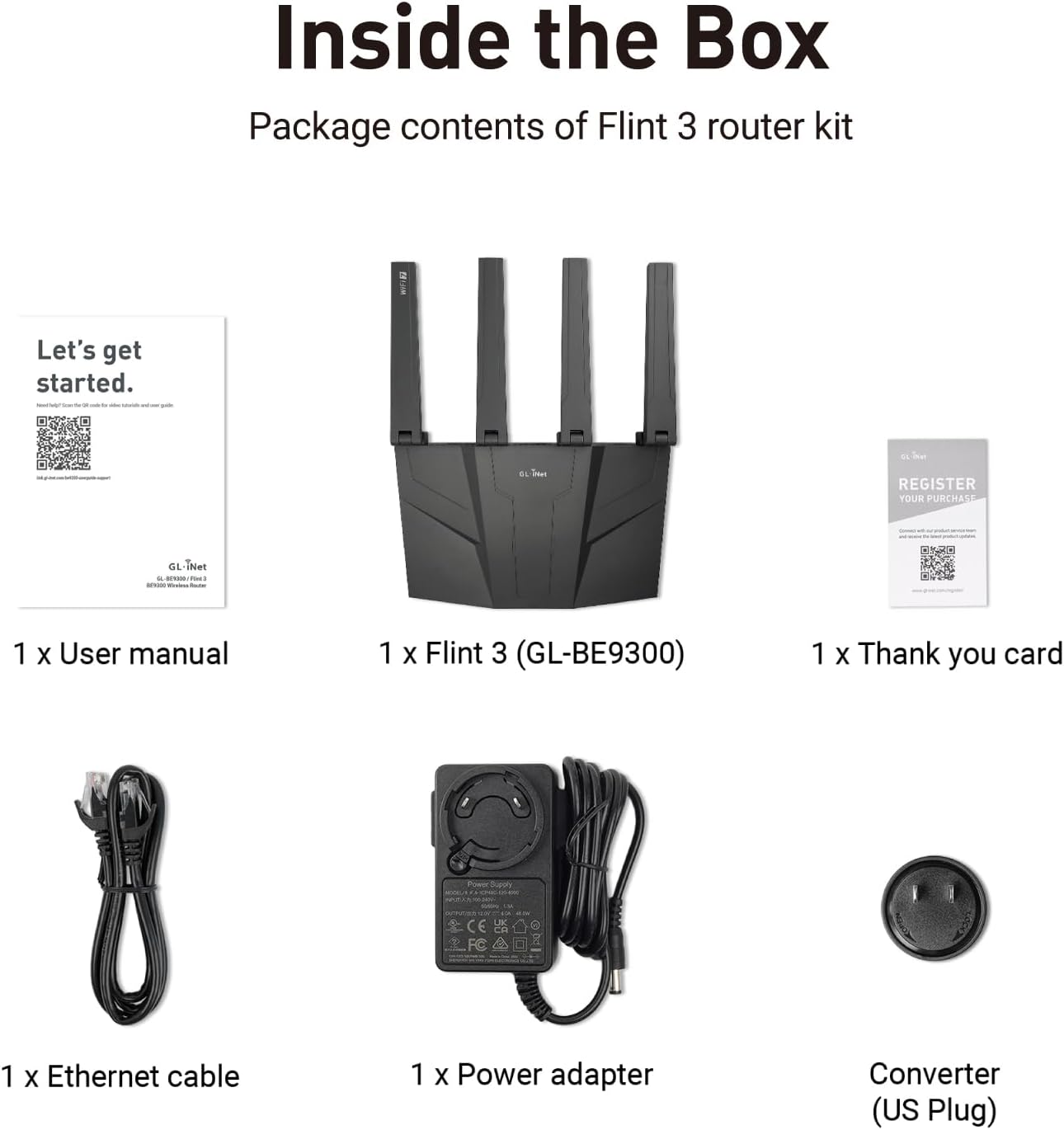
Figure 1: Package contents of the Flint 3 router kit, including the router, power adapter, Ethernet cable, and user manual.
Video 1: An unboxing video for the GL.iNet GL-BE9300 (Flint 3) router, demonstrating the contents of the package and initial presentation of the device.
Product Overview
The GL-BE9300 (Flint 3) router features a sleek design with four foldable antennas and multiple high-speed Ethernet ports for robust connectivity.

Figure 2: Front view of the GL.iNet GL-BE9300 (Flint 3) router, showcasing its four antennas and compact design.
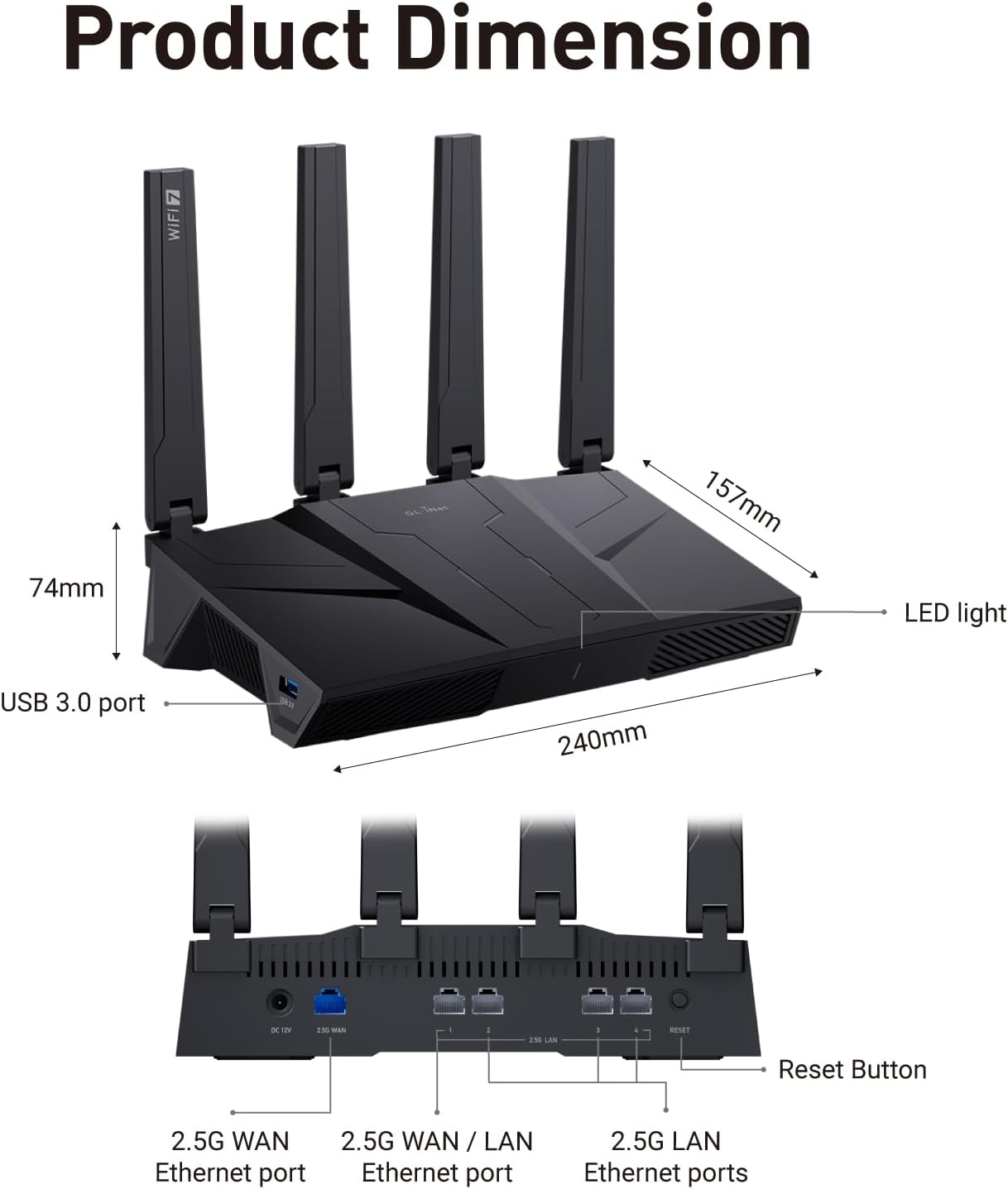
Figure 3: Detailed diagram showing the dimensions of the GL-BE9300 router and the location of its LED light and USB 3.0 port on the front, and the power port, 2.5G WAN/LAN port, 2.5G LAN Ethernet ports, and reset button on the rear.
Key Features:
- Tri-Band WiFi 7: Supports the latest Wi-Fi 7 standard for ultra-fast speeds up to 9 Gbps, enabling smoother 8K streaming, gaming, and video calls.
- Multi-Link Operation (MLO) Technology: Enhances connectivity by utilizing multiple bands simultaneously for smarter, faster, and more stable connections.
- Five 2.5G Ethernet Ports: Includes one 2.5Gbps WAN port and four 2.5Gbps LAN ports, providing maximum wired potential.
- Rapid VPN Speeds: Offers Wireguard VPN and OpenVPN speeds up to 680Mbps, providing secure and private internet access.
- AdGuard Home Supported: Built-in DNS server for blocking unwanted tracking and advertisements, offering a clutter-free browsing experience.
- Mass Device Connectivity: Equipped with 1GB DDR4 RAM and 8GB eMMC storage, capable of handling over a hundred devices simultaneously.
- Extensive Coverage: Designed for long-range Wi-Fi, providing strong, reliable signal strength across up to 2,000 square feet.
- Parental Controls: Integrated support for Bark, allowing users to filter websites, enforce safe search, and set usage limits.

Figure 4: Visual summary of the GL.iNet Flint 3 (GL-BE9300) router's core features.
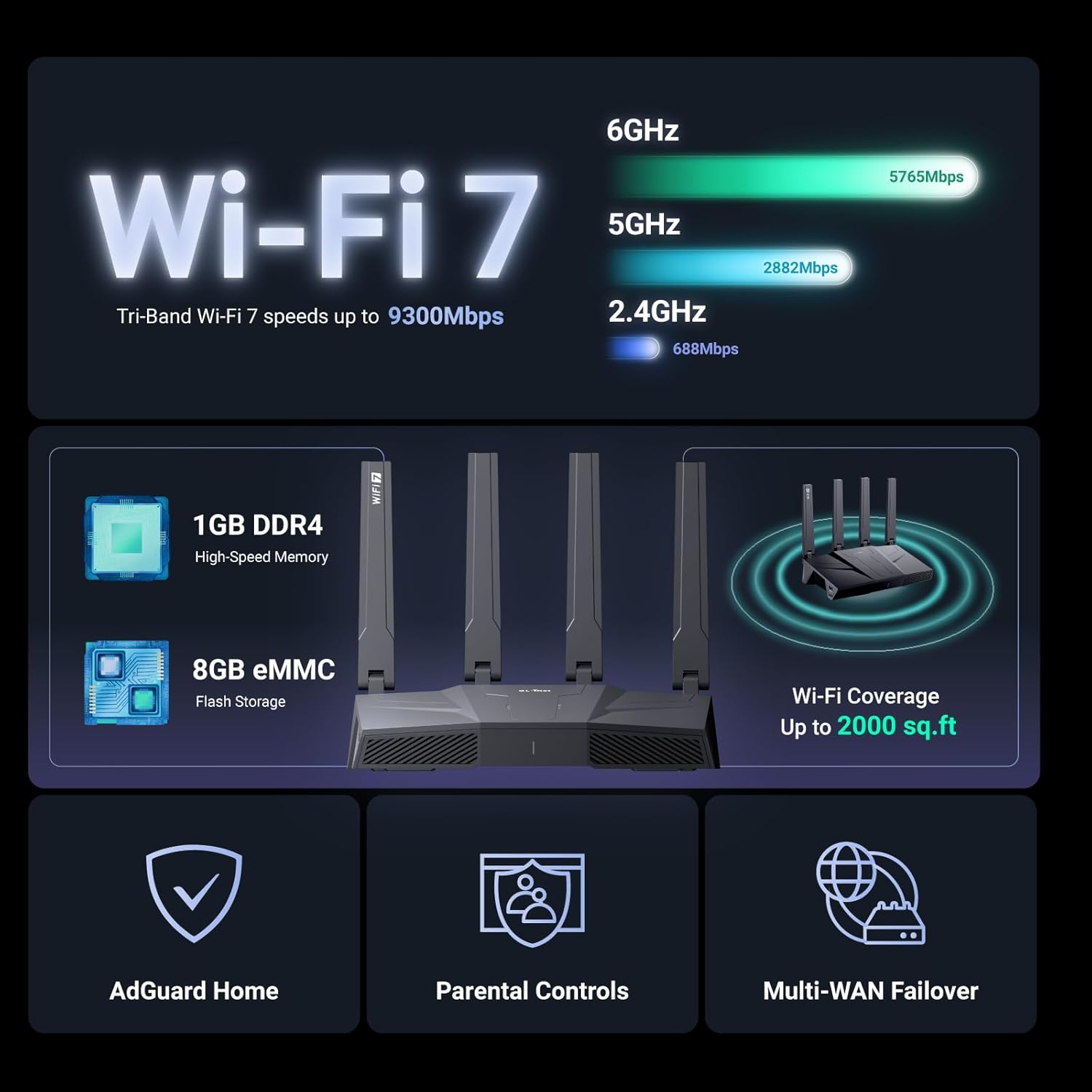
Figure 5: Illustration of Wi-Fi 7 speeds across different frequency bands (6GHz, 5GHz, 2.4GHz), memory specifications (1GB DDR4, 8GB eMMC), and Wi-Fi coverage up to 2,000 sq. ft.
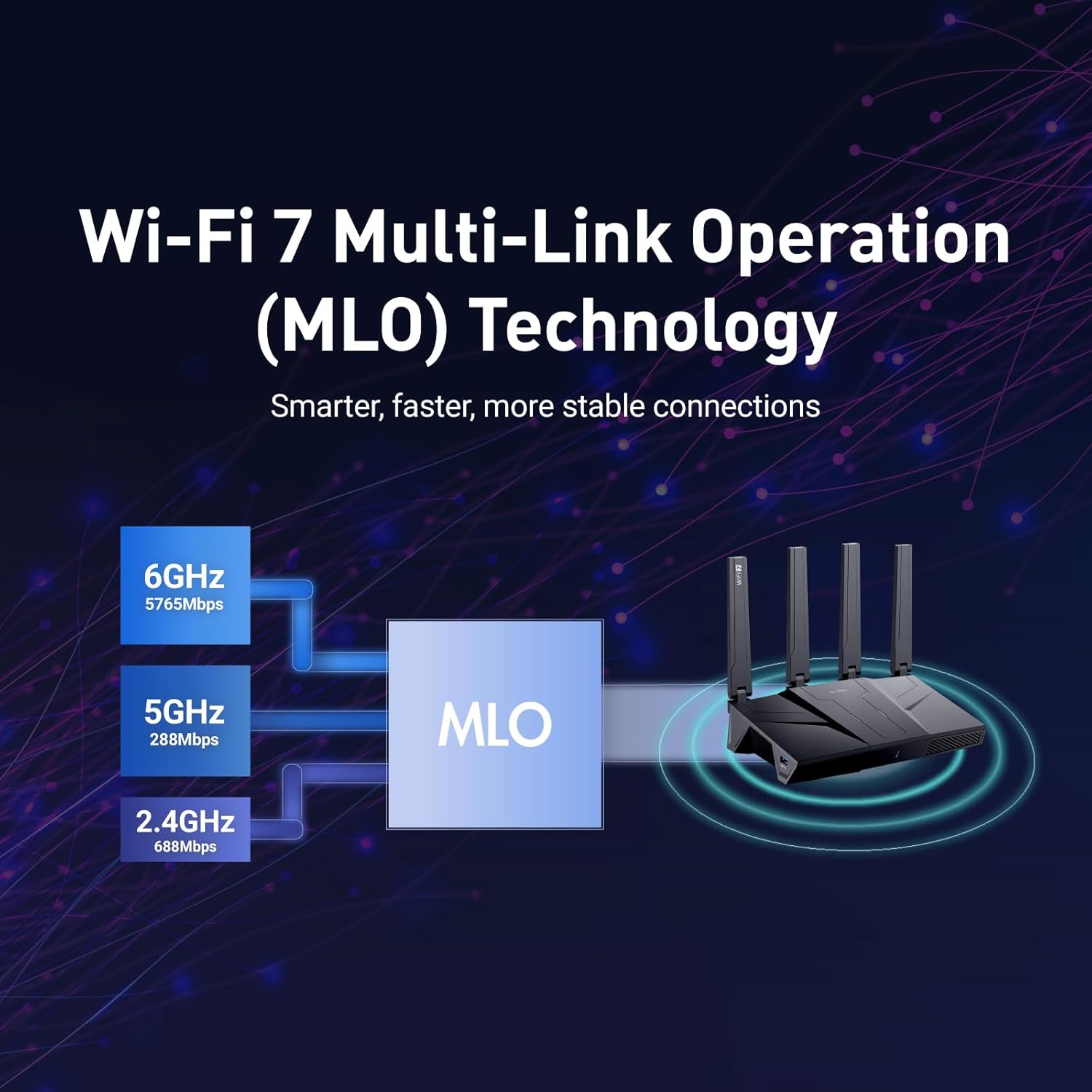
Figure 6: Explanation of Multi-Link Operation (MLO) technology, showing how the 6GHz, 5GHz, and 2.4GHz bands are combined for smarter, faster, and more stable connections.

Figure 7: Overview of enhanced security features, including compatibility with over 30 VPN service providers and performance metrics for WireGuard and OpenVPN.
Setup
Setting up your GL.iNet GL-BE9300 (Flint 3) router is a straightforward process. Follow these general steps to get started:
- Connect Hardware:
- Connect the power adapter to the router and plug it into a power outlet.
- Connect your modem's Ethernet cable to the 2.5G WAN port on the router.
- (Optional) Connect a computer directly to one of the 2.5G LAN ports using the provided Ethernet cable for initial setup.
- Access Admin Panel:
- If connected via Ethernet, open a web browser and navigate to the router's default IP address (usually http://192.168.8.1 or http://router.gl-inet.com).
- Alternatively, download the GL.iNet mobile app for an easy guided setup.
- Initial Configuration:
- Follow the on-screen prompts to set up your administrator password and Wi-Fi network name (SSID) and password.
- Important: It is highly recommended to update the router's firmware upon initial setup. This greatly enhances performance and ensures a superior user experience. Firmware updates can typically be found within the router's web admin panel or the GL.iNet app.

Figure 8: Rear panel of the Flint 3 router, illustrating the five 2.5G Ethernet ports for maximum wired connectivity. This includes one 2.5Gbps WAN port and four 2.5Gbps LAN ports, with LAN1 being switchable to WAN.
Operating Instructions
Once your router is set up, you can begin utilizing its advanced features:
Wi-Fi Connectivity:
- Connect your devices (smartphones, computers, smart home devices) to the Wi-Fi network using the SSID and password you configured during setup.
- The Tri-Band support (2.4GHz, 5GHz, 6GHz) allows for optimized performance across various devices and distances.
VPN Configuration:
- Access the router's web admin panel or mobile app.
- Navigate to the VPN section to configure WireGuard or OpenVPN client settings. You can connect to your preferred VPN service provider.
- The router also supports VPN server functionality, allowing you to securely access your home network remotely.
AdGuard Home:
- Enable AdGuard Home from the router's interface to block ads and trackers across all devices connected to your network.
- Customize filtering rules and view statistics on blocked content.
Parental Controls:
- Utilize the integrated Bark support to manage screen time, filter websites, and enforce safe search for connected devices.
- Refer to the Bark documentation for detailed setup and usage instructions.

Figure 9: The GL.iNet Flint 3 router supports a wide range of applications, from seamless 8K streaming and lag-free competitive gaming to remote work, virtual meetings, and managing multiple connected devices.
Maintenance
Regular maintenance ensures the longevity and optimal performance of your router:
- Firmware Updates: Periodically check for and install the latest firmware updates. These updates often include performance improvements, security patches, and new features. You can usually find this option in the router's web interface under "System" or "Firmware Upgrade."
- Cleaning: Keep the router free from dust and debris. Use a soft, dry cloth to wipe the exterior. Ensure ventilation openings are not blocked.
- Restarting: If you experience network issues, a simple restart of the router can often resolve them. Unplug the power adapter, wait 10-15 seconds, and then plug it back in.
Troubleshooting
If you encounter issues with your GL.iNet GL-BE9300 (Flint 3) router, consider the following troubleshooting steps:
- No Internet Connection:
- Check if the modem is working correctly.
- Ensure the Ethernet cable from the modem is securely connected to the router's WAN port.
- Restart both the modem and the router.
- Slow Wi-Fi Speed:
- Ensure your devices are connected to the appropriate Wi-Fi band (5GHz or 6GHz for higher speeds, 2.4GHz for better range).
- Check for interference from other electronic devices.
- Perform a firmware update if available.
- Reduce the number of active devices or bandwidth-intensive activities.
- Cannot Access Admin Panel:
- Verify that your device is connected to the router's network (either Wi-Fi or Ethernet).
- Ensure you are using the correct IP address (http://192.168.8.1) or domain (http://router.gl-inet.com).
- Try clearing your browser's cache or using a different browser.
- Forgotten Password:
- If you forget your Wi-Fi password, you can change it via the router's admin panel.
- If you forget the admin panel password, you may need to perform a factory reset (refer to the user manual for specific instructions on your model). Note that a factory reset will erase all your custom settings.
Specifications
| Feature | Detail |
|---|---|
| Brand | GL.iNet |
| Model Name | Flint 3 |
| Item Model Number | GL-BE9300 |
| Wireless Communication Standard | 802.11.be (WiFi 7), 802.11ax (WiFi 6), 802.11ac (WiFi 5), 802.11n (WiFi 4), 802.11g |
| Frequency Band Class | Tri-Band (2.4GHz, 5GHz, 6GHz) |
| Ethernet Ports | 5 x 2.5G (1 WAN, 4 LAN) |
| Memory | 1GB DDR4 RAM / 8GB eMMC Flash Storage |
| Max Wi-Fi Speed | Up to 9 Gbps |
| Wi-Fi Coverage | Up to 2,000 sq. ft |
| Special Features | Remote Access, WiFi 7, VPN Client/Server, AdGuard Home, Parental Controls, MLO Technology |
| Compatible Devices | Personal Computer, Smartphone |
| Item Weight | 1.87 pounds |
| Package Dimensions | 11.34 x 9.96 x 3.27 inches |
Warranty and Support
For warranty information and technical support, please refer to the official GL.iNet website or contact their customer service directly. The manufacturer, GL.iNet, provides support for their products.
GL.iNet Official Website: www.gl-inet.com
Please have your product model number (GL-BE9300) and purchase details ready when contacting support.