
Introduction
Thank you for choosing the ZZA 32-inch Curved 4K UHD Monitor. This manual provides essential information for setting up, operating, maintaining, and troubleshooting your new display. Please read this manual thoroughly before using the monitor to ensure proper operation and to maximize your viewing experience.
This monitor features a 32-inch UltraWide Curved 4K UHD display with a 3840 x 2160 resolution, a VA panel for deep blacks and high contrast, 100% sRGB color coverage, and HDR10 support for vibrant visuals. It also includes Adptsync Premium technology for smooth, tear-free gaming and a 3-sided borderless design for immersive viewing and multi-monitor setups.
Safety Information
To ensure safe operation and prevent damage, please observe the following safety precautions:
- Do not expose the monitor to rain, moisture, or extreme temperatures.
- Avoid placing the monitor in direct sunlight or near heat sources.
- Ensure proper ventilation; do not block ventilation openings.
- Use only the power adapter supplied with the monitor.
- Do not attempt to open or repair the monitor yourself. Refer all servicing to qualified personnel.
- Keep the monitor away from strong magnetic fields.
- Disconnect the power cable during lightning storms or when unused for long periods.
Setup
1. Unpacking
Carefully remove the monitor and all accessories from the packaging. Retain the packaging for future transport or storage.
2. Stand Assembly (Optional)
If you are using the included stand, attach the base to the monitor neck and secure it with the provided screws. Ensure it is firmly attached before placing the monitor on a stable surface.

The monitor comes with a built-in stand and is VESA mount compatible.
3. VESA Mounting (Optional)
The monitor supports VESA 100x100mm mounting. If you are using a VESA-compatible monitor arm or wall mount (not included), remove the stand (if attached) and secure the monitor to the mount using appropriate screws. Refer to your mount's instructions for detailed steps.

Diagram illustrating VESA mounting points, tilt range, and available ports.
4. Connecting Cables
Connect the necessary cables to the corresponding ports on the monitor and your computer or other devices. The monitor includes the following ports:
- DC IN 12V: For power adapter connection.
- HDMI 2.0 (x2): For connecting to devices with HDMI output.
- DisplayPort 1.2 (x2): For connecting to devices with DisplayPort output.
- EARPHONE: For connecting external headphones or speakers.
After connecting all cables, plug the power adapter into an electrical outlet.
Operating Instructions
1. Power On/Off
Press the power button, usually located on the back or bottom right of the monitor, to turn the monitor on or off. The power indicator light will illuminate when the monitor is on.
2. Input Selection
Use the monitor's OSD (On-Screen Display) menu or dedicated input selection button to switch between HDMI and DisplayPort inputs. Ensure your computer or device is connected to the selected input.
3. OSD Menu Navigation
The OSD menu allows you to adjust various monitor settings. Typically, buttons on the back or bottom of the monitor are used to navigate the menu. Common settings include:
- Picture Settings: Brightness, Contrast, Sharpness, Color Temperature.
- Color Settings: Adjust RGB levels, Gamma, and enable/disable HDR10.
- Input Source: Manually select HDMI or DisplayPort.
- Audio: Adjust volume for connected headphones/speakers (note: monitor has no built-in speakers).
- Adaptive Sync: Enable or disable FreeSync Premium (Adptsync Premium) for smoother gaming.
4. Tilt Adjustment
The monitor stand allows for tilt adjustment from -5 to 15 degrees. Gently adjust the monitor panel to your preferred viewing angle.
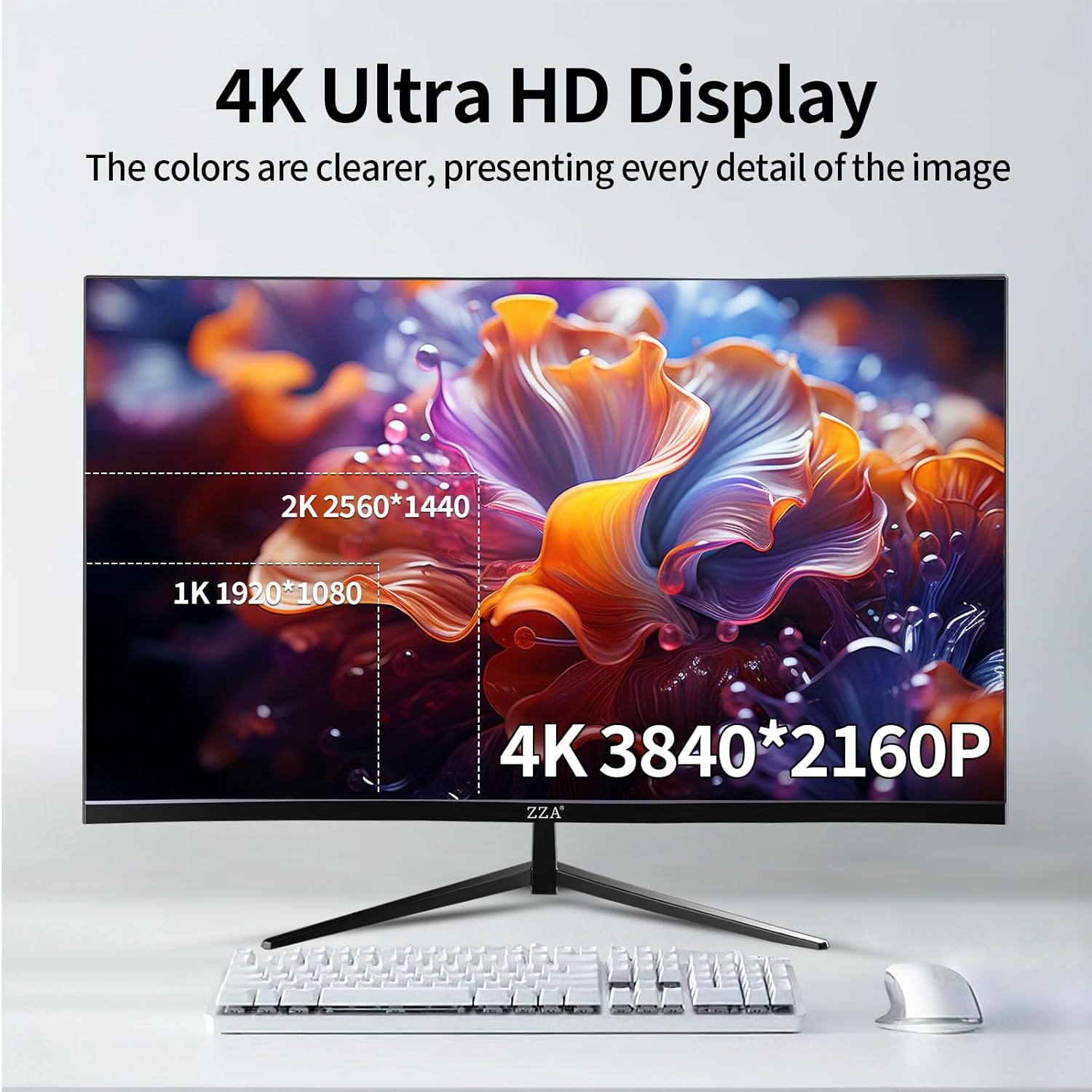
The 4K Ultra HD display provides clear, detailed images.

Rich color performance with 100% sRGB coverage for stunning picture quality.
Maintenance
1. Cleaning the Monitor
To clean the screen, gently wipe it with a soft, lint-free cloth. For stubborn marks, dampen the cloth slightly with water or a mild, non-abrasive screen cleaner. Do not spray cleaner directly onto the screen. For the monitor casing, use a soft, dry cloth.
2. Storage
If storing the monitor for an extended period, disconnect all cables and pack it in its original packaging to protect it from dust and physical damage. Store in a cool, dry place.
Troubleshooting
If you encounter issues with your monitor, refer to the following common problems and solutions:
- No Power:
- Ensure the power cable is securely connected to the monitor and the power outlet.
- Verify the power adapter is functioning correctly.
- Press the power button on the monitor.
- No Signal / Blank Screen:
- Check that the video cable (HDMI or DisplayPort) is securely connected to both the monitor and your computer/device.
- Ensure the correct input source is selected in the monitor's OSD menu.
- Verify your computer/device is powered on and outputting a signal.
- Try a different video cable or port.
- Poor Picture Quality (Blurry, Distorted, Incorrect Colors):
- Adjust brightness, contrast, and color settings in the OSD menu.
- Ensure the display resolution on your computer is set to the monitor's native resolution (3840 x 2160).
- Check for any physical damage to the screen or cables.
- Flickering Screen:
- Ensure the refresh rate is set correctly (60Hz for this model).
- If using Adaptive Sync, try disabling it temporarily to see if the issue persists.
- Check for interference from other electronic devices.
- No Audio Output:
- Important: This monitor does NOT have built-in speakers.
- Ensure external headphones or speakers are properly connected to the monitor's EARPHONE port.
- Check the volume settings on both the monitor's OSD and your connected audio device.
Specifications
| Feature | Detail |
|---|---|
| Model Number | Z32A |
| Screen Size | 32 Inches |
| Panel Type | VA |
| Curvature | 3000R |
| Resolution | 3840 x 2160 (4K UHD) |
| Aspect Ratio | 16:9 |
| Refresh Rate | 60 Hz |
| Response Time | 1 Millisecond (MPRT) |
| Color Gamut | 100% sRGB |
| HDR Support | HDR10 |
| Adaptive Sync | FreeSync Premium (Adptsync Premium) |
| Connectivity | 2x HDMI 2.0, 2x DisplayPort 1.2, 1x Earphone Out, 1x DC IN 12V |
| VESA Mount | 100 x 100 mm |
| Tilt Adjustment | -5° to 15° |
| Dimensions (D x W x H) | 12.8 x 77.2 x 49.5 cm |
| Weight | 6.02 Kilograms |
Warranty and Support
For warranty information and technical support, please refer to the documentation included with your purchase or contact the retailer/manufacturer directly. Keep your proof of purchase for warranty claims.