
Introduction
Welcome to the GOBOULT Dire Smartwatch user manual. This guide provides essential information for setting up, operating, and maintaining your new smartwatch. Please read thoroughly to ensure optimal performance and longevity of your device.
What's in the Box
Your GOBOULT Dire Smartwatch package includes the following items:
- Smartwatch
- Charging Cable
- User Manual
- Warranty Card
Product Overview
The GOBOULT Dire Smartwatch features a robust design and advanced functionalities to support your daily activities and health monitoring.
Display
- 1.38'' HD Display: A large, high-definition screen for vibrant colors and sharp visuals.
- 500 Nits Brightness: Ensures excellent screen visibility, even under direct sunlight.
- 2.5D Curved Glass: Provides a sleek and modern aesthetic.

This image highlights the smartwatch's design, featuring its 1.38-inch HD display, 500 nits brightness, and 2.5D curved screen.
Design & Material
- Zinc Alloy Frame: Premium construction offering durability and a lightweight feel.
- IP67 Water and Dust Resistance: Designed to withstand splashes, sweat, and dust, making it suitable for various environments.

This image illustrates the IP67 water and dust resistance of the smartwatch, showing it in a water droplet environment.
Setup
Follow these steps to set up your GOBOULT Dire Smartwatch for the first time.
1. Charging the Smartwatch
Before initial use, fully charge your smartwatch using the provided charging cable.
- Connect the charging cable to the charging port on the back of the smartwatch.
- Plug the USB end of the cable into a compatible USB power adapter (not included) or a computer's USB port.
- The watch display will indicate charging status.
- Charging time is approximately 150 minutes for a full charge.
2. Powering On/Off
- To power on: Press and hold the side button until the screen lights up.
- To power off: Press and hold the side button, then select 'Power Off' on the screen.
3. App Installation and Pairing
To unlock the full potential of your smartwatch, download the companion app on your smartphone.
- Scan the QR code in the quick start guide (if provided) or search for the official GOBOULT app in your smartphone's app store (Android or iOS).
- Install the app and follow the on-screen instructions to create an account or log in.
- Enable Bluetooth on your smartphone.
- Open the app, navigate to 'Add Device' or 'Pair Device', and select your GOBOULT Dire Smartwatch from the list of available devices.
- Confirm the pairing request on both your smartphone and smartwatch.
Operating Instructions
1. Basic Navigation
- Touchscreen: Swipe left, right, up, or down to navigate through menus and features. Tap to select.
- Side Button: Press to return to the home screen or wake the device. Press and hold for power options.
2. Bluetooth Calling (BT 5.3)
The smartwatch supports Bluetooth 5.3 for direct calls from your wrist.
- Ensure your smartwatch is paired with your smartphone via Bluetooth.
- Use the dedicated speaker and microphone for clear communication.
- You can receive, dial, and reject calls directly from your wrist.
- The watch features an easy-access dial keypad and contact sync.

This image illustrates the Bluetooth calling feature, showing an incoming call notification on the smartwatch screen with options to answer or reject, alongside a list of calling features.
3. Watch Faces
Customize your smartwatch with over 250 cloud watch faces.
- Access watch face settings through the companion app or directly on the watch.
- Choose from a vast collection to match your style or mood.
- Multiple UI themes are available.
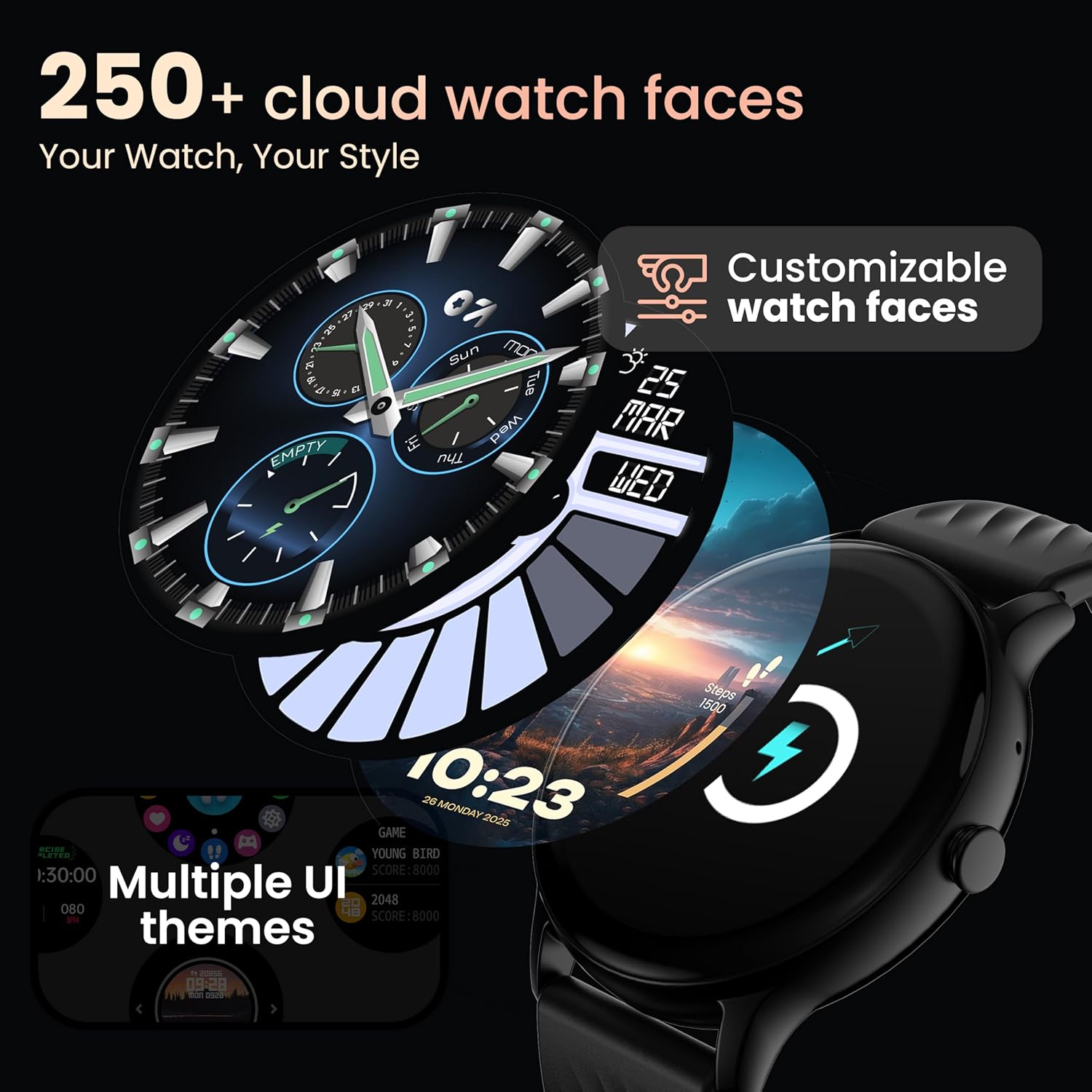
This image displays various customizable watch faces and UI themes available for the smartwatch, highlighting the personalization options.
4. Sports Modes
Track your workouts with over 120 sports modes.
- Select your desired activity from the sports modes menu.
- The watch will track metrics such as calories burned, distance covered, and performance.
- Supports activities from running to yoga.
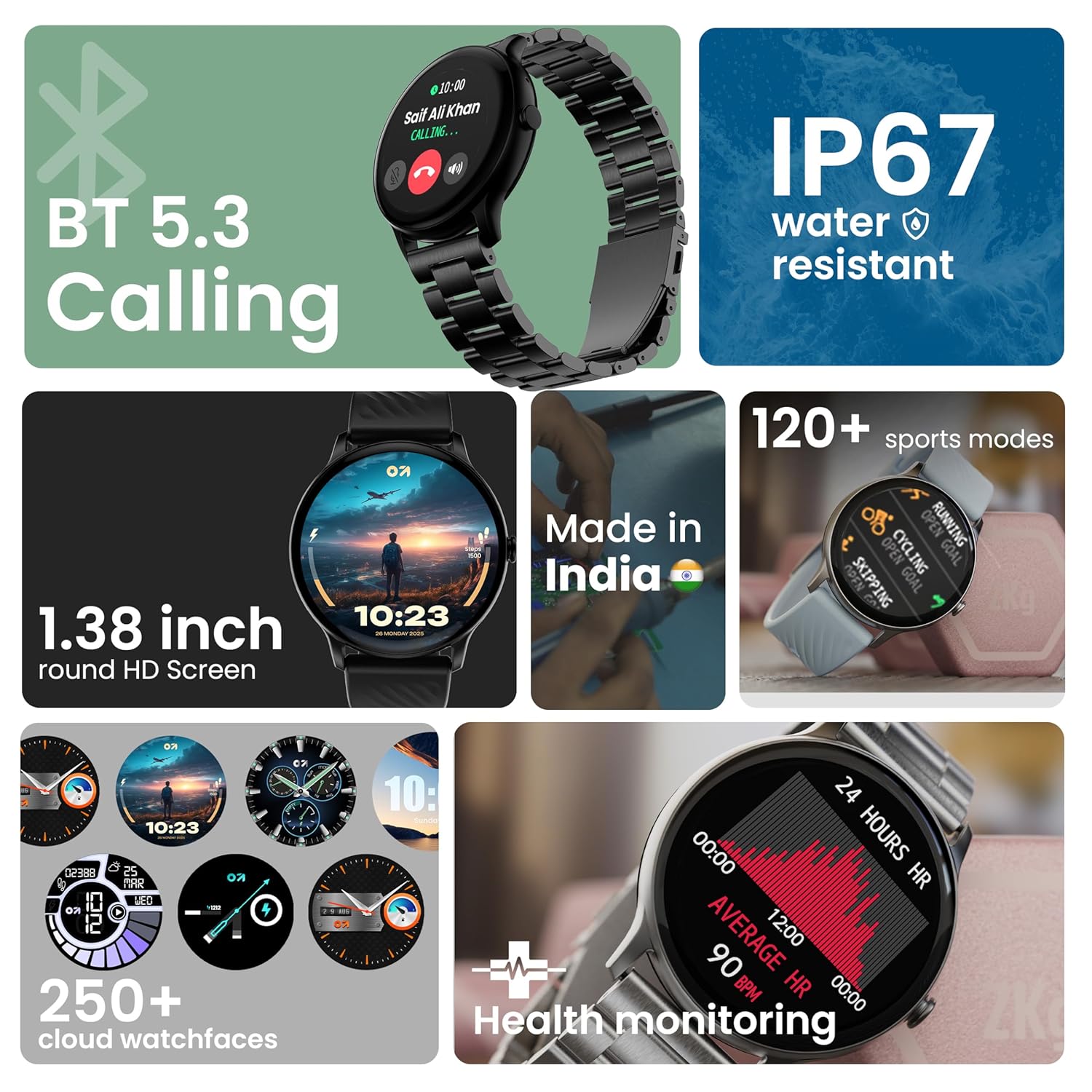
This collage image shows various key features of the smartwatch, including a section highlighting over 120 sports modes with icons for running, cycling, and skipping.
5. Health Monitoring
Monitor your health with integrated sensors.
- 24x7 Heart Rate Monitor: Continuously tracks your heart rate.
- SpO2 Blood Oxygen Saturation Monitor: Measures your blood oxygen levels in real-time.
- Female Menstrual Cycle Tracking: Provides insights and predictions for menstrual cycles.
- Drink Water Reminders: Prompts you to stay hydrated throughout the day.
- Sedentary Reminders: Encourages movement after periods of inactivity.

This image illustrates the health monitoring capabilities of the smartwatch, displaying a heart rate graph and icons for SpO2, menstrual cycle tracking, drink water reminders, and sedentary reminders.
6. AI Voice Assistant
Access your AI voice assistant directly from your wrist.
- Activate the AI voice assistant (Siri or Google Assistant) to perform tasks, set reminders, or get information hands-free.
7. Camera Controls
Control your smartphone camera remotely.
- Pair your smartwatch with your phone.
- Open the camera control feature on your watch to remotely trigger your phone's camera shutter.

This image demonstrates the remote camera control feature, showing the smartwatch screen with a camera icon and a smartphone displaying a photo being taken.
8. Mini Games
Enjoy built-in mini-games for entertainment.
- Access games like Flappy Birds and 2048 directly on your smartwatch.
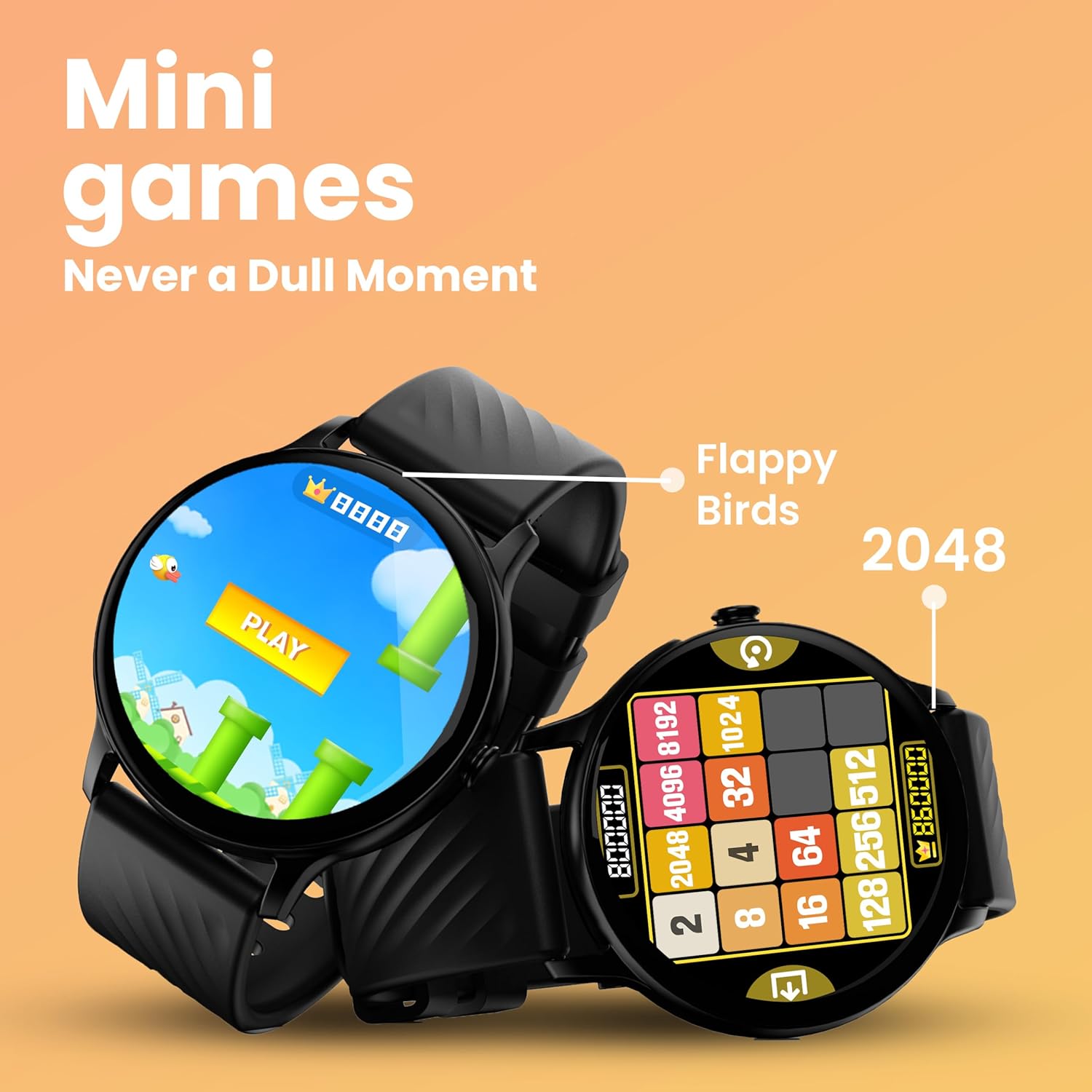
This image showcases the mini-games available on the smartwatch, featuring screenshots of "Flappy Birds" and "2048" games.
9. Notifications
Receive updates and messages directly on your wrist.
- The smartwatch displays notifications from your connected smartphone, including messages and app alerts.

This image shows the smartwatch displaying a message notification, illustrating how updates and messages appear on the wrist.
10. Find Device
Locate your connected smartphone easily.
- Navigate to the "Find Device" option in the watch menu.
- Tap the search button, and your connected phone will ring or vibrate.

This image demonstrates the "Find Device" feature, showing the smartwatch searching for a phone and the phone ringing, helping users locate their misplaced device.
Specifications
| Feature | Detail |
|---|---|
| Brand | GOBOULT |
| Model Number | B0FB8VPKQK |
| Display Size | 1.38 inches (35.05 mm) |
| Brightness | 500 Nits |
| Water Resistance | IP67 |
| Bluetooth Version | 5.3 |
| Sports Modes | 120+ |
| Watch Faces | 250+ Cloud Watch Faces |
| AI Voice Assistant | Supported (Siri, Google Assistant) |
| Health Monitoring | Heart Rate, SpO2, Blood Pressure, Menstrual Cycle, Stress, Sleep Analysis, Hydration & Sedentary Reminders |
| Operating System Compatibility | Android, iOS |
| Battery Life (Average) | 7 Days |
| Battery Charge Time | 150 Minutes |
| Item Weight | 37 g |
| Included Components | Smartwatch, Charging Cable, User Manual, Warranty Card |
Troubleshooting
Connectivity Issues
- Cannot pair with phone: Ensure Bluetooth is enabled on both devices. Make sure the smartwatch is within range of your phone. Restart both devices and try pairing again.
- Frequent disconnections: Check for interference from other Bluetooth devices. Ensure the companion app is running in the background and not being closed by your phone's power-saving features.
Display Issues
- Screen unresponsive: Restart the smartwatch. If the issue persists, ensure the screen is clean and dry.
- Low brightness: Adjust brightness settings in the watch menu or companion app. Ensure the watch is not in power-saving mode.
Health Monitoring Inaccuracies
- Inaccurate readings: Ensure the smartwatch is worn snugly on your wrist, not too tight or too loose. Clean the sensor on the back of the watch. Avoid excessive movement during measurements.
Battery Life Concerns
- Short battery life: Reduce screen brightness, limit frequent notifications, and disable unnecessary features like continuous heart rate monitoring if not needed. Ensure the watch is fully charged.
Warranty and Support
Your GOBOULT Dire Smartwatch comes with a standard brand warranty. Please refer to the included Warranty Card for specific terms and conditions.
For further assistance, visit the GOBOULT official website or contact customer support. Keep your purchase receipt and warranty card for any service claims.