1. Introduction
The OnRetul V601 OBD2 Diagnostic Scanner is a comprehensive tool designed to assist in vehicle maintenance and diagnostics. It provides quick and accurate information regarding your vehicle's onboard systems, enabling users to identify and resolve issues efficiently. This manual provides detailed instructions on the setup, operation, and maintenance of your V601 scanner.

Front view of the V601 OBD2 Diagnostic Scanner, showing its screen, navigation buttons, and the attached OBD2 cable.
2. Product Overview and Key Features
The V601 scanner is equipped with a range of features to provide thorough vehicle diagnostics:
- Full OBDII Modes: Capable of reading and clearing codes, turning off the engine light (MIL), viewing freeze frame data, checking I/M readiness, and retrieving vehicle VIN.
- Extensive DTC Lookup: Features a built-in database of 35,901 Diagnostic Trouble Codes (DTCs) for comprehensive fault identification.
- Live Data Stream: Displays real-time data with graphing capabilities for parameters such as engine coolant temperature, load value, and RPM.
- Voltage Testing: Allows for testing of battery voltage.
- Special Tests: Performs O2 sensor tests, onboard monitoring mode, and component testing.
- User-Friendly Design: Features a 2.8-inch color screen with adjustable brightness, audible beep notifications, and intuitive status indicator lights (red for faults, yellow for incompatibility/connection failure, green for successful connection).
- Broad Compatibility: Compatible with most vehicles manufactured after 1996 (USA), 2002 (EU), and 2008 (Asia) that have a 16-Pin OBD2 port. Note: Not compatible with new energy vehicles, hybrid models, or those not following the OBD2 protocol.

The V601 scanner highlighting its key capabilities: Full OBD2 Modes, Live Data Stream, I/M Readiness, and Voltage Testing.

The V601 scanner demonstrating its compact, handheld design and listing features like the 2.48-inch LCD screen, high resilience buttons, and 16-pin OBDII plug.
3. Setup and Initial Connection
Follow these steps to set up and connect your V601 scanner to your vehicle:
- Locate the OBD2 Port: The 16-pin OBD2 diagnostic port is typically located under the dashboard on the driver's side, though its exact position may vary by vehicle model. Consult your vehicle's owner's manual if you cannot locate it.
- Connect the Scanner: Plug the V601 scanner's OBD2 connector firmly into the vehicle's OBD2 port.
- Power On: The scanner will automatically power on once connected to the vehicle's OBD2 port. The vehicle's ignition should be in the 'ON' position (engine can be off or running, depending on the test).
- Verify Connection: Observe the vehicle status indicator light on the scanner. A green light indicates a successful connection. A yellow light indicates incompatibility or connection failure. A red light indicates a fault detected.
4. Operating Instructions
The V601 scanner features an intuitive interface for navigating its functions.
4.1. Reading and Clearing Diagnostic Trouble Codes (DTCs)
This function allows you to identify the cause of the Check Engine Light (MIL) and clear it after repairs.
- From the main menu, select "OBD/EOBD".
- Choose "Read Codes" to display current, pending, and historic DTCs.
- To clear codes, select "Erase Codes". Confirm the action when prompted. Note: Clearing codes will turn off the Check Engine Light, but the underlying issue must be resolved to prevent it from reappearing.

Illustration of the V601 scanner's ability to read and clear engine fault codes, turning off the Check Engine Light (MIL).
4.2. I/M Readiness Status
This function checks the readiness of the emission-related monitoring systems, crucial for passing emission tests.
- From the main menu, select "OBD/EOBD".
- Choose "I/M Readiness". The scanner will display the status of various monitors (e.g., MIL status, Misfire Monitor, Fuel System Monitor).
- A green checkmark indicates the monitor has completed its test. An 'X' indicates the monitor has not completed its test.

The V601 scanner displaying the I/M Readiness screen, indicating a quick test to determine if the vehicle is ready for an emission test.
4.3. Live Data Stream
View real-time operational data from the vehicle's sensors and components.
- From the main menu, select "Data Stream".
- You can view data in numerical format or as a real-time graph. Use the navigation buttons to scroll through available parameters.

The V601 scanner displaying live data streams and real-time graphs for parameters like Engine Coolant Temp, Calculate Load Value, Engine RPM, and Car Speed.
4.4. DTC Lookup
Quickly look up the definition of a Diagnostic Trouble Code.
- From the main menu, select "DTC Lib".
- Enter the DTC code using the scanner's buttons. The definition will be displayed.
4.5. Voltage Testing
Check the vehicle's battery voltage.
- From the main menu, select "Voltage".
- The current battery voltage will be displayed on the screen.
4.6. Other Functions
The V601 also supports:
- O2 Sensor Test: Monitors and tests the oxygen sensors.
- EVAP System Test: Tests the evaporative emission control system.
- Onboard Monitoring: Accesses results of on-board diagnostic monitoring tests for specific components/systems.
- Component Testing: Allows for testing of specific components.
- View Freeze Frame: Displays a snapshot of vehicle operating conditions at the moment a DTC was set.
- Retrieve Vehicle Information (VIN): Displays the Vehicle Identification Number and other relevant vehicle information.

An infographic showing the various diagnostic functions of the V601 scanner, including O2 Sensor Test, Live Data, DTC Lookup, and I/M Readiness.
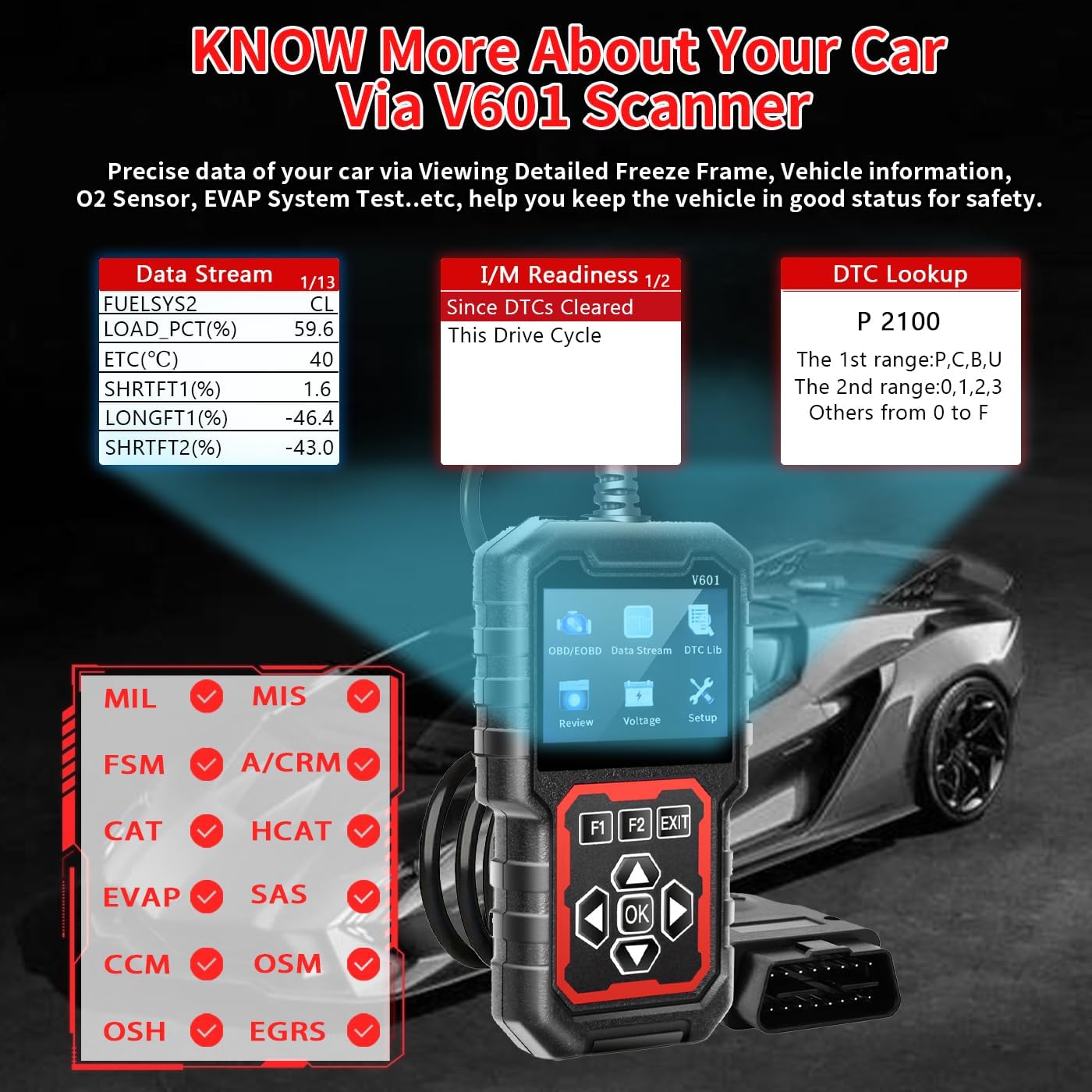
The V601 scanner showing detailed data streams, I/M readiness status, and DTC lookup results, providing comprehensive vehicle information.
5. Maintenance
To ensure the longevity and optimal performance of your V601 scanner, follow these maintenance guidelines:
- Cleaning: Use a soft, damp cloth to clean the scanner's exterior. Avoid using abrasive cleaners or solvents.
- Storage: Store the scanner in a dry, cool environment, away from direct sunlight and extreme temperatures.
- Cable Care: Do not pull on the cable to disconnect the scanner from the vehicle. Always grasp the connector itself. Avoid kinking or bending the cable excessively.
- Software Updates: Check the manufacturer's website periodically for any available software updates to ensure your scanner has the latest features and vehicle compatibility.
6. Troubleshooting
If you encounter issues with your V601 scanner, refer to the following common problems and solutions:
- Scanner Does Not Power On:
- Ensure the scanner is firmly connected to the vehicle's OBD2 port.
- Verify the vehicle's ignition is in the 'ON' position.
- Check the vehicle's fuse for the OBD2 port (consult your vehicle's manual).
- Connection Failure (Yellow Indicator Light):
- Confirm your vehicle is OBD2 compliant (most vehicles after 1996 in USA, 2002 in EU, 2008 in Asia).
- Ensure the connection is secure.
- Try connecting to a different OBD2 compliant vehicle to rule out scanner malfunction.
- Cannot Clear Codes:
- Ensure the vehicle's ignition is in the 'ON' position (engine off).
- The underlying fault must be repaired before codes can be permanently cleared. If the fault persists, the code will reappear.
- Screen is Dim or Unresponsive:
- Adjust the screen brightness in the scanner's settings menu.
- Ensure the scanner is receiving adequate power from the vehicle.
7. Specifications
| Attribute | Detail |
|---|---|
| Brand | OnRetul |
| Model | V601 |
| Product Dimensions | 3.4"L x 3"W x 6"H (8.6cm L x 7.6cm W x 15.2cm H) |
| Item Weight | 11 ounces (311.8 grams) |
| Display Resolution | 800x600 |
| Operating System (Internal) | Windows 10 (for internal development/compatibility) |
| Automotive Fit Type | Universal Fit (for OBD2 compliant vehicles) |
| UPC | 768383869484 |
| Manufacturer Part Number | 002601 |

Dimensions of the V601 scanner, showing its length as 5.53 inches (14.05 cm) and width as 3.28 inches (8.33 cm).
8. Warranty and Support
OnRetul is committed to providing high-quality products. For information regarding product warranty, technical support, or to inquire about extended protection plans, please refer to the contact information provided with your purchase or visit the official OnRetul website. Keep your purchase receipt for warranty claims.