
1. Introduction
The AVATTO Zigbee 3.0 USB Dongle Plus Gateway is a versatile device designed to integrate your Zigbee smart home devices with open-source automation platforms such as Home Assistant, Zigbee2MQTT, ZHA, and OpenHAB. This dongle can function as a Zigbee coordinator, router, or repeater, providing a robust and flexible solution for your smart home network. Its plug-and-play design and powerful dual-chip architecture ensure reliable performance and broad compatibility.

Figure 1: The AVATTO Zigbee 3.0 USB Dongle Plus Gateway, illustrating its connection to Windows/Mac/Linux, Raspberry Pi, NAS, and Home Assistant systems.
2. Key Features
- Multi-functional Role: Operates as a Zigbee coordinator, router, or repeater to centralize control of all Zigbee devices via open-source platforms like Home Assistant.
- Broad Platform Support: Compatible with Home Assistant, Zigbee2MQTT, ZHA, and OpenHAB.
- Plug-and-Play Installation: Simple USB connection to a Home Assistant host or computer running Home Assistant OS for quick network setup.
- Enhanced Signal: Features a 3 dBi external antenna with SMA-K connector and 360° rotation, providing an indoor range of up to 50 meters.
- Durable Design: Aluminum casing minimizes external interference, ensuring a strong and stable signal with improved wall penetration.
- High Capacity: Equipped with CC2652P + CP2102N dual-chip architecture, supporting simultaneous connection of up to 128 Zigbee devices.
- Firmware Flexibility: Pre-flashed with Z-Stack 3.x.0 coordinator firmware. Can be updated to Zigbee router firmware to extend network range.

Figure 2: Overview of the dongle's features, including its rotatable antenna, pre-flashed Z-Stack 3.x.0 firmware, compatibility with various smart home platforms, aluminum casing, ability to function as a router, software flow control, +20dBm output gain, and CC2652P + CP2102N chip architecture.
3. Setup and Installation
- Unpack the Device: Carefully remove the AVATTO Zigbee 3.0 USB Dongle Plus Gateway from its packaging.
- Connect the Antenna: Screw the external 3 dBi antenna onto the SMA-K connector on the dongle. Ensure it is securely fastened. The antenna can be rotated 360° and adjusted for optimal signal reception.
- Connect to Host Device: Insert the USB dongle into an available USB port on your Home Assistant host (e.g., Raspberry Pi, NAS) or a computer running Home Assistant OS.
- Software Configuration:
- The dongle comes pre-flashed with Z-Stack 3.x.0 coordinator firmware.
- For Home Assistant, Zigbee2MQTT, or ZHA, follow the specific integration instructions provided by your chosen platform to detect and configure the dongle as a Zigbee coordinator.
- The device should be recognized automatically as a serial port, typically
/dev/ttyUSB0on Linux-based systems.
- Initial Pairing: Once configured, you can begin pairing your Zigbee devices with the dongle through your smart home platform's interface.
4. Operating Instructions
4.1. Coordinator Mode
In coordinator mode, the dongle acts as the central hub for your Zigbee network. All Zigbee end devices and routers connect directly or indirectly to the coordinator. This is the default mode with the pre-flashed firmware.
- Ensure the dongle is properly connected and recognized by your smart home platform.
- Use your platform's interface to add new Zigbee devices to the network.
- Manage device settings, automations, and scenes through your chosen smart home application.
4.2. Router Mode (Optional)
The dongle can be re-flashed with router firmware to extend the range of your existing Zigbee network. In router mode, it acts as a signal repeater, allowing devices further away from the main coordinator to connect reliably.
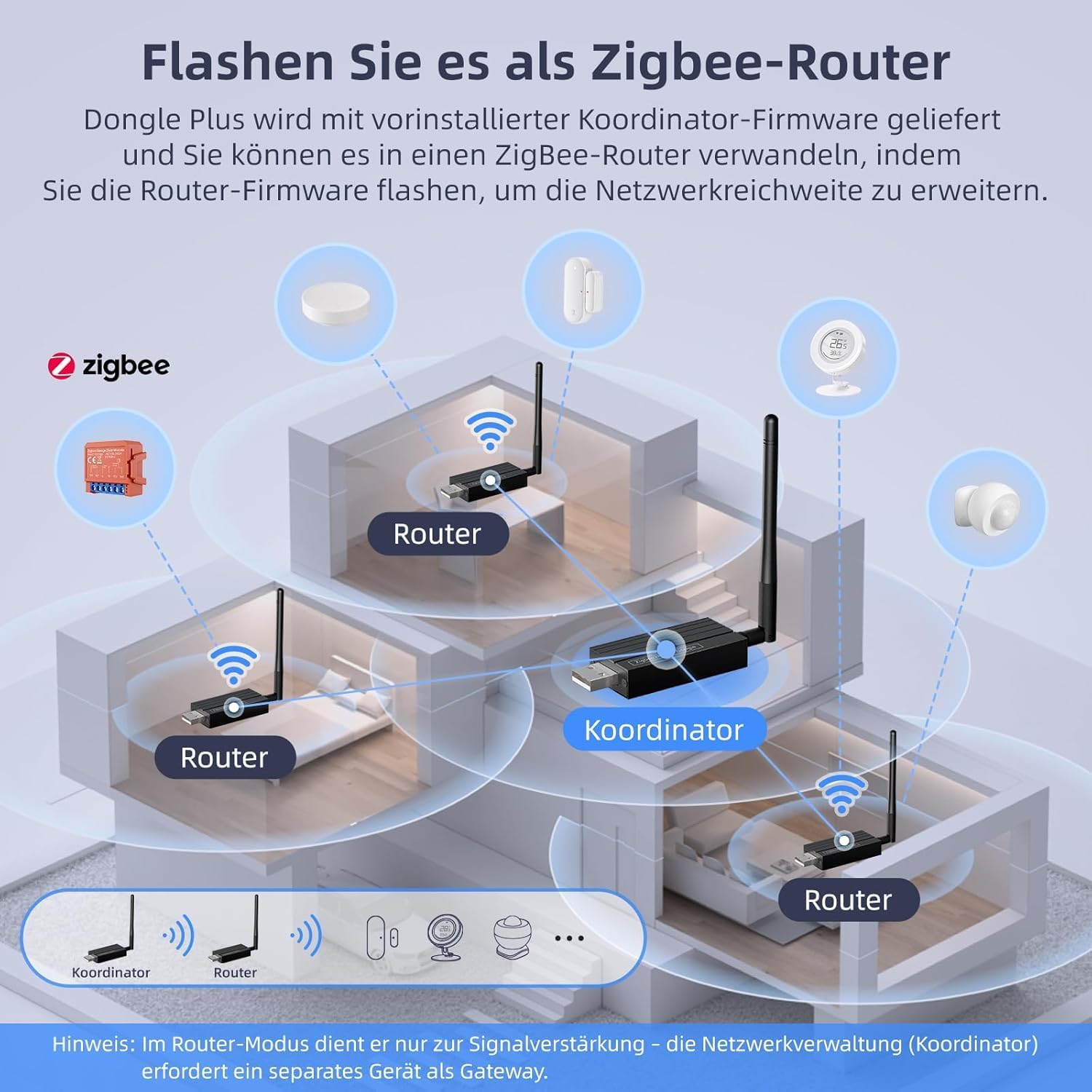
Figure 3: Illustration of the dongle functioning as a coordinator and routers to expand the Zigbee network coverage within a home. Note: In router mode, it serves only for signal amplification; network management (coordinator) requires a separate device.
To flash the dongle as a Zigbee router:
- Contact AVATTO support (see Section 7) to obtain the router firmware files and detailed flashing instructions.
- Follow the provided instructions carefully to update the dongle's firmware. This typically involves connecting the dongle to a computer and using specific flashing tools.
- Once re-flashed, plug the dongle into a powered USB port within your Zigbee network's desired coverage area. It will automatically join the network as a router.

Figure 4: Depiction of the dongle's +20dBm signal strength providing extensive communication range and coverage throughout a multi-room environment.
5. Maintenance
5.1. Firmware Updates
Regularly checking for and applying firmware updates is recommended to ensure optimal performance, security, and compatibility with new Zigbee devices. AVATTO provides firmware updates for both coordinator and router functionalities.
- Visit the official AVATTO support channels or contact them directly for the latest firmware versions and update procedures.
- Always back up your Zigbee network configuration before performing a firmware update, if your smart home platform supports it.
- Follow the provided instructions precisely to avoid damaging the device.
6. Troubleshooting
- Device Not Recognized:
- Ensure the dongle is fully inserted into the USB port.
- Try a different USB port or a different host device.
- Verify that necessary drivers are installed on your operating system (e.g., CP2102N drivers for Windows).
- Check your smart home platform's logs for any error messages related to serial port detection.
- Difficulty Pairing Devices:
- Ensure the Zigbee device is in pairing mode (refer to the device's manual).
- Bring the Zigbee device closer to the dongle during the pairing process.
- Check for potential interference from other 2.4GHz wireless devices (Wi-Fi, Bluetooth).
- Verify that your smart home platform's Zigbee integration is active and correctly configured.
- Some older Android versions or specific phone models might have issues with certain pairing protocols. If experiencing persistent issues, try pairing with a different device or computer.
- Unreliable Device Connectivity:
- Ensure the dongle's antenna is positioned optimally and not obstructed.
- Consider adding Zigbee router devices (or re-flashing another dongle as a router) to extend network coverage, especially in larger homes or those with many walls.
- Check for firmware updates for the dongle and your Zigbee devices.
- The aluminum casing helps reduce interference, but ensure the dongle is not placed directly next to other strong signal emitters.
- Maximum Device Limit Reached:
- The dongle supports up to 128 devices. If you are approaching this limit, consider optimizing your network or using multiple Zigbee coordinators if your platform supports it.
7. Specifications
| Brand | AVATTO |
| Model Number | GW70-MQTT-Bas |
| Color | Black |
| Hardware Interface | USB |
| Product Compatibility | Raspberry Pi, Linux, MacOS, Windows |
| Item Weight | 50 g |
| Shell Material | Aluminum Alloy |
| Frequency | 2.4GHz-2.48GHz |
| Supported Protocols | Thread, Zigbee 3.0, Bluetooth 5.2 LE |
| PORT Connection | dev/ttyUSB0 (typical) |
| Operating Temperature | -10°C to 40°C |
| Dongle Dimensions (L x W x H) | 73mm x 24.5mm x 11mm |
| Antenna Length | 108.5mm |

Figure 5: Detailed technical specifications and dimensions of the AVATTO Zigbee 3.0 USB Dongle Plus Gateway.
8. Warranty and Support
AVATTO provides customer support for any questions regarding the installation or operation of your Zigbee 3.0 USB Dongle Plus Gateway.
- For assistance, please contact AVATTO directly via Amazon's messaging system.
- Alternatively, you can reach out via email at: wangbin@miuctech.com.
- Please provide your product model number (GW70-MQTT-Bas) and a detailed description of your issue for faster service.


