
thinkcar THINKSCAN 662 OBD2 Scanner
THINKCAR THINKSCAN 662 OBD2 Scanner User Manual
Model: THINKSCAN 662 OBD2 Scanner | Brand: THINKCAR
1. Product Overview
The THINKCAR THINKSCAN 662 OBD2 Scanner is a comprehensive automotive diagnostic tool designed for both professional technicians and DIY enthusiasts. It offers advanced features such as bidirectional control (active test), full system diagnostics (Engine, ABS, SRS, Transmission), 12 practical reset functions, CAN FD & FCA SGW support, and lifetime free updates.

2. What's in the Box
The THINKSCAN 662 package includes the following components:
- 1 x THINKSCAN 662 Bidirectional Scanner Unit
- 1 x User Manual (Quick Start Guide)
- 1 x USB Type-C Cable
- 1 x OBD2 Diagnostic Cable (HDMI Cable)

3. Product Specifications
| Feature | Specification |
|---|---|
| Brand | thinkcar |
| Model | THINKSCAN 662 OBD2 Scanner |
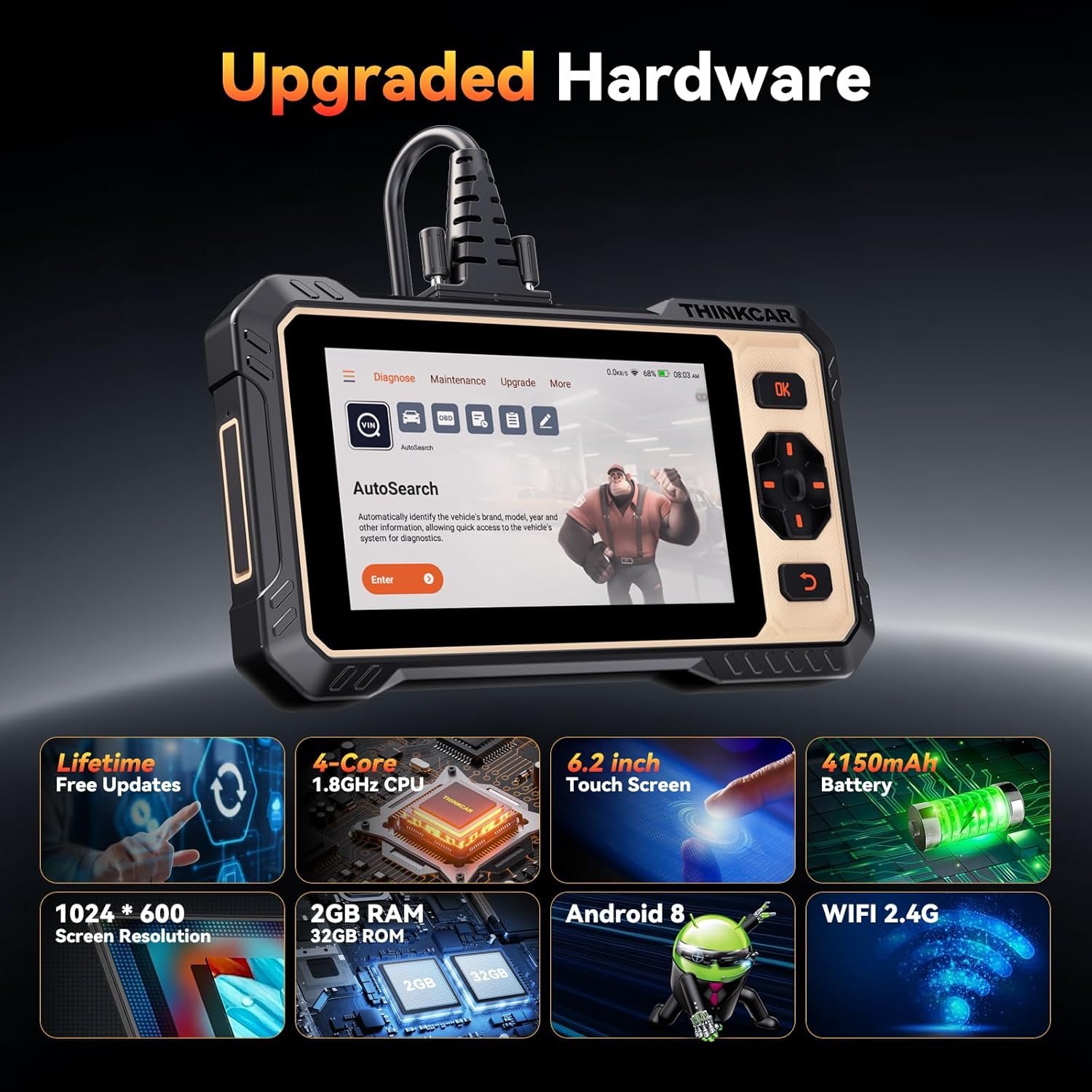
| Operating System | Android 8.0 |
| Display Resolution | 1024x600 |
| Screen Size | 6.2-inch HD Touch Screen |
| CPU | 4-core 1.8GHz |
| RAM | 2GB |
| ROM | 32GB |
| Battery | 4150mAh |
| Supported Languages | 28 languages (including English) |
| Vehicle Coverage | 140+ vehicle brands, OBDII-equipped vehicles built after 1996 |
| Supported Protocols | CAN FD, ISO 14230-4 (KWP2000), ISO 15765-4 (CAN), ISO 9141-2 (ISO), ISO 14229 (UDS), SAEJ 1850 (VPW&PWM) |
| FCA SGW Support | Integrated AutoAuth for 2018+ FCA SGW-equipped cars |
| Updates | Lifetime Free Updates via Wi-Fi |
| Item Weight | 2.2 pounds |
| Package Dimensions | 10.2 x 6.4 x 2.9 inches |
| Country of Origin | China |


4. Setup and Initial Use
Follow these steps to set up your THINKSCAN 662 OBD2 Scanner for the first time:
- Unpack the Device: Carefully remove the THINKSCAN 662 unit and all accessories from the packaging.
- Power On: The device typically powers on automatically when connected to a vehicle's OBD2 port. Alternatively, ensure the battery is charged if using it standalone for software updates.
- Connect to Vehicle: Locate your vehicle's OBD2 port (usually under the dashboard on the driver's side). Connect the provided OBD2 diagnostic cable to the scanner and then to the vehicle's OBD2 port.
- Initial Setup: Upon first power-on, the device will guide you through initial setup steps, including language selection and Wi-Fi connection for updates.
- Software Update: Connect to a Wi-Fi network and perform a one-click update to ensure you have the latest software and vehicle coverage.

5. Operating the Device
The THINKSCAN 662 features a user-friendly interface with both touch screen and physical buttons for navigation.
5.1. System Diagnostics (ECM, TCM, ABS, SRS)
This function allows you to read and clear fault codes, view live data streams, and identify issues across the vehicle's main systems.
- From the main menu, select "Diagnose".
- Choose the desired system (e.g., Engine, ABS, SRS, Transmission).
- Select "Read Codes" to view Diagnostic Trouble Codes (DTCs).
- Select "Clear Codes" to erase DTCs after repairs are made.
- Select "Data Stream" to view real-time data parameters.

5.2. Bidirectional Control (Active Test)
The active test function allows you to send commands to the vehicle's ECU to test specific components, aiding in quick fault location.
- Navigate to the "Diagnose" menu and select the relevant system.
- Choose "Actuation Test" or "Active Test".
- Select the component you wish to test (e.g., radiator fan, fuel injector, throttle).
- Follow the on-screen prompts to execute the test and observe component response.

5.3. Reset Functions
The THINKSCAN 662 supports 12 common maintenance reset functions:
- Airbag Reset
- ABS Bleeding
- BMS (Battery Management System) Reset
- Brake Reset (EPB)
- DPF (Diesel Particulate Filter) Regeneration
- Throttle Adaptation (ETS Reset)
- Injector Coding
- Oil Reset
- Steering Angle Reset (SAS)
- Gearbox Learning
- TPMS (Tire Pressure Monitoring System) Reset
- Anti-theft/Key Matching
To perform a reset function:
- From the main menu, select "Maintenance".
- Choose the specific reset function required.
- Follow the on-screen instructions carefully to complete the procedure.


5.4. Data Stream and DTC Lookup
The device allows for real-time data monitoring and provides a built-in DTC lookup library.
- Real-time Data: View live data from the vehicle's ECU in text or 4-in-1 merged waveform charts. This helps in diagnosing intermittent issues.
- DTC Lookup: The built-in library provides definitions for fault codes, eliminating the need for external searches.


6. Maintenance and Updates
To ensure optimal performance and access to the latest features and vehicle compatibility, regular maintenance and software updates are recommended.
6.1. Software Updates
The THINKSCAN 662 offers lifetime free updates via Wi-Fi. Connect the device to a stable internet connection and navigate to the "Upgrade" section on the main menu to perform one-click updates.
6.2. Device Care
- Keep the device clean and free from dust and moisture.
- Store the device in its carrying case when not in use to protect it from damage.
- Avoid extreme temperatures.
- Do not attempt to disassemble the device, as this will void any warranty.
7. Troubleshooting
If you encounter issues with your THINKSCAN 662, consider the following common troubleshooting steps:
- Device Not Powering On: Ensure the OBD2 cable is securely connected to both the scanner and the vehicle's OBD2 port. Check the vehicle's battery status.
- Communication Error: Verify the vehicle's ignition is on. Check for loose cable connections. Ensure the vehicle is OBDII compliant (1996 and newer for USA, 2000 and newer for Europe, 2008 and newer for Asian vehicles).
- Software Glitches: Perform a software update via Wi-Fi. If the issue persists, try a factory reset (refer to the device settings, note this will erase saved data).
- Specific Function Not Working: Ensure the vehicle supports the specific function. Some advanced functions may not be available on all vehicle models or years.
- Screen Unresponsive: Try restarting the device. If it's a touch screen issue, use the physical buttons for navigation.
For persistent issues, utilize the built-in 'feedback' module for customized repair operation recommendations from certified professionals, or contact THINKCAR technical support.
8. Support and Warranty
THINKCAR is committed to providing excellent customer support for the THINKSCAN 662 OBD2 Scanner.
- Online Service Support: Access 24/7 professional support through the device's built-in 'Online Service' or 'Feedback' module.
- Technical Team: A dedicated technical team is available to assist with product inquiries and troubleshooting.
- User Manual (PDF): A detailed user manual is available for download at https://manuals.plus/m/e050996d06d27069e6a27e5f0b70ccf6c94c9e198339e13f8aa262e3704fac1e.
For warranty information, please refer to the documentation included with your product or contact THINKCAR customer service directly.

Related documentsTHINKSCAN 662 OBD2 Scanner


Ask a question about this manual
Ask about setup, troubleshooting, compatibility, parts, safety, or missing instructions. Manuals+ will review the question and use this page’s manual context to help answer it.