
Introduction
This manual provides detailed instructions for the setup, operation, and maintenance of your Rii Wireless Keyboard and Mouse Combo. Please read this guide thoroughly before using the product to ensure optimal performance and longevity.
Package Contents
Verify that all items are present in your package:
- 1 x Wireless Mouse
- 1 x Wireless Keyboard
- 1 x USB Receiver (stored in the keyboard battery compartment)
- 1 x User Manual
Setup Instructions
Follow these steps to set up your Rii Wireless Keyboard and Mouse Combo:
- Install Batteries:
- For the keyboard: Insert 1 AAA battery (not included) into the battery compartment located on the underside of the keyboard.
- For the mouse: Insert 2 AAA batteries (not included) into the battery compartment located on the underside of the mouse.
- Locate USB Receiver: The single USB receiver for both the keyboard and mouse is stored within the keyboard's battery compartment. Carefully remove it.
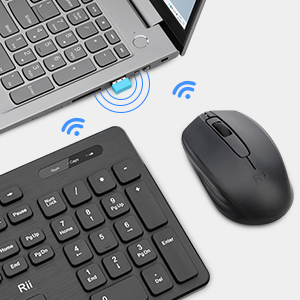
- Connect USB Receiver: Plug the USB receiver into an available USB port on your computer.
- Power On: Turn on the mouse using the On/Off switch located on its underside. The keyboard does not have a separate power switch; it activates upon battery installation and connection.
- Automatic Connection: The keyboard and mouse should automatically connect to your computer. No additional drivers are typically required.

Operating Instructions
Keyboard Usage
The Rii wireless keyboard features a standard layout with 12 easy-to-reach function keys for enhanced productivity. Its ergonomic key caps are designed for comfortable typing.

Mouse Usage
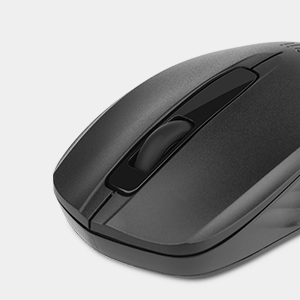
The wireless optical mouse operates at 1000 DPI, providing smooth and precise cursor control on various surfaces.
- Sleep Mode: When the mouse enters sleep mode to conserve battery, simply click any button to wake it up. Moving the mouse will not wake it from sleep mode.
Maintenance
To maintain the performance and appearance of your Rii Wireless Keyboard and Mouse Combo:
- Cleaning: Use a soft, dry cloth to clean the surfaces of the keyboard and mouse. For stubborn dirt, a slightly damp cloth can be used, followed by immediate drying. Avoid using harsh chemicals or abrasive cleaners.
- Battery Replacement: Replace batteries promptly when the low battery indicator on the keyboard illuminates or when mouse responsiveness decreases.
- Storage: When not in use for extended periods, remove batteries to prevent leakage and store the devices in a cool, dry place.
Troubleshooting
If you experience connection issues or other problems, try the following solutions:
Connection Issues
- Check USB Receiver: Ensure the USB receiver is securely plugged into a working USB port on your computer. Try a different USB port if necessary.
- Check Batteries: Verify that the batteries in both the keyboard and mouse are correctly installed and have sufficient charge. Replace them if needed.
- Re-pairing Procedure: If the devices lose connection, you may need to re-pair them with the USB receiver:
- For the Keyboard: Remove the batteries from the keyboard and the USB receiver from the computer. Reinstall the batteries in the keyboard. Press and hold the 'ESC' and 'Q' buttons on the keyboard simultaneously for approximately 3 seconds until the red light flashes. While the light is flashing, plug the USB receiver back into the computer.
- For the Mouse: Remove the batteries from the mouse and the USB receiver from the computer. Reinstall the batteries in the mouse. Press and hold the scroll wheel and the right mouse button simultaneously for approximately 3 seconds. While holding, plug the USB receiver back into the computer.
- Interference: Ensure there are no other wireless devices operating on the same 2.4GHz frequency nearby that could cause interference.
Mouse Not Waking from Sleep
- As noted in the operating instructions, the mouse wakes from sleep mode by clicking any button, not by moving it.
Specifications
| Feature | Detail |
|---|---|
| Brand | Rii |
| Model | B0FB89JTKJ |
| Color | Black |
| Connectivity Technology | 2.4G Wireless |
| Special Feature | Ergonomic Design |
| Compatible Devices | Windows XP / VISTA / 7 /8 /10; Mac OS; Chrome OS; Linux etc. |
| Mouse DPI | 1000 |
| Keyboard Battery | 1 x AAA (not included) |
| Mouse Battery | 2 x AAA (not included) |
| Item Weight | 1.43 pounds |
| Package Dimensions | 17.49 x 8.27 x 1.83 inches |
Warranty and Support
Rii provides a worry-free 1-year product service for this Wireless Keyboard and Mouse Combo. If you encounter any problems during use, please contact our support team for assistance.


