
1. Introduction
The SAMVIX iBusiness Complete 16GB Kosher Sport MP3 Player is designed to provide a convenient and compliant way to enjoy audio content. This device is suitable for various environments, including work, exercise, and travel, offering a secure listening experience for all ages. It features built-in storage, expandable memory, Bluetooth connectivity, and a built-in speaker.
2. Package Contents
Please verify that all items listed below are included in your package:
- SAMVIX iBusiness Complete 16GB MP3 Player
- Earphones
- USB Charging Cable
- English and Hebrew User Manuals

Image: The SAMVIX iBusiness Complete MP3 Player shown alongside the included earphones, illustrating the typical package contents.
3. Product Overview
3.1 Device Layout
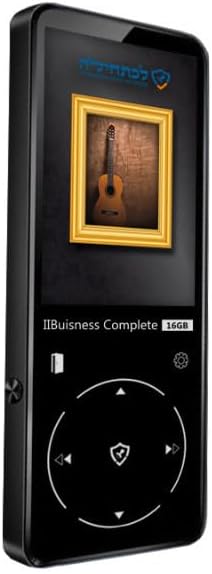
Image: A detailed view of the SAMVIX iBusiness Complete MP3 Player, highlighting its sleek black design and front display.
The MP3 player features a compact design with a color display and intuitive controls. Key components include:
- Display Screen: Shows menus, file lists, and playback information.
- Control Panel: A circular navigation pad with central selection button for menu navigation and playback control.
- Power/Lock Button: Typically located on the side for turning the device on/off and locking the screen.
- Volume Buttons: For adjusting audio output level.
- Headphone Jack: Standard 3.5mm audio output.
- USB Port: For charging and data transfer.
- MicroSD Card Slot: For expanding storage capacity.
- Built-in Speaker: For audio playback without headphones.

Image: A close-up view of the MP3 player's screen and the circular control pad, showing the navigation buttons and central selection button.
4. Setup
4.1 Charging the Device
Before first use, fully charge your MP3 player. Connect the included USB cable to the device's USB port and the other end to a USB power adapter (not included) or a computer's USB port. The battery indicator on the screen will show charging status.
4.2 Powering On/Off
- To Power On: Press and hold the Power button (usually on the side) for a few seconds until the screen lights up.
- To Power Off: Press and hold the Power button until a power-off prompt appears, then confirm.
- To Lock/Unlock Screen: Briefly press the Power button to lock or unlock the screen during operation.
4.3 Expanding Storage
The device supports microSD cards up to 128GB for additional storage. Locate the microSD card slot, gently insert the card until it clicks into place. Ensure the card is inserted correctly to avoid damage.
5. Operating Instructions
5.1 Basic Navigation
Use the circular control pad to navigate through menus and options:
- Up/Down/Left/Right Buttons: Move cursor or selection.
- Center Button: Select an item or confirm an action.
- Back/Return Button: Go back to the previous menu or screen.
5.2 Playing Audio Files
- From the main menu, select "Music" or "Audiobooks" (depending on content type).
- Navigate through folders and files using the control pad.
- Select the desired audio file to begin playback.
- During playback, use the control pad for play/pause, skip track, and volume adjustment.
5.3 Bluetooth Connection
To connect to a Bluetooth headset or speaker:
- Ensure your Bluetooth audio device is in pairing mode.
- On the MP3 player, go to "Settings" and then "Bluetooth".
- Turn Bluetooth "On" and select "Search for Devices".
- Select your Bluetooth device from the list to pair. Once paired, audio will stream wirelessly.
5.4 Transferring Files
To add audio files to your MP3 player:
- Connect the MP3 player to your computer using the USB cable.
- The device will appear as a removable disk drive on your computer.
- Drag and drop your audio files (e.g., MP3, WAV) into the appropriate folders on the MP3 player's internal storage or microSD card.
- Safely eject the device from your computer before disconnecting the USB cable.
6. Maintenance
- Cleaning: Use a soft, dry, lint-free cloth to clean the device. Do not use liquid cleaners or aerosols.
- Storage: Store the device in a cool, dry place away from direct sunlight and extreme temperatures.
- Battery Care: To prolong battery life, avoid fully discharging the battery frequently. Charge regularly.
- Avoid Impacts: Protect the device from drops and impacts, which can damage internal components.
7. Troubleshooting
| Problem | Possible Solution |
|---|---|
| Device does not turn on. | Ensure the battery is charged. Connect to a power source and try again. If unresponsive, perform a hard reset (refer to manual for specific reset method, usually holding power button for extended time). |
| Cannot hear audio. | Check volume level. Ensure headphones are properly plugged in or Bluetooth device is connected and volume is up. Try different headphones. |
| Files not appearing on device. | Ensure files are in a supported format. Verify files were transferred correctly and safely ejected the device from the computer. Check if storage (internal or microSD) is full. |
| Bluetooth connection issues. | Ensure both devices are in pairing mode and within range. Forget the device on both ends and try pairing again. Ensure Bluetooth is enabled on the MP3 player. |
8. Specifications
| Feature | Detail |
|---|---|
| Internal Storage | 16GB |
| Expandable Storage | Up to 128GB via microSD card (not included) |
| Connectivity | Bluetooth 2.1, USB |
| Audio Output | 3.5mm Headphone Jack, Built-in Speaker |
| Display | Integrated Color Display |
| Dimensions | 8.6 x 6.3 x 4.9 inches |
| Item Weight | 1 pounds |
| Kosher Compliance | No FM radio, no video playback, no image display |
9. Warranty and Support
SAMVIX products are manufactured with high-quality standards. For information regarding warranty coverage, technical support, or service inquiries, please refer to the warranty card included with your product or visit the official SAMVIX website. Please retain your proof of purchase for warranty claims.
For further assistance, you may contact SAMVIX customer support directly.