
Bwine F7GB2 Fly More
Contents
Bwine F7 Pro Drone User Manual
Model: F7GB2 Fly More
1. Introduction
This manual provides essential information for the safe operation and maintenance of your Bwine F7 Pro Drone. Please read this manual thoroughly before operating the drone to ensure proper usage and to prevent damage or injury.
The Bwine F7 Pro Drone is equipped with a 4K UHD camera, 3-axis gimbal, and advanced GPS features, designed for aerial photography and recreational flight. It offers extended flight time and range, making it suitable for both beginners and experienced pilots.
2. What's in the Box

Image: The complete package contents of the Bwine F7 Pro Drone, including the drone, remote controller, two intelligent batteries, USB charging cables, and spare propellers.
Your Bwine F7 Pro Drone package includes the following items:
- Bwine F7 Drone
- Remote Control
- Intelligent Batteries (2 included)
- USB Charging Cables (2 included)
- Propellers (4 included)
- Carrying Case
- User Manual (this document)
- Other accessories (e.g., screwdriver, spare screws)
For a visual guide to unboxing, please refer to the official unboxing video:
Video: Official Bwine F7GB2 Unboxing video, demonstrating the contents of the retail package and initial setup steps.
3. Setup Guide
3.1 Charging the Batteries
Before first use, fully charge both intelligent batteries. Use a 5V/3A or 5V/2A wall charger (not included) with the provided USB charging cables. A full charge takes approximately 6.5 hours per battery.

Image: Illustration of the Bwine intelligent batteries, highlighting their design and the dual battery system for extended flight time.
3.2 Installing Propellers
Attach the propellers to the drone's motors. Ensure each propeller is securely fastened according to the markings (e.g., A and B) on the propellers and motor arms. Incorrect installation can affect flight stability.
3.3 Drone and Remote Controller Pairing
- Power on the drone by pressing the power button once, then pressing and holding it until the indicator lights illuminate.
- Power on the remote controller in the same manner.
- Wait for the drone and remote controller to automatically pair. The indicator lights will change from flashing to solid once paired.
3.4 GPS Calibration
For optimal performance and safety features like Auto Return, GPS calibration is essential before each flight. Perform calibration in an open outdoor area away from strong magnetic interference.
- Follow the on-screen instructions in the Bwine app for compass calibration.
- Rotate the drone horizontally until the app indicates completion.
- Rotate the drone vertically until the app indicates completion.
4. Operating Instructions
4.1 Pre-Flight Checklist
- Ensure batteries are fully charged for both drone and remote.
- Check that propellers are securely attached and undamaged.
- Verify GPS signal strength and complete calibration.
- Ensure sufficient open space for flight, clear of obstacles.
- Check local regulations for drone operation, including FAA compliance.

Image: The Bwine F7 Pro drone in flight over a residential area, demonstrating its use for capturing everyday moments.
4.2 Takeoff and Landing
Use the one-key takeoff/landing button on the remote or within the app for automated ascent and descent. For manual control, slowly push the left joystick up to take off and pull down to land.
4.3 Flight Modes and Features
- GPS Auto Return: The drone automatically returns to its takeoff point if the signal is lost, battery is low, or the Return to Home button is pressed.
- Follow Me: The drone tracks your movement and follows you within a specified range (32ft-164ft).
- Waypoints: Plan a custom flight path by marking up to 16 points on the map in the app, and the drone will fly along the designated route.
- Orbit Fly: The drone flies in a circular path around a designated point of interest.
- Beginner Mode: Limits flight distance and altitude for new users, ensuring a safer learning experience. This can be disabled via the app for advanced flight.

Image: The Bwine app interface displaying the 'Beginner Mode' settings, allowing users to adjust flight parameters for a controlled experience.
4.4 Camera Operation
The 4K UHD camera with a 3-axis gimbal provides stable and high-resolution aerial footage. Use the remote controller or the Bwine app to control camera tilt, capture photos, and record videos.

Image: A visual comparison demonstrating the superior clarity and detail of the Bwine F7 Pro's 4K camera with 3-axis gimbal compared to standard drone cameras.
The 3-axis gimbal ensures stable imaging by counteracting vibrations and interference, providing smooth video even in dynamic flight conditions.
5. Maintenance
5.1 Cleaning
Regularly clean the drone body, camera lens, and propellers with a soft, dry cloth. Avoid using liquid cleaners or solvents that may damage components.
5.2 Propeller Inspection
Before each flight, inspect all propellers for cracks, bends, or damage. Replace any damaged propellers immediately using the provided spare parts and tools.
5.3 Battery Care
- Store batteries in a cool, dry place away from direct sunlight.
- Do not overcharge or over-discharge batteries.
- If storing for extended periods, charge batteries to approximately 50-60% capacity.
6. Troubleshooting
| Problem | Possible Cause | Solution |
|---|---|---|
| Drone does not power on | Battery not charged or improperly inserted. | Ensure battery is fully charged and correctly inserted. |
| Loss of control/signal | Out of range, interference, or low battery. | Fly within specified range, avoid areas with strong interference, check battery levels. Drone should auto-return if signal is lost. |
| Unstable flight | Improper calibration, damaged propellers, or strong winds. | Perform GPS calibration, inspect and replace damaged propellers, avoid flying in winds above Level 6. |
| Camera image blurry/shaky | Gimbal not calibrated, lens dirty, or excessive vibration. | Ensure gimbal is calibrated, clean lens, check for propeller damage. |
7. Specifications
| Feature | Detail |
|---|---|
| Brand | Bwine |
| Model Name | F7GB2 Fly More |
| Video Capture Resolution | 4K (3840x2160) UHD |
| Gimbal | 3-Axis Mechanical Gimbal (Pitch, Roll, Yaw) |
| Flight Time | Up to 50 minutes (2x 25-minute intelligent batteries) |
| Control Range | Up to 10000ft (3000m) |
| Wind Resistance | Level 6 |
| Connectivity Technology | Wi-Fi |
| Item Weight | 550 Grams (1.21 pounds) |
| Battery Capacity | 2600 mAh (per battery) |
| Skill Level | Beginner, Adult, Aerial Photography Professional |
| Product Dimensions | 1.31"L x 0.44"W x 1.07"H |
| FAA Compliance | Built-in Remote ID module, complies with FAA Declaration of Compliance. |
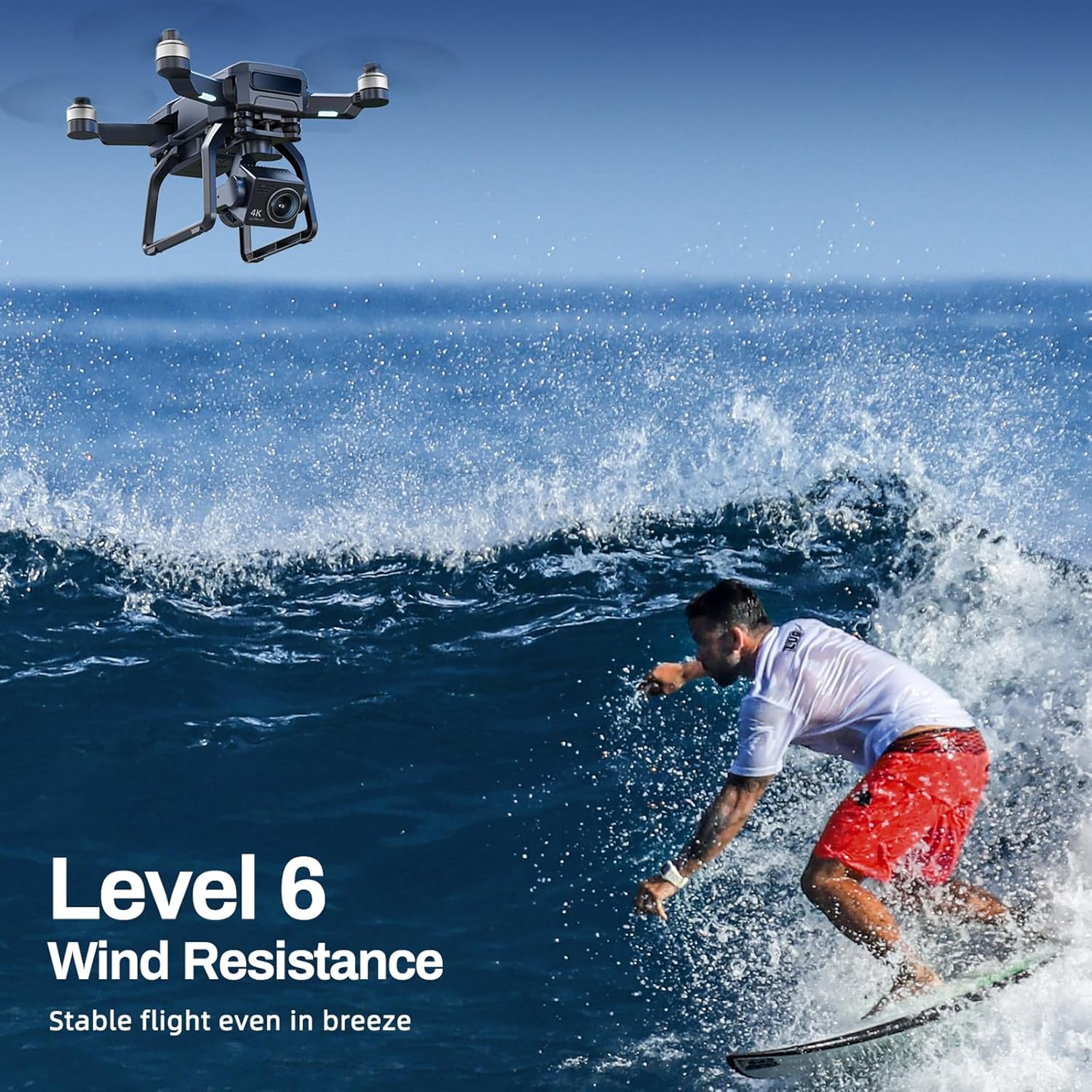
Image: The Bwine F7 Pro drone demonstrating its Level 6 wind resistance, maintaining stable flight even in challenging conditions.

Image: Close-up of the Bwine F7GB2 drone showing its FAA certification and the location of the built-in Remote ID module with QR code.
8. Warranty and Support
Bwine offers comprehensive customer support for your F7 Pro Drone. For technical assistance, warranty claims, or general inquiries, please contact Bwine customer service.
Contact Information:
- Phone: +1 (619) 614-7960
- Email: Bwinedrone@gmail.com
Please refer to your purchase documentation for specific warranty terms and conditions.

Image: A customer service representative ready to assist with inquiries, symbolizing Bwine's customer-focused support.
Ask a question about this manual
Ask about setup, troubleshooting, compatibility, parts, safety, or missing instructions. Manuals+ will review the question and use this page’s manual context to help answer it.