
havit KB835WB
Contents
Havit KB835WB Dual Mode Wireless Keyboard and Mouse Set User Manual
Model: KB835WB
1. Introduction
Thank you for choosing the Havit KB835WB Dual Mode Wireless Keyboard and Mouse Set. This manual provides detailed instructions on how to set up, operate, and maintain your new device. Please read this manual carefully before use to ensure optimal performance and longevity of your product.
2. Package Contents
- Havit KB835WB Wireless Keyboard
- Havit Wireless Mouse
- USB Receiver (for 2.4GHz connection)
- Charging Cable
- User Manual (this document)
3. Product Overview
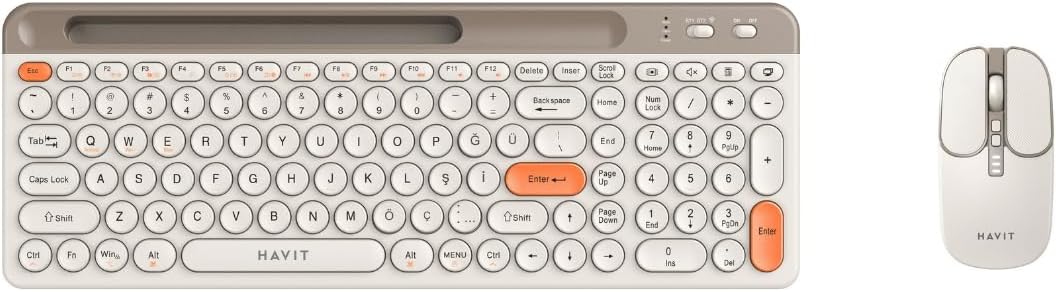
Figure 3.1: Havit KB835WB Dual Mode Wireless Keyboard and Mouse Set (Beige color variant).
This image displays the Havit KB835WB wireless keyboard and mouse. The keyboard features a full layout with a numeric keypad and round, retro-style keys. The mouse is ergonomically designed with standard left/right click buttons, a scroll wheel, and DPI adjustment buttons. Both devices are shown in a beige color scheme.
Keyboard Features:
- Dual Mode Connectivity: 2.4GHz Wireless and Bluetooth 5.1
- 107 Total Keys (Turkish Q Layout)
- Silent Key Design
- Retro Aesthetic Design
- Built-in 400 mAh Rechargeable Battery
Mouse Features:
- Dual Mode Connectivity: 2.4GHz Wireless and Bluetooth 5.1
- 6 Total Buttons
- Adjustable DPI: 800-1200-1600 DPI
- Built-in 500 mAh Rechargeable Battery
4. Setup
4.1 Initial Charging
Before first use, it is recommended to fully charge both the keyboard and the mouse. Connect the provided charging cable to the charging port on each device and plug the other end into a USB power source (e.g., computer USB port, USB wall adapter). The charging time for both devices is approximately 2 hours.
4.2 Powering On/Off
Locate the power switch on the back or side of the keyboard and mouse. Slide the switch to the "ON" position to power on the devices. Slide it to "OFF" when not in use to conserve battery life.
5. Operating Instructions
5.1 Connectivity Modes
The Havit KB835WB set supports two wireless connection modes: 2.4GHz wireless via USB receiver and Bluetooth 5.1.
5.1.1 2.4GHz Wireless Connection (USB Receiver)
- Ensure both the keyboard and mouse are powered on.
- Take out the USB receiver, usually stored in a compartment on the mouse or keyboard.
- Plug the USB receiver into an available USB port on your computer.
- The devices should automatically connect. If not, press the connection button (if available) on the device or refer to troubleshooting.
- The effective wireless range is up to 10 meters.
5.1.2 Bluetooth 5.1 Connection
- Ensure both the keyboard and mouse are powered on.
- On the keyboard/mouse, switch the mode to Bluetooth (often indicated by a switch or button). For the keyboard, you might need to press Fn + a specific key (e.g., Fn + 1, Fn + 2, Fn + 3) to enter pairing mode for different Bluetooth channels.
- On your computer or device, enable Bluetooth and search for new devices.
- Select "Havit KB835WB Keyboard" and "Havit KB835WB Mouse" from the list of available devices.
- Follow any on-screen prompts to complete the pairing process.
- The effective wireless range is up to 10 meters.
5.2 DPI Adjustment (Mouse)
The mouse features adjustable DPI settings to change cursor sensitivity. Press the DPI button (usually located near the scroll wheel) to cycle through the available DPI settings: 800, 1200, and 1600 DPI. A higher DPI means the cursor moves faster across the screen with less physical mouse movement.
5.3 Keyboard Function Keys
The keyboard includes multimedia and function keys. These keys often require pressing the Fn key simultaneously with the desired function key (F1-F12) to activate their secondary functions (e.g., volume control, media playback, brightness adjustment).
6. Maintenance
6.1 Cleaning
- Disconnect the devices from your computer before cleaning.
- Use a soft, lint-free cloth slightly dampened with water or a mild cleaning solution to wipe the surfaces of the keyboard and mouse.
- Do not use harsh chemicals, abrasive cleaners, or solvents.
- For the keyboard, use compressed air to remove dust and debris from between the keys.
6.2 Storage
When not in use for extended periods, power off both the keyboard and mouse. Store them in a cool, dry place away from direct sunlight and extreme temperatures.
7. Troubleshooting
| Problem | Possible Solution |
|---|---|
| Keyboard/Mouse not responding (2.4GHz) |
|
| Keyboard/Mouse not connecting via Bluetooth |
|
| Lag or intermittent connection |
|
| Mouse cursor erratic or not moving |
|
8. Specifications
Keyboard Specifications:
| Feature | Detail |
|---|---|
| Model | KB835WB |
| Connection Type | 2.4GHz Wireless, Bluetooth 5.1 |
| Wireless Range | Up to 10 meters |
| Total Keys | 107 (Turkish Q Layout) |
| Battery Capacity | 400 mAh |
| Charging Time | Approx. 2 hours |
| Design | Retro, Silent Key |
Mouse Specifications:
| Feature | Detail |
|---|---|
| Model | KB835WB (part of set) |
| Connection Type | 2.4GHz Wireless, Bluetooth 5.1 |
| Wireless Range | Up to 10 meters |
| Total Buttons | 6 |
| DPI Settings | 800, 1200, 1600 DPI |
| Battery Capacity | 500 mAh |
| Charging Time | Approx. 2 hours |
9. Warranty and Support
9.1 Warranty Information
This Havit KB835WB Dual Mode Wireless Keyboard and Mouse Set comes with a 2-Year Distributor Warranty. This warranty covers manufacturing defects and workmanship under normal use. It does not cover damage caused by misuse, accident, unauthorized modification, or external causes.
9.2 Customer Support
For technical support, warranty claims, or any questions regarding your Havit product, please contact your local distributor or visit the official Havit website for contact information. Please have your product model number (KB835WB) and proof of purchase ready when contacting support.
You can visit the Havit store on Amazon for more information: Havit Store
Ask a question about this manual
Ask about setup, troubleshooting, compatibility, parts, safety, or missing instructions. Manuals+ will review the question and use this page’s manual context to help answer it.