
1. Product Overview
The UGREEN HDMI KVM Switch allows you to control up to four computers using a single monitor, keyboard, and mouse. It supports high resolutions up to 8K@60Hz and 4K@240Hz, leveraging HDMI 2.1 technology for superior video quality. Additionally, it features four USB 3.0 ports for sharing peripherals like hard drives, printers, and USB flash drives among the connected computers, enhancing productivity and reducing desktop clutter.

This image illustrates the benefit of using the KVM switch, showing a cluttered desktop with multiple computers and monitors before, and a streamlined setup with a single monitor and shared peripherals after.
Key Features:
- 4-Port KVM Functionality: Control four computers with one monitor and a single set of USB 3.0 peripherals.
- High Resolution Support: Experience stunning visuals with support for 8K@60Hz and 4K@240Hz resolutions.
- HDMI 2.1 Certified: Ensures advanced features like 48Gbps bandwidth, Variable Refresh Rate (VRR), Quick Media Switching (QMS), Quick Frame Transport (QFT), and Auto Low Latency Mode (ALLM).
- USB 3.0 Ports: Four USB 3.0 ports (3 USB-A + 1 USB-C) provide data transfer speeds up to 5Gbps for connected devices.
- Enhanced Durability: Constructed with a robust aluminum alloy case and nickel-plated connectors for long-lasting performance.
2. Package Contents
Please verify that all items are present in your package:
- UGREEN HDMI KVM Switch Unit
- HDMI 2.1 Cable (6.6FT)
- USB A to C Data Cables (4x)
- Power Adapter
- User Manual (this document)
3. Product Diagram and Ports
Familiarize yourself with the KVM switch's layout and port functions:

This diagram shows the front panel with a 'CONTROL' button and four USB 3.0 ports (3 USB-A, 1 USB-C). The rear panel includes a power input, HDMI output, and four sets of HDMI input and USB-C data input ports for connecting up to four computers.
Port Descriptions:
- HDMI Output: Connects to your monitor.
- HDMI Input (PC1-PC4): Connects to the HDMI output of each computer.
- USB-C Data Input (PC1-PC4): Connects to a USB-A or USB-C port on each computer using the provided USB A to C data cables. This is essential for USB peripheral sharing.
- USB 3.0 Ports (Front Panel): Connect your keyboard, mouse, USB flash drives, printers, or other USB 3.0 devices.
- CONTROL Button: Used to switch between connected computers.
- Power Input: Connect the included power adapter to ensure stable operation, especially when using high-power USB devices.
4. Setup Instructions
Follow these steps to set up your UGREEN HDMI KVM Switch:
- Connect Monitor: Connect your monitor to the HDMI Output port on the KVM switch using an HDMI 2.1 cable.
- Connect Computers (Video): For each computer (PC1-PC4), connect its HDMI output to the corresponding HDMI Input port on the KVM switch. Ensure your computer's graphics card and monitor support the desired resolution (e.g., 8K@60Hz or 4K@240Hz).
- Connect Computers (USB Data): For each computer, connect one end of the provided USB A to C data cable to a USB-A or USB-C port on your computer, and the other end (USB-C) to the corresponding USB-C Data Input port on the KVM switch. Note: This connection is mandatory for USB device sharing.
- Connect USB Peripherals: Connect your keyboard, mouse, and other USB 3.0 devices to the USB 3.0 ports on the front panel of the KVM switch.
- Connect Power: Plug the included power adapter into the KVM switch's power input port and then into a wall outlet. This ensures stable operation, especially when connecting high-power USB devices.

This image highlights critical setup considerations: ensuring your computer has both HDMI and USB-A ports, the necessity of connecting the power supply for stability, graphics card/monitor/cable support for 8K@60Hz, and that hot-key switching is not supported. It also clarifies that this is an HDMI KVM switch, not DisplayPort or USB-C KVM, and supports only one monitor.
Cable Length and Resolution Guidelines:
To ensure optimal performance, especially at higher resolutions, adhere to the recommended cable lengths:

This table provides guidelines for maximum HDMI cable lengths (input and output) for different resolutions and refresh rates, along with the recommended AWG (American Wire Gauge) for the cables.
5. Operating the KVM Switch
Once all connections are made, operating the KVM switch is straightforward:
- Switching Computers: Press the 'CONTROL' button on the front panel of the KVM switch to cycle through the connected computers (PC1, PC2, PC3, PC4). The active computer's indicator light will illuminate.
- No Hot-Key Switching: This KVM switch does not support switching via keyboard hot-keys. All switching must be done using the physical button on the device.

This image shows the KVM switch in use, demonstrating how a single user can manage multiple computers efficiently from one workstation.
6. Advanced Video and Data Features
High Resolution and Refresh Rate:
The KVM switch supports high-definition video output, providing crisp and clear images:
- Up to 8K (7680 x 4320) at 60Hz
- Up to 4K (3840 x 2160) at 240Hz
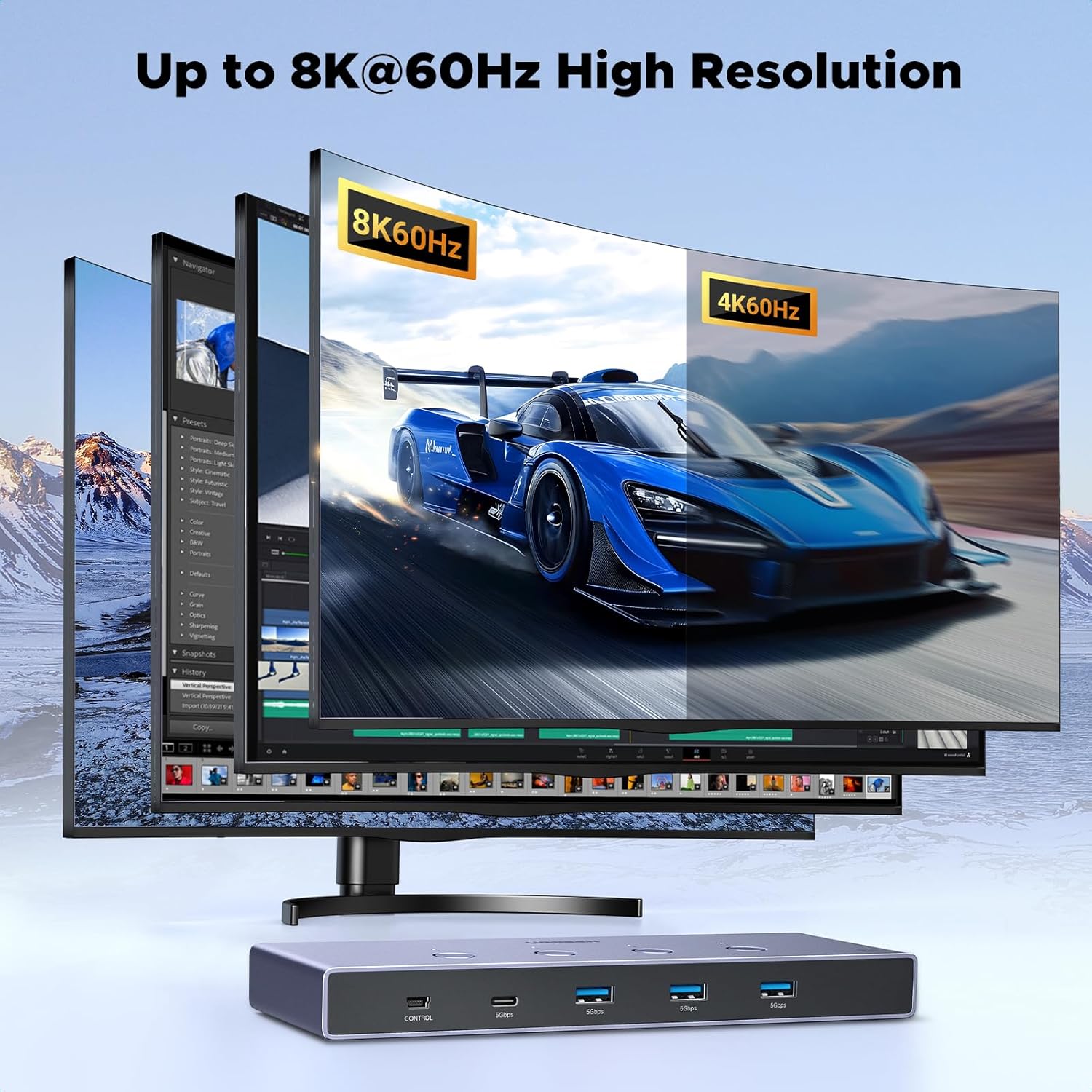
This image visually represents the high-resolution capability of the KVM switch, showcasing an 8K@60Hz display.

This graphic compares the bandwidth of HDMI 2.1 (48Gbps) to HDMI 2.0 (18Gbps), emphasizing the significantly faster data transmission of the newer standard.
USB 3.0 Ultra-fast Data Transfer:
The integrated USB 3.0 ports offer rapid data transfer for your peripherals:
- Data transfer speeds up to 5Gbps, which is 10 times faster than USB 2.0 (480Mbps).
- Ideal for quickly transferring large files from USB flash drives or external hard drives.

This image highlights the speed advantage of USB 3.0, showing 5Gbps transfer rates compared to 480Mbps for USB 2.0.
HDMI 2.1 Gaming Features:
For an optimized gaming experience, the KVM switch supports key HDMI 2.1 features:
- Variable Refresh Rate (VRR): Reduces screen tearing and stuttering for smoother gameplay.
- Quick Media Switching (QMS): Eliminates blank screens when switching between different content.
- Quick Frame Transport (QFT): Reduces display latency for more responsive gaming.
- Auto Low Latency Mode (ALLM): Automatically sets the ideal latency setting for smooth, lag-free viewing and interactivity.
- Dynamic HDR: Provides more vivid and detailed images with enhanced contrast and color accuracy.

This image illustrates the benefits of HDMI 2.1 features for gamers, including Variable Refresh Rate, Quick Media Switching, Quick Frame Transport, and Auto Low Latency Mode.

This split image demonstrates the visual improvement with Dynamic HDR, showing a more vivid and detailed picture compared to a non-HDR image.
7. Maintenance
To ensure the longevity and optimal performance of your UGREEN HDMI KVM Switch, follow these maintenance guidelines:
- Cleaning: Use a soft, dry cloth to clean the exterior of the device. Avoid using liquid cleaners or aerosols, as they may damage the unit.
- Ventilation: Ensure the KVM switch is placed in a well-ventilated area to prevent overheating. Do not block any ventilation openings.
- Storage: When not in use for extended periods, store the device in a cool, dry place away from direct sunlight and extreme temperatures.
- Cable Management: Keep cables organized and free from kinks or excessive bending to prevent damage to the cables and ports.
8. Troubleshooting
If you encounter issues with your KVM switch, please refer to the following common problems and solutions:
| Problem | Possible Cause | Solution |
|---|---|---|
| No display on monitor | Incorrect HDMI cable connection; KVM switch not powered; Monitor input not selected correctly; Graphics card/monitor/cable not supporting resolution. | Ensure all HDMI cables are securely connected. Verify the KVM switch is powered. Check your monitor's input source. Confirm all components (graphics card, monitor, HDMI cables) support the desired resolution and refresh rate. |
| USB devices (keyboard/mouse) not working | USB A to C data cables not connected; KVM switch not powered; Loose USB connections. | Ensure the USB A to C data cable is connected from each computer to the KVM switch. Verify the KVM switch is powered. Reconnect USB peripherals to the KVM switch. |
| Cannot switch between computers | KVM switch not powered; Faulty button. | Ensure the KVM switch is powered. Press the 'CONTROL' button firmly. Note that hot-key switching is not supported. |
| Intermittent display or flickering | Poor quality HDMI cables; Exceeding recommended cable length; Power instability. | Use high-quality, certified HDMI 2.1 cables. Ensure cable lengths are within recommended limits (refer to Section 4). Verify the power adapter is securely connected and providing stable power. |
| USB 3.0 devices not reaching full speed | USB 2.0 cable used; Computer's USB port is USB 2.0; High-power device without sufficient power. | Ensure you are using USB 3.0 compatible cables and connecting to a USB 3.0 port on your computer. Confirm the KVM switch is powered by the adapter, especially for high-power USB devices. |
9. Specifications
Detailed technical specifications for the UGREEN HDMI KVM Switch:
- Brand: UGREEN
- Model: B0FB3WHZRY
- Color: Black
- Hardware Interface: HDMI, USB
- Special Feature: High Speed 8K HDMI, 48Gbps Bandwidth
- Compatible Devices: Gaming Consoles, Laptops, MacBook, MacBook Air, MacBook Pro, Personal Computer, iMac, iPad, iPhone
- Total USB Ports: 4 (3 USB-A, 1 USB-C)
- Data Transfer Rate: 5 Gigabits Per Second (USB 3.0)
- Number of Ports (KVM): 4 (for computers)
- Operating System Compatibility: Linux, MacOS, Windows
- Enclosure Material: Aluminum
10. Warranty and Support
UGREEN products are designed for reliability and performance. For warranty information and technical support, please refer to the official UGREEN website or contact their customer service directly.
- Online Support: Visit www.ugreen.com for FAQs, drivers, and support resources.
- Customer Service: Contact information can be found on the official website or your product packaging.


