1. Product Overview
The seenda CUQ01 Wireless Mechanical Keyboard and Mouse Combo offers versatile connectivity and ergonomic design for enhanced productivity across multiple devices. This combo features low-profile mechanical keys for comfortable typing and a silent-click mouse for a quiet work environment. Both devices are rechargeable via USB-C.

Image 1.1: The seenda CUQ01 Wireless Mechanical Keyboard and Mouse Combo, showcasing the keyboard, mouse, and a USB-C charging cable.
2. Package Contents
Please verify that all items are present in the package:
- seenda CUQ01 Wireless Mechanical Keyboard
- seenda Wireless Mouse
- USB-A Receiver (stored in the mouse battery compartment)
- USB-C Charging Cable
- User Manual (this document)
3. Setup Instructions
3.1 Initial Charging
Before first use, fully charge both the keyboard and mouse. Connect the provided USB-C charging cable to the charging port on each device and to a USB power source (e.g., computer USB port, USB wall adapter).
- Keyboard Charging Port: Located on the back edge.
- Mouse Charging Port: Located on the front edge.
- A full charge typically takes approximately 3 hours.
- The devices can be used while charging.

Image 3.1: The keyboard and mouse connected to a power source via USB-C cables for charging.
3.2 Connectivity Modes
The combo supports three connection modes: 2.4GHz USB-A receiver and two Bluetooth channels (BT1, BT2). This allows seamless switching between up to three different devices.

Image 3.2: Illustration of the keyboard and mouse connected to a laptop, tablet, and desktop computer simultaneously.
3.3 Connecting via 2.4GHz USB-A Receiver
- Locate the USB-A receiver in the mouse's battery compartment.
- Plug the USB-A receiver into an available USB port on your computer.
- Turn on both the keyboard and mouse using their respective power switches.
- On the keyboard, press the USB key (usually indicated by a USB icon) to select the 2.4GHz mode.
- The keyboard and mouse should automatically connect to your device.
3.4 Connecting via Bluetooth (BT1 / BT2)
- Turn on both the keyboard and mouse.
- On the keyboard, press and hold either the BT1 or BT2 key for 3-5 seconds until the indicator light flashes, indicating pairing mode.
- On your device (PC, laptop, tablet, smartphone), go to Bluetooth settings and search for new devices.
- Select "seenda Keyboard" and "seenda Mouse" from the list of available devices to pair.
- Repeat the process for the second Bluetooth channel (BT2) if connecting to another device.
4. Operating Instructions
4.1 Keyboard Features
- Low-Profile Mechanical Red Switches: Designed for responsive, smooth, and quiet typing.
- Adjustable Tilt Legs: Two adjustable tilt legs on the underside of the keyboard allow you to set a comfortable typing angle (6° or 10°).
- Function Keys (F1-F12): These keys have dual functions. By default, they may control multimedia or system functions. Press Fn + Esc to toggle between standard F-key functions and multimedia functions.
- Multi-Device Switching: Use the dedicated USB, BT1, and BT2 keys to switch between connected devices.

Image 4.1: A close-up view of the keyboard keys, highlighting the low-profile mechanical red switches.
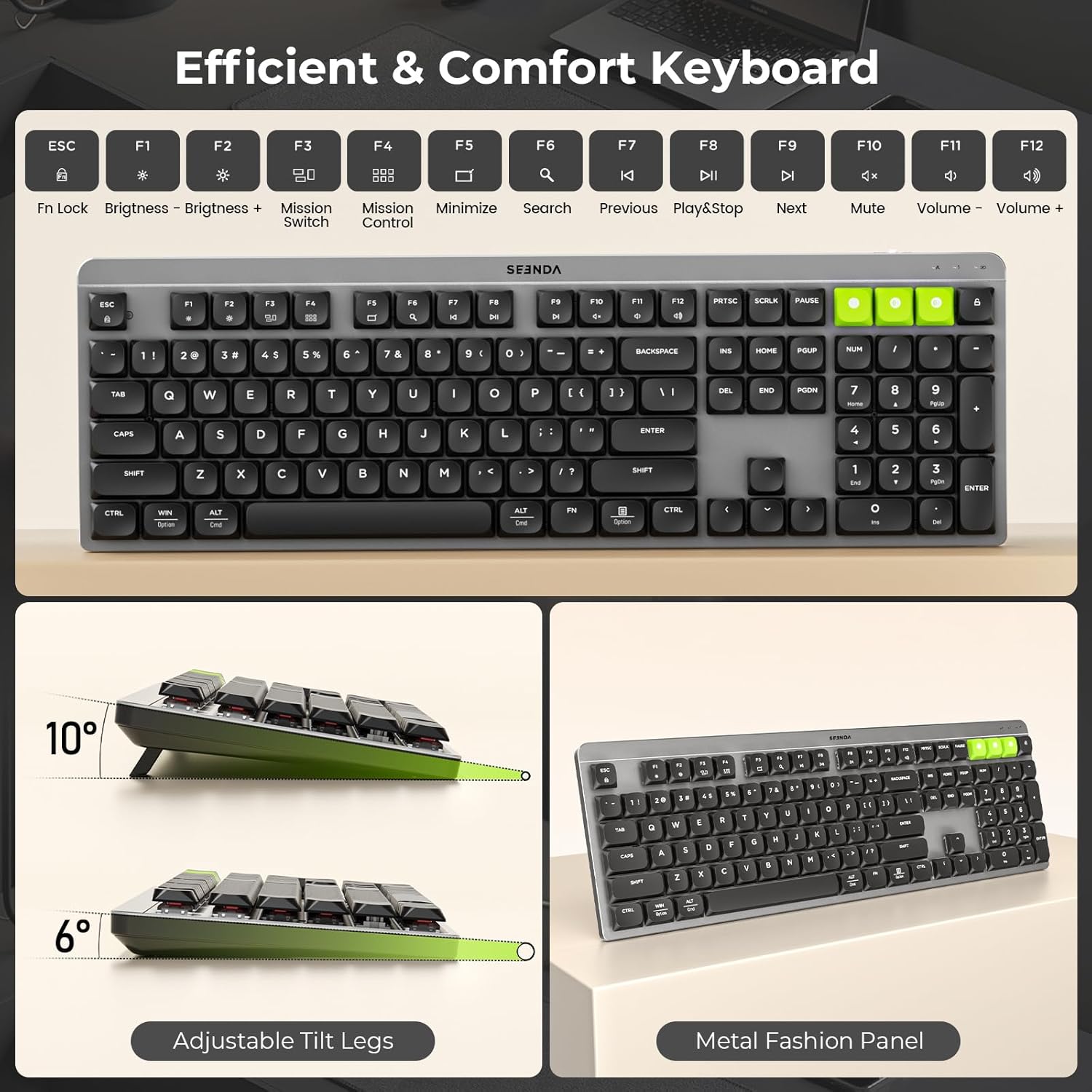
Image 4.2: The keyboard displaying its full layout with function keys and an illustration of the adjustable tilt legs.
4.2 Mouse Features
- Silent-Click Design: The mouse buttons are designed for quiet operation, reducing noise in shared environments.
- DPI Adjustment: Press the DPI button (located on top of the mouse) to cycle through 1000, 1600, and 2400 DPI settings for precise cursor control.
- Ergonomic Grip: Designed for comfortable use during extended periods.

Image 4.3: The seenda mouse, emphasizing its silent-click feature and comfortable ergonomic design.
5. Maintenance
5.1 Cleaning
- Disconnect devices before cleaning.
- Use a soft, damp cloth to wipe the surfaces of the keyboard and mouse.
- For dust between keys, use compressed air.
- Avoid using harsh chemicals or abrasive materials.
5.2 Battery Care
- Both devices are equipped with 300mAh rechargeable batteries.
- Charge the devices when the battery indicator light shows low power.
- Avoid fully depleting the battery frequently to prolong its lifespan.
- If not in use for an extended period, charge the devices every 3-6 months.
6. Troubleshooting
- Device not connecting:
Ensure both keyboard and mouse are powered on. Check that the correct connection mode (USB, BT1, or BT2) is selected. For Bluetooth, ensure the device is in pairing mode and visible in your host device's Bluetooth settings. Try re-pairing the devices. - Lag or unresponsiveness:
Ensure devices are fully charged. Move closer to the USB receiver or Bluetooth host device to reduce interference. Avoid using the 2.4GHz receiver near other wireless devices that may cause interference. - Keyboard keys not responding:
Check battery level. Ensure the keyboard is connected to the correct device. If specific keys are not working, try cleaning around them. - Mouse cursor erratic or not moving:
Check battery level. Ensure the mouse is on a clean, non-reflective surface. Adjust DPI settings if the cursor movement is too fast or slow. - Charging issues:
Ensure the USB-C cable is securely connected to both the device and the power source. Try a different USB-C cable or power adapter. - Compatibility:
The keyboard and mouse are compatible with Windows XP/Vista/7/8/10+, Mac OS 10.12+, iPad OS/iOS 13.0+, and Android 4.3+. Ensure your operating system meets these requirements.
7. Specifications

Image 7.1: Detailed dimensions of the seenda CUQ01 keyboard and mouse.
| Feature | Detail |
|---|---|
| Model | CUQ01 |
| Connectivity Technology | 2.4GHz USB-A, Bluetooth (BT1, BT2) |
| Keyboard Type | Wireless Mechanical, Low-Profile Red Switches |
| Mouse DPI Settings | 1000 / 1600 / 2400 DPI |
| Battery Capacity | 300mAh (Keyboard & Mouse) |
| Charging Time | Approx. 3 hours |
| Standby Time | Up to 200 hours |
| Compatible Devices | Computer, Laptop, PC, MacBook Pro/Air, Mac, iPad |
| Operating System Compatibility | Windows XP/Vista/7/8/10+, Mac OS 10.12+, iPad OS/iOS 13.0+, Android 4.3+ |
| Keyboard Dimensions | 17.1 x 5.4 x 1.1 inches (approximate) |
| Mouse Dimensions | 4.3 x 2.4 x 1.2 inches (approximate) |
| Item Weight | 2.53 pounds |
8. Warranty and Support
seenda products are designed for reliability and performance. For warranty information or technical support, please refer to the documentation included with your purchase or visit the official seenda website. You can also contact seenda customer service directly for assistance.
For more information, visit the seenda Store on Amazon.


