
1. Introduction
This manual provides essential information for the safe and efficient operation of your FYHXele 27-inch 1K-180Hz Pink Curved Gaming Monitor. Please read it thoroughly before using the product and retain it for future reference.
2. Safety Information
- Ensure the monitor is placed on a stable, flat surface to prevent accidental falls.
- Do not expose the monitor to water or excessive moisture.
- Avoid blocking ventilation openings to prevent overheating.
- Use only the power adapter provided with the monitor.
- Disconnect the power cable during lightning storms or when unused for extended periods.
- Do not attempt to repair the monitor yourself. Refer all servicing to qualified personnel.
3. Package Contents
Verify that all items are present in the package:
- FYHXele 27-inch Curved Gaming Monitor
- Power Adapter and Cable
- HDMI Cable
- DisplayPort (DP) Cable
- USB Cable
- Quick Installation Guide
- Screws and L-wrench for assembly
- Optional Cat Ears accessory

Figure 3.1: Monitor Accessories
4. Setup
4.1 Assembling the Stand
- Carefully remove the monitor from its packaging.
- Attach the stand base to the stand neck using the provided screws.
- Secure the assembled stand to the back of the monitor.
4.2 VESA Wall Mount Installation
The monitor supports VESA mounting (100mm x 100mm). Follow the instructions provided with your VESA mount kit for installation. Ensure the mount can support the monitor's weight (3.2 ounces).
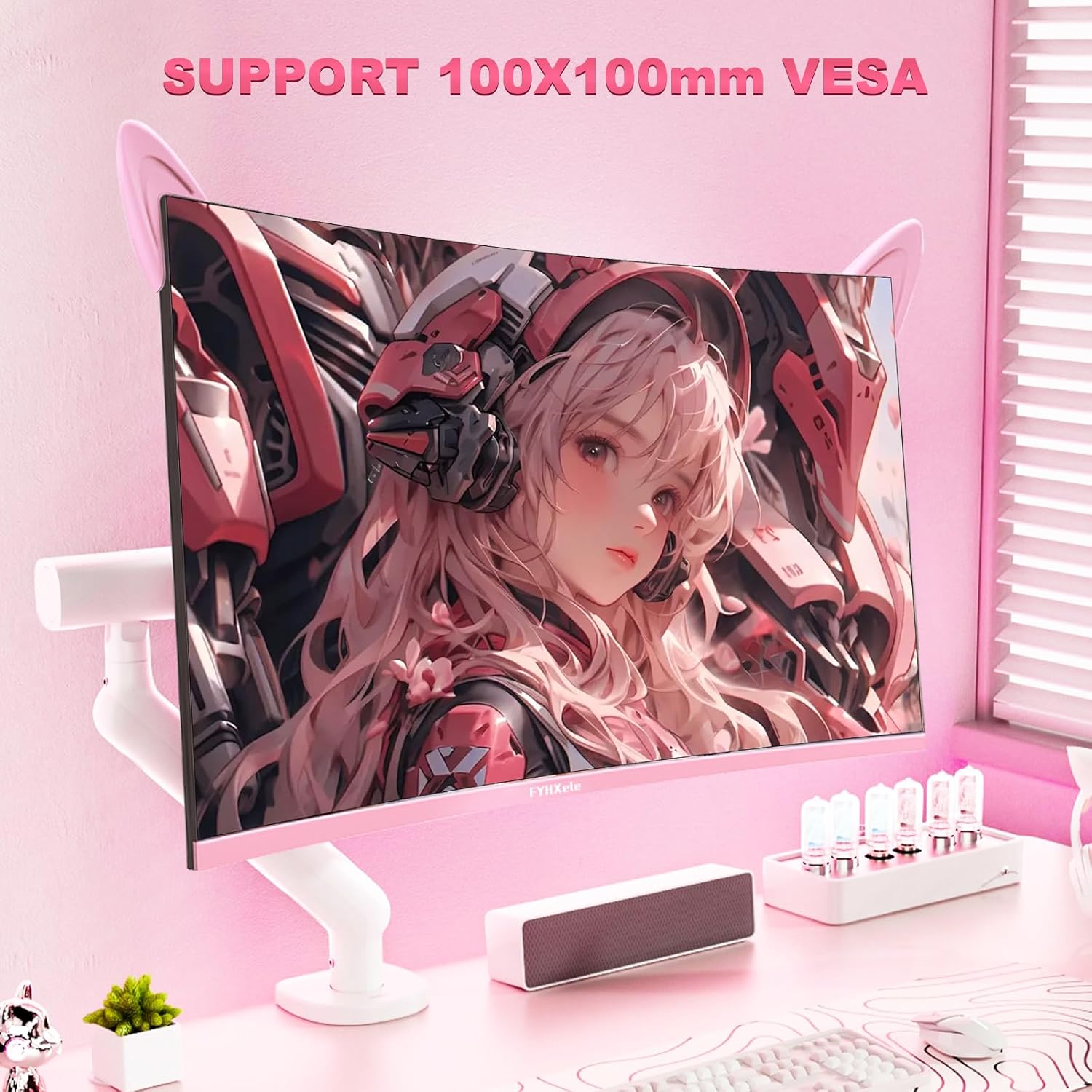
Figure 4.1: VESA Mount Compatibility
4.3 Connecting Cables
Connect the necessary cables to the monitor's ports:
- Power: Connect the power adapter to the monitor and then to a power outlet.
- Video Input: Use either an HDMI or DisplayPort cable to connect the monitor to your computer or gaming console.
- USB: Connect the USB cable for additional peripheral connectivity.
- Audio Out: Connect headphones or external speakers to the 3.5mm audio jack.

Figure 4.2: Monitor Connectivity Ports
5. Operating Instructions
5.1 Powering On/Off
Press the power button located on the monitor to turn it on or off. The power indicator light will illuminate when the monitor is on.
5.2 On-Screen Display (OSD) Menu Navigation
The monitor features a diffuse button for navigating the OSD menu. Press the button to access the menu and use it to select and adjust settings. Refer to the Quick Installation Guide for detailed OSD menu navigation instructions.
6. Display Settings
6.1 Refresh Rate and Response Time
This monitor supports a 165Hz refresh rate and 1ms response time for smooth visual performance.

Figure 6.1: 165Hz Refresh Rate for Ultra-Smooth Gameplay
6.2 Curved Display
The 1800R curvature provides an immersive viewing experience.

Figure 6.2: 1800R Curved Monitor for Immersive Viewing
6.3 Color Quality
The monitor features a VA panel with 100% sRGB, delivering vibrant and accurate colors.

Figure 6.3: Vibrant Colors with 100% sRGB
6.4 FreeSync Technology
FreeSync compatibility helps eliminate screen tearing, flickering, and stuttering for a smoother visual experience.

Figure 6.4: FreeSync Technology for Smooth Visuals
6.5 Blue Light Reduction
The monitor includes a blue light reduction feature to protect your eyes and reduce fatigue during prolonged use.
7. Maintenance
- Cleaning the Screen: Gently wipe the screen with a soft, lint-free cloth. For stubborn marks, use a monitor-specific cleaning solution applied to the cloth, not directly to the screen.
- Cleaning the Casing: Use a soft, dry cloth to clean the monitor casing. Avoid abrasive cleaners.
- Storage: If storing the monitor for an extended period, place it in its original packaging or a protective cover in a cool, dry place.
8. Troubleshooting
| Problem | Possible Cause | Solution |
|---|---|---|
| No image on screen / "No Signal" message | Incorrect input source selected or loose cable connection. | Ensure video cables (HDMI/DP) are securely connected. Select the correct input source via the OSD menu. |
| Power indicator off | Monitor is off or power cable is disconnected. | Press the power button. Check if the power cable and adapter are securely connected to the monitor and power outlet. |
| Screen flickering or distorted image | Incorrect resolution/refresh rate, faulty cable, or FreeSync issue. | Adjust resolution/refresh rate in your computer's display settings. Try a different video cable. Ensure FreeSync is enabled/disabled as needed in OSD. |
| Buttons not responding | Temporary software glitch or physical button issue. | Power cycle the monitor (unplug and replug). If the issue persists, contact customer support. |
| No audio from monitor speakers/headphone jack | Audio settings incorrect or external speakers/headphones not connected properly. | Check audio output settings on your computer/console. Ensure headphones/speakers are fully plugged into the monitor's audio out port. Adjust monitor volume via OSD. |
Video 8.1: Overview of the FYHXele Pink Monitor, including features and design. This video is provided by FYHX Official.
9. Specifications
| Feature | Detail |
|---|---|
| Model Number | 27-1K-180Hz |
| Screen Size | 27 Inches |
| Resolution | FHD 1920 x 1080 Pixels |
| Refresh Rate | 165Hz (up to 180Hz for some variants) |
| Response Time | 1ms |
| Curvature | 1800R |
| Panel Type | VA |
| Color Gamut | 100% sRGB |
| Brightness | 300 Candela |
| Aspect Ratio | 16:9 |
| Connectivity | HDMI, DisplayPort, USB, Audio Out |
| VESA Compatibility | 100mm x 100mm |
| Product Dimensions | 7.09 x 24.17 x 17.87 inches |
| Item Weight | 3.2 ounces |
| Voltage | 12 Volts (DC) |

Figure 9.1: Energy Label. For more details, visit EPREL Database.
10. Warranty and Support
For warranty information and technical support, please refer to the documentation included with your product or visit the official FYHXele website. Keep your purchase receipt as proof of purchase for warranty claims.