
TECLAST ArtPad Pro
TECLAST ArtPad Pro Tablet User Manual
Model: ArtPad Pro
1. Introduction
Welcome to the user manual for your new TECLAST ArtPad Pro Tablet. This guide provides essential information to help you set up, operate, maintain, and troubleshoot your device. Please read this manual thoroughly to ensure optimal performance and longevity of your tablet.
1.1 Package Contents
Before you begin, please verify that all items listed below are included in your package:
- TECLAST ArtPad Pro Tablet
- Power Adapter
- Data Cable
- Ejection Pin
- Warranty Card
- User Manual (this document)
- Teclast T-Pen (Active Stylus, may be sold separately or included depending on package)
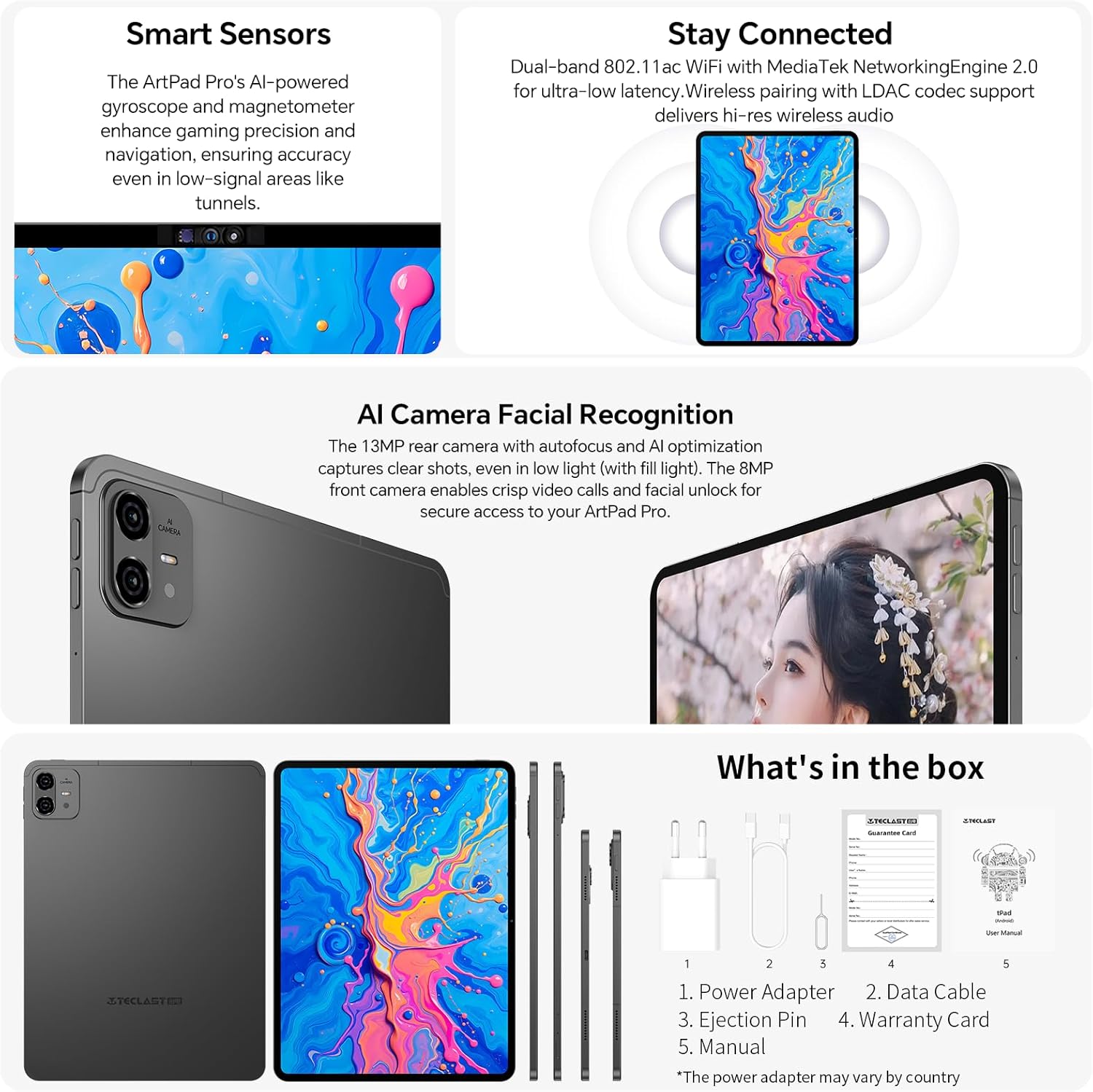
Image: The contents typically found in the TECLAST ArtPad Pro package, including the tablet, power adapter, data cable, ejection pin, warranty card, and manual.
2. Setup
2.1 Charging the Device
Before first use, fully charge your TECLAST ArtPad Pro. Connect the provided data cable to the tablet's USB-C port and the power adapter. Plug the power adapter into a wall outlet. The tablet supports 27W/30W USB-PD fast charging for quick power-ups.

Image: The TECLAST ArtPad Pro being used with its stylus, highlighting its fast charging capability and battery capacity.
2.2 Powering On/Off
- To Power On: Press and hold the Power button (usually located on the side or top edge) until the TECLAST logo appears on the screen.
- To Power Off: Press and hold the Power button until a power menu appears. Select "Power off" from the options.
- To Restart: From the power menu, select "Restart".
2.3 Initial Setup
Upon first power-on, the tablet will guide you through the initial setup process. This typically includes:
- Selecting your language.
- Connecting to a Wi-Fi network.
- Accepting terms and conditions.
- Signing in to your Google account (or creating one).
- Setting up screen lock (PIN, pattern, password, or facial recognition).
2.4 SIM Card and Storage Expansion
The ArtPad Pro supports dual 4G LTE SIM cards and TF card expansion for additional storage up to 1TB.
- Locate the SIM/TF card tray on the side of the tablet.
- Insert the ejection pin into the small hole next to the tray to open it.
- Carefully place your Nano-SIM cards and/or TF card into the designated slots on the tray, ensuring correct orientation.
- Gently push the tray back into the tablet until it clicks into place.
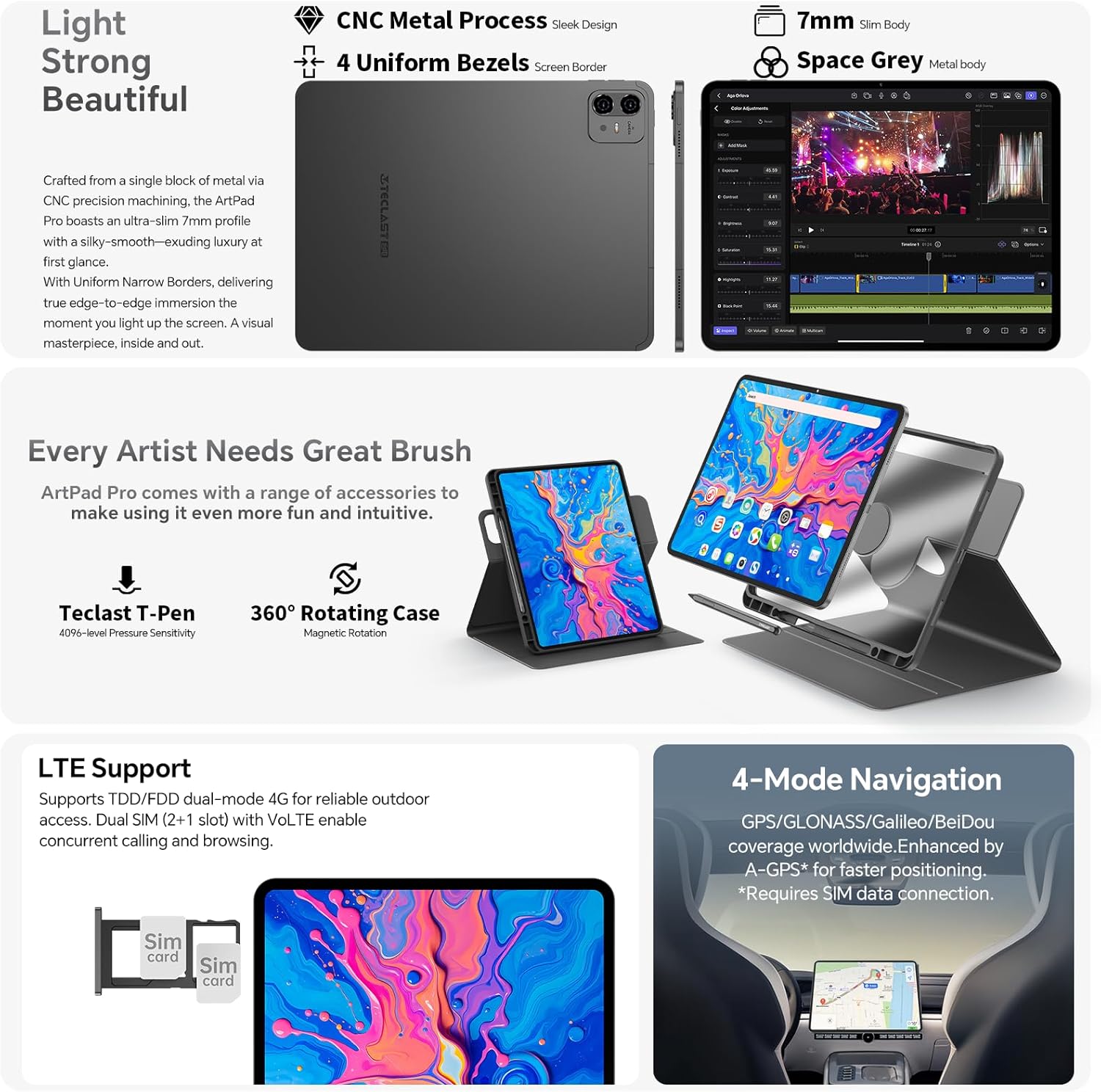
Image: Close-up view of the TECLAST ArtPad Pro's SIM card tray, illustrating the dual SIM and TF card slots.
3. Operation
3.1 Display and Navigation
The ArtPad Pro features a 12.7-inch FHD display with a 2176x1600 resolution and a 4:3 aspect ratio, providing a larger viewing area for documents and creative work. It supports a 90Hz adaptive refresh rate for smooth visuals.

Image: The vibrant display of the TECLAST ArtPad Pro, showcasing its high resolution and color optimization.
3.2 Using the Teclast T-Pen (Stylus)
The optional Teclast T-Pen offers a precise and intuitive writing and drawing experience. It features 4096 levels of pressure sensitivity and global palm rejection, making it ideal for note-taking and digital art. For optimal performance, use it with the pre-installed Art Note App.
3.3 Smart Button Customization
The ArtPad Pro includes a customizable Smart Button. You can configure this button to quickly switch between various ArtOS modes (e.g., reading, drawing, office) or to launch specific applications or system functions with a single click, double tap, or press and hold.

Image: Visuals of the ArtOS interface and the Smart Button's customizable functions.
3.4 Connectivity
Your tablet offers comprehensive connectivity options:
- Wi-Fi: Supports dual-band 2.4G/5G Wi-Fi for fast and stable internet connection.
- Bluetooth: BT5.2 for connecting wireless accessories like headphones and keyboards.
- 4G LTE: Dual SIM support for mobile data and VoLTE calls.
- GPS: Integrated GPS/GLONASS/BeiDou for navigation and location services.
3.5 Camera Functions
The ArtPad Pro is equipped with an 8MP front camera and a 13MP rear camera. The rear camera features autofocus and AI optimization for clear photos, even in low light. The front camera is suitable for video calls and facial unlock.
3.6 Audio Features
Experience immersive sound with the ArtPad Pro's Symphony Acoustic System, featuring four large chamber speakers. The Art Tune Audio Algorithm enhances sound quality across various scenarios, including game mode, movie mode, and music mode.

Image: Diagram showing the advanced audio system and AI-powered sound enhancements of the TECLAST ArtPad Pro.
3.7 AI Assistant (Google Gemini)
The ArtPad Pro integrates with Google Gemini, an intelligent AI assistant. Utilize Gemini for AI image creation, data analysis, voice assistance, content creation, and more to enhance your productivity and creativity.
4. Maintenance
4.1 Battery Care
To extend the lifespan of your 10000mAh battery:
- Avoid extreme temperatures.
- Do not let the battery completely drain frequently.
- Use the provided charger and cable for optimal charging.
- The smart charging system helps protect the battery by adjusting power flow.
4.2 Cleaning the Device
To clean your tablet:
- Use a soft, lint-free cloth.
- For stubborn smudges, slightly dampen the cloth with water or a screen cleaner.
- Avoid using harsh chemicals, abrasive materials, or excessive moisture.
4.3 Software Updates
Regularly check for and install software updates to ensure your tablet has the latest features, security patches, and performance improvements. You can usually find this option in the tablet's Settings menu under "System" or "About tablet".
5. Troubleshooting
5.1 Common Issues and Solutions
| Issue | Possible Solution |
|---|---|
| Device does not power on | Ensure the battery is charged. Press and hold the power button for at least 10-15 seconds to force a restart. |
| Wi-Fi connection issues | Restart the tablet and your Wi-Fi router. Forget the network in Wi-Fi settings and reconnect. |
| Slow performance or apps crashing | Close unused apps. Clear cache for problematic apps. Restart the tablet. Ensure sufficient storage space. |
| Stylus not responding | Ensure the stylus is charged (if applicable). Check if the stylus is properly paired (if Bluetooth). Restart the tablet. |
| Tablet not charging | Check the charging cable and adapter for damage. Try a different outlet. Ensure the charging port is clean. |
If you encounter persistent issues, consider performing a factory reset (Note: This will erase all data on your tablet. Back up important information first.). Navigate to Settings > System > Reset options > Erase all data (factory reset).
6. Technical Specifications
| Feature | Specification |
|---|---|
| Model Name | ArtPad Pro |
| Operating System | Android 15 |
| Processor | MediaTek Helio G99 Octa-Core (2.2 GHz) |
| Display Size | 12.7 Inches |
| Display Resolution | 2176x1600 Pixels |
| RAM | 20 GB |
| Internal Storage | 256 GB UFS |
| Expandable Storage | Up to 1TB via TF Card |
| Battery Capacity | 10000 mAh |
| Charging | 27W/30W USB-PD Fast Charging |
| Rear Camera | 13 MP |
| Front Camera | 8 MP |
| Connectivity | Dual 4G LTE/SIM, 2.4G/5G WiFi, Bluetooth 5.2 |
| Navigation | GPS/GLONASS/BeiDou |
| Dimensions | 30 x 20 x 0.8 cm |
| Weight | 732 g |
7. Warranty and Support
7.1 Warranty Information
TECLAST typically provides a 2-year warranty for its products. Please refer to the warranty card included in your package for specific terms and conditions applicable to your region.
7.2 Customer Support
If you encounter any issues or have questions not covered in this manual, please contact TECLAST customer support. We aim to provide professional advice and resolve your inquiries within 24 hours on business days. For the most up-to-date contact information, please visit the official TECLAST website or refer to your warranty card.
Related documentsArtPad Pro


Ask a question about this manual
Ask about setup, troubleshooting, compatibility, parts, safety, or missing instructions. Manuals+ will review the question and use this page’s manual context to help answer it.