
RAWM ES21PRO
RAWM ES21PRO 8K Wireless Gaming Mouse User Manual
Model: ES21PRO | Brand: RAWM
Introduction
The RAWM ES21PRO is an ultra-lightweight 8K wireless gaming mouse designed for high-performance gaming. Featuring the advanced PAW3950 optical sensor, it offers exceptional precision and responsiveness with up to 30,000 DPI and an 8K Hz polling rate. Its ergonomic design, durable components, and dual-mode connectivity provide a superior gaming experience.
Package Contents
Before you begin, please ensure all items are present in the package:
- RAWM ES21PRO Wireless Gaming Mouse
- 8K Wireless Dongle
- 5 ft Type-C Charging Cable
- User Manual (this document)

Image: The RAWM ES21PRO wireless gaming mouse in green, shown alongside its compact 8K wireless dongle.
Setup
1. Charging the Mouse
The ES21PRO mouse comes with a built-in rechargeable battery. For optimal performance, it is recommended to fully charge the mouse before first use.
- Connect the Type-C end of the charging cable to the mouse's charging port.
- Connect the USB-A end of the charging cable to an available USB port on your computer or a USB wall adapter.
- The mouse's indicator light will show charging status. A full charge takes approximately 1.5 hours.

Image: The RAWM ES21PRO mouse connected via its Type-C cable, illustrating the efficient charging capability that allows for a full charge in 1.5 hours.
2. Connecting the Mouse (Dual Mode)
The ES21PRO supports both 2.4G wireless and wired connectivity.
2.1. 2.4G Wireless Connection
- Insert the 8K wireless dongle into an available USB port on your computer.
- Turn on the mouse using the power switch located on the bottom of the mouse.
- The mouse should automatically connect to the dongle. The indicator light may change to solid green once connected.

Image: A visual representation highlighting the reduced delay and smoother operation achieved with an 8,000Hz polling rate compared to 1,000Hz, demonstrating the mouse's high-speed wireless capability.
2.2. Wired Connection
For a wired connection, simply connect the mouse to your computer using the provided Type-C charging cable. The mouse will function as a wired mouse and charge simultaneously.
Operating the Mouse
1. Ergonomics and Grip
The ES21PRO features a 47g ultra-lightweight design and a round corner design, making it suitable for various grip styles, including palm and claw grip, especially for medium and small hands.

Image: The RAWM ES21PRO mouse highlighting its 47g ultra-lightweight design and ergonomic shape, with illustrations demonstrating both palm and claw grip styles for user comfort.
2. DPI Adjustment and Sensor
The PAW3950 optical sensor supports a wide DPI range from 50 to 30,000. You can adjust the DPI settings using the dedicated DPI button on the mouse or through the RAWM gaming software. This sensor also offers track-on-glass capability.

Image: The underside of the RAWM ES21PRO mouse, highlighting the PAW3950 optical sensor, which offers low power consumption and high CPI up to 30,000, even on clear glass.

Image: A screenshot of the RAWM gaming software interface, showing options for on-mouse DPI control, 1-DPI step adjustment, and separate X/Y DPI settings.
3. Polling Rate
The ES21PRO supports up to an 8K Hz polling rate with the included dongle, providing extremely fast response and precise positioning. The polling rate can be configured via the RAWM gaming software.

Image: The RAWM ES21PRO mouse and its dongle, emphasizing the Wireless 8000Hz capability for extremely fast response and smooth operation, with X-Polling feature for optimal polling rate settings.
4. Programmable Buttons and Software Features
The mouse features 6 programmable buttons. Utilize the RAWM gaming software (available via APP or web hub from the RAWM website) to customize button functions, macros, and other advanced settings.
- Mapping Type: Assign keys, macros, and functions. Up to 4 onboard configurations can be stored.
- R-plus Key: Designate any key as an R-plus key to activate additional key mappings when pressed.
- Crazy Gaming+ Mode: Upgrade firmware and enable Gaming+ mode for over 20,000+ static frames per second, enhancing rifle accuracy and responsiveness in FPS games.
- Glass Mode: Allows the mouse to track on glass surfaces.
- Application-Specific Settings: Configure different DPI, polling rate, and angle tuning values for various games and applications.

Image: A graphic illustrating the "RAWM Gaming Firmware" and its capability to achieve over 20,000+ static frames per second in Competitive + Performance mode, enhancing racing speed and light-speed scanning.

Image: A screenshot of the RAWM gaming software, illustrating the "Mapping Type" section where users can customize keybinds, macros, and onboard configurations for the mouse's programmable buttons.

Image: A screenshot of the RAWM gaming software's advanced settings, showing options for Glass Mode, Gaming+ Mode, key delay, sleep time, LOD, and angle tuning.

Image: A screenshot of the RAWM gaming software, demonstrating the ability to set different DPI, polling rate, and angle tuning values for specific games and applications.
Maintenance
1. Cleaning
- Gently wipe the mouse surface with a soft, dry, lint-free cloth.
- For stubborn dirt, slightly dampen the cloth with water. Avoid using harsh chemicals or abrasive materials.
- Clean the optical sensor area on the bottom of the mouse periodically to ensure accurate tracking.
2. PTFE Feet
The ES21PRO features large, double-layered, 100% virgin-grade PTFE feet for smooth gliding and durability. These feet are designed to be dustproof and long-lasting.

Image: The underside of the RAWM ES21PRO mouse, showcasing its large, double-layered PTFE feet designed for enhanced durability and smooth gliding across various surfaces.
Troubleshooting
- Mouse not responding:
- Ensure the mouse is charged.
- Check if the power switch on the bottom of the mouse is ON.
- For wireless mode, ensure the 8K dongle is securely plugged into a USB port. Try a different USB port.
- For wired mode, ensure the Type-C cable is securely connected to both the mouse and the computer.
- Restart your computer.
- Lag or erratic movement:
- Ensure the mouse sensor is clean and free of debris.
- Try using the mouse on a different surface.
- Reduce wireless interference by moving the dongle closer to the mouse or away from other wireless devices.
- Update the mouse firmware and software from the RAWM website.
- Check the polling rate settings in the RAWM software; a very high polling rate might cause issues on some systems.
- Buttons not working or double-clicking:
- Ensure the RAWM gaming software is up to date.
- Reset button mappings in the software to default and reconfigure if necessary.
- The optical switches are designed to prevent double-clicking issues; if persistent, contact support.
- Battery not charging:
- Ensure the charging cable is not damaged and is properly connected.
- Try a different USB port or wall adapter.
Specifications
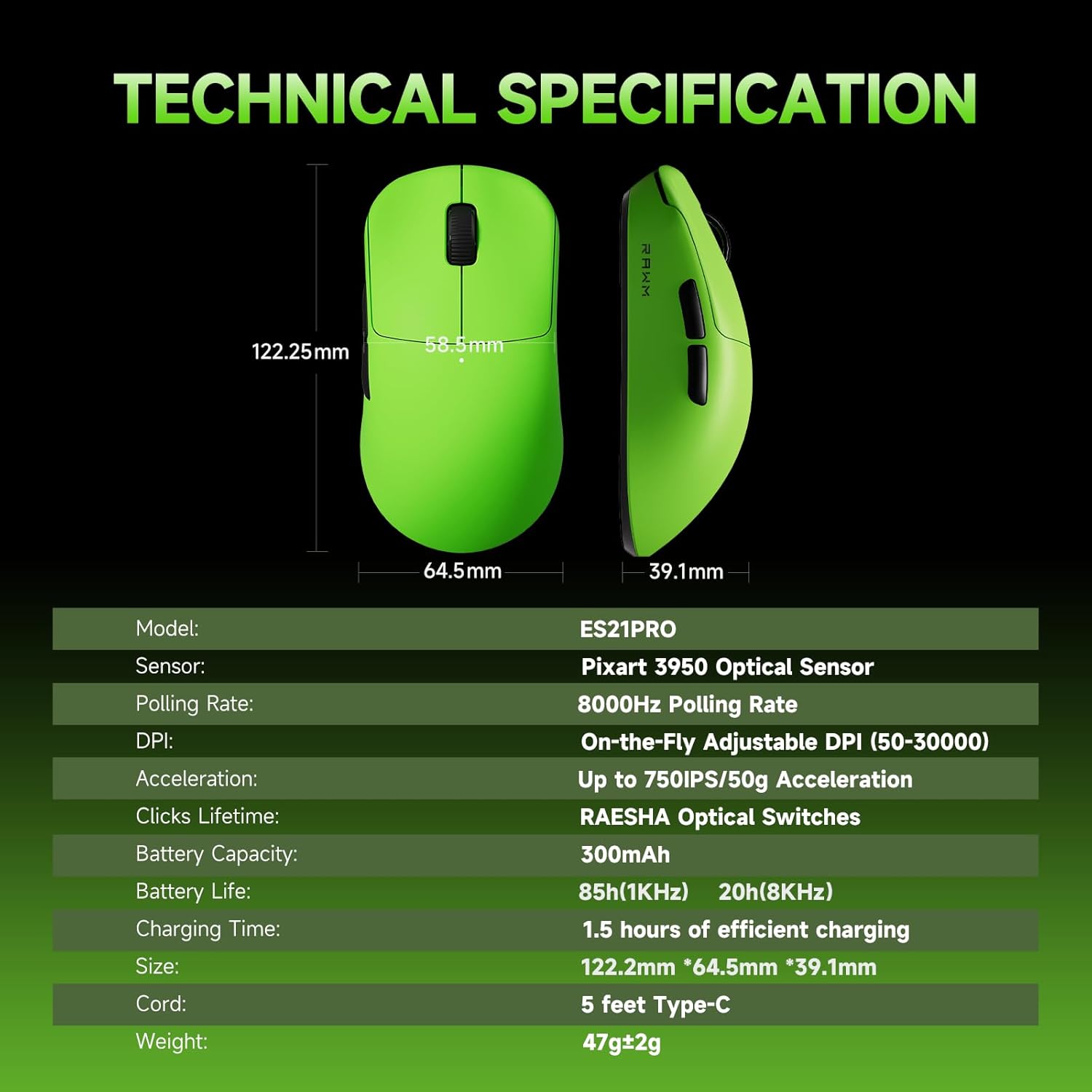
Image: A detailed table outlining the technical specifications of the RAWM ES21PRO gaming mouse, including model, sensor, polling rate, DPI, acceleration, switch type, battery, and dimensions.
| Feature | Detail |
|---|---|
| Model | ES21PRO |
| Sensor | PAW 3950 Optical Sensor |
| Polling Rate | Up to 8000Hz (with 8K Dongle) |
| DPI | 50-30,000 (On-the-Fly Adjustable) |
| Acceleration | Up to 750 IPS/50g |
| Switches | Optical Switch |
| Encoder | TTC Gold Dustproof Encoder |
| Weight | 47g Ultra-Lightweight |
| Connectivity | 2.4G Wireless, Wired (USB Type-C) |
| Battery Capacity | 300mAh |
| Battery Life | 85h (1KHz), 20h (8KHz) |
| Charging Time | Approx. 1.5 hours |
| Cable Length | 5 feet Type-C |
| Dimensions (L x W x H) | 122.2mm x 64.5mm x 39.1mm |
| Coating | Skin-like Coating |
| Feet | 100% Virgin-Grade PTFE |
Warranty and Support
RAWM products are designed for durability and performance. For any technical assistance, warranty claims, or to download the latest software and firmware updates, please visit the official RAWM website. The software is continuously updated to enhance your experience.
Manufacturer: Shenzhen Renmo Electronic Technology Co., Ltd
Country of Origin: China
Related documentsES21PRO

Ask a question about this manual
Ask about setup, troubleshooting, compatibility, parts, safety, or missing instructions. Manuals+ will review the question and use this page’s manual context to help answer it.