
XGODY Gimbal 3 Mini-Projector Instruction Manual
Model: Gimbal 3
Introduction
The XGODY Gimbal 3 Mini-Projector is a portable device designed for home entertainment. It features Native 720P HD resolution with support for 1080P and 4K content, a brightness of 12,000 lumens, and a 10,000:1 contrast ratio. Equipped with Android 11 OS, WiFi 6, and Bluetooth, it offers versatile connectivity and smart functionality. Its compact design and 180-degree rotation capability allow for flexible projection in various environments.

Image: Front view of the XGODY Gimbal 3 Mini-Projector, showcasing its compact and modern design.
Package Contents
Verify that all items are present in the package:
- XGODY Gimbal 3 Mini-Projector
- Remote Control
- Power Cable
- HD Cable (HDMI)
- User Manual (this document)

Image: All components included with the XGODY Gimbal 3 Mini-Projector, including the projector, remote control, power cable, and HD cable.
Setup
1. Placement and Power Connection
Place the projector on a stable, flat surface. Its compact size (approximately 12.6 cm length, 9 cm diameter, 0.6 kg weight) allows for easy portability. Connect the power cable to the projector and then to a power outlet.
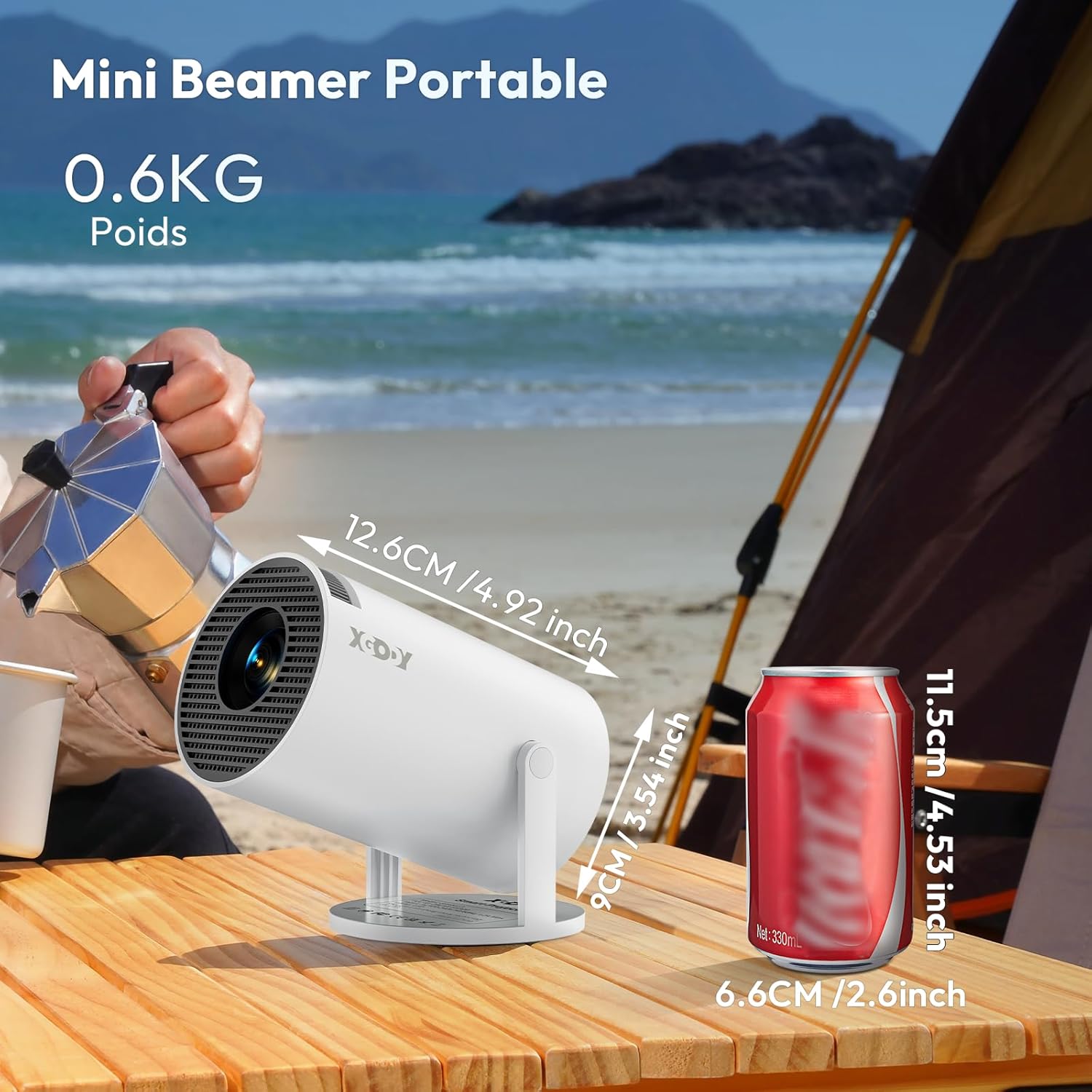
Image: The XGODY Gimbal 3 Mini-Projector shown next to a soda can for size comparison, highlighting its portability.
2. Adjusting Projection Angle
The projector features a 180-degree rotation capability, allowing you to easily adjust the projection direction for various surfaces, including walls or ceilings.

Image: The XGODY Gimbal 3 Mini-Projector demonstrating its 180-degree rotation feature, allowing flexible projection angles.
3. Initial Focus and Keystone Correction
Upon powering on, the projector will attempt automatic vertical keystone correction. For optimal image clarity, use the manual focus function to fine-tune the sharpness of the image. This can typically be done via a focus ring or button on the device or remote.
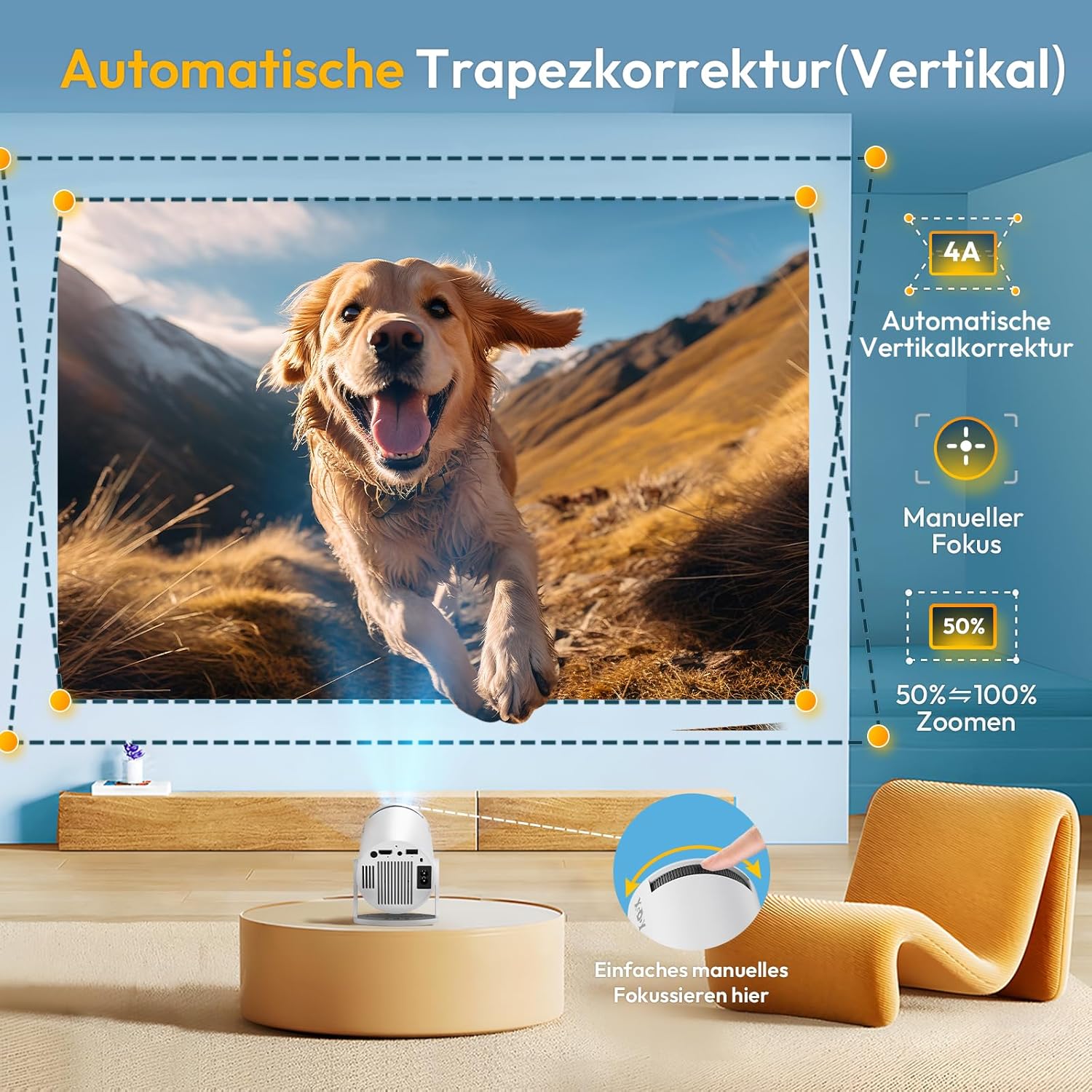
Image: Illustration of automatic vertical keystone correction and manual focus adjustment for the XGODY Gimbal 3 Mini-Projector, showing how to achieve a perfectly rectangular and sharp image.
4. Connectivity
The projector supports various connection methods:
- Wi-Fi 6: Connect to your wireless network for internet access and streaming.
- Bluetooth: Pair with external audio devices like speakers or headphones.
- HDMI: Connect to laptops, gaming consoles, or other media players.
- USB: Play media directly from USB flash drives.
- 3.5mm Audio: Connect to external wired audio systems.

Image: Depiction of the XGODY Gimbal 3 Mini-Projector utilizing Dual-band WLAN6 for a smoother streaming experience, showing reduced latency compared to older Wi-Fi standards.
Video: This video demonstrates the XGODY Gimbal 3 Mini-Projector's smart system, manual focus, auto vertical keystone correction, native 720P resolution, Bluetooth, and Wi-Fi connectivity, highlighting its immersive sound and 4K 1080P support.
Operating Instructions
1. Power On/Off
Press the power button on the projector or the remote control to turn the device on or off.
2. Navigating the Android 11 OS
The projector runs on Android 11, providing access to a wide range of applications. Use the remote control to navigate the interface, select apps like Netflix, YouTube, Prime Video, and more. Ensure the projector is connected to Wi-Fi for online content.
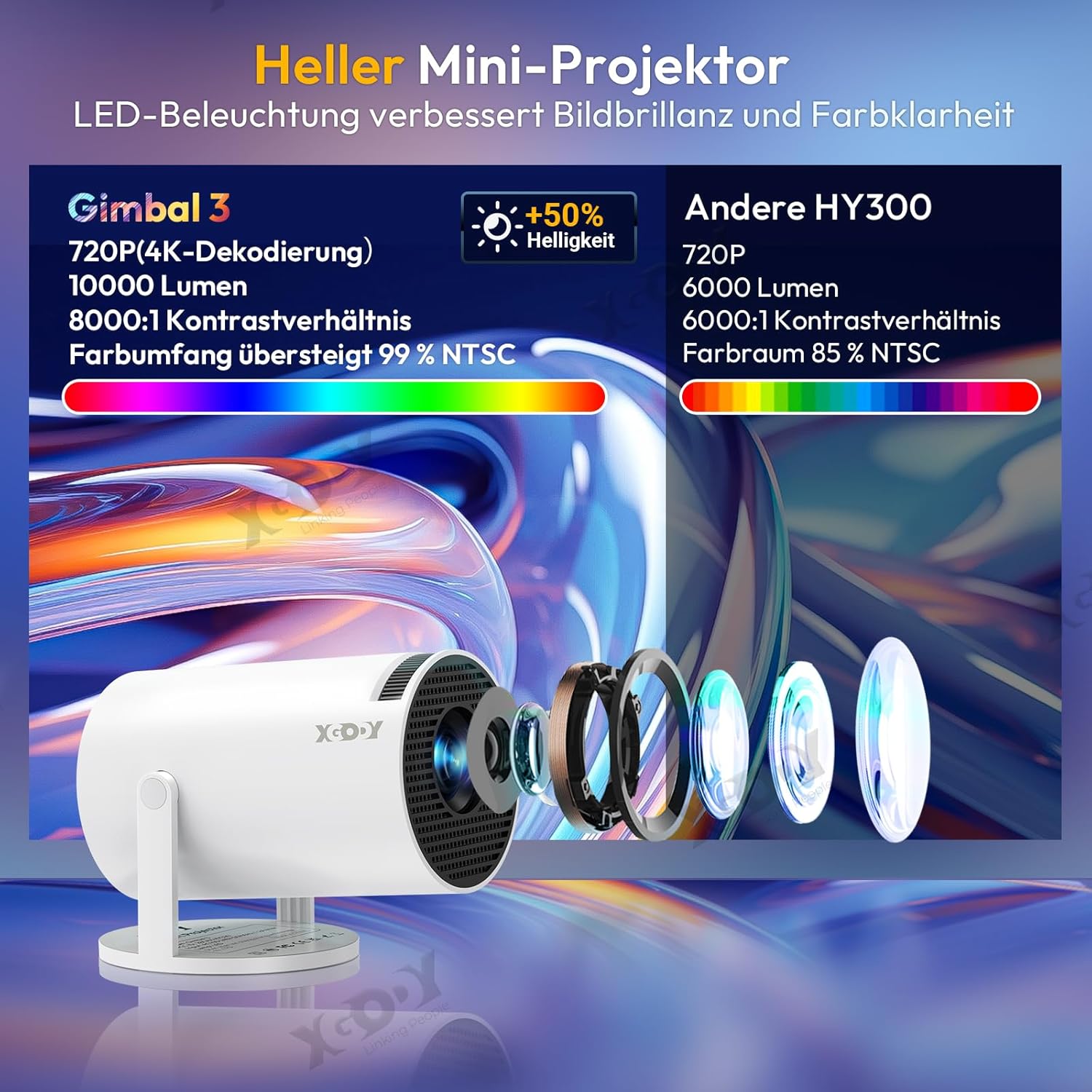
Image: The XGODY Gimbal 3 Mini-Projector displaying the Android TV 11.0 interface with various streaming applications like Netflix, YouTube, and Hulu.
3. Adjusting Image Size and Position
The projector can display images from 40 inches up to 130 inches. Adjust the distance from the projection surface to change the image size. The short focus lens allows for clear images even in limited spaces.

Image: The XGODY Gimbal 3 Mini-Projector demonstrating its short focus capability, projecting a large image in a small room, suitable for lofts or rooms with sloped ceilings.
4. Audio Output
The projector has a built-in speaker for audio. For an enhanced audio experience, connect external Bluetooth speakers or headphones, or use the 3.5mm audio output jack.
Maintenance
1. General Care
To ensure the longevity of your projector, avoid continuous operation for extended periods. If the device overheats, switch it off and allow it to cool down completely before resuming use.
2. Cleaning
Gently wipe the projector's exterior with a soft, dry cloth. Do not use liquid cleaners or abrasive materials. Keep the lens free from dust and fingerprints by using a lens cleaning cloth.
3. Lamp Life
The projector's light source has an exceptional lifespan of 10,000 hours, providing durable entertainment.
Troubleshooting
- No Power: Ensure the power cable is securely connected to both the projector and the power outlet. Try a different outlet.
- No Image: Check all video input connections (HDMI, USB). Ensure the correct input source is selected in the projector's menu. Adjust focus and keystone.
- Dark Image: Ensure the room is sufficiently dark. While the projector has high brightness, ambient light can affect image perception.
- Unclear/Blurry Image: Use the manual focus ring to sharpen the image. Ensure the projector is placed at an appropriate distance from the screen.
- Distorted Image (Trapezoid Shape): The projector features automatic vertical keystone correction. If the image is still distorted, manually adjust the projector's position or check for any manual keystone settings in the menu.
- No Sound or Low Volume: Check the projector's volume settings. If using external speakers, ensure they are properly connected and powered on. Verify Bluetooth pairing if applicable. Some users report low built-in speaker volume; external speakers are recommended for a better experience.
- Remote Control Not Responding: Check the batteries in the remote control. Ensure there are no obstructions between the remote and the projector's IR receiver.
- Wi-Fi/Bluetooth Connectivity Issues: Ensure the projector is within range of your Wi-Fi router or Bluetooth device. Restart the projector and your network equipment.
- Screen Mirroring/Synchronization Issues (e.g., with Apple devices): Ensure both devices are on the same Wi-Fi network. Check for any software updates for the projector. Some devices may require specific apps or settings for optimal mirroring.
- Loud Fan Noise: This is a characteristic of some projectors. Ensure the projector has adequate ventilation and is not placed in an enclosed space.
Specifications
| Feature | Specification |
|---|---|
| Brand | Xgody |
| Model Name | Gimbal 3 |
| Native Resolution | 1280 x 720 (720P HD) |
| Max Supported Resolution | 3840 x 2160 (4K) |
| Brightness | 12000 Lumens |
| Contrast Ratio | 10000:1 |
| Display Type | LCD |
| Connectivity Technology | Wi-Fi 6, Bluetooth |
| Hardware Interface | HDMI, USB, 3.5mm Audio |
| Operating System | Android 11 |
| Special Features | Digital Keystone Correction (Auto Vertical), Portable, 180-degree Rotation |
| Light Source Life | 10,000 Hours |
| Minimum Image Size | 40 inches |
| Maximum Image Size | 130 inches |
| Minimum Projection Distance | 1.5 feet |
| Maximum Projection Distance | 11 feet |
| Product Dimensions (approx.) | 12.6 cm (Length) x 9 cm (Diameter); 0.6 kg (Weight) |
| Color | White |
| Compatible Devices | Smartphone, Tablet, Laptop |
Warranty and Support
XGODY provides comprehensive support for your Gimbal 3 Mini-Projector:
- Warranty: 1-year warranty, with an additional 1-year VIP registration available.
- Repair Protection: 2 years of repair protection.
- Technical Support: Lifetime professional technical support.
- Customer Service: 24/7 customer service.
- Contact: For support inquiries, please email Support@xgody.com.


