Introduction
The QCOQ Air Tracker Tag is a Bluetooth item finder designed to help you locate your personal belongings using the Apple Find My network. This device is MFi-certified, ensuring seamless integration with your Apple devices (iOS only). It features a replaceable battery, a built-in speaker for nearby tracking, and supports advanced features like Lost Mode and Left-Behind Reminders.
Package Contents
Please verify that all items are present in your package:
- 4 x QCOQ Air Tracker Tags
- 4 x Protective Silicone Cases (Black)
- 4 x Lanyards (Black)
- 4 x Key Rings
- 1 x User Manual

Image: A visual representation of the QCOQ Air Tracker Tag package contents, including four tracker tags, four silicone protective cases, four lanyards, four key rings, and a user manual.
Setup
1. Powering On/Off
To turn on the QCOQ Air Tracker Tag, hold the function button for 2 seconds until you hear a "Di" sound, confirming activation. To turn off, hold the button until you hear a sequence of "Di" sounds, releasing at the final tone.
2. Pairing with Apple Find My (iOS Only)
The QCOQ Air Tracker Tag is designed to work exclusively with Apple iOS devices. Android devices are not supported.
- Ensure Bluetooth and network functions are enabled on your iPhone or iPad.
- Open the "Find My" application on your Apple device.
- Navigate to the "Items" tab and select "Add New Item," then choose "Other Supported Item."
- Bring the QCOQ Air Tracker Tag close to your iPhone. The app will search for and display "Diamond tag."
- Click "Connect" and follow the on-screen prompts until the pairing process is complete.

Image: A step-by-step visual guide demonstrating how to power on the tracker and connect it to the Apple Find My app on an iPhone.
Operating Instructions
1. Locating Items Nearby
When your item is within Bluetooth range, you can use the Find My app to play a sound on the QCOQ Air Tracker Tag. The built-in speaker can emit a sound up to 100dB, assisting you in locating misplaced items such as keys or wallets.

Image: An iPhone screen displaying the Find My app with a map and options to play a sound or get directions to a nearby QCOQ Air Tracker Tag, illustrating the precise proximity tracking feature.
2. Locating Items Far Away (Cross-Region Tracking)
Leveraging the Apple Find My network, your QCOQ Air Tracker Tag can be located even when it is far beyond Bluetooth range. The network uses crowd-sourced location data from millions of Apple devices worldwide to provide encrypted, anonymous location updates.

Image: A world map with location pins indicating global tracking capabilities, alongside an iPhone displaying map navigation to a lost item, demonstrating the QCOQ Air Tracker Tag's ability to be found worldwide.
3. Left-Behind Reminder
If you leave an item behind, your Apple device can send a notification with the item's last known location. This feature requires enabling "Notify When Left Behind" in the Find My app. You can also set custom geofence radii to prevent alerts in designated safe areas.

Image: An iPhone displaying a "QCOQ's Key" left behind notification, with a QCOQ Air Tracker Tag attached to keys on a table, illustrating the left-behind reminder feature.
4. Lost Mode Activation
If your item is lost, activate "Lost Mode" in the Find My app. You can preset contact details (e.g., phone number or email). Any compatible Apple device that detects your lost tag will display a message with your contact information, facilitating its return. When Lost Mode is enabled, the item locator is locked and cannot be paired to a new device.
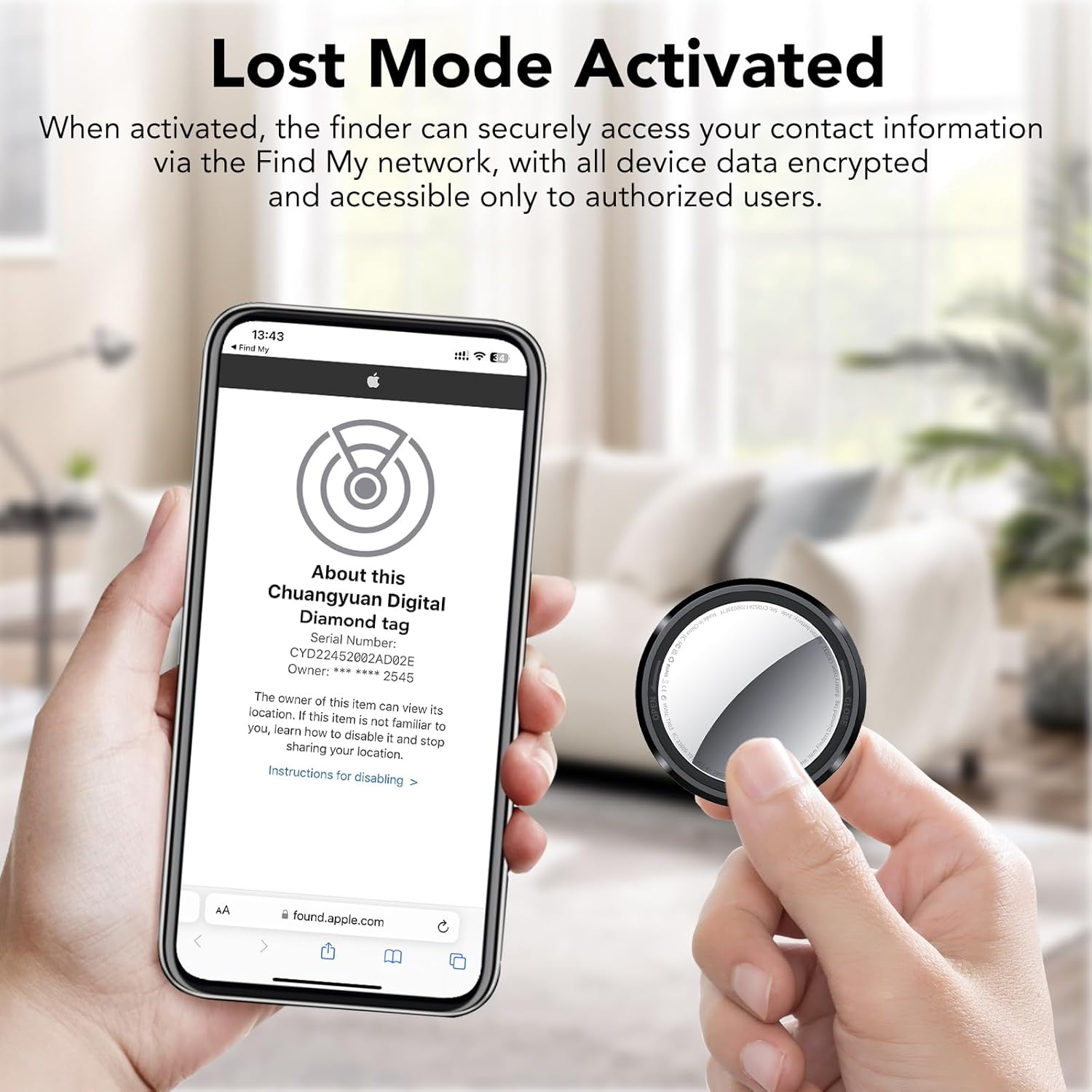
Image: An iPhone screen showing the "Lost Mode" interface within the Find My app, with a QCOQ Air Tracker Tag being held, demonstrating how to activate and manage Lost Mode.
5. Item Sharing Feature
You can share the location of your QCOQ Air Tracker Tag with up to 5 other users via the Find My app. All shared users can track the item's location in real-time. This feature requires iOS 17, iPadOS 17, macOS 14, or later.

Image: An illustration showing multiple users on a map, sharing the location of items tracked by QCOQ Air Tracker Tags, highlighting the item sharing feature within the Find My app.
6. Siri Integration
The QCOQ Air Tracker Tag supports Siri. If your item is nearby, you can ask Siri to help you find it by saying, for example, "Hey Siri, where are my keys?"

Image: An iPhone displaying the Siri interface with the question "Hey Siri Where is my keys?" next to a QCOQ Air Tracker Tag, indicating support for voice commands to locate items.
Maintenance
1. Battery Replacement
The QCOQ Air Tracker Tag uses a replaceable CR2032 lithium coin cell battery, offering approximately 365 days of battery life. To replace the battery:
- Turn the stainless steel battery cover counter-clockwise to remove it.
- Insert a new CR2032 battery with the positive (+) side facing up.
- Align the battery cover and press it gently.
- Rotate the battery cover clockwise to tighten it securely.

Image: A four-step diagram illustrating the process of replacing the CR2032 battery in the QCOQ Air Tracker Tag, showing how to open, insert, align, and close the battery compartment.
2. Cleaning
Wipe the tracker with a soft, dry cloth. Avoid using harsh chemicals or abrasive materials that could damage the device.
Troubleshooting
- Tracker Not Connecting/Responding:
Ensure Bluetooth is enabled on your iOS device. Check the tracker's battery level and replace if necessary. Try restarting your iOS device. If issues persist, perform a factory reset on the tracker. - Sound Not Playing:
Verify the tracker is within Bluetooth range. Check the volume settings on your iOS device. Ensure the tracker's speaker is not obstructed. - Inaccurate Location:
Location accuracy relies on the Apple Find My network. In areas with fewer Apple devices, location updates may be less frequent or precise. Ensure your iOS device has a stable internet connection. - Factory Reset:
To restore the tracker to its default settings, hold the function button until you hear a sequence of "Di" tones, then continue holding for 5 seconds until a sustained "Diiii" sound is heard. Release the button at this final tone.
Specifications
| Product Dimensions | 1.24 x 0.31 x 1.24 inches (31.2mm x 8.9mm x 31.2mm) |
| Item Weight | 0.25 ounces (7.3g) |
| Connectivity Technology | Bluetooth 5.3 |
| Supported Application | Apple Find My (iOS Only) |
| Special Features | Geo-Fence, Location Tracking, Replaceable Battery, Built-in Speaker (Max 100dB) |
| Battery Type | CR2032 Lithium Coin Cell |
| Battery Life | Approximately 365 days |

Image: A visual representation of the QCOQ Air Tracker Tag's compact and lightweight design, showing its dimensions (1.24 inches diameter, 0.31 inches thickness) and weight (7.3g).
Warranty and Support
Warranty Information
The QCOQ Air Tracker Tag comes with a 2-year warranty from the date of purchase. Please retain your proof of purchase for warranty claims.
Customer Support
For any questions, technical assistance, or warranty claims, please contact QCOQ customer service. Support is available for 12 hours daily.
You can also refer to the official User Manual PDF for more detailed information: Download User Manual (PDF)
Safety Information
- Keep the device and its components out of reach of small children and pets to prevent choking hazards.
- Do not attempt to disassemble, modify, or repair the device yourself. This may void the warranty and cause damage.
- Dispose of batteries according to local regulations. Do not incinerate batteries.
- Avoid exposing the device to extreme temperatures, direct sunlight, or water (unless specified as waterproof).
- This device is designed for tracking personal items and should not be used for unauthorized surveillance.


