1. Introduction and Overview
The Linksys Velop Micro 7 Dual-Band BE5000 Wi-Fi 7 Mesh System is designed to provide extensive and reliable Wi-Fi coverage throughout your home. This system offers advanced features for seamless connectivity and network management. With Wi-Fi 7 technology, it delivers high speeds and supports numerous devices simultaneously, ensuring a stable and efficient network experience.
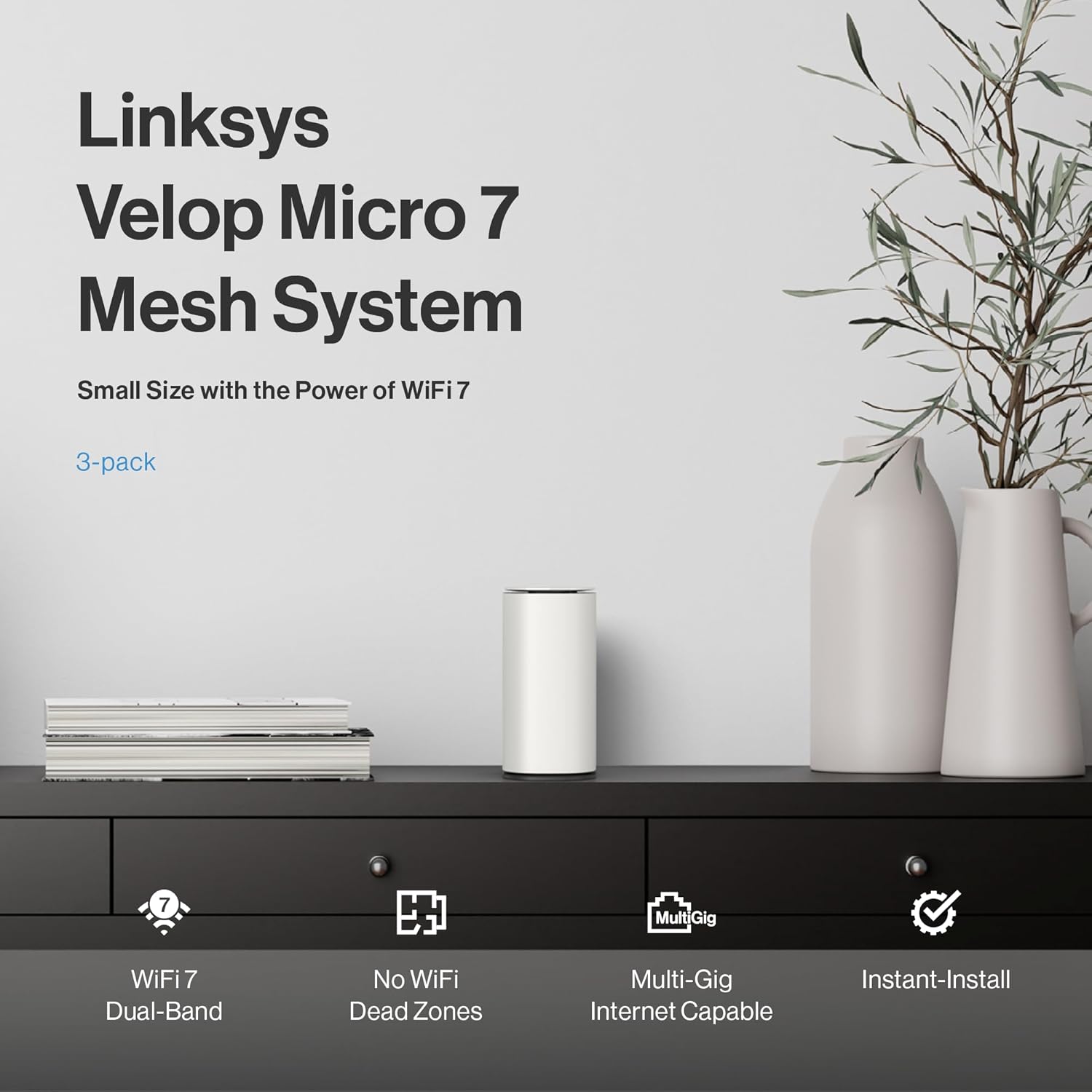
Image: Linksys Velop Micro 7 Mesh System node on a table, highlighting key features like Wi-Fi 7 Dual-Band, No WiFi Dead Zones, Multi-Gig Internet Capable, and Instant-Install.
2. What's in the Box
Your Linksys Velop Micro 7 Mesh System package includes the following components:
- Velop Micro 7 Router/Nodes (quantity varies by pack size, e.g., 3-Pack)
- Power Cables
- Ethernet Cable
- Quick Start Guide
Unboxing Video
Video: A seller-provided unboxing video for the Linksys Velop Micro 7 Mesh System, showing the contents of the retail package.
3. Setup Instructions
The Linksys Velop Micro 7 Mesh System features Instant-Install for a quick and easy setup process without requiring a mobile app or cloud account for basic personalization.

Image: Visual guide for Instant-Install, showing steps to scan a QR code, expand the network with Instant-Pair, and set up a guest network.
Step-by-Step Setup:
- Plug and Play: Connect the primary Velop Micro 7 node to your modem using the provided Ethernet cable and plug it into a power outlet. Wait for the node to boot up and show a solid blue light, indicating it's ready.
- Connect to Wi-Fi: Scan the QR code on the Quick Start Guide or the bottom of your router to connect your device to the default Wi-Fi network.
- Login to your Mesh: Access the web interface by typing the router's IP address (usually 192.168.1.1) into your web browser. Use the default login credentials found on the Quick Start Guide or the bottom of the router.
- Personalize Settings: Once logged in, you can change your Wi-Fi name (SSID) and password, set up guest networks, and configure other advanced settings.
- Expand Your Network: To add additional nodes, simply press the Instant-Pair button on the new node and the existing network node. They will automatically connect and extend your Wi-Fi coverage.
Video: A seller-provided guide on the simple plug-and-play setup process for the Velop Micro 7 Mesh System.
Video: A seller-provided tutorial on how to log in to the Velop Micro 7 Mesh System's web interface.
Video: A seller-provided guide on personalizing settings within the Velop Micro 7 Mesh System's interface.
4. Advanced Network Security
The Velop Micro 7 Mesh System integrates premium security features to protect your network without additional subscription fees.

Image: Advanced network security features including Firmware Auto Update, Guest Access, and Trusted Router-OS.
- Firmware Auto Update: Automatic updates ensure your system always has the latest security patches.
- Guest Access: Create a separate guest network to keep your home Wi-Fi secure and private.
- Trusted Router-OS: Instant-Security allows for safe browsing and protects your connected devices.
5. Performance and Coverage
Experience superior Wi-Fi performance and extensive coverage with the Velop Micro 7 Mesh System.
Eliminate Wi-Fi Dead Zones

Image: A home floor plan illustrating how multiple mesh nodes provide seamless Wi-Fi coverage, eliminating dead zones.
Each node delivers exceptional Wi-Fi coverage up to 2,200 sq. ft., allowing you to effortlessly build a network that supports everyone and every device in your home. The 3-pack system provides coverage up to 6,600 sq. ft.
Greater Capacity with Lower Latency

Image: Four vignettes showing individuals engaged in high-bandwidth activities like streaming, video calls, and gaming.
- Stream multiple 4K/Ultra-HD videos simultaneously without interruption.
- Enjoy real-time responsiveness for gaming.
- Experience ultra high-speed downloads and uploads.
1.8X Faster Wi-Fi Speed for Better Battery Life

Image: A graphic comparing Wi-Fi 7 (240 MHz band, 4K QAM) with Wi-Fi 6 (160 MHz band, 10 bits/symbol), illustrating higher capacity and data transfer for Wi-Fi 7.
Extra-wide 240 MHz band and 4K QAM deliver 1.8X higher capacity and 20% more data than Wi-Fi 6, resulting in higher speeds and longer device battery life.
Built for Performance

Image: An exploded view of the Velop Micro 7 node, detailing its internal components, including the processor, antennas, and thermal design.
- Powerful 1.1 GHz quad-core processor optimized for Wi-Fi 7.
- Antennas positioned for expanded coverage.
- Thermally optimized venting for enhanced performance and energy efficiency.
- Per node, 1x 2.5 Gbps auto-sensing Ethernet port supports Multi-Gig internet service from your service provider.
6. Technical Specifications

Image: Close-up of the Linksys Velop Micro 7 node, showing the reset button, pair button, and 2.5 Gigabit Ethernet port, alongside a table of technical specifications.
| Feature | Specification |
|---|---|
| Wireless Technology | 802.11.be (Wi-Fi 7) |
| Wi-Fi Speed | BE5000 (up to 5 Gbps) |
| Spatial Streams | Per node: 4 Wi-Fi streams (2.4GHz 2x2, 5GHz 2x2) |
| Processor | Quad-core 1.1 GHz |
| Ethernet Ports | Per node: 1x 2.5 Gigabit Internet/WAN port |
| Frequency Band Class | Dual-Band |
| Antenna Type | Internal |
| Operating System | Linksys OS |
| Item Model Number | LN1603 |
| Item Weight | 5.74 pounds |
| Package Dimensions | 16.14 x 11.46 x 3.39 inches |
7. Operating Your Mesh System
Once your Velop Micro 7 Mesh System is set up, it operates automatically to provide seamless Wi-Fi coverage. You can manage your network settings through the web interface or the Linksys app (if you choose to use it).
- Network Management: Use the web interface to view connected devices, prioritize traffic, and manage parental controls.
- Guest Network: Easily enable or disable guest access for visitors.
- Device Prioritization: Allocate bandwidth to specific devices for optimal performance during critical tasks like gaming or streaming.
8. Maintenance
To ensure optimal performance and security of your Linksys Velop Micro 7 Mesh System, follow these maintenance guidelines:
- Keep Firmware Updated: The system is designed for automatic firmware updates. Ensure this feature is enabled to receive the latest security patches and performance improvements.
- Proper Placement: Ensure nodes are placed in open areas, away from obstructions and sources of interference (e.g., large metal objects, microwaves, cordless phones).
- Cleanliness: Keep the nodes clean and free from dust to prevent overheating. Use a soft, dry cloth for cleaning.
- Restart Periodically: Occasionally restarting your modem and Velop nodes can help resolve minor network issues and improve performance.
9. Troubleshooting
If you encounter issues with your Linksys Velop Micro 7 Mesh System, try the following troubleshooting steps:
- No Internet Connection:
- Check if your modem is working correctly.
- Ensure all Ethernet cables are securely connected.
- Restart your modem and then your primary Velop node.
- Weak Wi-Fi Signal/Dead Zones:
- Relocate your Velop nodes to optimize coverage. Ensure they are within range of each other.
- Add an additional Velop node to extend coverage further.
- Slow Speeds:
- Check your internet service provider's speed.
- Ensure no background applications or devices are consuming excessive bandwidth.
- Prioritize important devices through the web interface.
- Cannot Connect to Wi-Fi:
- Verify you are using the correct Wi-Fi name (SSID) and password.
- Restart the affected device and try connecting again.
- Perform a factory reset on the Velop node if all else fails (refer to the Quick Start Guide for instructions).
10. Warranty and Support
For warranty information and technical support, please refer to the official Linksys website or the documentation included in your product package. You can also contact Linksys customer support directly for assistance.
- Online Support: Visit the Linksys Support Website for FAQs, troubleshooting guides, and software downloads.
- Customer Service: Contact Linksys customer service for personalized assistance.


