1. Introduction
The XTREME Mini Security Camera is a compact indoor surveillance device designed for monitoring your home, office, or apartment. This manual provides comprehensive instructions for the proper installation, configuration, and operation of your camera to ensure optimal performance and security.
Key features include live streaming via the XTREME App, Micro SD card recording with loop recording functionality, and multi-camera viewing support. The camera connects to 2.4 GHz Wi-Fi networks and operates via a wired power connection.
2. Package Contents
Please verify that all items are present in your package:
- XTREME Mini Security Camera
- Stand
- Charging Cable (USB)
- User Manual (this document)

Figure 2.1: The XTREME Mini Security Camera shown with its included stand and charging cable. A Micro SD card is not included and must be purchased separately for local recording.
3. Product Overview
Familiarize yourself with the physical components and dimensions of your XTREME Mini Security Camera.
3.1 Camera Components

Figure 3.1: Front view of the XTREME Mini Security Camera. Visible components include the camera lens, Reset button, and On/Off button with indicator lights.
- Camera Lens: Captures video footage.
- Reset Button: Used to reset the camera to factory settings.
- On/Off Button: Powers the camera on or off.
- Indicator Lights: Provide status information (e.g., power, Wi-Fi connection).
- Micro SD Card Slot: For inserting a Micro SD card (not included) for local storage.
- USB Power Port: For connecting the charging cable to power the device.
3.2 Dimensions and Mounting

Figure 3.2: The XTREME Mini Security Camera measures approximately 2.5 inches in height and 1.75 inches in width, indicating its compact size.
The camera features a compact design, measuring approximately 2.8 x 2.6 x 4.6 inches (L x W x H) and weighing 4.8 ounces. It comes with a stand that allows for versatile placement on flat surfaces or wall mounting.

Figure 3.3: The camera features a magnetic back for easy attachment to the included positioning stand, allowing for flexible angle adjustments.
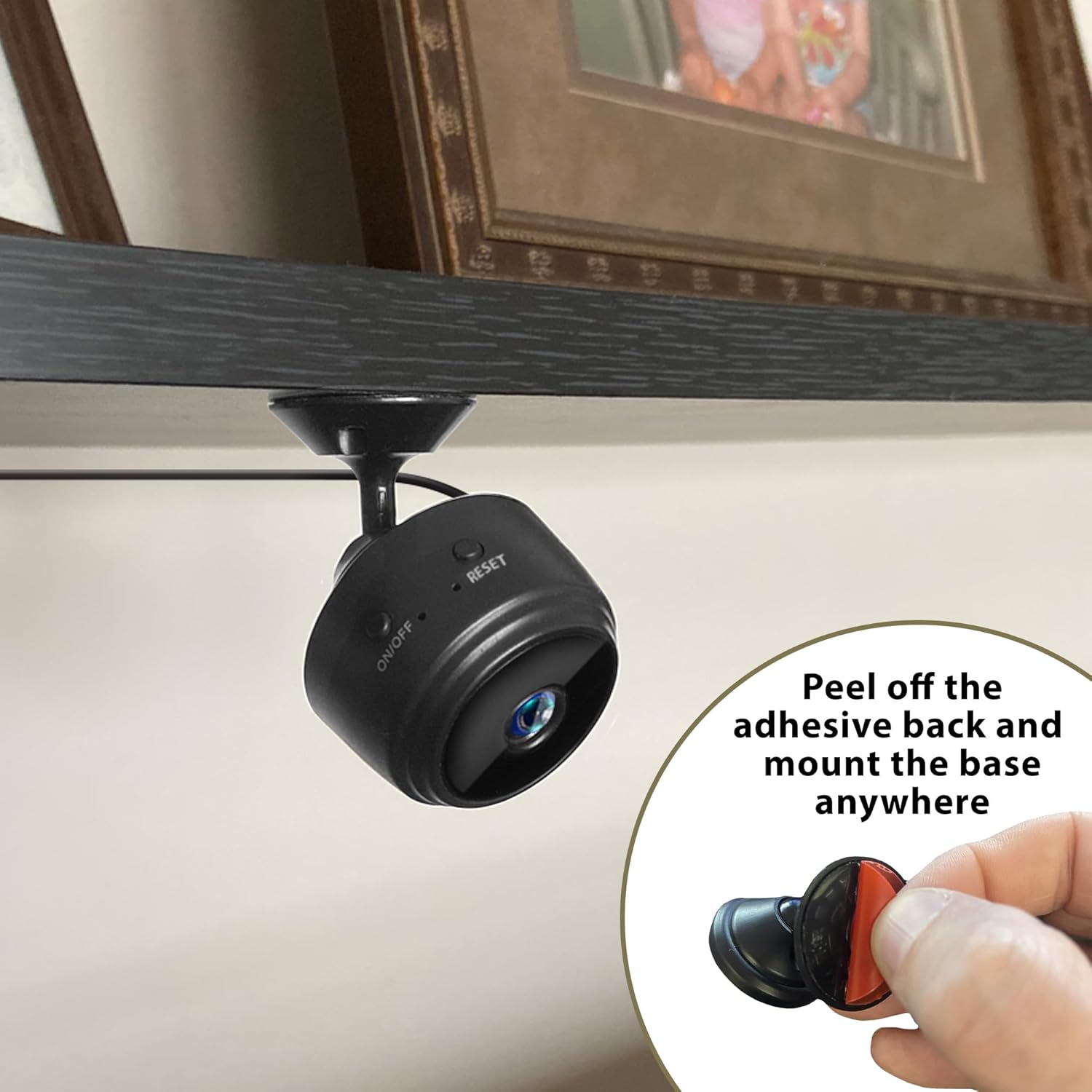
Figure 3.4: The camera's stand can be mounted using an adhesive back, allowing for secure placement on various surfaces like shelves or walls.

Figure 3.5: The compact design of the camera allows it to blend discreetly into various indoor environments, such as on a bookshelf.
4. Setup Instructions
Follow these steps to set up your XTREME Mini Security Camera.
4.1 Powering On the Camera
- Connect the provided charging cable to the camera's USB power port and plug the other end into a compatible USB power adapter (not included) or a powered USB port.
- Press and hold the On/Off button until the indicator light illuminates, indicating the camera is powered on.
4.2 Installing the XTREME App
The XTREME Mini Security Camera operates via the XTREME App. Download the app to your smartphone:
- Search for "XTREME App" in the Apple App Store (for iOS devices) or Google Play Store (for Android devices).
- Download and install the application.
- Create an account or log in if you already have one.
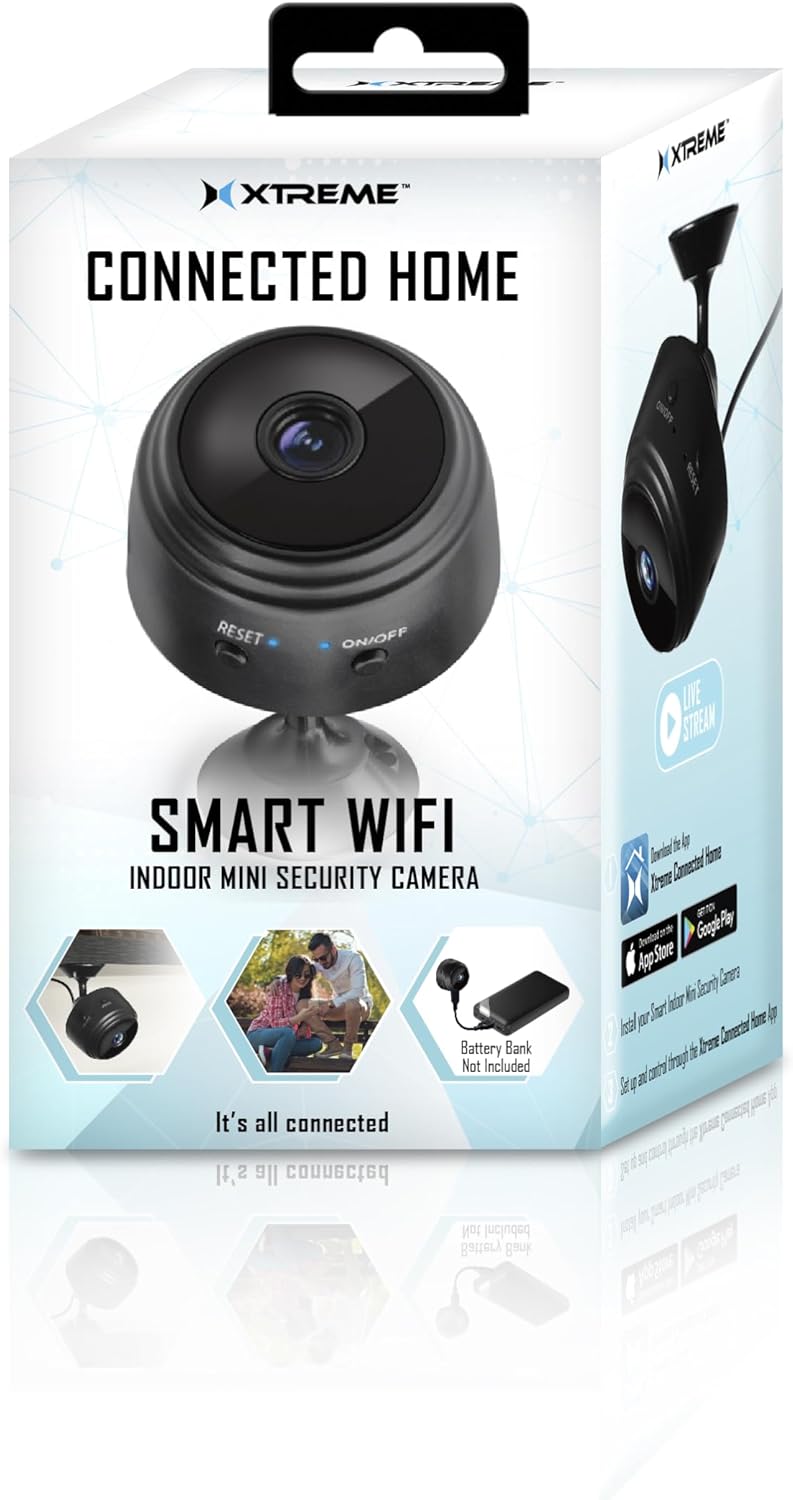
Figure 4.1: The product packaging indicates where to download the XTREME App for both iOS and Android devices.
4.3 Connecting to Wi-Fi
Important: The camera only supports 2.4 GHz Wi-Fi networks. It is not compatible with 5 GHz Wi-Fi networks.
- Ensure your smartphone is connected to a 2.4 GHz Wi-Fi network.
- Open the XTREME App and follow the on-screen instructions to add a new device.
- Select the XTREME Mini Security Camera from the list of available devices.
- The app will guide you through connecting the camera to your Wi-Fi network. This typically involves scanning a QR code generated by the app with the camera lens or entering your Wi-Fi credentials.
- Once connected, the camera's indicator light will change to a solid color (refer to app for specific status indications), and you will see the camera listed in your app.
4.4 Installing a Micro SD Card (Optional)
For local video storage and loop recording, insert a Micro SD card (not included) into the designated slot on the camera. Ensure the camera is powered off before inserting or removing the card.
5. Operating Instructions
Learn how to use the various features of your XTREME Mini Security Camera through the XTREME App.
5.1 Live Streaming
To view live footage from your camera:
- Open the XTREME App on your smartphone.
- Select your XTREME Mini Security Camera from the device list.
- The live video feed will appear on your screen.
5.2 Recording and Playback
If a Micro SD card is installed, the camera will automatically begin recording based on its settings (e.g., continuous recording, motion-activated recording). The camera supports loop recording, which overwrites the oldest files when the storage is full.
- Manual Recording: While viewing the live stream, tap the record button in the app to manually start or stop recording.
- Photo Capture: Tap the camera icon in the app to capture a still image from the live feed.
- Playback: Access recorded footage through the app's playback feature. You can browse by date and time to review past events.
5.3 Multi-Camera Viewing
If you have multiple XTREME cameras, the app allows you to view feeds from all connected cameras simultaneously on a single dashboard for streamlined surveillance.
5.4 App Settings
Within the XTREME App, you can configure various settings for your camera, including:
- Motion detection sensitivity and alerts.
- Recording schedules.
- Video quality.
- Notification preferences.
Refer to the in-app help or XTREME support resources for detailed guidance on specific app features.
6. Maintenance
To ensure the longevity and optimal performance of your camera:
- Keep the camera clean by gently wiping the lens and body with a soft, dry cloth. Avoid using liquid cleaners or abrasive materials.
- Ensure the camera is placed in a stable location, away from direct sunlight, extreme temperatures, and moisture.
- Regularly check for firmware updates through the XTREME App to ensure you have the latest features and security enhancements.
7. Troubleshooting
If you encounter issues with your XTREME Mini Security Camera, refer to the following common solutions:
7.1 Camera Not Powering On
- Ensure the charging cable is securely connected to both the camera and a working power source.
- Try a different USB power adapter or USB port.
7.2 Unable to Connect to Wi-Fi
- Verify that your Wi-Fi network is 2.4 GHz. The camera does not support 5 GHz networks.
- Ensure your Wi-Fi password is entered correctly in the app.
- Move the camera closer to your Wi-Fi router to improve signal strength.
- Restart your Wi-Fi router and the camera.
- Perform a factory reset on the camera by pressing and holding the Reset button for several seconds (refer to app for exact duration), then attempt the setup process again.
7.3 No Recording to Micro SD Card
- Ensure a Micro SD card is properly inserted into the camera.
- Check the Micro SD card's status and format it through the app if necessary.
- Verify that recording settings are enabled in the XTREME App.
- Ensure the Micro SD card is not full. Loop recording should manage this, but a faulty card might prevent new recordings.
7.4 Poor Video Quality
- Check your Wi-Fi signal strength. A weak signal can affect video quality.
- Clean the camera lens with a soft, dry cloth.
- Adjust video quality settings within the XTREME App.
8. Specifications
| Feature | Detail |
|---|---|
| Model Number | XCS7-2001-BLK |
| Brand | XTREME |
| Indoor/Outdoor Usage | Indoor |
| Connectivity Technology | Wired (for power), Wi-Fi (for data) |
| Wi-Fi Frequency | 2.4 GHz Only |
| Compatible Devices | Smartphone (via XTREME App) |
| Power Source | Corded Electric |
| Controller Type | App |
| Mounting Type | Wall Mount (with included stand) |
| Video Capture Resolution | 1080p |
| Field of View | 60° |
| Local Storage | Micro SD Card (not included), Loop Recording |
| Product Dimensions (L x W x H) | 2.8 x 2.6 x 4.6 inches |
| Item Weight | 4.8 ounces |
| Included Components | Charging Cable, Stand |
| UPC | 805106232375 |
9. Warranty and Support
For product support, troubleshooting assistance, or warranty inquiries, please contact XTREME customer service. Refer to the product packaging or the XTREME website for the most current contact information.
Please retain your proof of purchase for warranty claims. The product typically includes a limited warranty against defects in materials and workmanship. Specific warranty terms and conditions may apply.
For returns, Amazon's policy indicates a 30-day return window from the purchase date.


