
1. Introduction
This manual provides essential information for the proper setup, operation, and maintenance of your Piegricdiat SF3000 Portable Handheld HD Gaming Set. Please read this manual thoroughly before using the device to ensure optimal performance and user safety. The SF3000 is a versatile handheld device designed for gaming, multimedia playback, and emergency charging.
2. Product Overview
The SF3000 features a compact design with a 4.5-inch IPS HD display, dual-core processor, and a 3000 mAh battery. It supports multiple emulators for a wide range of retro games and offers additional functionalities such as an e-book reader, video player, and emergency power bank.
2.1 Device Components

Figure 1: Front view of the SF3000 Handheld Gaming Set.
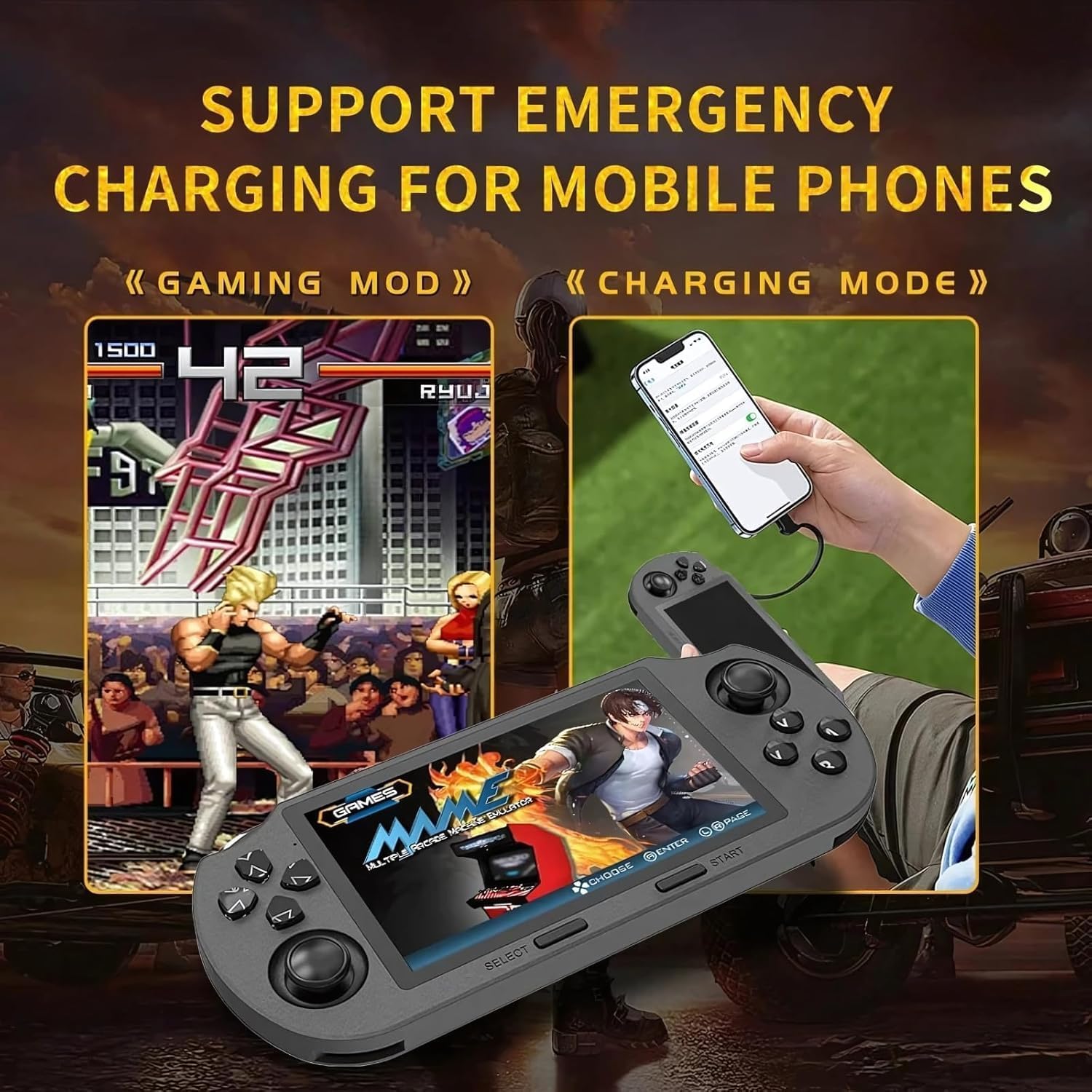
Figure 2: Labeled controls and ports on the SF3000.
- D-Pad: Directional input for navigation and gameplay.
- Analog Sticks: Two analog sticks for precise movement in games.
- Function Buttons (A, B, X, Y): Primary action buttons for gameplay.
- Select Button: Used for menu selections and in-game functions.
- Start Button: Used to start games and pause.
- Bumper Buttons (L, R): Located on the top edge for additional controls.
- Power Button: To turn the device on/off.
- TF Card Slot: For inserting the 64GB TF card containing games.
- Type-C Port: For charging and data transfer.
- Headphone Jack: 3.5mm port for audio output.
- Volume +/-: Buttons to adjust audio volume.

Figure 3: Back view of the SF3000, showing the integrated stand.
- Integrated Stand: Located on the back for hands-free viewing.
- L2/R2 Buttons: Additional shoulder buttons on the back for extended control.
3. Setup
3.1 Initial Charging
Before first use, fully charge the SF3000. Connect the included USB Type-C cable to the device's Type-C port and the other end to a compatible USB power adapter (not included) or a computer's USB port. The charging indicator will show the charging status. A full charge typically takes 3-4 hours.
3.2 Powering On/Off
- To Power On: Slide the 'ON' switch located on the top edge of the device. The screen will illuminate, displaying the welcome screen.
- To Power Off: Slide the 'OFF' switch. The device will shut down.
4. Operating Instructions
4.1 Navigating Menus
Use the D-Pad or the left analog stick to navigate through the main menu and game lists. Press the 'A' button (or 'Enter' as indicated on-screen) to select an option or launch a game. Use the 'B' button (or 'Return') to go back to the previous menu.
4.2 Playing Games
The SF3000 supports various emulators including MAME, PS1, FC, SFC, and GBC. To play a game:
- From the main menu, select the desired emulator (e.g., 'PlayStation', 'Family Computer').
- Browse the list of available games using the D-Pad or analog stick.
- Select a game by pressing the 'A' button. The game will begin to load.
- Once loaded, use the D-Pad, analog sticks, and function buttons (A, B, X, Y, L, R, L2, R2) for gameplay. Refer to the specific game's controls for detailed instructions.
- To exit a game or access in-game menus (if available), press the 'Start' button.
4.3 Volume Adjustment
Adjust the game volume using the Volume +/- buttons located on the top edge of the device.
5. Multimedia Features
Beyond gaming, the SF3000 offers additional multimedia functionalities:

Figure 4: Icons representing multimedia features including video playback, digital photo album, and e-book reading.
- E-book Reader: Access and read e-books directly on the device.
- Video Player: Play compatible video files.
- Digital Photo Album: View stored images.
- Emergency Phone Charger: The device can function as an emergency power bank for mobile phones. Connect your mobile phone to the SF3000 using a compatible USB cable via the Type-C port.

Figure 5: The SF3000 being used to emergency charge a mobile phone.
6. Maintenance
- Cleaning: Use a soft, dry cloth to clean the device. Avoid using liquid cleaners or abrasive materials.
- Storage: Store the device in a cool, dry place away from direct sunlight and extreme temperatures.
- Battery Care: To prolong battery life, avoid fully discharging the device frequently. Charge the device regularly, even if not in use for extended periods.
7. Troubleshooting
- Device not turning on: Ensure the device is fully charged. Check the power switch position.
- Games not loading: Verify that the TF card is properly inserted. Some games may require specific emulator settings (not user-adjustable in this manual).
- Screen issues: If the screen is unresponsive or displays abnormalities, try restarting the device.
- Charging issues: Ensure the Type-C cable and power adapter are functioning correctly.
8. Specifications
| Feature | Specification |
|---|---|
| Screen Size | 4.5 Inches |
| Display Type | IPS HD LCD |
| CPU | Dual-core 1.2 GHz |
| Memory Storage Capacity | 64 GB (TF Card) |
| Battery Capacity | 3000 mAh |
| Working Time | 5–7 hours |
| Power Source | Battery Powered |
| Interface | Type C |
| Material | Plastic |
| Product Dimensions | 7.4 x 3.6 x 3.6 inches |
| Supported Emulators | MAME, PS1, FC, SFC, GBC (and more) |
9. Safety Information
Children should use this device under adult supervision.
10. Official Product Videos
SF3000 Portable Handheld HD Gaming Set Overview
This video provides a general overview of the SF3000 Portable Handheld HD Gaming Set, demonstrating its features and functionality. It highlights the device's design, screen quality, and game selection interface.